

Samsung’s long‑rumored return to the Windows desktop is here: Samsung Internet is back as a Windows beta with Galaxy ecosystem sync, built‑in Galaxy AI browsing assists, and a privacy‑forward feature set — but the download path, regional rollout, and which features are live or staged vary depending on your location and whether you follow the official beta sign‑up or use a manual installer.
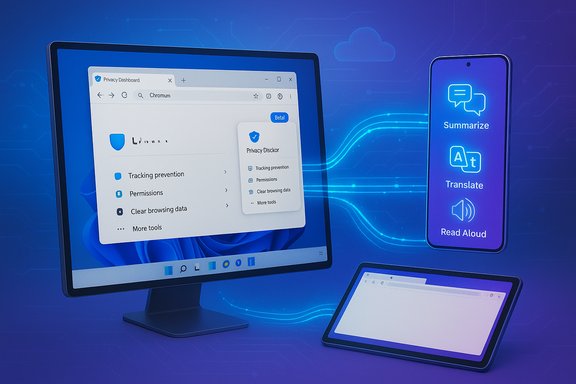
Samsung Internet for Windows arrives as a Chromium‑based desktop browser intended to give Galaxy users a single, continuous browsing experience across phone and PC. The Windows client brings the mobile browser’s core features — Smart anti‑Tracking, a Privacy Dashboard, extension support, and Galaxy AI Browsing Assist (summarize, translate, Read Aloud) — while adding cross‑device sync for bookmarks, tabs and history. Initial distribution has been staged and region‑gated: early beta access is limited to the United States and South Korea, with a wider rollout promised later. This article explains, in practical detail, how and where to download Samsung Internet on Windows PCs, how to install and validate the client, what features to expect (and which are likely still staged), and the security and enterprise implications every Windows user and IT admin should consider before installing a beta browser on production systems. It also flags unverifiable or changing claims and points you to concrete verification steps.
Download paths vary: prefer the Microsoft Store or official Samsung beta channels; if you use a manual installer, verify digital signatures and test on non‑critical hardware. For enterprises, the prudent approach is a cautious pilot and an audit of AI‑related outbound flows before approving the browser for corporate fleets. If Samsung delivers on password vault parity, a predictable security cadence, and polished desktop performance, Samsung Internet could become the natural default for Galaxy‑centric users — otherwise, it remains a valuable but early‑stage continuity option worth testing, not yet a wholesale replacement for mature desktop browsers.
Source: SamMobile How and where to download Samsung Internet on Windows PCs
 Overview
Samsung Internet for Windows arrives as a Chromium‑based desktop browser intended to give Galaxy users a single, continuous browsing experience across phone and PC. The Windows client brings the mobile browser’s core features — Smart anti‑Tracking, a Privacy Dashboard, extension support, and Galaxy AI Browsing Assist (summarize, translate, Read Aloud) — while adding cross‑device sync for bookmarks, tabs and history. Initial distribution has been staged and region‑gated: early beta access is limited to the United States and South Korea, with a wider rollout promised later. This article explains, in practical detail, how and where to download Samsung Internet on Windows PCs, how to install and validate the client, what features to expect (and which are likely still staged), and the security and enterprise implications every Windows user and IT admin should consider before installing a beta browser on production systems. It also flags unverifiable or changing claims and points you to concrete verification steps.Background: why Samsung is bringing its browser to Windows
Samsung Internet has been one of the more feature‑rich mobile browsers on Android for years, known for privacy defaults, extension support, and close Galaxy integration. The company’s strategy is straightforward: close the continuity gap between Galaxy phones and Windows PCs so bookmarks, open tabs, and other browsing state move with users without forcing them to rely on third‑party ecosystems. The desktop client also foregrounds Galaxy AI features — on‑page summarization and translation — as a differentiator in the crowded Chromium market. Samsung previously experimented with a Windows listing in late 2023 that appeared briefly in the Microsoft Store and was pulled; that episode left the product in flux and made Samsung deliberately cautious when staging a broader beta relaunch. Expect staged regional availability, beta registration, and a mix of Microsoft Store distribution and signed direct installers for testers.System requirements and platform support
Before attempting to download or install, confirm your PC meets the minimum requirements reported by Samsung and independent reporting:- Supported operating systems: Windows 11 and Windows 10 (version 1809 or later).
- CPU architecture: builds are available for x86/x64 and ARM‑based Windows devices; Samsung supplies dedicated installers or Store packages where applicable.
- Account: a Samsung Account is required to use cross‑device sync and enable Galaxy AI features that require server processing.
Where to download Samsung Internet on Windows (official vs. manual)
There are three practical download channels you may encounter. Pick the one that fits your region, risk‑tolerance, and administrative rules.- Microsoft Store (recommended when available)
- Samsung is publishing a Microsoft Store entry for the Windows client in supported regions. Installing from the Store provides automatic updates and the usual catalog integrity guarantees. If Samsung’s Store listing is available for your region, prefer this route.
- Official beta registration (Samsung Developer Portal / Samsung Members)
- Samsung has been gatekeeping early access through beta sign‑ups for testers in the initial wave (United States and South Korea). If you’re eligible, register through the published beta link or the Samsung Developer Portal (you must sign in with a Samsung Account). Accepted testers receive download instructions, which may route to the Store or to a signed direct installer.
- Direct executable (manual installer) — higher risk, sometimes used by testers
- In early rollouts, Samsung and some outlets distributed signed executables for testers, including separate ARM installers for ARM‑powered PCs. These build packages exist for users outside Store availability, but manual downloads carry higher risk and must be validated before running. Treat unsigned or leaked installers as high risk and do not run them on production machines.
Step‑by‑step: how to download and install (recommended path)
- Confirm Windows version: open Settings > System > About and verify Windows 11 or Windows 10 version 1809+. If necessary, update Windows first.
- Create or confirm a Samsung Account: sign up at Samsung’s account portal or via the Samsung Members app on your phone; use the same account across devices for sync.
- Check the Microsoft Store: search for “Samsung Internet” or follow Samsung’s published installation path (Store entry) if visible in your region. Install from the Store when available.
- If you’re in the beta regions and registered: follow the instructions Samsung sends after acceptance. This may be a Store link or a signed direct installer with per‑tester credentials.
- For manual installers (tester route only): download only from Samsung’s official developer/beta page. Before running the installer, verify its digital signature and publisher name using File Properties → Digital Signatures; confirm the signer is Samsung Electronics Co., Ltd. Run as administrator if required.
- Post‑install: launch Samsung Internet, sign in with your Samsung Account, and verify sync settings under Settings > Samsung Account / Sync. Check the Privacy Dashboard and Browsing Assist settings to control AI features.
Verifying installers and avoiding sideload risks
If you must use a direct installer (for testing or because your region lacks the Store listing), follow these verification steps:- Digital signature: right‑click the installer → Properties → Digital Signatures. Verify the signature lists Samsung Electronics Co., Ltd. and that the signature status is valid. If the installer is unsigned or the signer is unknown, do not run it.
- Hashes and checksums: when available, compare the file’s SHA‑256 hash against the value published by Samsung on its beta page. Official packages are accompanied by hashes; mismatches are a red flag.
- Test on spare hardware or a VM: run the beta on a non‑critical machine first. Export or backup your existing browser profile (bookmarks, passwords) before importing anything.
- Network monitoring: if you’re privacy‑sensitive or administrating corporate devices, capture outbound connections while using Browsing Assist to identify what data (if any) is being transmitted to Samsung’s cloud services. Keep AI features disabled for sensitive sites until you verify behavior.
What installs and sync will (and won’t) do right now
Expect feature parity with the mobile browser for many surface features, but some items are staged or reported as incomplete in early builds:- Included (generally available in beta):
- Bookmarks, open tabs, browsing history sync across devices when signed into a Samsung Account.
- Smart anti‑Tracking and a Privacy Dashboard showing blocked trackers.
- Browsing Assist (Galaxy AI) for summarization, translation and contextual help — requires sign‑in and network connectivity; some processing happens in Samsung’s cloud.
- Likely staged or limited in early releases:
- Password vault parity (Samsung Pass) — Samsung has advertised Pass integration, but early Windows previews did not fully sync saved passwords. Treat password sync as not guaranteed until Samsung publishes formal support documentation.
- Extension install parity — the browser is Chromium‑based and should work with many Chrome/Edge extensions; however, testers have reported greyed‑out extension installs or inconsistent behavior in early builds. Verify extension behavior yourself before adopting Samsung Internet as your daily driver.
Galaxy AI (Browsing Assist): how it works and privacy implications
Browsing Assist is the headline AI feature: on‑page summarization, translation, and Read Aloud. Samsung’s official support documentation describes these features, their language support, and the requirement to be signed into a Samsung Account and connected to the network. On‑device translation modes exist when language packs are available, but richer summarization often uses a hybrid model with cloud processing. Privacy considerations to evaluate before enabling AI features:- Cloud inference: some Browsing Assist actions send page content or excerpts to Samsung’s cloud for processing. Treat this like any third‑party cloud NLP service and evaluate compliance, retention, and data residency for sensitive content.
- Site‑level controls: the Privacy Dashboard and Browsing Assist settings allow you to disable AI features per site — use these controls for banking, healthcare, or internal corporate pages.
- Enterprise risk: organizations should not broadly authorize AI features on managed machines until they’ve validated outbound flows, telemetry, and contractual guarantees from Samsung. Pilot and technical validation are recommended first.
Troubleshooting common installation and run‑time issues
- App not visible in Microsoft Store: region gating is likely. If you’re outside the initial beta countries (US, South Korea), you may not see the Store listing. Register for the beta or wait for a wider rollout.
- App installs but won’t launch: early testers reported startup errors on some hardware; try running as administrator, updating GPU drivers, or running on a clean user profile. If problems persist, reinstall or use a test VM.
- Extensions greyed out: try updating the browser, then visit the Chrome Web Store directly; some early builds disabled extension installs due to permission/compatibility handling. Report these bugs through Samsung’s beta feedback channels.
- Laggy scrolling / performance issues: Prior Windows experiments showed poor handling of high refresh rates and GPU acceleration. Ensure your system has updated display drivers; be prepared for Samsung to refine compositor and acceleration paths in follow‑up updates. If performance is unacceptable, use a different browser for daily tasks until optimizations arrive.
Enterprise checklist (what IT teams must validate before approving)
- Do not authorize Samsung Internet as a supported corporate browser until Samsung publishes enterprise controls and a security/patch cadence.
- Validate Samsung Pass behavior: confirm whether password vault data syncs to desktop, how Windows Hello is used (if at all), and what attestation mechanisms exist.
- Capture outbound network flows while exercising Browsing Assist to determine what content is transmitted and whether it violates data‑handling policies.
- Whitelist signed binaries in application control only after verifying the publisher certificate and update mechanism. Treat unsigned or leaked installers as unacceptable for corporate machines.
- Test extension compatibility and SSO flows with your identity provider; many enterprises rely on extension‑based password managers or SSO tools that must be validated.
Critical analysis: strengths, gaps, and risks
Strengths- Ecosystem continuity is a strong, defensible value proposition for Galaxy users — bookmarks, open tabs, and history that follow you between phone and PC are a genuine productivity convenience.
- Galaxy AI on desktop can be highly useful for research and skimming long content; summarization and on‑page translation scale well on larger screens. Samsung’s support docs confirm these features are functional on mobile and being ported to desktop.
- Privacy‑forward posture — Smart anti‑Tracking and a visible Privacy Dashboard are consumer‑friendly defaults that will appeal to privacy‑minded users.
- Password sync is pivotal — early builds have not consistently supported Samsung Pass parity on Windows; without secure password vault syncing, many users will not swap from an incumbent browser. This remains a major adoption blocker until resolved.
- Performance and extension reliability must match mature Chromium derivatives; testers previously flagged lag and extension install problems. Samsung must optimize GPU acceleration, multi‑monitor behavior and extension handling to be competitive.
- AI data governance: hybrid cloud processing of page content for summarization introduces governance questions for enterprises and privacy‑sensitive users. Samsung needs to publish an enterprise‑grade whitepaper describing telemetry, retention, and data handling. Until then, keep Browsing Assist disabled for sensitive content.
- Some outlets and community posts have published direct download links or host installer files for regions outside the beta footprint. These claims may be transient and should be treated cautiously; always prefer Samsung’s official pages or the Microsoft Store and verify signatures before installing. If an outlet says “we have the executable here,” verify the origin and signature — we flag such claims as potentially unverifiable unless Samsung publishes the same asset.
Final recommendations — how to proceed safely
- Casual Galaxy users who want to try features: install the beta on a spare Windows machine or VM and sign in with your Samsung Account. Use the Microsoft Store route when available. Export and back up bookmarks and passwords from your primary browser before importing anything.
- Power users who rely on passwords and extensions: wait for a stable release or explicit confirmation that Samsung Pass password vault parity and the extension model are fixed. Test thoroughly in a VM before moving day‑to‑day workflows.
- IT administrators and enterprise pilots: treat the Windows client as a pilot technology. Run a small internal trial, validate AI data flows, confirm credential management integration, and insist on contractual privacy and SLA documentation before wider deployment.
Conclusion
Samsung Internet’s return to Windows represents a pragmatic, ecosystem‑driven bet: deliver continuity to Galaxy users, bake in Galaxy AI productivity features, and compete in the Chromium‑dominated desktop market. The beta brings tangible benefits — cross‑device sync for bookmarks and tabs, a privacy dashboard, and AI‑powered browsing assists — but the experience is intentionally staged and imperfect in this early phase. Key blockers remain: password sync parity, extension reliability, and clear AI data governance.Download paths vary: prefer the Microsoft Store or official Samsung beta channels; if you use a manual installer, verify digital signatures and test on non‑critical hardware. For enterprises, the prudent approach is a cautious pilot and an audit of AI‑related outbound flows before approving the browser for corporate fleets. If Samsung delivers on password vault parity, a predictable security cadence, and polished desktop performance, Samsung Internet could become the natural default for Galaxy‑centric users — otherwise, it remains a valuable but early‑stage continuity option worth testing, not yet a wholesale replacement for mature desktop browsers.
Source: SamMobile How and where to download Samsung Internet on Windows PCs
