

Security Devices not showing in Device Manager is usually a symptom of a missing, hidden, or misdetected TPM rather than a true “missing category” problem. In Windows, the Security devices node is where TPM-related hardware typically appears, and Microsoft’s own guidance notes that TPM can sometimes be listed under other device classes on some systems, especially when detection is flaky or the firmware configuration is off. The practical fix path is therefore less about Device Manager itself and more about verifying firmware, drivers, and Windows integrity in the right order.
The best way to think about this issue is that Device Manager is often the messenger, not the cause. If Security Devices is absent, Windows may not be receiving a usable TPM signal from firmware, or the TPM may be present but not exposed in the way you expect. Microsoft’s support material points out that TPM settings may be labeled differently by manufacturers, including Security Device, TPM State, Intel PTT, AMD fTPM, or similar names in BIOS/UEFI.
That matters because Windows 11-era security features lean heavily on hardware-backed trust. TPM 2.0, Secure Boot, and related firmware settings are now foundational rather than optional on many systems. When any one of them is misconfigured, the result can be confusing: Device Manager may look empty,
The old “just reinstall the driver” advice is usually too narrow. Microsoft’s guidance on hidden devices explains that Device Manager can suppress items by default, including non-present hardware and class-specific hidden entries, and the standard way to surface them is to enable Show hidden devices. But if the TPM itself is not being enumerated, that toggle only confirms the symptom; it does not repair the root issue.
That distinction is important for both home users and enterprise admins. In managed environments, a TPM issue can break BitLocker, credential protection, device attestation, and enrollment workflows. In consumer systems, it can derail Windows Hello, secure sign-in, and Windows 11 readiness checks. The troubleshooting logic is similar, but the blast radius is larger in business deployments.
A lot of users stop too early at this step. They see no visible change and assume the hidden-devices trick failed. In reality, it is often doing exactly what it should: separating a cosmetic visibility issue from a hardware detection problem. That saves time because it determines whether your next move should be a Windows-side repair or a BIOS-side repair.
Microsoft’s support guidance also notes that TPM-related devices can sometimes show up in unexpected places, including under System Devices, and that a hardware scan may cause Windows to detect the TPM as a security device and use the Microsoft driver. That means a missing Security Devices category is not always permanent; sometimes it is just a stale enumeration state.
The bigger point is that TPM is not merely another accessory driver. It is a hardware root of trust. When TPM detection fails, anything layered on top of it—BitLocker, Windows Hello, measured boot, device security status, and some enterprise compliance checks—can behave inconsistently or stop working altogether.
If the node appears but the TPM looks greyed out or inactive, that is also valuable. It suggests the device exists in Windows’ configuration data but is not currently usable. In practical terms, that shifts you toward firmware settings, driver refreshes, or a reboot after platform changes.
For many users, this is where the story ends. They enable hidden devices, see the TPM, and move on to whatever security feature was blocked. For others, it is simply the first checkpoint on a longer path. Either way, it is the lowest-risk place to begin.
This is also where people sometimes get confused by mixed signals. One Microsoft Q&A case described a system where Device Manager showed TPM, yet
The practical value of
Once you find it, the goal is simple: make sure the TPM-related feature is enabled, save changes, and reboot. If the platform had been silently suppressing TPM enumeration, the device may appear in Device Manager after a clean boot back into Windows. That is especially true on consumer PCs with firmware defaults changed after BIOS updates or OS upgrades.
This step is also the most likely to solve a missing Security Devices node outright. If the module was disabled at firmware lit sense, the BIOS/UEFI layer is the real source of truth for whether TPM exists in the operating system’s eyes.
This is especially true when optional updates are involved. Users often install only the headline cumulative update and ignore the optional driver and firmware-related items that can improve device detection. While not every TPM issue is fixed by updating, it is a low-friction step that reduces the number of moving parts.
The practical sequence is: install pending Windows updates, reboot, then revisit Device Manager and
SFC is not a magic wand, though. If corruption extends to component stores or disk integrity, you may need to follow up with a disk check or deeper repair tooling. But as a first pass, it is valuable because it is safe, built-in, and directly relevant to symptoms where multiple Windows management surfaces behave strangely.
That said, SFC should be treated as the cleanup step, not the first suspect. If the TPM is disabled in BIOS, no amount of file repair inside Windows will make it appear. If Windows can already read TPM fine, SFC may not change anything at all.
Another subtle issue is location. Microsoft notes that TPM can appear under System Devices on some machines instead of under Security Devices. So a hurried search of just one category can miss a valid device that Windows placed elsewhere. That is a reminder that Device Manager structure can vary by hardware design and driver implementation.
In practical terms, this means the right troubleshooting mindset is layered. Check visibility first, then Windows-level TPM status, then firmware, then updates, then repairs. Skipping those layers in favor of random driver reinstalling usually wastes time.
For WindowsForum readers, the best long-term strategy is to treat TPM and Device Manager as part of a broader trust chain. If the chain breaks anywhere—firmware, chipset, Windows enumeration, or system file integrity—the symptom can be the same: Security Devices not showing in Device Manager. The upside is that the chain is visible enough to troubleshoot methodically, and the first few steps are usually enough to bring it back.
Source: Guiding Tech Security Devices Not Showing in Device Manager – 5 Fixes
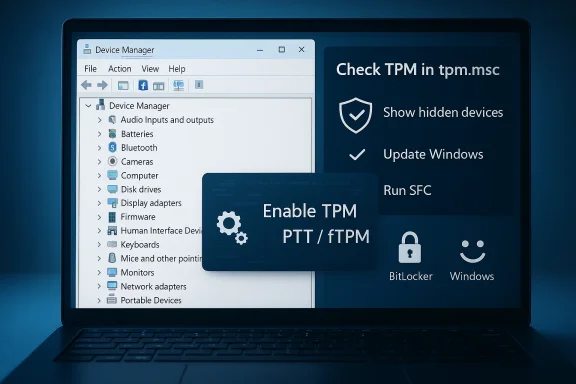 Overview
The best way to think about this issue is that Device Manager is often the messenger, not the cause. If Security Devices is absent, Windows may not be receiving a usable TPM signal from firmware, or the TPM may be present but not exposed in the way you expect. Microsoft’s support material points out that TPM settings may be labeled differently by manufacturers, including Security Device, TPM State, Intel PTT, AMD fTPM, or similar names in BIOS/UEFI.That matters because Windows 11-era security features lean heavily on hardware-backed trust. TPM 2.0, Secure Boot, and related firmware settings are now foundational rather than optional on many systems. When any one of them is misconfigured, the result can be confusing: Device Manager may look empty,
tpm.msc may report a problem, or Windows Security may show contradictory status.The old “just reinstall the driver” advice is usually too narrow. Microsoft’s guidance on hidden devices explains that Device Manager can suppress items by default, including non-present hardware and class-specific hidden entries, and the standard way to surface them is to enable Show hidden devices. But if the TPM itself is not being enumerated, that toggle only confirms the symptom; it does not repair the root issue.
That distinction is important for both home users and enterprise admins. In managed environments, a TPM issue can break BitLocker, credential protection, device attestation, and enrollment workflows. In consumer systems, it can derail Windows Hello, secure sign-in, and Windows 11 readiness checks. The troubleshooting logic is similar, but the blast radius is larger in business deployments.
What Windows Actually Hides
Device Manager’s behavior is often misunderstood because hidden does not always mean broken. Microsoft documents three broad classes of hidden items: devices marked not to display, legacy or non-PnP devices on older systems, and devices that were removed but still have registry remnants. So when a user cannot find Security Devices, the first question should be whether Windows is simply suppressing the view.Hidden Devices vs Missing Hardware
If you turn on View > Show hidden devices, you may reveal a greyed-out Security Devices entry or a TPM device that is not currently active. That is useful information, because it tells you Windows knows about the device but cannot currently use it. If nothing appears at all, the problem is deeper and usually points to firmware, chipset, or platform initialization issues.A lot of users stop too early at this step. They see no visible change and assume the hidden-devices trick failed. In reality, it is often doing exactly what it should: separating a cosmetic visibility issue from a hardware detection problem. That saves time because it determines whether your next move should be a Windows-side repair or a BIOS-side repair.
- Show hidden devices is the fastest first check.
- A greyed-out TPM entry suggests Windows once saw it, but not now.
- No entry at all usually means firmware or chipset detection is failing.
- On some PCs, the TPM may appear under System Devices rather than Security Devices.
tpm.msc, Windows Security, and BIOS settings all at once.Why TPM Is the Usual Culprit
If Security Devices is missing, the most likely reason is still the TPM path. Microsoft’s support page for enabling TPM 2.0 explicitly says the setting may be labeled differently across vendors and that users should look for firmware options such as Security Device Support, TPM State, AMD fTPM, or Intel PTT. That variety alone explains why many people think their machine lacks a TPM when it is actually disabled or renamed in firmware.How Windows Checks TPM Health
The built-intpm.msc console is the fastest sanity check. If it opens and reports a healthy status, the TPM is at least being surfaced to Windows. If it says that no compatible TPM can be found, the issue is usually below the operating system layer, not above it.Microsoft’s support guidance also notes that TPM-related devices can sometimes show up in unexpected places, including under System Devices, and that a hardware scan may cause Windows to detect the TPM as a security device and use the Microsoft driver. That means a missing Security Devices category is not always permanent; sometimes it is just a stale enumeration state.
The bigger point is that TPM is not merely another accessory driver. It is a hardware root of trust. When TPM detection fails, anything layered on top of it—BitLocker, Windows Hello, measured boot, device security status, and some enterprise compliance checks—can behave inconsistently or stop working altogether.
- If
tpm.mscworks, Windows is seeing the module. - If
tpm.mscfails, firmware detection is more suspect. - If Device Manager is empty but
tpm.mscworks, a rescan or driver refresh may help. - If both fail, BIOS/UEFI settings deserve immediate attention.
Fix 1: Show Hidden Devices First
The least disruptive fix is also the easiest to forget. Microsoft documents that you can reveal suppressed items in Device Manager by selecting View and then Show hidden devices. That simple action often exposes an otherwise invisible Security Devices node or at least clarifies whether the device has ever been enumerated.Why This Step Still Matters
It matters because Device Manager does not always present a complete, active inventory by default. Some devices are hidden because they were removed, are inactive, or belong to categories Windows doesn’t automatically display. If Security Devices appears after enabling hidden devices, you’ve confirmed that the issue is about display state, not necessarily hardware loss.If the node appears but the TPM looks greyed out or inactive, that is also valuable. It suggests the device exists in Windows’ configuration data but is not currently usable. In practical terms, that shifts you toward firmware settings, driver refreshes, or a reboot after platform changes.
For many users, this is where the story ends. They enable hidden devices, see the TPM, and move on to whatever security feature was blocked. For others, it is simply the first checkpoint on a longer path. Either way, it is the lowest-risk place to begin.
- Open Device Manager with
devmgmt.msc. - Use View > Show hidden devices.
- Look for Security devices or Trusted Platform Module.
- If it is still absent, continue to TPM verification and BIOS.
When Hidden Devices Is Not Enough
If the category still does not show up, don’t keep toggling the view setting repeatedly. That does not create missing hardware. Instead, treat the absence as a sign that the platform is not enumerating TPM correctly and move to the Windows and firmware checks. That is a more efficient and more accurate troubleshooting path.Fix 2: Check TPM Status in Windows
The next move is to verify whether Windows can talk to the TPM at all. Microsoft and Microsoft Q&A both usetpm.msc as a primary diagnostic tool, and it is still one of the most reliable first-party checks available to end users. If it loads and shows the device as ready, that narrows the problem considerably.Reading the Result Correctly
A healthy TPM report means Windows can access the module’s management interface. That does not guarantee every downstream feature is functioning, but it does mean the hardware is visible enough for Windows to use it. If the console says no compatible TPM is found, you should assume the issue lies in BIOS/UEFI, platform firmware, or a deeper hardware enumeration problem.This is also where people sometimes get confused by mixed signals. One Microsoft Q&A case described a system where Device Manager showed TPM, yet
tpm.msc could not find it. That kind of mismatch is why you should not trust only one surface; the TPM stack has multiple layers, and they can disagree when firmware or drivers are out of sync.The practical value of
tpm.msc is that it tells you whether to keep working inside Windows or pivot into firmware. If the answer is “compatible TPM cannot be found,” there is little point in spending too long on cosmetic Device Manager fixes.- Use
Win + R, typetpm.msc, and press Enter. - Confirm whether the status reports a healthy TPM.
- If the console cannot find one, proceed to BIOS.
- If the console works but Device Manager does not, rescan and driver repair become more relevant.
Why This Helps Enterprise Users Too
For IT teams,tpm.msc is not just a quick check; it is a deployment triage tool. A machine that can’t expose a TPM may fail BitLocker prechecks, Windows Hello for Business onboarding, or compliance baselines. Verifying the TPM early prevents wasted time on policy troubleshooting when the real issue is hardware visibility.Fix 3: Enable TPM in BIOS or UEFI
If Windows does not see a TPM, firmware is the next stop. Microsoft explicitly tells users to check the device manufacturer’s documentation for how to turn TPM on, because the setting names and menu structure vary by vendor. That is not a footnote; it is the most common reason a modern PC seems TPM-less when it is not.Finding the Right Setting
Depending on the motherboard or laptop brand, TPM may be labeled Security Device Support, TPM State, Trusted Computing, Intel PTT, AMD fTPM, or a similar term. On some systems, it sits in a security submenu; on others it is nested under advanced chipset or firmware configuration pages. The naming inconsistency is exactly why users often miss it on the first pass.Once you find it, the goal is simple: make sure the TPM-related feature is enabled, save changes, and reboot. If the platform had been silently suppressing TPM enumeration, the device may appear in Device Manager after a clean boot back into Windows. That is especially true on consumer PCs with firmware defaults changed after BIOS updates or OS upgrades.
This step is also the most likely to solve a missing Security Devices node outright. If the module was disabled at firmware lit sense, the BIOS/UEFI layer is the real source of truth for whether TPM exists in the operating system’s eyes.
- Enter BIOS/UEFI during startup.
- Look for TPM, Trusted Computing, Security Device Support, PTT, or fTPM.
- Enable the setting ind reboot, then recheck Device Manager and
tpm.msc.
Why This Step Can Affect Windows 11
Windows 11’s hardware requirements made TPM more visible to everyday users thanft’s support page specifically calls out TPM 2.0 as a device requirement to check before upgrading. So when the Security Devices category disappears, it is no longer just an obscure hardware-management annoyance; it can become an upgrade blocker or a post-upgrade security regression. ([support.microsoft.com](Enable TPM 2.0 on your PC - Microsoft Support--Fix 4: Update Windows and Refresh the Hardware Scan
Sometimes the TPM is physically present and enabled, but Windows has not caught up. Microsoft notes that a hardware scan can cause the TPM to be detected as a security device and associated with the Microsoft driver. That makes a rescan a worthwhile step after firmware changes or updates.Why Updates Matter
Windows Update does more than patch security bugs. It also updates platform components, chipset-adjacent pieces, and occasionally driver metadata that affects whether devices are enumerated correctly. A stale installation can therefore leave TPM visible in firmware but missing from Device Manager until Windows refreshes its device list.This is especially true when optional updates are involved. Users often install only the headline cumulative update and ignore the optional driver and firmware-related items that can improve device detection. While not every TPM issue is fixed by updating, it is a low-friction step that reduces the number of moving parts.
The practical sequence is: install pending Windows updates, reboot, then revisit Device Manager and
tpm.msc. If that still fails, use a hardware scan inside Device Manager to force a fresh enumeration. On a healthy system, one of those steps often nudges the TPM back into view.- Install all pending Windows updates.
- Reboot before testing again.
- Use Device Manager’s hardware scan to refresh detection.
- Check whether the TPM appears under Security Devices or System Devices.
Consumer vs Enterprise Impact
For consumers, the result may simply be that Windows Hello or BitLocker can start working again. For enterprises, the same fix can restore attestation, encryption readiness, and compliance status across multiple devices. In managed estates, that makes updates less of a convenience and more of a baseline hygiene requirement.Fix 5: Repair System Files if Windows Seems Corrupted
If TPM configuration and firmware look fine, then system corruption becomes a plausible suspect. The Guiding Tech walkthrough recommends SFC as a repair step, and that advice is still reasonable because missing or damaged system files can interfere with how Windows enumerates devices and loads management consoles. The same general logic appears in Microsoft community guidance, where users are often pointed toward system repairs after device detection misbehavior.Using SFC the Right Way
The basic sequence is to open an elevated Command Prompt and runsfc /scannow. That checks protected Windows files and replaces many corrupted components automatically. If the TPM view is broken because the device tree, console, or supporting files are damaged, this is one of the few built-in tools that can repair the environment without third-party software.SFC is not a magic wand, though. If corruption extends to component stores or disk integrity, you may need to follow up with a disk check or deeper repair tooling. But as a first pass, it is valuable because it is safe, built-in, and directly relevant to symptoms where multiple Windows management surfaces behave strangely.
That said, SFC should be treated as the cleanup step, not the first suspect. If the TPM is disabled in BIOS, no amount of file repair inside Windows will make it appear. If Windows can already read TPM fine, SFC may not change anything at all.
- Run an elevated Command Prompt.
- Execute
sfc /scannow. - Reboot after the scan completes.
- Recheck Device Manager and TPM status.
Where Disk Checks Fit
If symptoms still point to corruption, a disk health scan can help rule out file-system damage. This matters because TPM troubles sometimes coexist with broader OS instability, and a damaged disk can create misleading device symptoms that look like driver failures. In other words, the missing Security Devices category may be one clue inside a larger reliability problem.What Else Can Make Security Devices Disappear
A missing Security Devices node is not always a standalone TPM fault. Microsoft’s troubleshooting material and support discussions show that mismatched BIOS states, outdated chipset drivers, and hardware scans that haven’t been rerun can all create confusing gaps in Windows’ view of the platform. That means you should think in terms of the whole platform stack, not just one console.Driver and Platform Layer Problems
On some systems, the TPM depends on chipset or firmware support that is only fully active after the latest vendor packages are installed. That is why Microsoft support repeatedly encourages users to verify manufacturer updates when TPM cannot be found. If the platform interface is stale, the TPM may be physically there but logically invisible.Another subtle issue is location. Microsoft notes that TPM can appear under System Devices on some machines instead of under Security Devices. So a hurried search of just one category can miss a valid device that Windows placed elsewhere. That is a reminder that Device Manager structure can vary by hardware design and driver implementation.
In practical terms, this means the right troubleshooting mindset is layered. Check visibility first, then Windows-level TPM status, then firmware, then updates, then repairs. Skipping those layers in favor of random driver reinstalling usually wastes time.
- Check both Security Devices and System Devices.
- Look for chipset or firmware updates from the OEM.
- Reboot after every meaningful firmware or driver change.
- Do not assume the device is absent just because one category is empty.
Why This Feels Different on Older PCs
Older systems, or systems that have been upgraded across several Windows generations, are especially prone to enumeration oddities. Firmware defaults, legacy BIOS settings, and outdated driver packages can all make a TPM seem ghostly when it is really just misconfigured. That is one reason the same symptom can require very different fixes depending on the age of the hardware.Strengths and Opportunities
The good news is that this problem is usually fixable without replacing hardware. The strongest opportunity is that the most common fixes are also low-risk and built into Windows or firmware menus, which means users can often resolve the issue themselves before resorting to service visits. Microsoft’s own guidance aligns with that layered approach, which makes the troubleshooting path fairly dependable.- Show hidden devices can instantly reveal whether the issue is cosmetic.
tpm.mscgives a fast, built-in health check.- BIOS/UEFI often contains the real fix through a simple enable toggle.
- Windows Update and hardware scans can refresh stale enumeration.
- SFC can repair corruption that affects device visibility.
- The same process works for both consumer and enterprise PCs.
- Fixing TPM visibility can restore BitLocker, Windows Hello, and compliance workflows.
Risks and Concerns
The main risk is overcorrecting. TPM and Security Devices issues can look simple from the outside, but firmware changes can affect encryption, boot behavior, and enterprise trust signals. A careless BIOS reset or TPM clear can create new headaches, especially if BitLocker or organizational policies are in play.- Changing TPM settings without checking BitLocker can trigger recovery prompts.
- Disabling the wrong firmware option may affect Secure Boot or boot mode.
- Blindly reinstalling drivers may not help if the real issue is hardware enumeration.
- Clearing or resetting TPM can disrupt credentials and device keys.
- System corruption fixes may not resolve a firmware-level detection failure.
- Managed devices may have settings locked by policy.
- Users sometimes misread a missing Device Manager category as proof of missing hardware.
Looking Ahead
As Windows security continues to lean on hardware-rooted trust, TPM visibility problems are likely to remain a recurring support issue rather than a rare anomaly. The reason is simple: more devices ship with TPM features hidden behind vendor-specific labels, and more users now interact with those features because Windows 11, BitLocker, and Windows Hello bring them to the forefront. What used to be obscure firmware plumbing is now everyday troubleshooting.For WindowsForum readers, the best long-term strategy is to treat TPM and Device Manager as part of a broader trust chain. If the chain breaks anywhere—firmware, chipset, Windows enumeration, or system file integrity—the symptom can be the same: Security Devices not showing in Device Manager. The upside is that the chain is visible enough to troubleshoot methodically, and the first few steps are usually enough to bring it back.
- Verify hidden devices first.
- Confirm TPM status with
tpm.msc. - Check BIOS/UEFI for TPM, PTT, or fTPM.
- Update Windows and rescan hardware.
- Run SFC if Windows appears corrupted.
Source: Guiding Tech Security Devices Not Showing in Device Manager – 5 Fixes
