

Booting a new gaming PC is one of the best small victories a Windows user can have — but the first hour after power-up is when most long-term problems either get solved or quietly take root.
If you just switched on a fresh Windows 11 gaming PC, a short, focused checklist will save hours of frustration and make sure you’re actually getting the hardware and experience you paid for. The common day‑one items every gamer should check are straightforward: display resolution and refresh rate, driver versions, removing OEM bloatware, Task Manager basics, startup apps, default audio devices, and running a few benchmarks to establish a performance baseline.
This article distills a practical, non‑esoteric day‑one routine built for Windows users who want immediate, meaningful improvements — not tiny BIOS tweaks that win 1–2% in synthetic tests. The list follows the practical guidance from the original consumer checklist and expands it with verification steps, why each check matters, and the hidden risks to watch for.
This seven‑step routine balances safety and impact: it’s fast, reversible, and tuned to the day‑one pain points that most users hit. For most players, these checks unlock the majority of the system’s everyday potential without diving into firmware tweaks or risky overclocking. For those who want to go further, a measured upgrade plan (NVMe boot drive, 16 GB baseline RAM, PSU checks for future GPUs) is the next logical phase after day one, and it’s the best way to convert a new purchase into a reliable, long‑lived gaming rig.
(Steps, tool names, and OS paths reflect the current Windows 11 experience and vendor driver models; consult the official vendor or Microsoft support pages if you need deeper troubleshooting or exact UI changes for your specific Windows build.
Source: TechRadar https://www.techradar.com/computing...the-7-key-things-to-check-on-a-new-gaming-pc/
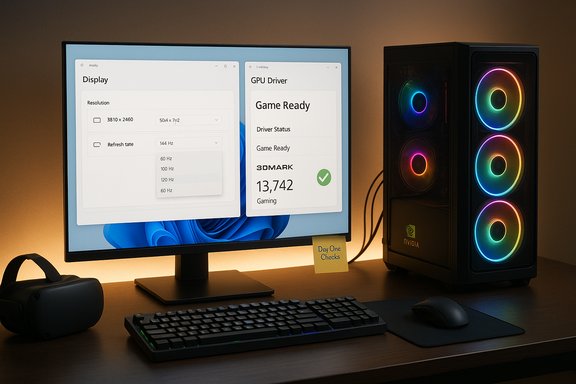 Overview
If you just switched on a fresh Windows 11 gaming PC, a short, focused checklist will save hours of frustration and make sure you’re actually getting the hardware and experience you paid for. The common day‑one items every gamer should check are straightforward: display resolution and refresh rate, driver versions, removing OEM bloatware, Task Manager basics, startup apps, default audio devices, and running a few benchmarks to establish a performance baseline.This article distills a practical, non‑esoteric day‑one routine built for Windows users who want immediate, meaningful improvements — not tiny BIOS tweaks that win 1–2% in synthetic tests. The list follows the practical guidance from the original consumer checklist and expands it with verification steps, why each check matters, and the hidden risks to watch for.
Background: why a day‑one checklist matters
A new gaming PC is more than just hardware; it's hardware + firmware + OS + drivers + preinstalled software. Any one of those layers can be misconfigured, outdated, or actively harmful to stability and performance.- Preinstalled OEM software (sometimes called bloatware) can consume CPU, RAM and disk I/O right away.
- Wrong display settings mean high‑refresh monitors often run at 60 Hz out of the box.
- Generic or outdated GPU drivers may not include launch‑day optimizations for recent games or fix compatibility bugs.
- Unexamined startup apps and default audio routing lead to longer boot time, confused audio, and unexpected background processes.
- Without baseline benchmarks, you can’t tell whether a problem is hardware‑level (bad RAM or storage) or software (drivers, overlays, or background services).
1. Verify display resolution and refresh rate (don’t settle for 60 Hz)
Why it matters
High refresh‑rate monitors (120 Hz, 144 Hz, 240 Hz and higher) dramatically improve responsiveness and perceived smoothness in fast games. Windows sometimes defaults to 60 Hz, especially for external displays or when a generic driver is installed, so the first step is confirming your display is running at the panel’s rated resolution and refresh rate.How to check (quick)
- Open Settings → System → Display → Advanced display.
- Confirm the display resolution and use the “Choose a refresh rate” dropdown to select the highest supported rate. Microsoft documents this exact path in its Windows support pages.
Pro tip: Dynamic Refresh Rate / VRR
Windows 11 supports Dynamic Refresh Rate (DRR) and variable refresh (VRR). DRR can preserve battery life on laptops by switching between high and low refresh rates automatically, but it can sometimes cap maximum frame rates in games. If you need consistent maximum refresh (for competitive play), disable DRR in Advanced display settings. Microsoft explains how DRR interacts with VRR and why you might toggle it off.2. Remove bloatware — but be surgical
What “bloatware” is and why to remove it
Bloatware is preinstalled software you didn’t ask for — trial apps, vendor toolchains that run at startup, or third‑party utilities that duplicate Windows features. These apps consume disk space, use background CPU and network resources, and sometimes inject services that conflict with games or game anti‑cheat systems.How to remove safely
- Use Settings → Apps → Installed apps to uninstall known unwanted programs.
- Use Task Manager → Startup to disable startup apps you don’t need (covered below).
- For a clean baseline, consider a clean Windows install using Microsoft’s media if the OEM image is particularly cluttered — but only after preserving drivers and recovery information. Community and vendor roundups warn that clean installs remove OEM activation utilities and recovery partitions, so keep a copy of vendor drivers and your license key before wiping.
Caution
Avoid cavalier removal of vendor utilities you don’t recognize. Some OEM apps manage fan curves, firmware updates, or keyboard/touchpad functions — removing them without backup may disable useful features. Create a restore point and keep a list of removed items so you can reinstall if needed.3. Update graphics and peripheral drivers — Game Ready vs Studio
Why drivers matter
GPU drivers are the most common cause of day‑one instability or poor frame times. Vendors regularly ship “Game Ready” drivers tuned for the newest titles and “Studio” drivers optimized for creative workloads.- If your build is gaming‑focused, the vendor Game‑Ready or gaming channel driver is generally the best first choice.
- Content creators or users who require maximum application stability may prefer Studio drivers (Nvidia) or AMD’s Adrenalin builds depending on the workload. Nvidia clearly documents the Game Ready vs Studio distinction; choose Game Ready for gaming-focused rigs.
Where to get them
- Nvidia: GeForce Experience or the Nvidia driver download portal (choose Game Ready for gamers).
- AMD: AMD’s Drivers & Support pages and its Auto‑Detect tool will identify and install the correct Adrenalin or Radeon drivers.
Steps
- Install the latest driver from the vendor site (not a third‑party “driver updater” app).
- Choose the Game‑focused driver if you game; choose Studio only if you need guaranteed app‑specific stability for creative suites.
- Restart after installation and re‑verify display capabilities (refresh rate, HDR, VRR).
Warning
Day‑one or newly released drivers can introduce regressions. If you run into crashes or performance drops in a specific game, rollback to the previous known‑good driver and wait for a follow‑up release. Community reports show vendor driver cadence can trade features for stability, so balance urgency with caution.4. Learn Task Manager basics — it’s your diagnostic quick‑check
Use Task Manager as a fast health check
Task Manager isn’t just a task killer; it’s the first place to check resource use. The Performance tab shows CPU, memory, disk, and GPU utilization and — importantly — GPU temperature and VRAM usage for modern GPUs after vendor drivers are installed. Several Microsoft and community guides show how GPU details appear in Task Manager.What to look for
- Idle CPU usage at logon (should be low; persistent 30–50% at idle suggests a background process).
- RAM usage vs installed capacity (16 GB is the practical starting baseline for modern gaming; if the system has 8 GB, plan to upgrade).
- GPU shown as “GPU 0/1” and its temperature; if the GPU isn’t shown or temperature remains 0°C, the vendor driver may not be installed properly.
When to escalate
If Task Manager shows abnormal disk activity, unrecognized drivers, or repeated crashes, collect a memory dump or use built‑in Reliability Monitor and consider contacting the vendor with the full symptoms, driver versions and any error event IDs.5. Check and control Windows startup apps
Why this matters
Startup apps increase boot time and immediately consume memory and CPU. Disabling non‑essential startup items shortens time to playable and reduces background jitter in games.Two easy methods
- Task Manager → Startup tab: right‑click → Disable to stop apps launching on login.
- Settings → Apps → Startup: toggle entries on/off. Microsoft documents the Settings path and Task Manager method.
Advanced checks
Hidden startup entries can live in the Startup folders or registry keys (HKEY_CURRENT_USER...\Run and HKEY_LOCAL_MACHINE...\Run). Use those only if you’re comfortable — editing the registry without a backup risks system instability. Community troubleshooting threads often show Edge or other apps re‑appearing due to “Restart apps” or “Startup boost” features; check those options in Settings → Accounts → Sign‑in options.6. Set default audio devices and lock them down
The problem
Windows sometimes auto‑switches default audio devices, especially when headsets, USB microphones, or VR headsets are connected. The result: headphones are plugged in but audio plays through speakers or an inactive device.Fix path (Windows 11)
- Settings → System → Sound → Manage output devices to choose and set your default output device.
- For microphones, Settings → System → Sound → Manage input devices and choose the default input. Microsoft’s Settings pages cover navigation and device selection.
Practical tips
- If you use a USB headset or an audio interface, install the vendor control app (e.g., Realtek, Focusrite) and then set the Windows default to the vendor device.
- If a device keeps changing, disable unused audio devices temporarily to reduce confusion. The community’s troubleshooting threads show this quick trick often fixes stubborn cases.
7. Run benchmarks — create a baseline and validate hardware
Why benchmark now
Benchmarks give you objective performance numbers and reveal stability or thermal problems under load. They also provide proof points if you need an RMA: a GPU that crashes in a standard stress test is more likely a hardware issue than a misconfigured driver.Recommended tools
- 3DMark (UL Benchmarks) — comprehensive GPU and CPU tests with stress options and cross‑system comparisons. 3DMark is widely used for gaming performance baselines.
- MSI Afterburner (with RivaTuner) — real‑time OSD monitoring for GPU clocks, temps and frame‑time graphs while you run games or bench loops. MSI’s Afterburner is the de facto in‑game overlay monitor.
How to run safe tests
- Close background apps (Discord, cloud sync, overlays) before stress tests.
- Run a GPU benchmark (Time Spy, Port Royal) and watch temperatures and VRAM usage. If temperatures go high quickly (sustained above manufacturer Tjunction guidance) or you see artifacts, pause and check cooling/fan profiles.
- Run an extended stress or “Burn‑in” only if you understand thermal limits; short 10–15 minute runs give useful data without pushing hardware into dangerous sustained stress.
Interpreting results
- Compare results to other systems with the same GPU/CPU class. Big deviations (e.g., 20–30% lower than typical results for the same hardware) indicate driver, thermal throttling, or defective component issues. Community hardware roundups and review databases provide ranges for expected scores.
Practical day‑one checklist (do this in order)
- Confirm monitor cable type (DisplayPort or HDMI) for high refresh — DisplayPort is often required for highest refresh/resolutions.
- Install latest Windows updates and then vendor GPU drivers (Game Ready for gamers).
- Set display resolution and refresh rate in Windows Advanced display settings.
- Remove obvious OEM bloatware; keep vendor firmware utilities you may need.
- Use Task Manager to inspect idle CPU/RAM; disable unnecessary startup apps.
- Set default audio output and input devices in Sound settings.
- Run 3DMark (or built‑in game benchmark) and a short stress test while monitoring temps with MSI Afterburner.
Critical analysis — strengths, trade‑offs, and risks
Strengths of the seven‑point routine
- Fast wins: Changing refresh rate, uninstalling bloatware, and updating GPU drivers produce immediate, obvious improvements. These steps typically yield far more perceptible benefit than micro‑tuning BIOS or minute overclocks.
- Diagnostic clarity: Task Manager + basic benchmarks quickly separate software issues from hardware defects.
- Low risk: Most steps are reversible (driver rollback, re‑enable startup apps, reinstall OEM utilities).
Risks and blind spots
- Driver regressions: New driver releases can temporarily reduce stability or create regressions for certain titles. If you’re competitive or streaming, test drivers with your key games before committing to an update.
- OEM images and activation: Removing OEM recovery partitions or performing a clean install without preserving the product key or recovery media can complicate warranty or support. Keep vendor recovery tools and the activation key before wiping.
- Audio device confusion: Windows’ automatic device switching remains a persistent annoyance; be prepared to re‑set defaults after connecting new peripherals.
- Day‑one anti‑cheat friction: Games with kernel‑level anti‑cheat or new protections can conflict with overlay and driver changes; read publisher guidance if your title includes such systems. Community notes highlight anti‑cheat as a common source of launch week instability.
Where to be conservative
- Avoid third‑party “all in one driver updaters” and registry clean utilities from unknown vendors. They can install unsigned drivers or change settings that break system stability.
- Don’t overclock on day one. First establish stable baseline scores and thermal headroom; then consider incremental tuning with monitoring tools.
Extra steps for troubleshooting persistent problems
- If GPU temperature is persistently high while idle, check physical installation: PCIe power cables, proper fan orientation, and dust blocking air paths.
- If Windows isn’t recognizing an NVMe SSD, confirm motherboard BIOS/UEFI shows the drive; update motherboard firmware only from the vendor page.
- If a game crashes after a driver update, roll back to the previous driver using Device Manager or the vendor’s driver archive and note the failing driver version for support requests.
Conclusion — what to expect after the first day
The first hour with a new gaming PC defines much of the experience to follow: a correct refresh rate, current GPU driver, minimal startup clutter, and stable audio configuration will deliver the cleanest, most responsive gaming sessions. Running a short set of benchmarks immediately gives you a performance baseline and either the satisfaction of everything working as expected or the data you need to pursue a fix with the vendor.This seven‑step routine balances safety and impact: it’s fast, reversible, and tuned to the day‑one pain points that most users hit. For most players, these checks unlock the majority of the system’s everyday potential without diving into firmware tweaks or risky overclocking. For those who want to go further, a measured upgrade plan (NVMe boot drive, 16 GB baseline RAM, PSU checks for future GPUs) is the next logical phase after day one, and it’s the best way to convert a new purchase into a reliable, long‑lived gaming rig.
(Steps, tool names, and OS paths reflect the current Windows 11 experience and vendor driver models; consult the official vendor or Microsoft support pages if you need deeper troubleshooting or exact UI changes for your specific Windows build.
Source: TechRadar https://www.techradar.com/computing...the-7-key-things-to-check-on-a-new-gaming-pc/
