

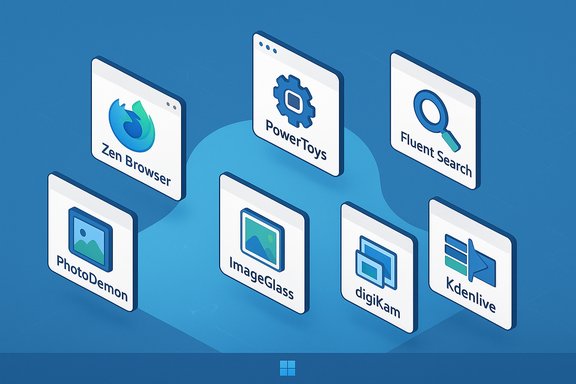
Seven open‑source apps — and one quiet lesson about Windows tooling — can change how you use Windows 11 almost overnight, and the MakeUseOf roundup that inspired this list makes a persuasive case that many of these replacements are not compromises but often improvements. The original feature highlights seven community‑driven tools — Zen Browser, Microsoft PowerToys, Fluent Search, PhotoDemon, ImageGlass, digiKam, and Kdenlive — and positions them as practical, free alternatives to paid software or to sluggish built‑in utilities on Windows 11.
Windows 11 arrives with a curated set of built‑in apps and UI design choices that aim for simplicity. For many power users and creatives, however, that minimalist approach leaves gaps: slow image viewers, anemic file search, and subscription‑heavy creative toolchains invite alternatives. The MakeUseOf piece argues that open‑source and free projects have matured to the point where they legitimately replace commercial offerings, delivering robust feature sets, frequent updates, and active communities.
This article unpacks each recommendation, verifies key technical claims, highlights real world strengths, and flags practical risks — from compatibility pitfalls to maintenance tradeoffs. Where possible, claims are cross‑checked with multiple independent observations in the uploaded material to give readers a reliable, actionable roadmap for adopting these tools on Windows 11.
That said, any migration should be measured. Test on representative projects, maintain backups, and accept that there may be a short period of adaptation. When those steps are followed, these tools frequently repay the ramp‑up cost in monthly savings, speed improvements, and workflow control.
Using Windows 11 well is less about the OS itself and more about choosing the right tools to fill the holes Microsoft intentionally leaves to keep the platform manageable. The seven products highlighted in the MakeUseOf roundup show that open‑source alternatives have matured: they are practical, powerful, and in many cases ready for professional use. Try them methodically, validate against your production requirements, and you’ll likely find at least a couple that earn a permanent place in your workflow.
Source: MakeUseOf 7 Windows 11 features I should’ve used from day one
 Background / Overview
Windows 11 arrives with a curated set of built‑in apps and UI design choices that aim for simplicity. For many power users and creatives, however, that minimalist approach leaves gaps: slow image viewers, anemic file search, and subscription‑heavy creative toolchains invite alternatives. The MakeUseOf piece argues that open‑source and free projects have matured to the point where they legitimately replace commercial offerings, delivering robust feature sets, frequent updates, and active communities.This article unpacks each recommendation, verifies key technical claims, highlights real world strengths, and flags practical risks — from compatibility pitfalls to maintenance tradeoffs. Where possible, claims are cross‑checked with multiple independent observations in the uploaded material to give readers a reliable, actionable roadmap for adopting these tools on Windows 11.
Why open‑source alternatives matter on Windows 11
Windows has always thrived on third‑party innovation. Today’s open‑source ecosystem offers two critical advantages for Windows power users:- Cost efficiency: Many of the apps below are free and remove recurring subscription pressure for individuals and small studios.
- Transparency and extensibility: Open‑source projects permit inspection, customization, and community patches, which can be decisive for privacy‑conscious users or those who run bespoke workflows.
Zen Browser — A Firefox‑based, Arc‑inspired browser for Windows
What it claims to do
Zen is presented as a Firefox‑backed reimagining of the modern browser experience, pairing a vertical sidebar and Arc‑like session management with the privacy and extension ecosystem of Firefox. MakeUseOf emphasizes Zen’s speed, cross‑platform parity, and a theme/mod ecosystem that extends its appeal beyond merely copying Arc’s design.Strengths
- Firefox foundation: Zen benefits from Firefox’s rendering engine and privacy features while avoiding Chromium/Google codebases for users who prefer the Gecko ecosystem.
- Vertical tab and sidebar workflows: These layouts can drastically improve tab management for users who work with dozens of tabs or project‑based browsing.
- Extension compatibility: Because Zen is Firefox‑based, it supports the wide catalog of Firefox add‑ons, reducing friction for users migrating from other browsers.
Risks and cautions
- Performance claims vary by system and workload; browser responsiveness can depend on profile size, extensions, and hardware. Benchmark assertions in promotional write‑ups should be treated as indicative, not definitive.
- Long‑term updates and security patch cadence are imperative for browser safety. Users should verify active upstream maintenance before making Zen their daily driver.
Practical tip
Install Zen side‑by‑side with your primary browser and import bookmarks; test extension compatibility with a representative work session for a few days before switching permanently.Microsoft PowerToys — The Swiss army knife Microsoft actually open‑sourced
What it is
PowerToys is a curated suite of utilities from Microsoft that solves specific productivity problems Windows users encounter. The collection includes tools like FancyZones (advanced window tiling), PowerRename, Image Resizer, File Locksmith, and the Command Palette — a Spotlight‑style quick launcher. PowerToys is free and maintained openly, with feature additions driven by community feedback and Microsoft stewardship.Why it matters
PowerToys addresses gaps Microsoft intentionally leaves out of core Windows to keep the OS smaller and simpler. The result is enterprise‑grade helpers without extra cost:- FancyZones gives multi‑monitor and ultrawide users a way to define custom window grids that far exceed Windows’ native Snap Layouts.
- Command Palette dramatically improves launch and command discovery within Windows, rivaling third‑party launchers.
- Image Resizer and PowerRename remove the need for ad‑supported or paid utilities for common file and image tasks.
Caveats
- PowerToys runs at a low privilege level but still hooks into many OS behaviors. Organizational policies may restrict its deployment in managed environments.
- As with any third‑party tool that modifies windowing or input handling, transient compatibility issues can appear after major Windows feature updates; the community‑driven repo is usually quick to respond, but users should maintain recovery steps.
Best practice
Enable only the modules you need (PowerToys settings expose toggles per utility) to minimize runtime footprint. Keep PowerToys updated through its built‑in updater to ensure compatibility with the latest Windows builds.Fluent Search — Replace sluggish Windows Search with a local, extensible indexer
What it promises
Fluent Search is an alternative indexing and launcher tool designed to be what Windows Search should have been: local, fast, extensible, and free from cloud noise or ad insertions. It indexes files, applications, bookmarks, running windows, and — through OCR screen search — even visible UI elements. The result is an immediate, privacy‑focused search experience.Strengths
- Speed and precision: Fluent Search’s index and fuzzy matching are designed for instant results, saving time over a sluggish Windows Indexer.
- Screen search with OCR: This feature allows searching for text that appears on screen — a powerful aid for reference tasks and research.
- Extensibility: Plugin architecture and configurable hotkeys help tailor the tool to individual workflows.
Risks
- Local indexing still consumes disk resources and a baseline background process; low‑resource systems may notice overhead.
- OCR‑based functions are only as good as the OCR engine’s language and font support; accuracy can vary for stylized or low‑contrast text.
Deployment advice
Install Fluent Search and run an initial index on a subset of folders (documents and projects) to gauge CPU and disk impact; expand the index as needed once you’re satisfied with performance.PhotoDemon — A lightweight but surprisingly deep photo editor
Core claims
PhotoDemon positions itself as a more usable alternative to GIMP with strong RAW support, a professional toolset (over 200 tools), unlimited undo/redo, content‑aware fill, macro automation, and PSD compatibility. MakeUseOf praises its macro system and batch workflow capabilities that make repetitive editing tasks fast.Why PhotoDemon stands out
- No subscription: PhotoDemon gives users a robust set of editing features without the Adobe subscription model.
- Macro and batch processing: These are essential for users who handle large photo sets and want deterministic, repeatable results.
- RAW and PSD support: The ability to read RAW and some PSD files makes PhotoDemon practical as a primary editor or as part of a conversion pipeline.
Practical limitations
- PhotoDemon’s UI philosophy still follows classic desktop patterns; users expecting the exact Adobe experience will need to adapt workflows.
- While PSD support exists, highly complex layered PSDs with advanced blending or proprietary effects may not translate perfectly.
Workflow suggestion
Use PhotoDemon for bulk edits and fast retouching, then move critical files into a dedicated RAW developer if you require more fine‑grained color management. Test a representative PSD through the import process before committing it to a production workflow.ImageGlass — Fast, format‑rich image viewing with useful extras
What it does
ImageGlass replaces Windows’ default Photos app with a lightweight viewer that supports 80+ formats (including WEBP, HEIC, GIF, SVG, and RAW), provides frameless mode, slideshow functionality, touch gestures, color pickers, GIF frame extraction, and deep customization. MakeUseOf highlights ImageGlass’s balance of minimalism and functionality.Benefits
- Speed: Lightweight viewers like ImageGlass open images faster than the built‑in Photos app on many systems.
- Format coverage: Broader native format support reduces the need for format converters.
- Customization: Language packs, themes, and folder synchronization make it practical for multilingual and multi‑machine setups.
Caveats
- Viewing capability is not a substitute for editing: ImageGlass is ideal for culling and previewing, not detailed color grading.
- HEIC/RAW support may require platform codecs or optional components depending on the Windows configuration.
Quick tip
Set ImageGlass as the default viewer for common image formats to speed up daily photo culling and inspections.digiKam — A serious, free alternative to photo library managers
What it offers
digiKam is a full‑blown photo management suite with import support for thousands of camera models, hierarchical albums, advanced tagging, AI‑assisted auto‑tagging and face recognition (local on‑device processing), 16‑bit RAW processing, batch processing, lens correction, and direct uploads to services like Flickr and Google Photos. The MakeUseOf follow‑up on digiKam argues many users can replace Lightroom’s library with digiKam for organizing and culling.Strengths
- Library scale: digiKam is built for large collections and supports metadata workflows, sidecar files, and robust export/archival flows.
- Local AI: On‑device tagging and face recognition avoid cloud privacy concerns and can keep sensitive libraries private.
- Integration and export: Direct posting and straightforward export pipelines simplify sharing and backups.
Risks and tradeoffs
- digiKam’s editing module is intentionally modest; for in‑depth RAW development or local color workflows, pairing digiKam with a dedicated RAW editor may be necessary.
- The learning curve for a feature‑dense library app is nontrivial — users should test on a sample dataset before migrating a primary Lightroom catalog.
Migration advice
Use digiKam’s import tools and run an Auto‑Tag scan on a subset of images to evaluate model quality. Export a copy of a Lightroom catalog into a test folder to validate metadata parity before archiving or switching workflows permanently.Kdenlive — Open‑source non‑linear video editing for professionals on a budget
Capabilities
Kdenlive (KDE Non‑Linear Video Editor) supports unlimited video and audio tracks, FFmpeg‑powered format compatibility, per‑track muting and naming, multi‑cam editing, comprehensive effects including color correction and audio equalization, proxy editing for low‑powered machines, and automatic project backups. MakeUseOf positions Kdenlive as a viable replacement for Premiere Pro in many professional workflows.Strengths
- Format support: FFmpeg integration means almost any camera codec can be handled without transcoding headaches.
- Track complexity: Unlimited tracks and professional scopes make Kdenlive production‑ready for complex timelines.
- Offline and local editing: Saves money and avoids vendor lock‑in, while enabling proxy workflows to keep editing smooth on older hardware.
Warnings
- Color grading and high‑end finishing workflows that rely on proprietary plugins or deep integration with Adobe’s ecosystem will face friction in migration.
- Hardware acceleration, GPU encoding, and NLE optimizations vary by platform. Benchmarks differ considerably by codec, GPU, and driver level; testing on representative source material is essential.
Recommended workflow
Use Kdenlive for timeline assembly, multicam edits, and drafts; export EDLs or XMLs if you need to roundtrip to another system for finishing. Keep incremental backups enabled to protect long projects.Adoption checklist — how to trial and migrate safely
- Inventory: Identify the exact pain points in your current workflow (search speed, image culling, video editing, etc..
- Sandbox: Install replacements side‑by‑side and route test projects through each tool for 7–14 days.
- Backup: Export catalogs, settings, and projects before full migration.
- Validate: Confirm format compatibility (RAW, PSD, XMP, camera codecs) and automation features (macros, batch processors).
- Harden: Keep recovery steps — a restore point, exported settings, and an export of critical data — in case you need to revert quickly.
Critical analysis: strengths, ecosystem risks, and who should adopt
Notable strengths
- Community‑led projects are feature‑rich and frequently updated, making them competitive with commercial offerings for many tasks.
- Open‑source tools reduce recurring cost and increase transparency — a big win for freelancers, students, and privacy‑minded professionals.
- Interoperability is improving: FFmpeg, standard sidecar metadata, and cross‑platform installers make migration technically feasible.
Potential risks
- Support expectations differ. Community support, forums, and issue trackers replace vendor support — acceptable for many but risky in tight production pipelines.
- Integration gaps with proprietary ecosystems (Adobe CC, Lightroom cloud services, specialized plugins) require careful validation before large migrations.
- Security posture depends on active maintainers and update cadence; tools that are not regularly patched present a risk on internet‑facing machines.
Who should (and shouldn’t) adopt
- Adopt if: you’re an independent creator, small studio, or user who values control and low cost, and you can tolerate occasional self‑support.
- Hold off if: your workflow depends on vendor‑specific plugins, you need vendor SLA support, or your organization requires vendor guarantees for compliance.
Final verdict and practical recommendation
The MakeUseOf list is more than a checklist — it’s a reminder that Windows 11 users don’t have to be constrained by preinstalled apps or subscriptions. For many daily tasks — fast searching, smarter window management, image culling, photo library management, and non‑linear video editing — the free and open‑source alternatives featured offer compelling value and real productivity gains.That said, any migration should be measured. Test on representative projects, maintain backups, and accept that there may be a short period of adaptation. When those steps are followed, these tools frequently repay the ramp‑up cost in monthly savings, speed improvements, and workflow control.
Quick reference: what to install first (practical, ordered recommendation)
- Microsoft PowerToys — immediate productivity wins (window management, quick launch).
- Fluent Search — replace Windows Search for instant gains in discovery and workflow speed.
- ImageGlass — default viewer for fast previews and culling.
- digiKam — if you manage large image libraries and want local AI tagging.
- PhotoDemon — for offline image editing without subscriptions.
- Kdenlive — if video work is part of your workflow; enable proxy editing on older machines.
- Zen Browser — try it last as your daily browser once you confirm extension and performance compatibility.
Using Windows 11 well is less about the OS itself and more about choosing the right tools to fill the holes Microsoft intentionally leaves to keep the platform manageable. The seven products highlighted in the MakeUseOf roundup show that open‑source alternatives have matured: they are practical, powerful, and in many cases ready for professional use. Try them methodically, validate against your production requirements, and you’ll likely find at least a couple that earn a permanent place in your workflow.
Source: MakeUseOf 7 Windows 11 features I should’ve used from day one
