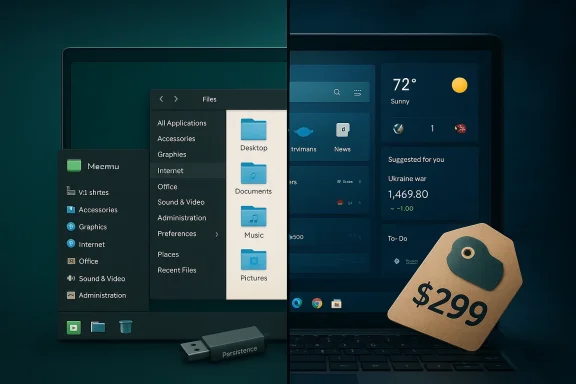
I swapped Windows 11 for Linux Mint and, after several weeks of daily use and cross‑checking the facts, I found seven concrete areas where Mint delivers a better, simpler, or more private desktop experience than a stock Windows 11 installation — but the trade‑offs matter and the migration is far from frictionless. rview
Linux Mint is an Ubuntu‑based desktop distribution engineered around familiarity, ease of use, and a conservative, low‑noise user experience. It ships in three mainstream desktop "flavors" — Cinnamon, MATE, and Xfce — that change the look, resource profile, and workflow of the OS rather than unlocking features behind a product SKU like Windows Home vs Pro. The hands‑on impressions that inspired a PCMag style write‑up — the seven things Mint “does much better” — align with long‑running community observations: lower cost of entry, modest system demands, a minimal‑clutter interface, strong customization choices, simple live‑USB testing, an OS that ships without an AI assistant, and an opt‑in approach to diagnostics. Those claims can be verified and qualified against project documentation, Microsoft’s own policy pages, and independent reporting.
This article supportmmarizes the technical details, and offers an evidence‑based assessment for readers who are weighing whether to switch, dual‑boot, or keep Windows and use Linux Mint as a complementary tool.
Why that matters in practice:
Contrast with Windows: Microsoft historically offered a Windows‑from‑USB solution called Windows To Go, but that was an enterprise‑centric feature that was deprecated and removed because of hardware certification issues and lack of broader support. The net result is that mainstream Windows consumers do not have a supported, general live‑USB option comparable to Mint’s out‑of‑the‑box live mode. If you want Linux’s risk‑free test drive, Mint is in the lead here.
Caveat: live USB persistence has limits — it’s not a substitute for a full install in performance or reliability, and encrypted full installs are recommended for production use.
Practical consequence:
Linux Mint’s model is different: the OS itself does not ship with continuous telemetry. Mint’s System Reports and crash reporting tools collect diagnostic information only when invoked and generally require user action to upload or transmit detailed crash data. Community discussions and Mint project notes repeatedly state that Mint avoids telemetry and defaults to opt‑in diagnostic workflows. That makes Mint a stronger default choice for users prioritizing privacy by design.
Caveat: “No telemetry” is not an absolute guarantee. Third‑party applications you install (for example, web browsers, cloud sync clients, or proprietary drivers) may themselves collect data. Privacy gains from Mint are strongest when you choose and control the stack of applications you run.
The risks and limitations are equally real: lack of native Adobe/Microsoft desktop parity, possible driver and peripheral gaps, and the need for occasional command‑line troubleshooting. For creative professionals or enterprises bound tightly to Windows‑only toolchains, Mint is better positioned as a complement (dual‑boot or VM) rather than a wholesale replacement. For students, hobbyists, privacy‑minded users, and anyone repurposing older hardware, Mint can deliver immediate, measurable benefits.
If you value local control, privacy by default, and a straightforward migration path, sacrifice a USB stick and give Mint a live session a try — you can validate hardware compatibility in minutes and decide with low risk. If your day depends on a particular Windows app or OEM utility, run that workflow in a VM or keep a Windows partition while moving noncritical tasks to Mint.
Source: PCMag I Replaced Windows 11 With Linux Mint. Here Are 7 Things It Does Much Better
Linux Mint is an Ubuntu‑based desktop distribution engineered around familiarity, ease of use, and a conservative, low‑noise user experience. It ships in three mainstream desktop "flavors" — Cinnamon, MATE, and Xfce — that change the look, resource profile, and workflow of the OS rather than unlocking features behind a product SKU like Windows Home vs Pro. The hands‑on impressions that inspired a PCMag style write‑up — the seven things Mint “does much better” — align with long‑running community observations: lower cost of entry, modest system demands, a minimal‑clutter interface, strong customization choices, simple live‑USB testing, an OS that ships without an AI assistant, and an opt‑in approach to diagnostics. Those claims can be verified and qualified against project documentation, Microsoft’s own policy pages, and independent reporting.
This article supportmmarizes the technical details, and offers an evidence‑based assessment for readers who are weighing whether to switch, dual‑boot, or keep Windows and use Linux Mint as a complementary tool.
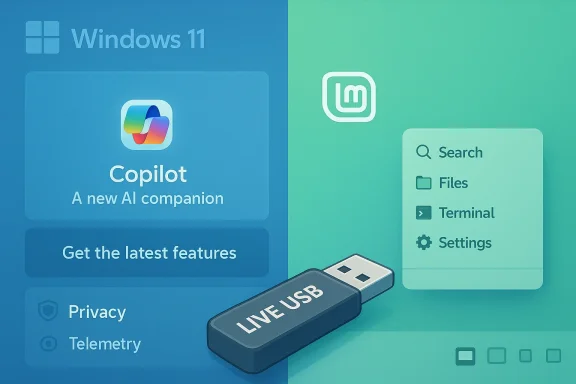 What PCMag reported — the seven advantages, at a glance
- Price: no license required for Linux Mint versus retail Windows pricing.
- System requirements: Mint runs well rare and ships as small ISOs (~2.7–3.1 GB).
- Interface: a cleaner, low‑friction desktop by default, with shortcuts and fewer promotional elements.
- Customization: three distinct desktop editions (Cinnamon, MATE, Xfce) that matter experience.
- Live USB: straightforward live sessions and optional persistence options make testing risk‑free.
out a built‑in assistant like Microsoft Copilot; any AI use is user‑initiated (browser or installed option: Mint defaults to minimal, opt‑in diagnostic reporting; Windows 11 collects required diagnostic data and offers an optional those statements stands up to verification — but with important nuances and practical caveats. The sections below unpack the numbers, show where the claims are they need caution.
1. Price: no license fee vs Microsoft retail pricing
Linux Mint is free to download and use — the project provides ISOs and package repositories under open‑source licenses, and there is no per‑seat purchase required for desktop use. That difference matters for anyone building or refurbishing machines on a tight budget.- Microsoft’s retail list price for Windows 11 Home is commonly shown at $139 and Windows 11 Pro at $199 on the Microsoft Store; retailers and deal sites sometimes sell Pro licenses for far less during promotions, but the standard MSRP is widely published.
- That means a small lab, community center, or hobbyist building many machines can avoid additional per‑machine costs by choosing Linux Mint. The savings are direct and immediate; there’s no license activation or subscription required for the base OS.
2. System requirements and installer footprint: small and efficient
Mint’s baseline hardware guidance is modest: 2 GB RAM (4 GB recommended), around 20 GB disk space as a practical minimum, and a 64‑bit CPU for modern releases. Recent Mint ISOs are compact — generally in the ~2.7–3.1 GB range for mainstream Cinnamon/MATE/Xfce images — which is smaller than a modern Windows 11 image and far smaller than recent macOS installers. Community mirrors and release notes repeatedly show Mint ISOs around that 3 GB mark.Why that matters in practice:
- Lower idle resource usage: lighter background services and no mandatory telemetry agents reduce idle RAM and CPU load, making older hardware feel snappier. Real‑world tests and community reports repeatedly show a measurable responsiveness uplift on devices that struggled under Windows.
- Choice of desktop environment: Cinnamon is the most feature rich and polisher), MATE is a balanced middle ground, and Xfce is the lightest option for very old machines — giving you control over the hardware–UI trade‑off. Independent comparisons and Mint’s own community documentation outline the practical differences in RAM and CPU overhead between the three DEs.
3. Interface: cleaner defaults, less marketing noise
Linux Mint favors a classic desktop paradigm: a bottom panel, a single menu, and a conservative approach to UI changes. That contrasts with recent Windows 11 direction, where the Start menu, taskbar, and settings surfaces increasingly surface promotions, Microsoft services, and recommendations. The Mint Files app and system menu are intentionally straightforward, and many familiar Windows keyboard shortcuts (including the Windows key to open the main menu) behave as expapproach buys you:- Predictability: the shell is focused on launching apps and managing windows rather than serving product suggestions.
- Discoverability: settings and small utilities (like the Update Manager and Driver Manager) are presented plainly and rarely surprise the user with up‑sells or forced cloud sign‑ins.
4. Customization: three flavors, three different experiences
Linux Mint’s Cinnamon, MATE, and Xfce are not “editions” like Windows Home vs Pro — they are distinct desktop environments with different design philosophies and resource profiles. That means installing Mint gives you a genuine choice about how your desktop behaves.- Cinnamon: modern, integrated, and feature rich; best for users who want a polished, Windows‑like experience.
- MATE: conservative, stable, and leaner than Cinnamon while retaining classic desktop metaphors.
- Xfce: the lightweight champion for very old hardware or when minimal resource use is critical.
5. Live USBs and persistence: test without committing
One of Mint’s most user‑friendly features is the live‑USB experience: you can boot a fully functional desktop from removable media, test drivers and peripherals, and only install if you’re satisfied. By default live sessions are ephemeral (changes disappear on reboot), but you can create a live USB with a persistent partition (a casper‑rw or persistence file) so settings and installed apps survive reboots. Community tutorials and Mint’s documentation cover the persistent live‑USB creation process, and tools like Rufus or mkusb make the workflow accessible.Contrast with Windows: Microsoft historically offered a Windows‑from‑USB solution called Windows To Go, but that was an enterprise‑centric feature that was deprecated and removed because of hardware certification issues and lack of broader support. The net result is that mainstream Windows consumers do not have a supported, general live‑USB option comparable to Mint’s out‑of‑the‑box live mode. If you want Linux’s risk‑free test drive, Mint is in the lead here.
Caveat: live USB persistence has limits — it’s not a substitute for a full install in performance or reliability, and encrypted full installs are recommended for production use.
6. AI: no Copilot baked into the OS (but you can add AI tools)
If you dislike embedded assistants or automatic AI features in the OS, Mint is an obvious choice: it ships without a system‑level conversational agent. Windows 11, by contrast, integrates Microsoft Copilot into the taskbar and system UI as a built‑in assistant with voice and contextual capabilities. Microsoft’s public materials describe Copilot as an integrated feature of Windows 11, and independent reporting documents its growing presence and the options for disabling or removing it — albeit with registry or Group Policy steps for deeper removal.Practical consequence:
- Mint gives you a neutral platform — use web‑based ChatGPT, Copilot, or Gemini in a browser, or install a local/third‑party assistant if you wish.
- If your workflow depends on tightly integrated Copilot features (taskbar prompts, File Explorer integration, native Copilot vision), those conveniences won’t be replicated by Mint without third‑party tooling or web services.
7. Data collection and telemetry: opt‑in vs required tiers
Windows diagnostic and telemetry policies are explicit: Microsoft divides telemetry into Required and Optional diagnostic data. Required diagnostic data is described as the minimum data necessary for updates, security, and platform operation; optional telemetry collects broader usage and browsing information and can be toggled, but Required collection cannot be fully turned off in consumer builds. Enterprise editions have additional policy controls that can reduce telemetry to a lower level. Microsoft documents these tiers in its privacy and diagnostic guidance.Linux Mint’s model is different: the OS itself does not ship with continuous telemetry. Mint’s System Reports and crash reporting tools collect diagnostic information only when invoked and generally require user action to upload or transmit detailed crash data. Community discussions and Mint project notes repeatedly state that Mint avoids telemetry and defaults to opt‑in diagnostic workflows. That makes Mint a stronger default choice for users prioritizing privacy by design.
Caveat: “No telemetry” is not an absolute guarantee. Third‑party applications you install (for example, web browsers, cloud sync clients, or proprietary drivers) may themselves collect data. Privacy gains from Mint are strongest when you choose and control the stack of applications you run.
The trade‑offs — where Mint falls short for many users
No desktop choice is a universal solution. Mint is weaker or incompatible in several high‑impact areas:- Native professional creative apps: *** (Photoshop, Premiere Pro, After Effects) and other industry‑standard Windows/Mac apps don’t run natively on Mint. While alternatives (GIMP, Kdenlive, DaVinci Resolve on Linux) and compatibility layers (Wine, Proton) exist, professional pipelines thandor‑specific plugins are not reliably portable.
- Microsoft Office desktop apps: desktop versions of Microsoft 365 have better native support on Windows; many users rely on Office desktop features that the web apps don’t fully replicate. Web‑based Officerity is not perfect.
- Hardware and vendor utilities: some OEM utilities, firmware updaters, or GPU driver tools (especially vendor‑specific control panels) are only available on Windows. While NVIDIA and AMD provide Linux drivers, vendor support for special features varies.
- Phone integration: Windows Pcosystem integrations are deeper on Windows and macOS; Mint can achieve similar Android functionality via KDE Connect or GSConnect but it requires installing and configuring the components and may not reach feature parity for iOS due to vendor restrictions.
- Occasional CLI and troubleshooting: even Mint’s friendly tools sometimes require a terminal for edge‑case driver issues or low‑level debugging. That’s manageable for many users, but it increases support overhead for nontechnical populations.
Practical migration checklist (a realistic plan)
- Inventory your essential apps and map them to Linux options:
- Native Linux app, web app, compatibility layer (Wine/Proton), or must‑keep Windows.
- Create a live USB and test hardware (Wi‑Fi, GPU, sound, printers). Use persistence if you want to keep settings between reboots.
- Back up Windows data (full image plus documents). Never skip this.
- Try the common workflows for two weeks in live or VM mode: browsing, video calls, editing documents, gaming (check ProtonDB).
- Dual‑boot first if you need safety; once confident, migrate to a full install.
- Keep a small Windows VM or a secondary device for work‑critical, Windows‑only tasks.
Security and enterprise considerations
- Windows provides platform‑level protections (TPM, secure boot, virtualization‑based security) that are integrated into the vendor ecosystem; moving to Mint eliminates Microsoft‑specific hardware assurances but replaces them with well‑maintained upstream patches and optional full‑disk encryption (LUKS). Evaluate the specific security controls you need — disk encryption, managed updates, and endpoint management differ materially between platforms.
- For enterprise deployments, supportability and vendor compliance are the dominant decision factors; Mint is attractive for cost control and privacy, but the move requires proof of compatibility with enterprise apps, authentication systems, and management tooling.
Final analysis — strengths, risks, and the verdict
Linux Mint’s strengths are tangible and verifiable: zero license cost, low hardware demands, a clean, control‑oriented desktop, multiple DE choices, easy live‑USB testing, no preinstalled AI assistant, and a default opt‑in diagnostic model. These are not marketing slogans; they’re functional differences reflected in Mint’s design and in Microsoft’s own policies on telemetry and Copilot.The risks and limitations are equally real: lack of native Adobe/Microsoft desktop parity, possible driver and peripheral gaps, and the need for occasional command‑line troubleshooting. For creative professionals or enterprises bound tightly to Windows‑only toolchains, Mint is better positioned as a complement (dual‑boot or VM) rather than a wholesale replacement. For students, hobbyists, privacy‑minded users, and anyone repurposing older hardware, Mint can deliver immediate, measurable benefits.
If you value local control, privacy by default, and a straightforward migration path, sacrifice a USB stick and give Mint a live session a try — you can validate hardware compatibility in minutes and decide with low risk. If your day depends on a particular Windows app or OEM utility, run that workflow in a VM or keep a Windows partition while moving noncritical tasks to Mint.
Conclusion
Replacing Windows 11 with Linux Mint is a practical, defensible choice for many users: it reduces cost, extends the life of older PCs, removes built‑in assistant and telemetry surprises, and restores a classic, low‑friction desktop. The migration requires planning — check app compatibility, test on a live USB or VM, and keep fallbacks for mission‑critical Windows workloads — but for the right user the benefits are immediate, visible, and lasting. Practicality, privacy, and choice are Mint’s core offers; whether they outweigh Windows‑specific productivity, creative, or enterprise requirements is a decision each reader should make after testing the system on their own hardware.Source: PCMag I Replaced Windows 11 With Linux Mint. Here Are 7 Things It Does Much Better