

Windows Security is one of those features that quietly does its job until it doesn't — and when it interferes with an installer, game, or specialized tool you trust, the question “should I turn it off?” becomes suddenly urgent.
Windows Security (the built‑in suite that includes Microsoft Defender Antivirus, firewall controls, SmartScreen and device protections) is the default, first‑party security layer in Windows 10 and Windows 11. It provides real‑time protection, cloud‑delivered intelligence, behavior heuristics and ransomware shielding that integrate with the OS. For most users, leaving it running is the simplest way to stay protected without paying for a third‑party product. That said, there are different ways to “turn off” Windows Security — some temporary, some persistent — and they behave differently depending on your Windows edition, management state (consumer vs. Enterprise), and whether features such as Tamper Protection are active. The difference matters: toggling real‑time protection from the Settings app is not the same as applying a policy that prevents the service from starting. The practical rule of thumb for experienced users and IT pros is:
Quick steps:
Source: ZDNET Should you ever turn off Windows Security? It's tricky, but here's my rule of thumb
 Background / Overview
Windows Security (the built‑in suite that includes Microsoft Defender Antivirus, firewall controls, SmartScreen and device protections) is the default, first‑party security layer in Windows 10 and Windows 11. It provides real‑time protection, cloud‑delivered intelligence, behavior heuristics and ransomware shielding that integrate with the OS. For most users, leaving it running is the simplest way to stay protected without paying for a third‑party product. That said, there are different ways to “turn off” Windows Security — some temporary, some persistent — and they behave differently depending on your Windows edition, management state (consumer vs. Enterprise), and whether features such as Tamper Protection are active. The difference matters: toggling real‑time protection from the Settings app is not the same as applying a policy that prevents the service from starting. The practical rule of thumb for experienced users and IT pros is:- Use a temporary disable when you must (installers, debugging, short‑term troubleshooting).
- Only consider a permanent disable if you are going to replace Defender with a proven, full‑featured third‑party product or you manage devices through centralized enterprise tools — and understand the tradeoffs. This is the same guidance long advised by journalists and support articles covering Defender and Windows Security.
What “turning off” actually means
Real‑time protection (temporary)
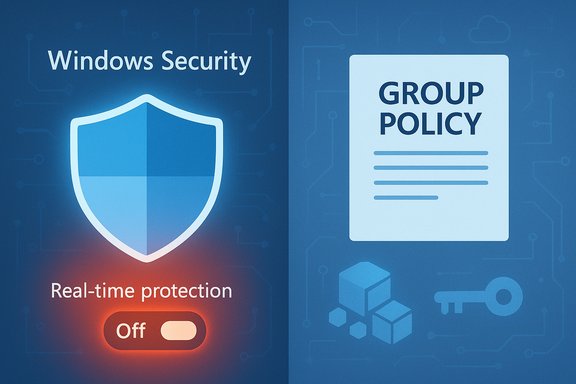
- The Windows Security app exposes a Real‑time protection toggle. Flipping it off will stop Defender from scanning files as they are accessed, but Windows will automatically re‑enable this protection after a short while or at the next reboot. That automatic re‑enable is deliberate — a safety net to avoid leaving devices exposed.
Group Policy (Pro/Enterprise) — closer to permanent
- On Windows 11 Pro and Enterprise you can use the Local Group Policy Editor (gpedit.msc) to set Turn off Microsoft Defender Antivirus or disable real‑time scanning with policy. Policies applied this way remain in effect until changed and are the supported enterprise mechanism for replacing Defender with another endpoint solution. However, Tamper Protection and centralized management can block local changes.
Registry edits (Home edition and legacy methods)
- Older instructions recommend adding a DWORD named DisableAntiSpyware under HKEY_LOCAL_MACHINE\SOFTWARE\Policies\Microsoft\Windows Defender. Historically that disabled Defender, but Microsoft has updated this behavior: the DisableAntiSpyware/DisableAntivirus keys are legacy, removed for many modern deployments, and are ignored in many managed or newer platform builds. Registry approaches may no longer work reliably on current consumer or enterprise builds. Treat registry hacks as brittle and version‑dependent.
Tamper Protection and management
- Tamper Protection is designed to prevent malware — and sometimes inexperienced users — from changing critical Defender settings. If Tamper Protection is turned on, many attempts to change Defender behavior via registry or external scripts will fail. In an enterprise environment, Tamper Protection may be enforced centrally and not changeable locally.
Why you might want to disable Windows Security (and when it’s reasonable)
There are legitimate, common reasons to temporarily or permanently disable Windows Security — but they’re not one‑size‑fits‑all.- Installing a third‑party antivirus: A properly designed third‑party AV will register with Windows Security and normally cause Defender to step aside; in enterprise rollouts admins sometimes proactively disable Defender with policy during migration. This is an acceptable permanent swap if the replacement is reputable and kept updated.
- False positives and development tooling: Some niche, open‑source builds, self‑signed tools, or game mods can be flagged incorrectly. Developers and power users often temporarily disable real‑time scanning to install or test code, then immediately reenable protection. Evidence of these types of conflicts appears often in community forums and reporting.
- Troubleshooting and installers: Certain installers unpack and execute helper binaries that heuristics flag; temporarily pausing real‑time protection can allow an installation to complete so you can re‑scan afterward. This is a short‑term, targeted action — not a permanent recommendation.
- Performance or compatibility reasons (rare): On older hardware or for high‑performance, latency‑sensitive workloads (e.g., certain pro audio or legacy games), defenders’ active scanning can show a measurable impact. In those narrow cases users sometimes disable or tune Defender features temporarily and/or add exclusions.
- IT and server scenarios: Microsoft specifically advises that multiple simultaneously running antivirus engines can conflict; in managed server environments admins commonly disable Defender and run a supported endpoint solution instead. This is a managed, planned change — not ad hoc.
How to safely disable Windows Security temporarily (step‑by‑step)
If you decide to pause Windows Security for a short time, follow these safe steps.- Create a restore point first (recommended). See the section below for a quick how‑to.
- Disconnect from the network or pause Internet access if possible while the protection is off — this limits exposure.
- Use the Windows Security app (the supported UI path):
- Open Start → type Windows Security → open it.
- Go to Virus & threat protection → Manage settings (under Virus & threat protection settings).
- Toggle Real‑time protection to Off. You may need to confirm a UAC prompt.
- This change is temporary — Windows will generally re‑enable real‑time protection automatically after a while or on reboot, which is the intended protective behavior. Rely on this for short actions (install, test, patch), then re‑enable when finished.
- If Tamper Protection is on and you cannot change real‑time protection, you’ll need to disable Tamper Protection first in the Windows Security UI — but only if you control the device and understand the consequences. In managed environments the tamper setting may be controlled centrally.
How to disable Windows Security more permanently (and why this is risky)
If you’re running Windows 11 Pro or Enterprise and your goal is to replace Defender, the supported method is Group Policy or mobile device management. For Windows 11 Home users, the registry route is often suggested — but there are caveats.Windows 11 Pro — Group Policy
- Press Win + R, type gpedit.msc, and press Enter.
- Navigate to Computer Configuration → Administrative Templates → Windows Components → Microsoft Defender Antivirus.
- Double‑click Turn off Microsoft Defender Antivirus, set to Enabled, Apply, OK.
- Reboot. This applies a policy that keeps Defender from operating until the policy is reverted.
- If Tamper Protection is enforced centrally or the device is onboarded to Microsoft Defender for Endpoint, policy changes may be blocked or ignored.
Windows 11 Home — legacy registry key (fragile and version‑dependent)
- The frequently‑recommended registry key is:
- Path: HKEY_LOCAL_MACHINE\SOFTWARE\Policies\Microsoft\Windows Defender
- DWORD: DisableAntiSpyware = 1
- Two critical modern realities:
- Microsoft documents that DisableAntiSpyware and similar keys are legacy and are removed or ignored on newer platform versions and many managed scenarios. The key may be ineffective or actively ignored depending on Defender platform version and how the device is enrolled.
- Tamper Protection may block registry modifications; turning off Tamper Protection can be required and in enterprise devices it may be unchangeable locally.
Safer alternatives to disabling Defender entirely
Rather than a blanket off switch, consider these safer approaches that preserve protection while solving your immediate problem.- Add a precise exclusion for the specific file, folder or process that’s being flagged. This keeps real‑time scanning on for everything else.
- Use a sandbox or virtual machine to run untrusted installers (Sandboxie, Hyper‑V, or a disposable VM).
- Temporarily disconnect network access while you run the installer, then re‑scan and reconnect.
- Install a known, reputable third‑party AV — Windows will automatically stop Defender’s real‑time scans when a compatible solution is active. Ensure the replacement provides full endpoint functionality (real‑time scanning, web protection, ransomware features).
Restore points and backups — essential before you touch settings
If you plan to edit group policy or the registry, create a System Restore point first. It’s fast, built into Windows and can save hours of recovery work.Quick steps:
- Open Start, type Create a restore point, select the result.
- Under the System Protection tab, click Create, enter a short description (e.g., “Before Defender policy change”), then click Create.
- To revert: Open the same tool → System Restore → select the restore point and follow the prompts.
Real, modern risks: beyond the usual warnings
Turning off Defender increases exposure to the classic threats — viruses, ransomware, spyware and phishing — but there are contemporary nuances you should know.- Attackers increasingly attempt to disable security products during intrusions. Recent reports show adversaries abusing legitimate vulnerable drivers (a Bring‑Your‑Own‑Vulnerable‑Driver technique) to gain kernel access and flip Defender settings, including registry entries that would normally be protected. That means a disabled or weakened Defender expands the attack surface and may be actively targeted. Keep this top‑of‑mind if you are deciding to leave Defender off.
- Tamper Protection exists because malicious scripts and installers attempted to flip Defender off before running payloads. If you turn tamper protection off to allow a registry edit, understand that you are temporarily removing a protective barrier. Re‑enable tamper protection immediately after completing the change if possible.
- Enterprise and vendor tooling: If your device is managed by Intune, Microsoft Defender for Endpoint, or another management service, local changes may be overridden automatically. Policy drift can reapply Defender or re‑enable tamper protection without warning. Document changes and coordinate with IT in managed environments.
A practical checklist: how I decide whether to turn Windows Security off (editorial rule of thumb)
- Is the need temporary (install, test, troubleshoot) or permanent (replacing with another AV or server policy)?
- If temporary: use the Settings UI toggle, create a restore point, disconnect network if possible, re‑enable immediately after the task.
- If permanent: plan for a replacement product; use Group Policy or MDM for enterprise‑scale changes; avoid registry hacks on consumer machines.
- Can I add a narrow exclusion instead of disabling the whole suite? Exclusions are safer.
- Is Tamper Protection preventing the change? If so, review whether it is managed centrally; do not force changes on managed devices.
- Backup: Create a System Restore point, export any registry keys, and snapshot or backup critical files.
- Re‑enable protections and run scans immediately after the task finishes. If you install a third‑party AV, verify Windows shows the replacement as active.
Troubleshooting common pitfalls
- “I turned off real‑time protection and it turned back on.” — That’s by design; Windows auto‑restores real‑time protection after a short interval or reboot to prevent long‑term exposure.
- “My registry change didn’t work.” — On modern builds the registry key may be ignored or the device could be governed by Defender for Endpoint policies. Also, Tamper Protection can block registry edits. Validate Defender platform versions and management state before relying on registry methods.
- “I can’t change Tamper Protection — the UI says contact admin.” — The device is likely managed centrally (Intune, corporate MDM, or Defender for Endpoint). Coordinate with your security team.
Conclusion — the short, practical answer
You can and sometimes should turn off Windows Security briefly when you have a concrete, well‑scoped reason — installing trusted software, running a controlled test, or migrating to a managed third‑party product. For temporary pauses, use the Windows Security UI, create a restore point, add narrow exclusions, and re‑enable protection as soon as possible; the OS also helps by re‑enabling real‑time protection automatically. Permanently disabling Defender is a heavier decision: on Pro/Enterprise do it through Group Policy or MDM as part of a managed migration to another endpoint product; on Home, beware that registry hacks are brittle and increasingly ineffective on modern builds. Tamper Protection and cloud/enterprise enrollment make many local “perm‑off” tricks unreliable or dangerous. If you permanently disable Defender, make sure a reputable alternative is installed and continuously updated. Finally, keep this simple checklist in your pocket: backup first, prefer exclusions to full shutdown, disconnect the network when possible while the protection is off, and restore tamper protection immediately if you temporarily disable it. Those practices minimize risk while giving you the control you need when Windows Security becomes an obstacle rather than a helper.Source: ZDNET Should you ever turn off Windows Security? It's tricky, but here's my rule of thumb
