

Windows 11 ships with more preinstalled apps, background services, and promotional features than many users want — and the result is a system that can feel cluttered, noisy, and less responsive than it should. A handful of mature, open-source utilities now offer reliable, auditable ways to prune that excess: portable GUI tools like Bloatynosy and well‑documented PowerShell scripts such as Win11Debloat let enthusiasts and administrators reclaim disk space, reduce background processes, and stop unwanted auto‑installs — all while keeping changes reversible when possible. This piece unpacks what each tool actually does, verifies the key technical claims and commands, explains step‑by‑step usage patterns for different skill levels, and calls out the safety, update, and compatibility trade‑offs every user must weigh before they clean house.
Windows 11 includes a broad set of first‑party apps, OEM utilities, and optional components that are useful to some users but redundant for many. That “bloatware” shows up as extra Start‑menu tiles, services running in the background, and occasional promotional prompts. For end users the practical consequences are cluttered menus, slightly longer boot times, and higher idle RAM/CPU usage; for IT administrators, preinstalled OEM utilities and trial software can mean extra update channels, telemetry, and unexpected processes to manage. The baseline approach is simple: uninstall the apps you don’t need, disable the services you don’t want, and prevent auto‑installs where possible — but the right tool depends on risk tolerance, technical skill, and whether you need repeatable automation for multiple machines.
Manual removal via Settings is still the safest starting point for casual users. Open Settings → Apps → Installed apps (or right‑click the Start button and choose Installed apps) and uninstall entries you don’t recognize or use. You can also locate legacy applets via appwiz.cpl. Manual removal is safest because it’s explicit and low risk — but it’s slow, repetitive, and misses many “provisioned” or protected packages that third‑party tools target.
& ([scriptblock]::Create((irm "https://debloat.raphi.re/")
This PowerShell one‑liner downloads a small bootstrapper which fetches the full script and presents a menu of modes. The project documentation confirms this exact invocation and documents three primary methods to run: quick (one‑liner), traditional (download & run Run.bat), and advanced (run the script file directly with execution policy bypass and parameters). For automation the script supports parameters such as -RunDefaults, -Silent, -CreateRestorePoint, and -Sysprep for image provisioning.
Source: PCWorld Sick of Windows 11's bloat? These open-source tools fix it
 Background / Overview
Windows 11 includes a broad set of first‑party apps, OEM utilities, and optional components that are useful to some users but redundant for many. That “bloatware” shows up as extra Start‑menu tiles, services running in the background, and occasional promotional prompts. For end users the practical consequences are cluttered menus, slightly longer boot times, and higher idle RAM/CPU usage; for IT administrators, preinstalled OEM utilities and trial software can mean extra update channels, telemetry, and unexpected processes to manage. The baseline approach is simple: uninstall the apps you don’t need, disable the services you don’t want, and prevent auto‑installs where possible — but the right tool depends on risk tolerance, technical skill, and whether you need repeatable automation for multiple machines.Manual removal via Settings is still the safest starting point for casual users. Open Settings → Apps → Installed apps (or right‑click the Start button and choose Installed apps) and uninstall entries you don’t recognize or use. You can also locate legacy applets via appwiz.cpl. Manual removal is safest because it’s explicit and low risk — but it’s slow, repetitive, and misses many “provisioned” or protected packages that third‑party tools target.
Bloatynosy (portable GUI): what it is, how it works
What Bloatynosy does and why it’s different
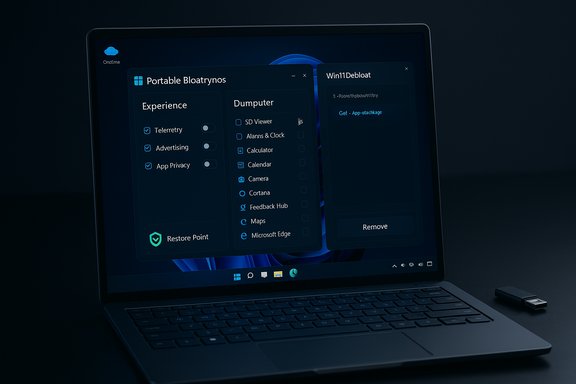
Bloatynosy (sometimes styled BloatyNosy) is a portable Windows utility that provides a well‑designed GUI for two complementary workflows: Experience (system settings and telemetry/privacy toggles) and Dumputer (app detection and removal). The app is intentionally portable — you drop the EXE on a machine and run it without a traditional installer — which makes it convenient for one‑off machines and diagnostic use. Its plugin engine expands functionality, adding targeted features such as full OneDrive removal, the ability to restore accidentally deleted apps, and a plugin to block Microsoft’s New Outlook auto‑installation. The project’s release notes emphasize dark mode, improved high‑DPI handling, and a cleaner navigation model.Key interface pieces: Experience and Dumputer
- Experience: groups privacy and visual toggles in one place — disable telemetry, hide integrated ads across File Explorer/Start, turn off optional features like Windows Recall, and pare back Edge integrations. These are mostly registry and policy changes made from the app for convenience.
- Dumputer: a built‑in app scanner and uninstaller that locates preinstalled packages (including some that Windows tries to protect) and offers point‑and‑click removal. Dumputer’s UI uses two “baskets” for organizing removals and supports filtering to avoid accidental deletions.
Notable features and recent additions
- Plugin engine and plugin store support: makes it possible to add curated behaviors (e.g., block New Outlook preinstall or bulk winget installs). This is the feature that lets Bloatynosy adapt quickly to Microsoft’s shifting behavior.
- Portable, dark UI, high‑DPI support and a navigation manager for better UX on modern tablets and high‑resolution laptops.
When to use Bloatynosy
Bloatynosy is ideal for:- Desktop users who prefer a GUI and want to audit changes before applying them.
- Single‑machine maintenance and fast interactive cleanups.
- Administrators who need a quick portable tool during imaging or support visits and want plugin flexibility.
Caveats and risks
- Any GUI debloater that removes provisioned packages or modifies system policies can be brittle across Windows updates; you must verify functionality after major feature updates.
- Some removals affect features other apps expect (e.g., removing OneDrive provisioning can change how File Explorer integrates cloud files).
- Plugins introduce dependency and supply‑chain considerations; only enable plugins from trusted sources and review their code if you can.
Win11Debloat (PowerShell script): what it is, verification and usage
What Win11Debloat offers
Win11Debloat is a community PowerShell script designed to be lightweight, scriptable, and auditable. It focuses on removing preinstalled apps, disabling telemetry and advertising behaviors, switching off Bing/Copilot features where requested, and applying a curated set of Explorer and Taskbar tweaks. Because it’s script‑based, it supports automation, unattended runs, and parameters for advanced deployment scenarios. The project maintains extensive documentation and a documented quick one‑liner to bootstrap execution.Verified one‑liner and execution modes
The commonly quoted quick launch command is:& ([scriptblock]::Create((irm "https://debloat.raphi.re/")
This PowerShell one‑liner downloads a small bootstrapper which fetches the full script and presents a menu of modes. The project documentation confirms this exact invocation and documents three primary methods to run: quick (one‑liner), traditional (download & run Run.bat), and advanced (run the script file directly with execution policy bypass and parameters). For automation the script supports parameters such as -RunDefaults, -Silent, -CreateRestorePoint, and -Sysprep for image provisioning.
Important advanced capabilities
- Sysprep mode: Win11Debloat can run with -Sysprep to modify the default user profile so new user accounts inherit the debloat settings — useful for imaging and provisioning. The GitHub wiki documents how to use Windows Audit Mode and run the script to change the default profile.
- Audit and multi‑user operations: you can target other user profiles with parameters like -User, or run in audit mode for testing.
- Undo/restore: many removals are reversible by re‑installing apps from the Microsoft Store; the script emphasizes creating a system restore point first.
When to use Win11Debloat
Win11Debloat is best for:- Power users who are comfortable with PowerShell and want precise control.
- Administrators building automation for imaging, provisioning, or repeated cleanup across many machines.
- Situations where reproducibility (scripts, parameters, logs) and sysprep/audit support are critical.
Safety and operational guidance
- Test on a VM first: run Win11Debloat in a snapshot/VM to review exactly which packages it removes.
- Create a restore point or image backup before running on production hardware: use -CreateRestorePoint or create a disk image.
- Use -RunDefaults or -RunDefaultsLite for safer, curated defaults rather than blind “remove everything” runs.
- Keep a record of parameters used for each machine to aid rollback or re‑provisioning.
Side‑by‑side: Bloatynosy vs Win11Debloat — pick the right tool
Quick checklist
- You want a guided GUI and plugin convenience → choose Bloatynosy.
- You need automation, sysprep support, and fine‑grained scriptability → choose Win11Debloat.
- You prefer the safety of manual uninstalls for a few apps → use Settings / appwiz.cpl.
- You need a reproducible, imageable workflow for dozens or hundreds of PCs → use Win11Debloat in Sysprep or Task Scheduler automation.
Practical examples (scenarios)
- Single home laptop: run Bloatynosy, use Experience to disable telemetry, then Dumputer to remove games and Clipchamp.
- IT imaging station: include Win11Debloat in an image workflow, run with -Sysprep to bake changes into the default profile and minimize manual rework for new users.
- Mixed fleet where non‑technical staff need periodic cleanups: package Bloatynosy on a support USB and distribute a vetted plugin pack; train IT to validate the plugin list before each roll‑out.
Step‑by‑step: safe recipes for each tool
Bloatynosy (interactive safe recipe)
- Download the latest release from the project’s official repository and verify the checksum if provided.
- Copy the EXE to the target machine; run it as a standard user (it prompts for elevation when needed).
- Click Experience and review the grouped toggles; uncheck anything you’re unsure about.
- Move to Dumputer, filter to “installed apps”, and select nonessential items (games, trials, duplicate store shortcuts).
- Create a Windows restore point manually if you prefer an extra safety net before large removals.
- Reboot and validate key workflows (cloud sync, email, gaming) before marking the machine done.
Win11Debloat (scripted safe recipe)
- Boot a test VM and snapshot it.
- Open an elevated PowerShell window on the test VM and run:
& ([scriptblock]::Create((irm "https://debloat.raphi.re/") - Choose menu option 1 (Default) to see what the script will do, or run with parameters for automation:
& ([scriptblock]::Create((irm "https://debloat.raphi.re/") -RunDefaults -CreateRestorePoint -Silent - Validate services and app behavior. If satisfied, integrate into imaging:
- Use -Sysprep when running during out‑of‑box setup or in Windows Audit Mode (CTRL+SHIFT+F3) to apply to default profile.
The trade‑offs: what you gain and what you risk
Benefits
- Reduced background services and fewer idle processes, which often improves responsiveness and battery life on laptops.
- Cleaner Start Menu and fewer distractions like promotional tiles.
- Improved privacy from disabling telemetry and ad features.
- Reproducible automation for enterprise workflows (Win11Debloat).
Risks and gotchas
- Windows feature updates sometimes reintroduce apps or reset policies; debloating is not always permanent. Expect to reapply or integrate tools into post‑update automation.
- Removing certain packages can break expected OS features or OEM utilities (e.g., removable OneDrive provisioning can alter File Explorer context menus).
- Anti‑cheat and security software can react unpredictably to deep system modifications; test on gaming or security‑sensitive machines first.
- Supply‑chain risk for plugins: verify plugin sources and, when possible, inspect code.
Alternatives and complementary tools
Bloatynosy and Win11Debloat are not the only options. Depending on needs, consider:- Sparkle: a user‑friendly debloat + maintenance GUI that integrates curated scripts and provides backup/restore flows for safer experiments. Good middle ground between GUI and script.
- Talon: an open‑source two‑click debloater aimed at simplicity, useful for fresh installs.
- Tiny11 / Tiny11Core: build custom, minimal ISOs for constrained devices (advanced, nonstandard approach; not a drop‑in debloater).
- O&O ShutUp10++ and similar privacy tools: complementary for specific telemetry and privacy toggles without mass app removal.
Best practices and an operational playbook
- Inventory first: enumerate installed apps, running services, and scheduled tasks; document what you intend to remove.
- Test in a VM: run every change on a snapshot to spot regressions before touching production machines.
- Use restore points and disk images: always create a rollback point for user machines before mass removal.
- Maintain a “reprovision” script or winget manifest that can reinstall any removed apps your users may need later.
- Monitor after updates: schedule periodic checks for reintroduced apps following major Windows feature updates.
- Keep tools updated and verify new releases against changelogs; avoid unofficial plugin packs unless you vet the authors.
How to handle compliance, warranty, and enterprise concerns
- Corporate devices: check with IT policy before running third‑party debloaters. Some enterprises consider these changes unsupported and may require IT to perform the work centrally.
- Warranty and support: consumer removal of OEM apps usually doesn’t void hardware warranties, but aggressive system image changes can complicate vendor troubleshooting.
- Logging and documentation: for managed fleets, log every change (tool, parameters, and date) so helpdesk can reproduce or revert a configuration when needed.
Conclusion
The PCWorld coverage that highlighted Bloatynosy and Win11Debloat reflects a larger, community‑driven trend: users want a lean, private, and focused Windows experience, and open‑source tools now make that practical without obscure manual interventions. Bloatynosy delivers a polished, portable GUI with a plugin model that keeps pace with Microsoft’s evolving behavior; Win11Debloat gives power users and administrators a scriptable, reproducible engine for image provisioning and automation. Both are powerful and — when used responsibly — safe ways to declutter Windows 11. The right choice depends on whether you prefer a guided GUI or a script that can be integrated into automated deployment workflows. Test changes, keep robust backups, and maintain a plan for reapplying your configuration after major updates — then enjoy a cleaner, quieter Windows install.Source: PCWorld Sick of Windows 11's bloat? These open-source tools fix it
