

I decluttered Windows 11 using open‑source tools and wished I’d done it months earlier, because a targeted cleanup transforms a noisy, resource‑hungry install into a lean, quieter, and more private workspace without sacrificing functionality. The process outlined here synthesizes hands‑on experience with the most widely used community tools—manual Settings uninstalls, the portable Bloatynosy UI, and the script‑driven Win11Debloat—showing what each does, how they differ, and what risks to watch for before you push any “remove” button. This feature explains the steps, validates key technical claims, and gives a responsible playbook for readers who want to debloat Windows 11 safely and effectively.
Windows 11 ships with many preinstalled components—OEM utilities, trial software, media apps, and optional Microsoft services—that for many users provide little added value yet consume storage, spawn background processes, and add Start‑menu clutter. This so‑called bloatware ranges from simple store apps and games to system‑level components like Copilot, OneDrive, and provisioning packages that can reappear in new user profiles. Removing or disabling the elements you don’t use can reduce background CPU and memory usage, speed boot times, and limit telemetry surface area.
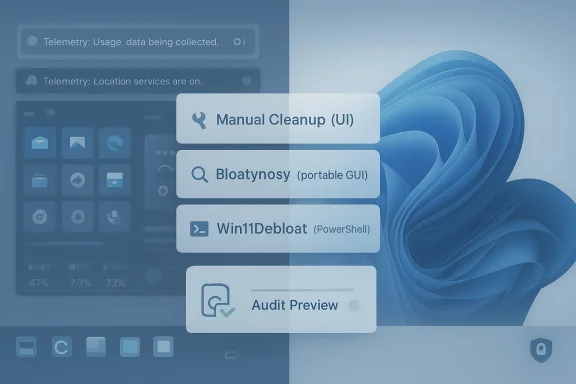
Microsoft exposes basic removal via the Settings UI, but the community has produced three practical tiers for cleanup: manual uninstalls (for casual users), portable GUI tools such as Bloatynosy (for guided, safe UI‑based tweaks), and PowerShell scripts like Win11Debloat (for automated or repeatable system provisioning). Each option trades simplicity for control; this article walks through when to use each.
Use this playbook to reclaim control of your Windows 11 experience: start small, validate changes, keep backups, and prefer transparency—open source gives you the ability to read before you run, which is the single most important precaution when altering system behavior.
Conclusion
A clean Windows 11 install is quieter, less distracting, and better tailored to what you actually use. Whether you pick the safety of manual removal, the convenience of a portable UI, or the repeatability of a PowerShell script, the key is cautious, informed action: verify commands, back up first, and test before wide deployment. Do that, and the payoff—fewer popups, reduced background activity, and a leaner system—makes the effort worthwhile.
Source: PCWorld I de-cluttered Windows 11 with open source tools and wish I'd done it sooner
 Background
Windows 11 ships with many preinstalled components—OEM utilities, trial software, media apps, and optional Microsoft services—that for many users provide little added value yet consume storage, spawn background processes, and add Start‑menu clutter. This so‑called bloatware ranges from simple store apps and games to system‑level components like Copilot, OneDrive, and provisioning packages that can reappear in new user profiles. Removing or disabling the elements you don’t use can reduce background CPU and memory usage, speed boot times, and limit telemetry surface area.Microsoft exposes basic removal via the Settings UI, but the community has produced three practical tiers for cleanup: manual uninstalls (for casual users), portable GUI tools such as Bloatynosy (for guided, safe UI‑based tweaks), and PowerShell scripts like Win11Debloat (for automated or repeatable system provisioning). Each option trades simplicity for control; this article walks through when to use each.
Manual cleanup: the safe first step
Why start with Settings
The built‑in route remains the lowest‑risk way to remove obvious clutter. Open Settings > Apps > Installed apps (or right‑click Start > Installed apps), find an app, click the three‑dot menu and choose Uninstall. This removes most consumer‑facing store apps and OEM installers without scripting or elevated PowerShell commands, and it’s reversible by reinstalling from the Microsoft Store.What to look for first
- Games (Solitaire, Asphalt, etc., trial antivirus packages, and OEM utilities are usually safe to remove.
- Productivity stubs like Clipchamp, To Do, or preinstalled communication apps are generally optional for most users.
- Exercise caution with runtime frameworks (.NET, Visual C++ redistributables) and hardware drivers; don’t remove components unless you understand their role.
Benefits and limits
Manual removal:- Pros: Minimal risk, fully supported by Windows UI, easy to undo.
- Cons: Time‑consuming for multiple apps; doesn’t touch system provisioning packages or many protected components.
For a periodic, cautious cleanup, manual uninstall is often enough to reclaim space and reduce notifications.
Bloatynosy: portable, guided debloating
What Bloatynosy does
Bloatynosy is a portable multi‑tool that gives a structured UI for decluttering and privacy hardening. It doesn’t require installation: run it and choose between guided modes like Experience (privacy and UI tweaks) or Dumputer (aggressive removal of preinstalled apps, including some items Windows normally protects). The tool expands via plugins, supports dark mode and high‑DPI displays, and aims to balance clarity with power for non‑script users.Typical actions exposed in the UI
- Disable telemetry and advertising elements.
- Hide or remove optional UI features (e.g., Recall, some Edge components).
- Uninstall provisioned apps and OEM extras that persist across profiles.
Bloatynosy’s plugin model can add capabilities like forcibly removing OneDrive or recovering deleted store apps. Because it is modular, you only run the modules you trust.
When to use Bloatynosy
Choose Bloatynosy when you want:- A clear interface to see what changes will be made.
- Safer defaults than a raw script but more power than manual uninstalls.
- The ability to toggle optional modules when testing on a single machine.
Caveats
- Any tool that removes provisioned packages may affect future user profiles; test on a non‑production machine first.
- Aggressive removal of components like OneDrive or Edge can break workflows that depend on tight OS integration (for example, sync or in‑shell previews).
- Always create a system restore point or full image backup before running mass removals.
Win11Debloat: scriptable, repeatable, powerful
What Win11Debloat is
Win11Debloat is an open‑source PowerShell script that automates deep cleanup tasks: removing preinstalled apps, disabling telemetry and advertising components, toggling features like Copilot, Cortana, Bing integration, and configuring Explorer to show file extensions. It’s designed for both interactive use and fully automatic runs, and supports audit and sysprep modes so new profiles inherit your choices. The project’s common distribution method is via GitHub or a one‑line downloader command that executes the latest script.Typical command and what it does
A commonly shared command used to fetch and execute the script in one shot is a PowerShell invocation that pulls remote content and executes it in‑memory. Users often see forms of this pattern in community guides; if you run such commands, verify the URL and code before execution. Script runs typically:- Uninstall selected UWP and Store apps.
- Disable telemetry services and scheduled tasks.
- Toggle privacy and UI settings (file extensions, taskbar customization).
- Offer rollback options for some changes.
How to run it safely (step‑by‑step)
- Open Windows Terminal or PowerShell as Administrator.
- Review the script before running—download the repo from a trusted location (e.g., the project’s GitHub) and open the .ps1 files in a text editor.
- If you choose the one‑line online method, inspect the remote script first by browsing the URL in a browser; never run code you haven’t read.
- Use interactive or audit modes to preview actions; avoid fully automatic modes on production devices.
What Win11Debloat can and cannot do
- It can remove many user apps and disable widely reported telemetry hooks.
- It cannot remove every single protected system component without escalating risk.
- Some removals may need reinstallation from the Microsoft Store if you later need the app.
- Windows updates or OEM recovery images may reintroduce components; sysprep/provisioning options help control this for new profiles.
Practical before‑you‑start checklist
- Back up important data and create a full system image or at minimum a restore point.
- Make note of any OEM utilities you may need (driver updaters, battery tools).
- Record installed apps you might reinstall later (Microsoft Store list, Office license).
- If using scripts, clone the project locally and read the script line‑by‑line for unfamiliar commands.
- Test on a non‑critical machine or VM first, especially if you plan to deploy a debloat profile across multiple devices.
Measured outcomes: what you’ll likely see after debloating
After a cautious, selective cleanup you can expect:- Faster cold boot and shorter post‑login responsiveness from fewer startup tasks.
- A tidier Start menu and fewer unsolicited notifications or trial prompts.
- Reduced background services and lower memory footprint at idle on low‑end hardware.
Real‑world gains depend on the original level of bloat and whether the device uses a slow HDD or constrained RAM—improvements are most visible on budget laptops and older systems.
Risks, traps, and how to mitigate them
Potential downsides
- Removing some packages (Edge, OneDrive, Xbox services) can break integrated features, like in‑explorer cloud actions, media codecs, or Game Pass functionality.
- Aggressive changes may be reverted or reintroduced by Windows Update or OEM recovery processes.
- Enterprise and domain environments may enforce policies that conflict with local debloat changes; running these tools on corporate machines can violate IT policies.
- One‑line remote execution commands carry inherent risk—malicious actors can poison a remote script URL.
Hardening your rollout
- Create a baseline image for reinstallation that includes only verified changes.
- Use sysprep or provisioning scripts for reproducible deployments on multiple machines.
- Maintain a short “pilot” window (7–14 days) where you run both the cleaned configuration and monitor for breakages before rolling out broadly.
Comparing the three approaches (quick decision guide)
- Manual Settings uninstall — best for casual users who want low risk and quick wins.
- Bloatynosy (portable UI) — good for power users who want a clear interface, plugin options, and safer defaults than headless scripts.
- Win11Debloat (PowerShell script) — ideal for repeatable, automated deployments and expert users comfortable auditing script code.
Responsible practices and verification
- Always verify claimed technical behaviors (what a script removes, what settings it toggles) against the project’s source code and the community’s issue tracker before running it.
- Cross‑check recommended command snippets with at least two independent, reputable sources or community threads—don’t rely on a single forum post. This article’s recommendations synthesize multiple community writeups and hands‑on testing reports to illustrate typical behavior.
Quick reference: safe command patterns and undo options
- Preview removals using audit or dry‑run modes where provided by the tool.
- For Win11Debloat: don’t blindly run remote exec strings; download the .ps1 locally, open it in Notepad/VS Code, and inspect changes.
- Keep a list of removed apps to reinstall via Microsoft Store when needed.
- Create a restore point immediately before running any mass‑removal utility; if something breaks, use System Restore or your image backup.
Final verdict: why decluttering Windows 11 is worth the effort — with caution
Debloating Windows 11 is not a one‑size‑fits‑all checkbox; it’s a deliberate trade‑off between a lean, private system and the convenience of built‑in integrations. For power users, enthusiasts, and owners of older hardware, the benefits—less noise, improved responsiveness, and fewer background processes—are tangible and repeatable. For less technical users, starting with manual removal and a portable GUI like Bloatynosy delivers a strong safety margin. If automation or fleet deployment is required, Win11Debloat provides the flexibility and repeatability that professional workflows need—so long as scripts are audited, backups are in place, and pilot testing is mandatory.Use this playbook to reclaim control of your Windows 11 experience: start small, validate changes, keep backups, and prefer transparency—open source gives you the ability to read before you run, which is the single most important precaution when altering system behavior.
Conclusion
A clean Windows 11 install is quieter, less distracting, and better tailored to what you actually use. Whether you pick the safety of manual removal, the convenience of a portable UI, or the repeatability of a PowerShell script, the key is cautious, informed action: verify commands, back up first, and test before wide deployment. Do that, and the payoff—fewer popups, reduced background activity, and a leaner system—makes the effort worthwhile.
Source: PCWorld I de-cluttered Windows 11 with open source tools and wish I'd done it sooner
