

Windows 11 can feel heavier than it needs to be, but three straightforward debloat moves — using the Setup/OOBE options, toggling a Group Policy for default Store packages, and running a vetted debloat tool like FlyOOBE — will produce a noticeably cleaner, quieter system in minutes without resorting to deep registry hacks or custom ISOs.
Windows 11 ships with an increasing number of inbox apps, promotional surfaces, and background services that many users never use. That “digital cruft” consumes storage, spawns background processes, and can make a new machine feel cluttered out of the box. Community-maintained scripts and GUI debloaters have matured into practical options that balance safety, reversibility, and effectiveness for home and enthusiast users.
Microsoft also exposes some built-in controls — from installation-time choices to Group Policy — that let you reduce incoming bloat without external tools. Combining built-in controls with conscious post-installation steps is the safest route for most people: you keep update compatibility while eliminating obvious annoyances.
Benefits:
Why use Group Policy:
Why FlyOOBE (and similar tools) are effective:
Source: Windows Central Three easy Windows 11 debloat moves that actually make a difference
 Background
Windows 11 ships with an increasing number of inbox apps, promotional surfaces, and background services that many users never use. That “digital cruft” consumes storage, spawns background processes, and can make a new machine feel cluttered out of the box. Community-maintained scripts and GUI debloaters have matured into practical options that balance safety, reversibility, and effectiveness for home and enthusiast users.Microsoft also exposes some built-in controls — from installation-time choices to Group Policy — that let you reduce incoming bloat without external tools. Combining built-in controls with conscious post-installation steps is the safest route for most people: you keep update compatibility while eliminating obvious annoyances.
Why “three moves” and why they matter
Not every debloat step is equally valuable. The three moves covered here are chosen because they deliver real, measurable benefits while minimizing risk:- Setup/OOBE choice: avoid re-provisioning promotional apps during install.
- Group Policy: prevent default Store packages from being installed for new accounts.
- FlyOOBE (trusted community tool): surgically remove leftover inbox apps on an existing install.
Overview of the three debloat moves
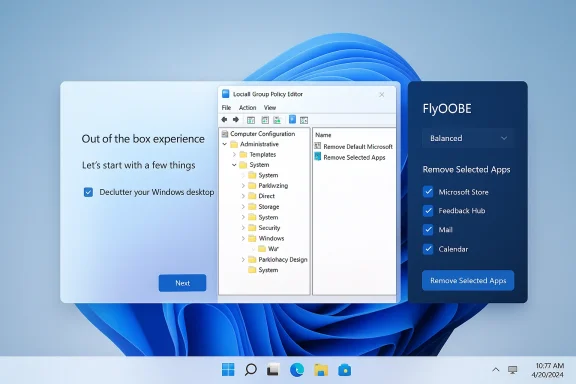
1) Debloat during Windows 11 Setup / OOBE
Using Setup to minimize bloat is the least risky way to start clean. Windows 11’s Out-Of-Box Experience (OOBE) includes options that reduce promotional app provisioning; choosing the conservative or “decluttered” options at setup prevents many inbox packages from appearing in the first place. This approach does not remove core components such as Microsoft Edge or system-managed services, but it prevents a lot of the one-off promotional apps and trials from taking root.Benefits:
- Works before user data exists, so it reduces rework later.
- Preserves official update/serviceability paths.
- Low risk: uses Microsoft’s own setup logic.
- Won’t remove protected system apps (Edge, parts of Xbox, core drivers).
- OEM provisioning can still add vendor utilities after install.
- Some apps or services may still be reintroduced after feature updates.
- Boot from your Windows 11 USB installer.
- Proceed through language and license screens.
- During OOBE, choose the option that avoids installing promotional apps/experiences when prompted.
- Complete the install and create your primary account.
2) Debloat via Group Policy — “Remove Default Microsoft Store packages from the system”
If you manage multiple users or want new user accounts to start lean, the Local Group Policy Editor exposes a policy named Remove Default Microsoft Store packages from the system (under Computer Configuration → Administrative Templates → Windows Components → App Package Deployment). Enabling that policy instructs Windows to strip most store-provisioned inbox packages from new accounts created after the policy is applied.Why use Group Policy:
- Policy is reproducible and durable on Pro/Enterprise editions.
- It’s ideal for shared PCs, labs, or multi-user family machines.
- Safer than ad-hoc PowerShell uninstalls because it applies at provisioning time.
- Open Start, type gpedit, and launch the Local Group Policy Editor.
- Navigate to Computer Configuration → Administrative Templates → Windows Components → App Package Deployment.
- Edit Remove Default Microsoft Store packages from the system, set it to Enabled, and select the specific app packages you want removed for new users.
- Apply and close. New user profiles created afterward should not receive those default store packages.
- This affects new accounts; it doesn’t retroactively remove packages from existing accounts.
- Enterprise admins can accomplish the same at scale via MDM/Intune policies; Group Policy is best for single machines or small environments.
3) Debloat via FlyOOBE (post-install cleanup)
FlyOOBE is a popular community utility designed to run during or after OOBE and remove a curated list of preinstalled apps and provisioning packages. It offers several profiles — for example, Balanced, Full Microsoft Experience, Minimal Windows, or community presets — letting you choose how aggressive the cleanup should be. When used carefully it removes many consumer-facing apps, reduces background services, and cleans provisioning packages that otherwise come back when new accounts are created.Why FlyOOBE (and similar tools) are effective:
- They automate many manual Appx uninstall steps.
- They expose a clear menu of items to remove and often create a restore point.
- They are faster than individually uninstalling numerous inbox apps through Settings.
- Create a System Restore point or full disk image.
- Inspect what the tool proposes to remove; uncheck items you might need later.
- Prefer the Balanced or conservative profiles if you’re not sure.
- Allow the tool to create a restore point when offered.
- Download the latest FlyOOBE release from the official repository.
- Extract the package and run FlyOOBE.exe as administrator.
- Choose OOBE → Apps and pick a profile (Balanced is recommended for most users).
- Review the list of selected apps, then click “Remove Selected Apps.”
- Reboot and test for 24–48 hours to ensure no regressions.
- Aggressive removals can remove interdependent packages (e.g., Xbox components or Game Services) and impact games or Store functionality.
- Some system components are protected and cannot be removed; others can be removed but may be reintroduced by feature updates.
- If something breaks, reinstall removed apps from the Microsoft Store or use your restore point/image.
What you actually gain (and how much)
Debloating improves perceived responsiveness and reduces background activity more than it increases raw benchmark scores. Typical wins include:- Lower idle RAM and CPU usage due to fewer background app processes.
- Reduced network chatter from background updaters and telemetry (when disabled).
- Less Start menu and taskbar clutter, meaning fewer distractions and faster navigation.
- Some storage reclaimed from removed Appx packages and temporary provisioning artifacts.
Risks, limits, and repair strategies
Debloating is not risk-free. The community consensus and vendor guidance converge on a few predictable trade-offs:- Over-aggressive removals can break features or leave the OS in an unsupported state. Some UWP packages are interdependent and can affect the Microsoft Store, gaming services, or OEM firmware utilities.
- Windows feature updates may reintroduce inbox apps or change component behavior, requiring periodic reapplication or monitoring of your debloat choices.
- Third-party debloaters run with high privileges; only use open-source tools with auditable releases and download from official release pages. If your AV flags a tool, verify the binary rather than bypassing warnings blindly.
- Create a full disk image or at least a System Restore point before major changes.
- Keep a list of removed components so you can reinstall them from the Microsoft Store or vendor sites if needed.
- For fleet or enterprise use, prefer policy-based controls (Group Policy / Intune) where possible — they’re easier to audit and revert at scale.
A responsible, stepwise plan for most users
Follow this conservative plan if you want real benefit with minimal risk:- Backup: Create a System Restore point or image.
- Install clean (optional): During OOBE, choose the decluttered/limited provisioning option.
- Manual removal pass: Open Settings → Apps → Installed apps and uninstall obvious promo apps and trials. Reboot.
- Group Policy (optional for Pro/Enterprise): Enable Remove Default Microsoft Store packages to stop new account provisioning.
- Run a vetted tool: Use FlyOOBE or Sparkle in conservative mode to remove leftover inbox apps and provisioning artifacts. Create a restore point inside the tool if available.
- Verify: Use Task Manager, Resource Monitor, and a few normal tasks for 48–72 hours. If something is broken, reinstall the app or roll back via Restore/Image.
Deeper options and when to avoid them
If you’re comfortable with advanced tooling, the community also offers more aggressive approaches:- Custom ISOs (Tiny11, MSMG Toolkit) — rebuild a stripped Windows image for dedicated single-purpose systems. This gives the leanest installs but increases the chance of update/serviceability issues and requires caution.
- PowerShell scripts (Win11Debloat) — precise and automatable but riskier if run with aggressive presets. Always read the script and run in “lite” or interactive mode first.
- The PC is the single production machine you rely on daily.
- The device is part of a managed corporate fleet without a tested rollback plan.
- You need full compatibility with vendor firmware utilities (battery management, keyboard backlight, vendor update tools).
Practical FAQs
- Will debloating remove Microsoft Edge or break Windows Update?
- No, the safe methods discussed (Setup choices, Group Policy, FlyOOBE conservative profiles) do not remove critical system components like Edge or the Windows Update service. Aggressive custom ISOs can change update behavior, so treat those as advanced choices.
- Can I undo changes?
- Many removed apps can be reinstalled from the Microsoft Store. For deeper changes, use your System Restore point or disk image. Maintain good backups before major operations.
- Will this speed up my PC like new hardware would?
- Debloating improves perceived snappiness by reducing background noise, but it is not a substitute for hardware upgrades. SSDs, more RAM, and a faster CPU deliver the largest single gains. Treat debloating as low-cost, immediate optimization, not a hardware replacement.
- Is FlyOOBE safe?
- FlyOOBE is widely used in the community and packaged as an auditable release; still, only download releases from the official repository and inspect the removal list before applying it. Prefer conservative profiles unless you know precisely what you’re removing.
Critical analysis — what’s strong and what to watch
Strengths- High ROI for low effort: small changes produce meaningful UX wins on budget hardware. Debloating reduces background memory and CPU usage, trims network background activity, and cleans Start/menu noise.
- Multiple tiers of control: built-in methods, policy-based provisioning, and vetted community tools let users choose safety vs scope.
- Mature community tooling: projects like Win11Debloat, Sparkle, Tiny11, and FlyOOBE are more documented and auditable than a few years ago.
- Interdependencies: removing packages without understanding dependencies can break Store functionality, Xbox/Game Services, or OEM management features. The community repeatedly warns about a “scorched-earth” approach that leaves reinstall as the only fix.
- Update reintroduction: feature updates and OEM provisioning can reintroduce packages; debloat is not always a one-and-done exercise.
- Overclaiming: vendor articles and forum posts sometimes give single-number speed or storage claims that don’t generalize. Measure your system; treat examples as illustrative.
Closing recommendations (copyable checklist)
- Backup: create a System Restore point or full disk image.
- Setup: choose the “no promotional apps” option during OOBE if available.
- Policy: enable Remove Default Microsoft Store packages from the system for new user accounts on Pro/Enterprise machines.
- Tool: run FlyOOBE (Balanced profile) or Sparkle in conservative mode and create a restore point inside the tool.
- Verify: measure with Task Manager and Resource Monitor for 48–72 hours; if necessary, roll back using your restore point or image.
Source: Windows Central Three easy Windows 11 debloat moves that actually make a difference
