

Win11Debloat is a tidy, auditable PowerShell script that strips the clutter Microsoft layers on top of Windows 10 and Windows 11 — removing trial apps, silencing targeted suggestions, and turning off telemetry — while giving you granular control and built-in rollback options so you’re not left guessing what changed. //github.com/Raphire/Win11Debloat)
Windows has become a platform not just for applications, but for an ecosystem of promoted content, telemetry, and services that run by default on many consumer PCs. For power users, IT admins, and owners of older hardware, that accumulation of background services, preinstalled apps, and UI nudges can feel like unnecessary noise. Community-maintained debloat tools have proliferated to address that — and among them, Win11Debloat has emerged as a pted option.
Win11Debloat is an open-source PowerShell script authored by Jeffrey (known online as Raphire). It’s distributed via GitHub and also supports a quick download/run command for users who want a fast, single-command launch. The project prioritizes transparency and repeatability: the script is plain text PowerShell you can inspect before running, and the repo includes undocumented restore paths.
(Win11Debloat, other community scripts): Quick, auditable, and ideal for power users. Win11Debloat’s major advantages are its active maintenance, undo files, and conservative defaults.
That said, plan for maintenance: Windows feature updates will sometimes reprovision apps and settings, and some removals are harder to fully undo than others. Ifl ongoing maintenance cost, Win11Debloat delivers a high return: less noise, fewer ads and suggestions in the shell, fewer telemetry touchpoints, and a cleaner, faster-feeling desktop — all applied in a reproducible, auditable way.
Win11Debloat is not a rhetorical statement about Microsoft; it is a practical toolkit for users who want their machines to behave like personal, efficient devices rather than ad surfaces. Treated wrst, Lite mode first, documentation at hand — it can be an essential item in every Windows toolkit.
Source: MakeUseOf This free Windows 11 debloating script makes every PC better
 Background
Windows has become a platform not just for applications, but for an ecosystem of promoted content, telemetry, and services that run by default on many consumer PCs. For power users, IT admins, and owners of older hardware, that accumulation of background services, preinstalled apps, and UI nudges can feel like unnecessary noise. Community-maintained debloat tools have proliferated to address that — and among them, Win11Debloat has emerged as a pted option. Win11Debloat is an open-source PowerShell script authored by Jeffrey (known online as Raphire). It’s distributed via GitHub and also supports a quick download/run command for users who want a fast, single-command launch. The project prioritizes transparency and repeatability: the script is plain text PowerShell you can inspect before running, and the repo includes undocumented restore paths.
What Win11Debloat does — a practical overview
Win11Debloat consolidates a long checklist of scattered Windows settings and UI tweaks into one menu-driven or parameterized run. Its capabilities fall into several practical buckets:- App removal: Uninstall preinstalled apps such as Clipchaws, with a default curated list plus full customization.
- Telemetry and tracking: Diads, activity history, and app-launch tracking, and remove targeted advertising surfaces. ide Copilot and widgets, restore the classic right-click context menu, remove Start menu “recommended” items and Start/lock-screen promotions.
- File Explorer aow file extensions and hidden files, remove duplicate drive entries from the navigation pane, adjust Fast Startup settings, and other explorer tweaks many power users prefer.
- Deployment and automation features: Apply changes to other user profiles, run in Sysprep/default-user mode for imaging, or run parameterized silent/default modes for automated deployment scenarios.
How to run it (safe, practical steps)
Win11Debloat supports three common ways to run the script, each with different trade-offs in speed and visibility:- Quick method (single-command fetch and run)
- Open PowerShell or Terminal as administrator.
- Paste the quick-run command the project documents and press Enter. The GitHub README and wiki show the recommended short command that downloads and executes the script in a temporary folder.
- Traditional/manual method (recommended for visibility)
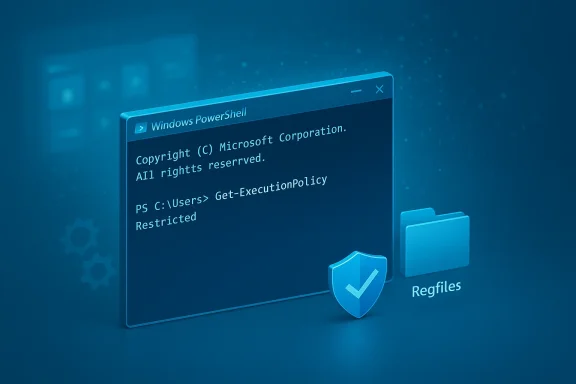
- Download the latest release ZIP from the GitHub releases page, extract it, and run Run.bat or open PowerShell as admin anps1 after setting execution policy for the session. This method lets you inspect the files and the included Regfiles folder before anything changes.
- Advanced method (imaging, automation)
- Use command-line parameters like -RunDefaults, -RunDefaultsLite, -CreateRestorePoint, -Sysprep, or -Silent for unattended or repeatable deployments. This is intended for IT pipelines.
- Createeast a System Restore point first (the script can create one for you if you choose).
- Run in Lite or interactive mode initially, avoiding automatic app removals on the first pass. Verr utilities still work.
- If satisfied, run defaults or re-run with a targeted selection to remove apps. Keep the extracted folder (with the Regfiles/undo files) handy for fast repairs after feature updates.
Why it’s attractive: strengths and design choices
Win11Debloat hits a practical sweet spot for many scenarios:- Transparency and auditability. Because the tool is a readable PowerShell script, you can inspect exactly which registry keys, services, or packages it modifies before you run it — a huge trust advantage over opaque binaries.
- Granular control. The intertegories (apps, telemetry, UI, File Explorer, taskbar) so you can pick and choose instead of applying a blanket “nuke everything” approach. The script’s Lite option preserves installed apps while applying privacy/UI changes.
- Rollback mechanisms. The repo ships a Regfiles folder with .reg files forased undo operations, guidance for reinstalling removed apps via the Microsoft Store or winget, and an option to create a System Restore point before changes. That makes recovery feasible in mation & deployments.** For sysadmins and power users building golden images, the parameterized modes and Sysprep support make Win11Debloat useful as a repeatable post-imaging step.
- Conservative defaults. Unlike more aggressive debloaters that remove core components or alter system services deeply, Win11Debloaturface-level clutter and telemetry settings while leaving core OS functionality intact by default. That reduces the risk of breaking updates or device drivers.
The visible difference: what you’ll act conservative run, common user-visible outcomes include:
- A Start menu without promoted d less “suggested” clutter.
- The Copilot and widgets buttons removed from the taskbar, leaving a quieter taskbar.
- File Explorile extensions and hidden files, and duplicate drive entries cleaned up in the navigation pane.
- Fewer lock-screen tips, no Windows Spotlight promos, stions in the shell and in Microsoft Edge where those toggles are applied.
Risks and caveats — what MakeUseOf and community threads gloss over
No tool that touches system packages and registry keys is risk-free. Here are the principal risks you should plan for:- Some removals aren’t trivially reversible. While many removed apps can be reinstalled from the Microsoft Store or via winget, certain packaged components or system overlays may require extra steps to restore. The project documents known exceptions, but you should accept that fu guaranteed in every edge case.
- Windows updates sometimes reprovision apps. Major feature updates or cumulative installs can reinstall or re-enable removed apps and UI surfaces. That means debloating is often a maintenance step after major updates, not a one-time permanent fix. Treat the script as part of your post-update checkliean shell.
- Antivirus heuristic flags. Powerful tools that modify system settings, packages, or services sometimes trip AV heuristics. Because Win11Debloat is a plain-text PowerShell script, it is less likely to be treated as a black-box binary, but users have reported that some AV products raise warnings when scripts modify many system items. If you run the script in an enterprise environment, coordinate with endpoint protection policies or run in a controlled staging environmtial for mis-clicks.** The interactive menu gives lots of options. If you select aggressive defaults without reading, you can remove apps or features you actually needed. Start in Lite mode or run a dry conservative pass on any device you depend on.
Mces and recovery plans
Use these practical safeguards before, during, and after any debloating run:- Create a full disk image or at least a System Restore point and keep it until you’ve verified system behavior for a day or two. The script can create a restore point for you, but an independent image is safer for full recovery.
- Run the script in Lite moals), test, then re-run selectively for app uninstalls. This staged approach reduces “debloat regret.”
- Keep the downloaded/extracted Win11Debloat folder (nd undo guidance) in a location you’ll remember. After a major Windows feature update, re-run the script or apply the specific undo/reg fixes as-needed.
- For enterprises, integrate Win11Debloat into imaging or provisioning pipented parameters and test against a representative hardware fleet before deploying widely.
- If endpoint protection flags changes, submit the script to your AV vendor for whitelisting or r process in a maintenance window.
Comparison: Win11Debloat vs other approaches
There are three classes of debloat approaches you’ll encounter:(Win11Debloat, other community scripts): Quick, auditable, and ideal for power users. Win11Debloat’s major advantages are its active maintenance, undo files, and conservative defaults.
- GUI debloaters and wrappers (e.g., Sparkle, O&O AppBuster): Friendlier for less technical users with point-and-click UIs and often built-intweak. These can be a good middle ground if you prefer a GUI but still want explainability.
- Custom images or Tiny builds (Tiny11, custom OEM images): Highest control, but much more maintenance and higher risk of breaking update compatibility if things aively. These are best for specialized environments where you manage updates centrally.
Technical verification and how the project documents itself
Key technical claims and commands are publicly documented in the project README and wiki:- The repo’s README and Wiki explicitly providhell command that downloads the script to %temp%/Win11Debloat and runs it, along with the traditional and advanced run methods. That quick command is the one many casual users use when they want a fast cleanup.
- The project lists default removals and which items are intentionally not removed by default (e.g., Microsoft Store, Windows Security), which helps avoid accidental removal of essential components.
- Releases are published on GitHub; the repo shows recent activity and maintains a changelog and wiki entries for usage and recovery steps. That visible activity and the ability to review the code are important trust signals when you run code that modifies system behavior.
Real-world workflow: a recommended 30–60-minute plan
- Update Windows and critical drivers (reduces surprises).
- Create a System Restore point or din11Debloat in Lite mode to apply privacy and UI twboot and test for 24–48 hours.
- If everything is stable, run the script again and selectively remove default/u Regfiles folder for quick fixes.
- After major Windows updates, re-run the script if needed to restore your cleaned state.
Who should (and shouldn’t) use Win11Debloat
Use Win11Debloat if you:- Want a fast, auditable way to remove promoted apps and UI clutter.hines and prefer a repeatable, scriptable process.
- Are comfortable with PowerShell and basic Windows recovery tools.
- Value privacy and want to consolidate scattered telemetry toggles in one run.
- Rely on OEM-supplied utilities for critical device functionality that might be removed or altered by a default uninstall (e.g., veConfirm those items aren’t targeted in your chosen options.
- Are uncomfortable with system recovery workflows like System Restore or disk imaging.
Final analysis: practical, not ideological
Win11Debloat isn’t a silver bullet and it shoulddeological “purge everything” tool. Its real value is pragmatic: a transparent, documented, remove the surface-level clutter Microsoft ships on many consumer images while giving users the tools to recover if something goes wrong. The project’s combination of conservative defaults, a Lite option, and explicit rollback mechanisms makes it one of the safer community debloat choices — particularly when used with sensible pre-run backups and staged testing.That said, plan for maintenance: Windows feature updates will sometimes reprovision apps and settings, and some removals are harder to fully undo than others. Ifl ongoing maintenance cost, Win11Debloat delivers a high return: less noise, fewer ads and suggestions in the shell, fewer telemetry touchpoints, and a cleaner, faster-feeling desktop — all applied in a reproducible, auditable way.
Win11Debloat is not a rhetorical statement about Microsoft; it is a practical toolkit for users who want their machines to behave like personal, efficient devices rather than ad surfaces. Treated wrst, Lite mode first, documentation at hand — it can be an essential item in every Windows toolkit.
Source: MakeUseOf This free Windows 11 debloating script makes every PC better
