

Your PC didn’t pick a convenient time to crash — but the path from panic to recovery is shorter than you think, and most Black Screen/Blue Screen of Death incidents can be fixed with six free, tested troubleshooting steps that focus on drivers, system integrity, and safe, non‑destructive diagnostics. The approach below condenses the practical advice from a recent field guide into an ordered playbook you can run through right now: reboot and gather the stop code, use Safe Mode to isolate problems, update or roll back drivers and uninstall suspect apps, repair the Windows image and system files, check disk and memory health, and scan for malware — escalating only to resets or reinstallation as a last resort. This is the same, step‑by‑step workflow used by technicians and experienced Windows users to recover systems without losing data, and it’s presented here with verified technical references and realistic cautions so you can act confidently.
Windows crash screens are diagnostic tools, not mysteries. Historically known as the Blue Screen of Death (BSOD), Microsoft shifted the visual design to a Black Screen of Death in a recent Windows 11 preview (KB5062660) — the background color changed, but the underlying stop codes and diagnostic flow remain the same. That cosmetic update was widely reported and is documented in coverage of the KB5062660 preview. The single most useful piece of information a crash leaves behind is the stop code (for example, DPC_WATCHDOG_VIOLATION). Stop codes point to a class of problems (drivers, storage, memory, etc. and give you a sensible starting point. For example, Microsoft’s documentation explains DPC_WATCHDOG_VIOLATION (bug check 0x133) as a kernel timing issue usually tied to misbehaving drivers, firmware, or storage I/O — precisely the kinds of problems these six steps are designed to isolate. A recent cautionary example underlines why methodical troubleshooting and updated recovery media matter: an October 2025 cumulative update created a WinRE (Windows Recovery Environment) regression that disabled USB keyboard/mouse input for some Windows 11 systems, prompting Microsoft to issue an out‑of‑band fix. That incident shows why you should keep a recovery USB and secondary input options available before running invasive diagnostics. Multiple reputable outlets reported the WinRE issue and Microsoft’s emergency patching.
What to do:
Risks/cautions:
What to do:
Risks/cautions:
Commands and steps:
Risks/cautions:
How to run:
Risks/cautions:
What to run:
Risks/cautions:
How to gather evidence:
If you need a tailored recovery script for a particular stop code (for example, step‑by‑step commands for DPC_WATCHDOG_VIOLATION with NVMe systems), provide the stop code and the make/model of your PC or motherboard and the exact symptoms — that information lets you target firmware, driver, and vendor updates precisely rather than trialing every possible fix.
Source: ZDNET My Windows PC got the Blue Screen of Death - 6 free methods I used to troubleshoot it
 Background / Overview
Windows crash screens are diagnostic tools, not mysteries. Historically known as the Blue Screen of Death (BSOD), Microsoft shifted the visual design to a Black Screen of Death in a recent Windows 11 preview (KB5062660) — the background color changed, but the underlying stop codes and diagnostic flow remain the same. That cosmetic update was widely reported and is documented in coverage of the KB5062660 preview. The single most useful piece of information a crash leaves behind is the stop code (for example, DPC_WATCHDOG_VIOLATION). Stop codes point to a class of problems (drivers, storage, memory, etc. and give you a sensible starting point. For example, Microsoft’s documentation explains DPC_WATCHDOG_VIOLATION (bug check 0x133) as a kernel timing issue usually tied to misbehaving drivers, firmware, or storage I/O — precisely the kinds of problems these six steps are designed to isolate. A recent cautionary example underlines why methodical troubleshooting and updated recovery media matter: an October 2025 cumulative update created a WinRE (Windows Recovery Environment) regression that disabled USB keyboard/mouse input for some Windows 11 systems, prompting Microsoft to issue an out‑of‑band fix. That incident shows why you should keep a recovery USB and secondary input options available before running invasive diagnostics. Multiple reputable outlets reported the WinRE issue and Microsoft’s emergency patching. Why these six methods work — quick justification
- They go from non‑destructive to progressively deeper: reboot & Safe Mode first, then targeted driver or app reversions, followed by file/volume repairs (DISM → SFC → CHKDSK), then hardware checks and malware scans.
- They preserve evidence: collecting the stop code, Event Viewer logs, and minidumps before making changes gives you a way to revert and avoid unnecessary system-reset steps.
- They favor vendor‑validated fixes and Microsoft tools over “one‑click” utilities that often do more harm than good.
The six free methods (detailed, step‑by‑step)
Each section below explains what to do, why it helps, the exact commands or menus to use, and the real‑world risks you should manage.1. Reboot, capture the stop code, and boot into Safe Mode (non‑destructive triage)
Why start here: a reboot can clear transient resource or driver conflicts, but the critical move is to record the stop code and then reproduce the failure in Safe Mode to see whether third‑party drivers/services are involved.What to do:
- Photograph or write down the stop code and any on‑screen filename or driver reference shown on the crash screen. That code is your roadmap.
- If Windows still boots, choose Settings → System → Recovery → Advanced startup → Restart now. If it won’t boot, force WinRE by interrupting the boot sequence (power off during Windows boot 2–3 times) and use Troubleshoot → Advanced options → Startup Settings → Restart, then press F4 (Safe Mode) or F5 (Safe Mode with Networking). Microsoft documents these Startup Settings and Safe Mode options.
Risks/cautions:
- Don’t run advanced stress tools (e.g., Driver Verifier) until you have a recovery USB or disk image, because those tools intentionally crash drivers to expose faults.
- If BitLocker is enabled, have the recovery key handy before fiddling with boot options.
2. Update or roll back drivers; uninstall suspect apps
Why: Drivers remain the most frequent root cause of kernel crashes and timing violations (DPC/ISR problems). A bad GPU, storage, or network driver can trigger a stop code like DPC_WATCHDOG_VIOLATION.What to do:
- In Safe Mode (or normal Windows if stable), open Device Manager (Windows key + X → Device Manager).
- Focus on these device groups first:
- Display adapters (GPU drivers)
- Disk drives / Storage controllers (NVMe, SATA, AHCI)
- Network adapters
- Chipset / SATA / NVMe controllers
- For each suspect device:
- Right‑click → Properties → Driver → Roll Back Driver (if the issue started after an update).
- Or: Update Driver → Search automatically. If that fails, download the latest vendor driver from the OEM (Intel, AMD, NVIDIA, Samsung, etc. and install it manually.
- For stubborn GPU issues, consider doing a clean uninstall with Display Driver Uninstaller (DDU) from Safe Mode, then reinstall the vendor package from the manufacturer. Use vendor installers (NVIDIA/AMD) rather than generic “driver updaters.”
Risks/cautions:
- Avoid one‑click driver‑updater utilities from unknown publishers — they can install unsigned or incompatible drivers.
- When updating firmware or BIOS, follow the vendor instructions exactly; a failed firmware update can brick hardware. Always back up and ensure a stable power source.
3. Repair the Windows component store and protected system files: DISM → SFC
Why: Corrupted system files or a damaged component store can cause unstable behavior that looks like driver faults. Microsoft recommends running DISM before SFC so SFC has a healthy store to reference.Commands and steps:
- Open an elevated Command Prompt (right‑click Start → Terminal (Admin) or Command Prompt (Admin).
- Run:
- DISM /Online /Cleanup-Image /RestoreHealth
- Wait for it to complete; it may take several minutes.
- Then run:
- sfc /scannow
- Reboot and retest.
Risks/cautions:
- If DISM can’t access the component source, internet access is required, or you must use a local Windows image source. If system files are heavily corrupted, an in‑place upgrade or Reset may be required — back up data first.
4. Check disk integrity with CHKDSK and inspect SMART data
Why: A failing storage device or filesystem corruption can produce unpredictable crashes and boot failures. Windows’ chkdsk tool will check and repair filesystem inconsistencies and locate bad sectors.How to run:
- From an elevated Command Prompt, run:
- chkdsk C: /f /r
- If the volume is in use, chkdsk will ask to schedule the scan at the next reboot — accept (Y) and restart.
- Microsoft documents the full chkdsk syntax and the meaning of /f and /r; use /r to recover readable information from bad sectors.
Risks/cautions:
- Chkdsk can be time‑consuming on large volumes. If a drive is physically failing, heavy repair attempts may make professional recovery harder; image the drive first if the data is critical.
5. Scan for malware and remove recently installed apps; disable unnecessary startup items
Why: Malware and low‑level utilities (kernel anti‑virus drivers, virtualization helpers, shell extensions) can introduce instability. Many practical recoveries are the result of uninstalling one newly added app.What to run:
- Use the built‑in Windows Security app (Virus & threat protection → Quick scan). If you suspect deep infection, run a Microsoft Defender Offline scan (offline scan from Windows RE) or a second‑opinion scanner like Malwarebytes in Safe Mode. Microsoft documents Quick Scan and offline scan options.
- Disable startup apps via Task Manager → Startup Apps: right‑click and Disable any nonessential entries to free resources and eliminate problematic autoloaders. This is an easy, reversible performance and stability step.
Risks/cautions:
- If you uninstall security software, be careful when reinstalling or replacing it; conflicts between multiple real‑time scanners can also cause instability. Prefer one modern, reputable AV solution.
6. Use logs and dumps to isolate the culprit; escalate only when necessary
Why: If the six non‑destructive steps above don’t fix the crash, it’s time to gather logs and analyze minidumps to target the real cause rather than guessing.How to gather evidence:
- Event Viewer → Windows Logs → System and Application: look for critical or recurring errors close to crash timestamps.
- Collect minidumps from C:\Windows\Minidump. Triage tools:
- BlueScreenView (simple) or WhoCrashed for quick mapping,
- WinDbg with Microsoft symbols for authoritative analysis (!analyze -v).
- If a driver name appears repeatedly in the stack trace, update or roll it back. If dumps point to memory or ntoskrnl, consider hardware tests.
- Run Windows Memory Diagnostic (mdsched.exe) or MemTest86 overnight to catch RAM errors.
- Check SMART status of drives with vendor tools or CrystalDiskInfo.
- Use Driver Verifier only after creating recovery media — it intentionally stresses drivers and may make your system crash more often, which is the point, but it also increases risk.
- Driver Verifier and artificial stress tests can render unstable systems harder to boot. Create a recovery USB (Media Creation Tool) or full disk image before enabling these tools.
If nothing else works: Reset or clean install (the last resort)
When the evidence points to systemic, irrecoverable corruption or you can’t identify the offending driver/hardware, use Reset this PC (Settings → System → Recovery → Reset this PC → Keep my files) or perform a clean installation from Windows installation media. Those options reinstall Windows and remove faulty configuration, but they also remove installed apps and drivers, so back up first. If data is critical and the drive may be failing, image the drive before running destructive repairs so professional recovery remains possible.Practical checklist: a prioritized sequence you can print and follow
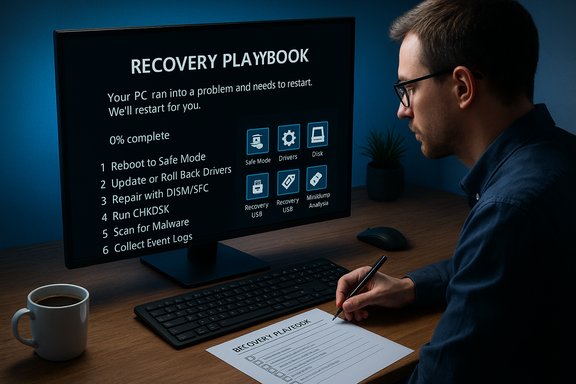
- Photograph the crash screen (stop code) and time of crash.
- Reboot → Safe Mode (F4/F5) and test stability.
- Update/roll back GPU, storage, and chipset drivers; uninstall recent apps.
- Run DISM /RestoreHealth then sfc /scannow.
- Schedule chkdsk C: /f /r and test RAM (Windows Memory Diagnostic / MemTest86).
- Run Windows Security Quick Scan and an offline scan if indicated.
- If crashes persist, collect minidumps and analyze with WinDbg; only then consider Reset this PC or clean install.
Notable strengths of this workflow
- Low risk, high value: The sequence emphasizes non‑destructive checks before invasive actions, preserving user data while building evidence.
- Tooling alignment: It uses Microsoft‑supported tools (DISM, SFC, chkdsk, Windows Security) plus community triage utilities for readable minidump summaries.
- Vendor‑first driver policy: Updating drivers directly from vendors reduces the chance of installing broken or unsigned packages that cause more trouble.
- Realistic escalation: The guide recognizes when to involve hardware diagnostics (memory/SMART) and when to create a disk image before destructive fixes.
Potential weaknesses and risks you must watch
- Update regressions can complicate recovery: As the October 2025 WinRE regression shows, a Windows update can break recovery workflows themselves. That’s why keeping a recovery USB and an alternate input device is crucial before you try advanced repairs. Multiple outlets and reports confirm Microsoft issued an emergency patch for the WinRE USB issue; if you encounter WinRE problems, check for that emergency patch first.
- Driver troubleshooting can be trial‑and‑error: While the process of rolling back or updating drivers often works, diagnosing which driver is bad can take time and sometimes multiple reboots.
- Disk/firmware repairs can risk data if the drive is failing: Running heavy repairs on an already failing drive can reduce the chances of professional recovery; image the disk if the data is non‑replaceable.
- Tools that intentionally crash drivers (Driver Verifier) are powerful but dangerous: Use them only after you have a recovery plan.
- Subjective “best AV” claims are opinionated: Recommendations such as “Malwarebytes is the best” are editorial judgments; use reputable comparative reviews and trial versions to choose what fits your needs, and prefer one well‑maintained antivirus to multiple conflicting packages.
Real examples, quick wins, and time‑savers
- If your stop code is DPC_WATCHDOG_VIOLATION (0x133), start by updating/rolling back display, storage, and network drivers — they’re the common culprits. Microsoft’s bug check documentation explicitly ties this code to long‑running DPCs and driver timing issues.
- If Windows crashes immediately after installing an app, boot to Safe Mode and uninstall that app first — it’s often the simplest, fastest fix.
- If you can’t navigate WinRE with a USB mouse/keyboard (after an October 2025 patch), try a PS/2 keyboard or touchscreen (if available) or ensure you have the emergency WinRE patch applied. Reports indicate Microsoft released an emergency patch addressing that issue weeks after its discovery.
When to call a professional
- The drive contains crucial data and SMART reports failure, or chkdsk reports many unrecoverable sectors — image the drive and consult a data‑recovery specialist.
- The minidumps point to hardware faults (memory/controller errors) and you’re not comfortable swapping components or running overnight MemTest86.
- Firmware/BIOS updates are required and you do not have reliable power or a clear vendor procedure.
Final assessment and advice
The six methods outlined here are a pragmatic, technician‑grade sequence that resolves the majority of Windows crash scenarios without cost. Start with the non‑destructive: capture the stop code, boot Safe Mode, and check drivers and recently installed software. Repair the Windows image with DISM and SFC and check disk health with chkdsk; follow up with malware scans and hardware diagnostics only as needed. Keep a current recovery USB and backups, and apply major updates after a brief pilot period when possible — real‑world incidents (like the October 2025 WinRE regression) show that even well‑tested updates can sometimes introduce edge‑case regressions that complicate recovery. This workflow doesn’t promise miracles, but it does offer a high probability of recovery without data loss — and it gives you the evidence and the safest escalation path when the problem requires a deeper intervention or professional help. If your system is currently down and you want the precise sequence of commands or menus to run for your specific stop code, save or photograph the crash screen and follow the printed checklist above as your first pass.If you need a tailored recovery script for a particular stop code (for example, step‑by‑step commands for DPC_WATCHDOG_VIOLATION with NVMe systems), provide the stop code and the make/model of your PC or motherboard and the exact symptoms — that information lets you target firmware, driver, and vendor updates precisely rather than trialing every possible fix.
Source: ZDNET My Windows PC got the Blue Screen of Death - 6 free methods I used to troubleshoot it
