

The Black Screen of Death (the modern evolution of the old BSOD) is annoying, but the fixes that get most Windows PCs back to life are rarely mysterious — they’re methodical, layered, and largely non‑destructive. This feature distills six reliable solutions (with clear steps you can follow right now), explains why the crash happened, and assesses the practical risks and safeguards every Windows user — home or business — should adopt to avoid costly downtime.
Windows crash screens are a visible last‑ditch safety mechanism: when the kernel detects a catastrophic condition it cannot safely handle, it halts the system and shows a crash screen so you can capture the stop code and start diagnosing. Historically the Blue Screen of Death (BSOD) was the signature visual; in recent Windows 11 updates Microsoft moved that crash surface to a black crash screen to match Windows 11’s aesthetic and recovery tooling.
The visible color change is cosmetic; the underlying causes remain the same: faulty or incompatible drivers, failing storage or RAM, corrupted system files, aggressive third‑party software, firmware mismatches, or, less commonly, malicious code. What matters for recovery is not the background color — it’s the stop code, minidump, and the sequence of non‑destructive checks you run first.
The practical good news: most crashes are recoverable without a clean reinstall. A structured, prioritized workflow — from simple reboots and Safe Mode isolation to SFC/DISM repairs, CHKDSK, and targeted driver actions — restores stability in the majority of cases.
Risks and cautions: Don’t enable advanced diagnostic tools yet (e.g., Driver Verifier) until you have a recovery USB or image; those tools can intentionally crash a system as part of diagnosis.
Risks and cautions: Avoid “one‑click” driver updater utilities from unknown publishers — they can install incompatible or unsigned drivers. Prefer vendor downloads and Microsoft‑validated packages. Always have backups before firmware or BIOS updates.
Risks and cautions: CHKDSK /r can take hours on large or failing drives. If your disk is showing SMART failures or repeated read/write errors, image the drive before running heavy repair operations to preserve recoverable data.
Risks and cautions: Firmware updates for SSDs and BIOS/UEFI updates are powerful but risky — flash only with manufacturer instructions and on AC power. Back up before flashing.
Risks and cautions: Driver Verifier is intentionally destabilizing. Use it only with a recovery plan (USB recovery, system image) and enable it for specific suspect drivers rather than all drivers.
Risks and cautions: Back up critical data first. If your drive is failing or encrypted with BitLocker, ensure the recovery key is available. For mission‑critical systems, image the drive and test recovery media before proceeding.
Two further observations sharpen that advice for a Windows‑savvy audience:
The black crash screen is new, but the troubleshooting playbook that saves most Windows PCs is nearly timeless: start small, gather facts, prioritize safety, and escalate methodically. Keep backups, validate recovery tools, and treat firmware updates and advanced diagnostics with respect — those steps protect both your data and your time.
Source: ZDNET If your Windows PC crashed, consult my 6 reliable solutions (including for BSOD)
 Background / Overview
Windows crash screens are a visible last‑ditch safety mechanism: when the kernel detects a catastrophic condition it cannot safely handle, it halts the system and shows a crash screen so you can capture the stop code and start diagnosing. Historically the Blue Screen of Death (BSOD) was the signature visual; in recent Windows 11 updates Microsoft moved that crash surface to a black crash screen to match Windows 11’s aesthetic and recovery tooling.The visible color change is cosmetic; the underlying causes remain the same: faulty or incompatible drivers, failing storage or RAM, corrupted system files, aggressive third‑party software, firmware mismatches, or, less commonly, malicious code. What matters for recovery is not the background color — it’s the stop code, minidump, and the sequence of non‑destructive checks you run first.
The practical good news: most crashes are recoverable without a clean reinstall. A structured, prioritized workflow — from simple reboots and Safe Mode isolation to SFC/DISM repairs, CHKDSK, and targeted driver actions — restores stability in the majority of cases.
What changed: the modern crash screen and recent high‑impact updates
The Black Screen of Death and where it came from
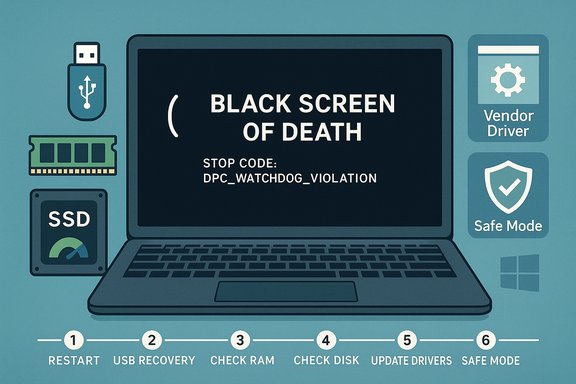
Microsoft introduced a redesigned crash screen into Windows 11 in 2025, moving from the longstanding blue background to a more minimalist black screen. The new layout removes some of the historical ornamentation (the frowny face and QR code) and focuses on presenting a clearer stop code and troubleshooting text. This UI change is paired with newer recovery tools intended to speed repair workflows.Why that matters (beyond aesthetics)
The redesign coincided with renewed investment in recovery tooling, but it also arrived in an operating system ecosystem that has grown more complex:- Windows now ships to millions of OEM and custom configurations, each with vendor drivers and varied firmware versions.
- Modern NVMe drives, DRAM‑less SSDs with Host Memory Buffer (HMB) dependencies, and aggressively optimized vendor drivers mean small OS policy changes can expose hardware edge cases.
- Quality updates still ship monthly (Patch Tuesday), so large-scale regressions — while rare — affect many users quickly if a patch interacts badly with a specific driver or firmware combination.
The six reliable solutions — step‑by‑step (and why they work)
These six solutions map to the most effective, least‑risky progression for diagnosing and fixing crashes, including Black Screen or BSOD events.1. Reboot, gather the stop code, and use Safe Mode (the non‑destructive triage)
A calm, methodical first pass nearly always helps.- Reboot and photograph the crash screen or write down the stop code (e.g., DPC_WATCHDOG_VIOLATION). The code points you to the class of failure.
- If the PC won’t boot normally, force the Windows Recovery Environment (WinRE): either use Settings → System → Recovery → Advanced Startup → Restart Now, or repeatedly power the machine off/on during boot until WinRE appears.
- From WinRE choose Troubleshoot → Advanced options → Startup Settings → Restart, then press F4/F5/F6 (Safe Mode or Safe Mode with Networking).
Risks and cautions: Don’t enable advanced diagnostic tools yet (e.g., Driver Verifier) until you have a recovery USB or image; those tools can intentionally crash a system as part of diagnosis.
2. Update or roll back drivers and uninstall recent apps
Drivers remain the number‑one cause of stop codes like DPC_WATCHDOG_VIOLATION.- In Safe Mode, open Device Manager and focus on:
- Display adapters (GPU drivers)
- Storage controllers (SATA/AHCI, NVMe)
- Network adapters
- Chipset devices
- For each suspect device:
- Right‑click → Properties → Driver → Roll Back Driver (if the crash started after a driver update).
- Or choose Update driver → Search automatically, and if that fails, download the OEM/vendor installer (Intel, AMD, NVIDIA, Samsung, etc. and install it manually.
- Uninstall any recently installed apps that hook low‑level system behavior (kernel anti‑virus drivers, virtualization drivers, shell extensions).
- If a GPU driver is corrupted, consider a clean removal using a vendor recovery tool or, for stubborn GPU problems, Display Driver Uninstaller (DDU) in Safe Mode followed by a fresh install from the vendor site.
Risks and cautions: Avoid “one‑click” driver updater utilities from unknown publishers — they can install incompatible or unsigned drivers. Prefer vendor downloads and Microsoft‑validated packages. Always have backups before firmware or BIOS updates.
3. Repair Windows system files and disk integrity — DISM → SFC → CHKDSK
Follow the correct order to fix the Windows image and repaired system files safely.- Open an elevated Command Prompt (Administrator).
- Run:
- DISM /Online /Cleanup-Image /RestoreHealth — repairs the Windows component store that SFC relies on.
- sfc /scannow — repairs protected system files.
- If you suspect disk errors or the system suggests it, run:
- chkdsk C: /f /r — schedule on reboot if prompted. This scans for bad sectors and attempts repair.
Risks and cautions: CHKDSK /r can take hours on large or failing drives. If your disk is showing SMART failures or repeated read/write errors, image the drive before running heavy repair operations to preserve recoverable data.
4. Test memory and storage (hardware validation)
If software repairs don’t stick, hardware is the most likely root cause.- Run Windows Memory Diagnostic (mdsched.exe) and reboot to perform the test.
- For deeper RAM testing, use MemTest86 from a USB stick and run multiple passes overnight.
- Check drive health:
- Use vendor tools (Samsung Magician, Crucial Storage Executive, WD Dashboard) to inspect SMART data and update SSD firmware.
- If SMART reports imminent failure, image the drive immediately and replace it.
Risks and cautions: Firmware updates for SSDs and BIOS/UEFI updates are powerful but risky — flash only with manufacturer instructions and on AC power. Back up before flashing.
5. Collect and analyze minidumps; escalate to targeted tools
If crashes persist after the above, collect diagnostics and analyze.- Look in Event Viewer (Windows Logs → System) for related critical events around the crash time.
- Configure Windows to write minidumps to C:\Windows\Minidump and collect the latest .dmp file.
- Use a triage tool like BlueScreenView or WhoCrashed for a friendly view; for authoritative analysis, use WinDbg and run !analyze -v to see the module or driver names on the faulting stack.
- If a specific driver is consistently implicated, enable Driver Verifier for that driver only and reproduce the crash to generate more informative dumps.
Risks and cautions: Driver Verifier is intentionally destabilizing. Use it only with a recovery plan (USB recovery, system image) and enable it for specific suspect drivers rather than all drivers.
6. Last‑resort software repairs: in‑place repair or Reset this PC
If you’re out of options and all diagnostics either point to complex interactions or to no clear culprit, use controlled repair options.- In‑place repair: Mount a matching Windows ISO, run Setup from within Windows, and choose “Keep personal files and apps”. This reinstalls Windows while preserving user data and applications.
- Reset this PC: Settings → System → Recovery → Reset this PC. Choose Keep my files or Remove everything depending on your backup status.
Risks and cautions: Back up critical data first. If your drive is failing or encrypted with BitLocker, ensure the recovery key is available. For mission‑critical systems, image the drive and test recovery media before proceeding.
Why DPC_WATCHDOG_VIOLATION often points to drivers (a brief technical note)
The DPC_WATCHDOG_VIOLATION stop code is a watchdog timer firing when a Deferred Procedure Call routine or driver runs too long at high IRQL (interrupt context). In consumer practice, this often implicates:- Storage drivers (SATA AHCI, NVMe controllers)
- GPU drivers (nvlddmkm.sys or vendor equivalents)
- Network drivers or other kernel‑mode filters
- Outdated firmware on DRAM‑less NVMe SSDs (HMB interactions)
- System overheating or power delivery issues that cause devices to become unresponsive
Practical checklist — what to do immediately after a crash
- Photograph the crash screen and note the stop code.
- Disconnect non‑essential USB devices and reboot.
- Boot into Safe Mode and check Device Manager for flagged drivers.
- Run DISM → SFC → CHKDSK in that order.
- Test RAM (Windows Memory Diagnostic or MemTest86) and check drive SMART via vendor tools.
- Collect minidump and inspect with a triage tool; escalate to WinDbg if you have skills or support.
- If data is critical and hardware appears suspect, image the drive before aggressive fixes.
Strengths of the six‑step approach
- Safety first: Non‑destructive steps come first, minimizing risk of data loss.
- Evidence‑driven: Collecting logs and dumps before destructive actions makes root‑cause identification more likely.
- Vendor best practices: Prioritizing vendor firmware and driver packages reduces the chance of installing incompatible software.
- Tiered escalation: You can usually stop as soon as the problem is resolved — there’s no need to perform an invasive reset for minor driver issues.
Risks, caveats, and real world pitfalls
- Driver Verifier and some registry workarounds can intentionally crash systems; use these only when you can recover.
- Firmware and BIOS updates can brick a device if interrupted or mismatched; follow OEM guidance exactly and back up first.
- CHKDSK and other repair utilities can complicate professional data recovery if a drive is physically failing — image first when in doubt.
- BitLocker encryption complicates recovery; have recovery keys accessible before major repairs.
- Patch cycles are not infallible: October 2025’s WinRE USB regression shows that even security updates can affect recovery tooling; maintain external recovery media and test update rollouts if managing multiple machines.
What to do for prevention and long‑term resilience
- Maintain a current image backup and file backups (full image + incremental). Test restoration regularly.
- Stagger major Windows feature updates on production machines for 2–4 weeks to allow early reports and vendor driver updates to surface.
- Keep critical drivers and firmware (chipset, storage controller, GPU) up to date from vendor sites, not just third‑party updaters.
- Build a small toolkit: Windows recovery USB, MemTest86 USB, and vendor SSD utilities for offline diagnostics.
- Save BitLocker recovery keys to a secure location (Microsoft account or enterprise vault).
- Monitor system health with Reliability Monitor and Event Viewer to spot early warning patterns before crashes become frequent.
Final analysis and judgement
The ZDNet primer’s central points are accurate and practical: most Black Screen or BSOD events are solvable using a clear progression of steps — Safe Mode isolation, driver management, system file repair, and hardware validation. The article correctly emphasizes the DPC_WATCHDOG_VIOLATION pattern and the role of drivers, and it’s right to highlight regular maintenance like disabling unnecessary startup apps and running antivirus scans.Two further observations sharpen that advice for a Windows‑savvy audience:
- Treat recovery paths as first‑class infrastructure. The October 2025 WinRE regression that temporarily broke USB input inside recovery mode showed how fragile recovery tooling can be. That bug was acknowledged and later patched by Microsoft, but it exposed a critical operational risk: if your recovery environment is unusable, so is any plan that depends on it. Maintain external bootable media and keep recovery images validated.
- Use advanced diagnostics conservatively. Tools like Driver Verifier and WinDbg are powerful but double‑edged. They accelerate root‑cause analysis when used correctly, but they also increase project risk and repair complexity when applied without backups or an escalation plan.
Quick reference: six‑step recovery summary
- Reboot, photograph the stop code, and boot into Safe Mode.
- Update or roll back drivers; uninstall recent apps; use vendor driver packages.
- Run DISM /RestoreHealth, then sfc /scannow, then chkdsk /f /r.
- Test memory (Windows Memory Diagnostic, MemTest86) and check drive SMART and firmware.
- Collect minidump, triage with a friendly tool, and escalate to WinDbg and Driver Verifier if necessary.
- If unresolved, perform an in‑place repair or Reset this PC after imaging and backups.
The black crash screen is new, but the troubleshooting playbook that saves most Windows PCs is nearly timeless: start small, gather facts, prioritize safety, and escalate methodically. Keep backups, validate recovery tools, and treat firmware updates and advanced diagnostics with respect — those steps protect both your data and your time.
Source: ZDNET If your Windows PC crashed, consult my 6 reliable solutions (including for BSOD)
