

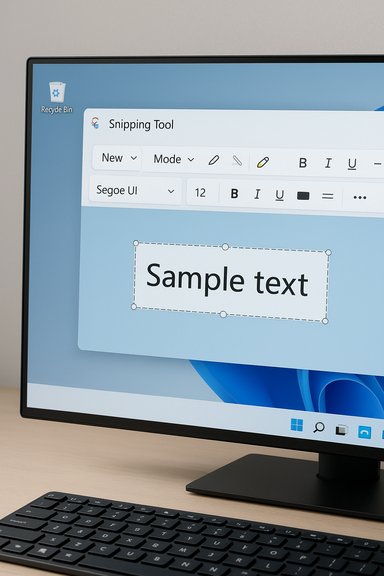
Microsoft’s Snipping Tool is quietly closing a long‑standing gap: you can now type text directly onto screenshots inside the editor, a feature long requested by power users and support professionals alike and recently surfaced in Insider previews and community demonstrations. Early evidence of a new Text tool — a “T” button in the Snipping Tool toolbar that exposes font, size, color and basic formatting controls — has appeared in preview footage and package inspections, and sits alongside the Snipping Tool’s recent OCR/Text Extractor capabilities that Microsoft has been rolling out to Insiders.
For years Windows users who wanted to add typed annotations to screenshots followed the same friction-filled pattern: take a snip, open a separate editor (Paint, Photos, or a third‑party app like ShareX or Greenshot), paste, then type. That multi‑step workflow costs time, interrupts thought flow, and forces teams to standardize on extra software — an awkward burden for locked down or managed devices.
Microsoft’s recent Snipping Tool updates have been focused on collapsing those steps into a single, faster flow. The app already gained:
The evolution of the Snipping Tool from a modest screenshot grabber to a compact content workbench has been incremental but purposeful. A native typed‑text tool completes a logical and overdue capability set: capture, extract, annotate and share — all from within the inbox app. The outcome will be judged on two concrete points when it reaches stable releases: whether annotations remain editable after saving, and how Microsoft handles privacy/cloud fallbacks for analysis features. Until Microsoft publishes official release notes, the new Text tool is a welcome preview of reduced friction — and a reminder that small productivity features can have outsized everyday impact.
Source: Windows Report Windows 11 Snipping Tool Gains “Add Text” Feature for Better Annotations
 Background: why a typed‑text tool matters
For years Windows users who wanted to add typed annotations to screenshots followed the same friction-filled pattern: take a snip, open a separate editor (Paint, Photos, or a third‑party app like ShareX or Greenshot), paste, then type. That multi‑step workflow costs time, interrupts thought flow, and forces teams to standardize on extra software — an awkward burden for locked down or managed devices.Microsoft’s recent Snipping Tool updates have been focused on collapsing those steps into a single, faster flow. The app already gained:
- Quick Markup: inline annotation during capture (pen, highlighter, shapes).
- Text Extractor / OCR: the ability to copy selectable text from screen regions without saving an image.
- Screen recording and GIF export improvements in Insider channels.
What we’ve seen so far (hands‑on signals)
The UI and behavior
Early demonstrations — most notably a short screen recording shared by an Insider tipster and spotted in package previews — show a Snipping Tool editor toolbar with a clear Text (T) icon. Clicking it creates a text box on the captured image and exposes options for:- Picking fonts and sizes
- Choosing colors and highlight/marker effects
- Moving and resizing text boxes after placement
- Basic formatting (bold/italic/underline appears in demos)
Where it lives in the workflow
The expected workflow aligns with Quick Markup and Text Extractor patterns:- Press Win + Shift + S (or open Snipping Tool).
- Make a selection (rectangular, freeform, window).
- Enter the editor / Quick Markup view.
- Click the T (Text) icon to draw a text box and type.
- Move, resize, format, then save or copy the finished image.
What’s confirmed by Microsoft and what remains provisional
Microsoft’s official channels have explicitly documented the Snipping Tool’s growing OCR/Text Extractor capabilities — a dedicated Text Extractor button and a Win + Shift + T shortcut were announced and rolled out to Insiders in 2025 — but Microsoft has not published a public release note that names the new typed‑text insertion feature as shipping to stable builds. The Windows Insider Blog confirms the Text Extractor rollout starting April 15, 2025, and lists the Snipping Tool version where OCR actions were included. That means:- Text Extractor/OCR is confirmed and documented by Microsoft.
- The native typed‑text insertion tool is visible in Insider footage and package metadata, and has been reported by multiple community observers — but Microsoft has not formally announced it as a shipped, stable feature at time of reporting. Treat preview sightings as strong signal but not yet final confirmation.
Why this is valuable — the practical benefits
Adding a native text tool to Snipping Tool delivers immediate, tangible improvements for many use cases:- Faster documentation: technical writers, QA engineers, support teams and teachers can annotate and label screenshots in a single capture-to‑save flow.
- Fewer third‑party dependencies: organizations can reduce the need to approve and maintain external tools like ShareX or Greenshot when basic annotation needs are met by the inbox app.
- Work on locked or managed devices: because Snipping Tool is an inbox app updated via Microsoft/Store channels, typed annotations become available on machines where installing third‑party software is prohibited.
- Complementary to OCR: use Text Extractor to grab literal text from the screen and the Text tool to add commentary or callouts — two distinct but complementary workflows that make screenshot work more powerful.
Strengths and notable engineering choices
- Simplicity by design: the observed implementation prioritizes quick annotations, not complex text layout, which matches the Snipping Tool’s role as a nimble utility.
- Integration with existing capture flow: placing the Text tool inside Quick Markup means fewer context switches and a smaller cognitive burden.
- Parity with PowerToys / third‑party features: Microsoft has been folding PowerToys‑style functions (Text Extractor/OCR) into the inbox app, and typed annotations complete that trajectory.
- Accessible rollout path: features are being validated via Windows Insider channels (Canary/Dev), allowing feedback before broader distribution.
Risks, limitations and engineering caveats
While the new Text tool is welcome, several practical and enterprise concerns deserve attention.Editable vs. flattened text
Historically, some Windows editors have flattened text into pixels at save time, making annotations non‑editable after the file is saved. Early preview footage does not conclusively demonstrate whether Snipping Tool’s new text boxes are saved as editable layers or become baked into the image.- If text becomes flattened at save, later edits will require redoing the annotation or holding onto an unsaved project file — a nuisance for iterative documentation workflows.
Feature gating and device targeting
Microsoft often gates new features to specific Insider channels or device classes (Copilot+ hardware or certain OEMs), and the Snipping Tool’s richer features have sometimes appeared only in Dev/Canary builds initially. Organizations should not assume universal availability until Microsoft publishes release notes and servicing guidance.Privacy and cloud fallbacks
Some Snipping Tool actions (Visual Search, Copilot actions) route selections to cloud services for analysis. Administrators handling sensitive imagery should verify:- Whether typed‑text annotation or Text Extractor actions use on‑device models exclusively, or whether cloud processing is invoked by default.
- Telemetry and data movement policies and whether corporate GPOs or Intune profiles can disable cloud analysis.
Regression and rollout risk
Insider channels are experimental; features can be reworked or temporarily removed. Teams that adopt Insiders to get early access should isolate test hardware and avoid rolling preview builds into production.How to try it today (Insiders and curious users)
If you want to test the new Text tool early, follow these standard steps used by many preview testers:- Join the Windows Insider Program and opt into the Dev or Canary channel (accept unstable builds).
- Update Windows and the Snipping Tool via the Microsoft Store to the latest Insider package.
- Press Win + Shift + S to open the capture overlay.
- If Quick Markup is available in your build, make a selection and look for the T / Text icon in the editor toolbar. Draw a box and start typing.
Practical tips and workflow recommendations
- Keep originals: until save semantics are confirmed, retain an unannotated original snip (copy to a safe folder) so you can reapply text if the tool flattens layers.
- Establish a team policy: decide whether the native Snipping Tool suffices or if a single approved third‑party tool (e.g., ShareX or Snagit) should remain the standard for advanced documentation.
- Test privacy settings: verify whether Visual Search, Copilot or other cloud‑backed actions are enabled in your organization’s Snipping Tool instance; disable cloud routes for sensitive data.
- Pilot before deploy: run a short pilot for internal support and documentation teams to validate that the annotations meet accessibility and editing needs.
Comparison: Snipping Tool vs. popular third‑party alternatives
- ShareX / Greenshot / Snagit
- Pros: richer editing, layered exports, automation and uploading workflows.
- Cons: require installs, updates, and administration approvals.
- Snipping Tool (with Text tool)
- Pros: built‑in, updated via Microsoft/Store, consistent availability on managed devices, faster single‑flow capture-to‑annotate.
- Cons: likely more limited editing controls, unclear layered/format persistence, features may be gated in early builds.
Broader significance: a pattern in Windows inbox apps
The Text tool is not an isolated item: it fits a broader Microsoft pattern of enhancing small, frequently used inbox utilities (Notepad, Paint, Snipping Tool) with more capable features and AI/ML assists. The company has been folding PowerToys capabilities into the OS where it makes sense — Text Extractor being a prime example — and typed annotations are the natural next step to reduce context switching and streamline common workflows. This pattern yields two clear outcomes:- Everyday users gain productivity features without extra installs.
- Administrators face a renewed need to verify privacy and data‑movement defaults as seemingly small app upgrades start to include cloud or AI wiring.
What to watch next (signals that will confirm final shape)
Look for these milestones to understand how the feature will behave in production:- Official Microsoft release notes naming the typed Text tool as a shipped feature in a stable Snipping Tool update (Microsoft/Store).
- Documentation of save semantics: whether text layers remain editable in reopened files or are flattened.
- Any gating language (Copilot+, device family, or Windows version) that would restrict availability.
- Policy controls for cloud processing for Visual Search/Copilot/analysis actions in Snipping Tool settings or Intune/GPO.
Final assessment: practical, overdue, and mostly positive
The addition of a native typed‑text insertion tool to the Snipping Tool is a practical, overdue enhancement that eliminates a small but persistent productivity friction. For everyday tasks — bug reports, how‑to guides, quick callouts — having a built‑in Text tool is a meaningful convenience that will reduce reliance on third‑party utilities and speed ordinary workflows. Community signals and Insider footage are consistent and strong, and Microsoft’s parallel work on OCR/Text Extractor shows a coherent roadmap for richer capture workflows. At the same time, sensible caution is warranted: confirm editable layer behavior, check for cloud processing defaults, and pilot in a test ring before adopting the feature widely in enterprise environments. These details will determine whether Snipping Tool becomes a final replacement for power‑user tools or simply a fast, built‑in option for common tasks.Quick reference: what to tell your team
- Feature: Text insertion in Snipping Tool editor (observed in Insider builds; not yet formally announced as shipping in stable builds).
- Try it: Join Windows Insider (Dev/Canary), update Snipping Tool, press Win + Shift + S, enter Quick Markup, look for T icon.
- Known confirmed rollout: Text Extractor / OCR for Snipping Tool (Microsoft announced rollout to Insiders on April 15, 2025).
- Watch for: persistence of editable text layers, cloud telemetry defaults, and any device or subscription gating.
The evolution of the Snipping Tool from a modest screenshot grabber to a compact content workbench has been incremental but purposeful. A native typed‑text tool completes a logical and overdue capability set: capture, extract, annotate and share — all from within the inbox app. The outcome will be judged on two concrete points when it reaches stable releases: whether annotations remain editable after saving, and how Microsoft handles privacy/cloud fallbacks for analysis features. Until Microsoft publishes official release notes, the new Text tool is a welcome preview of reduced friction — and a reminder that small productivity features can have outsized everyday impact.
Source: Windows Report Windows 11 Snipping Tool Gains “Add Text” Feature for Better Annotations
