

Microsoft’s Snipping Tool is gaining a simple but consequential feature: a native Text insertion tool that lets you type, format, and place editable-looking text directly onto screenshots inside the Snipping Tool editor — a capability long supplied only by third‑party capture utilities. Early evidence of the change comes from Insider previews and community demonstrations, and the feature appears to be rolling through Windows Insider channels as Microsoft iterates the Snipping Tool into a more capable, one‑stop capture-and-annotate utility.
Windows’ Snipping Tool has evolved dramatically from the lightweight utility most users remember. What started as a basic capture app has accumulated a series of productivity upgrades: an overlay capture flow (Win + Shift + S), Quick Markup inline editing, built‑in OCR/Text Extractor, video trimming, and integrations with Visual Search and Copilot features. These incremental changes reposition Snipping Tool from a simple screenshot grabber to a compact content workbench for quick documentation tasks.
For years, advanced capabilities such as typed labels, structured table extraction, and persistent layered edits were the domain of third‑party tools like ShareX, Greenshot, Snagit, and community utilities such as PowerToys. Microsoft has been systematically folding a subset of that functionality into the inbox app experience, aiming to reduce friction for everyday users and simplify management for enterprise fleets that prefer to minimize extra installs.
A crucial caveat remains: the current evidence is from Insider previews and package inspections. Microsoft has not yet published formal release notes confirming which public build will ship the feature, and behavior in preview builds can change. Until Microsoft explicitly documents the feature and its final behavior, parts of its implementation — especially how edits are saved and whether text remains re‑editable across reopen/save cycles — should be treated as provisional.
However, the real impact will hinge on implementation details that matter in production workflows: whether text remains re‑editable, how the tool interacts with cloud‑assisted features, and how Microsoft stages access across Insider channels and public releases. Proceed with cautious optimism: test the feature, validate its behavior against your team’s needs, and don’t alter mission‑critical processes until the feature’s final behavior and documentation are confirmed.
In short, the Snipping Tool’s new Text feature is a meaningful step toward a smoother, more capable native capture experience — but one that should be vetted carefully before being folded into formal documentation and enterprise processes.
Source: gHacks Technology News Windows 11's Snipping Tool is getting the ability to add text to screenshots - gHacks Tech News
 Background
Windows’ Snipping Tool has evolved dramatically from the lightweight utility most users remember. What started as a basic capture app has accumulated a series of productivity upgrades: an overlay capture flow (Win + Shift + S), Quick Markup inline editing, built‑in OCR/Text Extractor, video trimming, and integrations with Visual Search and Copilot features. These incremental changes reposition Snipping Tool from a simple screenshot grabber to a compact content workbench for quick documentation tasks.For years, advanced capabilities such as typed labels, structured table extraction, and persistent layered edits were the domain of third‑party tools like ShareX, Greenshot, Snagit, and community utilities such as PowerToys. Microsoft has been systematically folding a subset of that functionality into the inbox app experience, aiming to reduce friction for everyday users and simplify management for enterprise fleets that prefer to minimize extra installs.
What’s new: typed text in the Snipping Tool editor
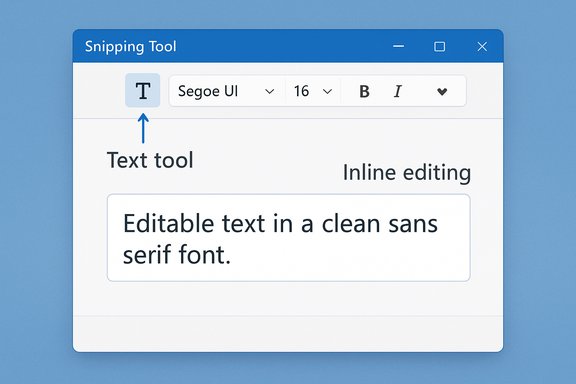
The freshly observed addition is a Text tool (represented by a “T” icon in the editor toolbar). The reported behavior is straightforward and intentionally familiar:- Click the Text (T) icon in the Snipping Tool editor.
- A secondary toolbar exposes font selection, size, and basic formatting toggles such as Bold, Italics, and Underline.
- You can pick a text color and an optional highlight/marker effect.
- To place text, draw a box where you want the label and start typing; the tool preserves the chosen font and formatting within that region.
A crucial caveat remains: the current evidence is from Insider previews and package inspections. Microsoft has not yet published formal release notes confirming which public build will ship the feature, and behavior in preview builds can change. Until Microsoft explicitly documents the feature and its final behavior, parts of its implementation — especially how edits are saved and whether text remains re‑editable across reopen/save cycles — should be treated as provisional.
How the Text tool fits into the Snipping Tool workflow
Microsoft has been collapsing capture and editing steps so common screenshot tasks become faster. The basic flow with the new Text tool looks like this:- Press Win + Shift + S (or open Snipping Tool) to capture the area you need.
- Immediately enter the Quick Markup/editor view for the captured image.
- Select the T / Text icon from the toolbar.
- Configure font, size, and formatting, draw a text box and type.
- Optionally add highlights or marker effects.
- Save, copy, or share the annotated image from the same UI.
Why this matters: immediate benefits
Adding typed text directly into the Snipping Tool is small on its face but impactful in practice. Key benefits include:- Fewer apps, faster workflows. Capture → annotate → save becomes a near single action, reducing context switching.
- Built‑in availability. Because Snipping Tool is preinstalled and updated via Microsoft/Store channels, the feature will be accessible on managed, kiosk, or locked devices where installing third‑party tools is restricted.
- Parity with popular third‑party features. Many power users will find that the native app now implements the most commonly used capture features, removing the need for a separate utility in many scenarios.
- Improved accessibility and shareability. When combined with Text Extractor/OCR, inline annotations can be part of a workflow that makes captured content easier to copy, search, or convert to structured formats.
Practical walkthrough for Insiders and curious users
If you want to try the feature early, the usual path is to join the Windows Insider Program and opt into the Dev or Canary channels where Microsoft stages new Snipping Tool features. Then:- Update Windows and the Snipping Tool via the Microsoft Store to the latest Insider app packages.
- Use Win + Shift + S; if Quick Markup is enabled in your build you'll see inline editing tools after capture.
- Look for a T icon in the editor toolbar to access the text options.
Limitations and implementation caveats
Several important limitations and open questions remain, based on current preview evidence and historical behavior of Snipping Tool edits:- Editable vs. baked‑in text layers: Historically, text added in Windows’ editors (including legacy tools) has sometimes been flattened into pixels when saved, making later edits impossible without keeping an original PSD‑style project. Early reports do not definitively confirm whether new text inserts will remain re‑editable after saving and reopening. Treat claims of persistent editability with caution until Microsoft clarifies the save semantics.
- Build variability: The feature is visible in preview builds and package previews, but Microsoft’s Insider distribution is selective. The exact Windows build or Snipping Tool package that will carry the final feature is not yet confirmed publicly. Expect variance between Canary, Dev, Beta, and Stable channels.
- Privacy and cloud routing: Some Snipping Tool actions — notably Visual Search and Ask Copilot — route content to cloud services for richer analysis. When those integrations are used from the Snipping Tool editor, image data may leave the device; that behavior differs from on‑device OCR and should be considered in sensitive or regulated environments. Administrators should review telemetry and DLP settings accordingly.
- Handwriting and complex layouts: The new text tool is for typed annotations. For handwriting recognition, multi‑column PDFs, or complex table extraction, dedicated OCR suites or specialized capture tools will still be superior.
- Gating and entitlement risks: Microsoft has experimented with hardware gating (Copilot+ PCs) and tiered features in some inbox apps. While the core text insertion tool appears to be a standard UI affordance, broader Copilot or AI features invoked from the Snipping Tool may be conditional on device capability or subscription status. This can create inconsistent experiences across a fleet.
Security, privacy, and governance considerations
The Snipping Tool’s design choices have direct implications for privacy and governance:- On‑device OCR/Text Extractor keeps content local and is preferable for confidential material. By contrast, Visual Search and some Copilot‑assisted features may perform cloud processing. Understand which actions send data off‑device and apply DLP controls accordingly.
- Clipboard behavior can be surprising. Some Quick Markup actions alter whether a snip is copied to the clipboard or autosaved, and cloud‑assisted features may route content before you explicitly share it. Train support staff and power users on these semantics to avoid accidental data leaks.
- For regulated environments, audit and policy documentation should record how and where screenshots are stored, shared, and processed. If organization policy forbids cloud processing of certain classes of data, consider disabling Visual Search/Copilot hooks or restricting Insider channel enrollment on managed devices.
How this stacks up against third‑party tools
Third‑party capture utilities still carry advantages in advanced workflows:- Tools like ShareX and Snagit provide scriptable workflows, permanent editable projects, custom upload endpoints, and advanced annotation/stamping features that power users need. The Snipping Tool’s Text feature narrows the gap for common tasks but doesn’t supplant specialized tooling yet.
- PowerToys Text Extractor pioneered quick OCR shortcuts for power users; Snipping Tool’s integration democratizes the capability but power users may still prefer PowerToys for minimal, consistent behavior across machines.
- For enterprise automation or audited OCR pipelines (batch processing, compliance logs, high-fidelity layout preservation), server‑grade OCR and document capture platforms remain the proper choice. Rely on Snipping Tool for ad‑hoc capture and annotated screenshots, not high‑volume, auditable document processing.
Recommendations for users and IT admins
For individual users:- Join the Windows Insider Program only on test hardware if you want early access; don’t run Insider builds on machines with critical data or production workloads.
- Keep Snipping Tool updated from the Microsoft Store to get staged features when they reach your channel. Check the capture overlay (Win + Shift + S) for a new Text icon or Quick Markup prompts.
- If you rely on editable layers, export a copy of the annotated image before closing the editor until Microsoft clarifies save semantics.
- Pilot the feature in a small ring to validate save semantics, clipboard behavior, and interaction with DLP and endpoint protection.
- Update policies and employee guidance on screenshot handling and cloud features (Visual Search/Copilot) to avoid accidental data exfiltration.
- If uniform behavior across devices is required, document the supported Snipping Tool and Windows versions and lock endpoints to appropriate update channels to avoid mixed experiences during phased rollouts.
Open questions to watch
Several specifics remain unresolved and worth confirming as the feature progresses toward public release:- Will inserted text remain an editable layer when reopening a saved file, or will text be rasterized into pixels? This determines whether screenshots can be revised without redoing annotations.
- Which exact Windows builds and Snipping Tool package versions will include the final shipping implementation for non‑Insider users? Early appearances in Dev/Canary don’t guarantee identical behavior in Beta/stable channels.
- Are any aspects of the new tool gated by device class, Copilot+ certification, or subscriptions when invoked alongside AI‑assisted features? Such gating would affect enterprise deployment plans.
- What telemetry and privacy disclosures will Microsoft publish about Visual Search and Copilot interactions initiated from Snipping Tool? Administrators should look for explicit documentation to update governance controls.
Final analysis: pragmatic progress, not a revolution
The Text insertion tool in Snipping Tool is a welcome, pragmatic improvement that brings decades‑old third‑party conveniences into the native Windows experience. For most users the gain is simple: fewer steps, less context switching, and quicker annotated screenshots. For enterprises, the feature reduces reliance on external utilities and simplifies baseline tooling on managed devices.However, the real impact will hinge on implementation details that matter in production workflows: whether text remains re‑editable, how the tool interacts with cloud‑assisted features, and how Microsoft stages access across Insider channels and public releases. Proceed with cautious optimism: test the feature, validate its behavior against your team’s needs, and don’t alter mission‑critical processes until the feature’s final behavior and documentation are confirmed.
In short, the Snipping Tool’s new Text feature is a meaningful step toward a smoother, more capable native capture experience — but one that should be vetted carefully before being folded into formal documentation and enterprise processes.
Source: gHacks Technology News Windows 11's Snipping Tool is getting the ability to add text to screenshots - gHacks Tech News
