

On a fresh Windows 11 install, running the Sophia Script doesn’t just shave a few megabytes off your disk or mute a handful of nags — it hands you a programmatic, auditable control panel for dozens if not hundreds of system-level behaviors. The result can be a cleaner, more private, and faster machine, but it can also expose fragilities you won’t notice until a feature update or a dependency breaks. Sophia Script is powerful by design: it gives power users precise, repeatable control over telemetry, inbox apps, services, scheduled tasks, and UI behaviors — and because it runs with administrative privileges there are real trade‑offs between speed, privacy, and reliability that every tinkerer should understand before they run a single command.
Windows ships with many configurable settings, but those settings are scattered and some system behaviors are intentionally locked behind the UI. Sophia Script (and the related SophiApp front end) grew from that problem: an open‑source PowerShell module and wrapper that exposes dozens of officially supported configuration functions, packaged as a repeatable preset-driven workflow for cleaning, optimizing, and hardening Windows 10/11. The project’s README and releases show the authors aim for transparency — every tweak is mapped to a named function, and the script includes ways to revert changes where possible. The project documentation advertises more than 150 unique tweaks available across Windows versions.
That level of control is why the tool sits squarely in the power‑user space: it’s not a “one‑click” debloater that promises instant speed gains without consequence. It’s a toolkit that automates what expert users would manually do anyway — but faster and with the risk profile of someone running code as SYSTEM or Administrator. Community threads and long‑form guides consistently recommend careful reading of the preset file, using the wrapper for visual certainty, and creating full-system backups before deploying changes.
If you decide to try it, follow the checklist above, prefer interactive selection over blanket presets, and maintain a documented preset so you — or your future self — know exactly what was changed and why.
Source: Windows Central What happens when you fine‑tune Windows 11 with Sophia Script? A lot.
 Background
Windows ships with many configurable settings, but those settings are scattered and some system behaviors are intentionally locked behind the UI. Sophia Script (and the related SophiApp front end) grew from that problem: an open‑source PowerShell module and wrapper that exposes dozens of officially supported configuration functions, packaged as a repeatable preset-driven workflow for cleaning, optimizing, and hardening Windows 10/11. The project’s README and releases show the authors aim for transparency — every tweak is mapped to a named function, and the script includes ways to revert changes where possible. The project documentation advertises more than 150 unique tweaks available across Windows versions.That level of control is why the tool sits squarely in the power‑user space: it’s not a “one‑click” debloater that promises instant speed gains without consequence. It’s a toolkit that automates what expert users would manually do anyway — but faster and with the risk profile of someone running code as SYSTEM or Administrator. Community threads and long‑form guides consistently recommend careful reading of the preset file, using the wrapper for visual certainty, and creating full-system backups before deploying changes.
What Sophia Script does (the practical surface)
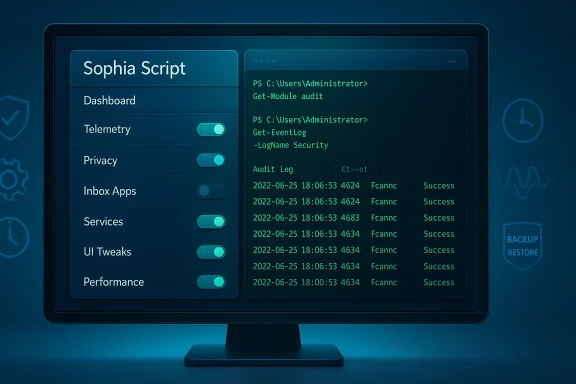
Sophia Script breaks down its capabilities into clear categories. Below are the most visible areas where it changes the Windows experience:- Privacy and telemetry: Adjust diagnostic data level, disable telemetry services and scheduled tasks, and tune data collection endpoints where Windows exposes them.
- Inbox app management: Bulk uninstall or restore of UWP (Store) apps and other Microsoft inbox packages that many users consider bloat.
- Services and scheduled tasks: Enable or disable specific services and scheduled tasks that run in the background.
- Interface and UX tweaks: Taskbar, Start menu, search, and other UI affordances can be tweaked beyond what Settings exposes.
- System and performance tweaks: Registry and PowerShell-based tunings for networking, indexing, storage cleanup, and power profiles.
- Security-focused settings: Hardening options for script hosts, defender settings, and policy‑level changes — with caveats.
- Preset-driven run: You edit a Sophia.ps1 preset file and toggle exactly which preset functions will execute. This is the recommended path for experienced users who want a one‑time entry point to apply multiple changes in a predictable set.
- Individual function execution: You can execute single functions interactively (dot-sourcing the tab‑completion helper and invoking Sophia -Functions) to pick and run only the functions you understand and need. This is safer for incremental changes and troubleshooting.
How to get and run the script (concise, verifiable steps)
The developers provide multiple download methods; the README documents the canonical PowerShell one‑liner many users will recognize:- Open an elevated PowerShell (Run as Administrator).
- Download and unpack the project:
iwr script.sophia.team -useb | iex
That command fetches the appropriate archive for the Windows/Powershell version you’re running and expands it without immediately executing the full preset. - Inspect and edit the preset file (Sophia.ps1) with a code editor (Visual Studio Code recommended). Each tweak in the preset is represented by a function call; uncomment only those you intend to run.
- Optionally use the Sophia wrapper (GUI) to import the preset and toggle functions visually. Export the adjusted preset back into the Sophia folder before executing.
- In PowerShell, set the execution policy for the session and run the preset:
Code:Set-ExecutionPolicy -ExecutionPolicy Bypass -Scope Process -Force .\Sophia.ps1 - If you prefer selective execution, dot‑source the tab completion helper:
Then choose the exact function(s) you want.Code:. .\Import-TabCompletion.ps1 Sophia -Functions<TAB>
Verified claims and cross‑checks
- “More than 150 functions”: The farag2 GitHub README explicitly states the project provides over 150 unique tweaks and functions. SophiApp’s description and other community forks reference the same ballpark figure (some lists show 130+ or more depending on the distribution and version). These independent repository pages corroborate the claim. That said, exact counts vary by release and by Windows target (PowerShell 5.1 vs 7 vs LTSC builds), so always check the README for the specific archive you download.
- “Script uses officially supported methods”: The codebase and documentation emphasize using standard Windows APIs, PowerShell cmdlets, and supported repair/reinstall functions where possible. The project notes that each tweak has a counterpart to restore defaults in many cases, improving transparency and recoverability. This is visible in the function naming and repository structure. However, “officially supported” is a spectrum — some operations (like removing certain inbox packages) are supported by user-level uninstall commands, while others (tinkering with telemetry services) push into areas where Microsoft’s official guidance may be to leave defaults alone or to use enterprise policy tooling instead. Cross‑referencing the repo and community threads confirms the authors’ intent and the practical reality.
Strengths — why power users like it
- Granularity and auditability. Every change is an explicit function call. You can review every line before you run it, and many functions include a way to revert. That makes Sophia Script much more transparent than many closed‑source “debloaters.”
- Automation at scale. For system builders, technicians, or users who install Windows frequently, the scripted presets save hours compared with manual configuration and allow consistent baseline builds across devices. The script can also create scheduled tasks or apply multiple Group Policy‑style settings in one pass. Community reports and moderated threads verify meaningful time savings.
- Active development and release hygiene. The project uses GitHub releases and publishes changelogs, and maintainers publish wrapper binaries and checksums to help users confirm integrity. The repository also documents system requirements and compatibility per Windows build.
- Selective operation model. You don’t have to run everything; the default behavior is to require explicit function activation. That design reduces the risk of accidental global changes when the project is used responsibly.
Risks, caveats, and real-world failure modes
No matter how well‑documented, any tool that runs with elevated privileges can do damage when misapplied. Below are the practical hazards you should treat as real and immediate:- User error is the most common cause of breakage. Community threads and issue reports show people accidentally disabling scripting hosts, removing functionality they later missed, or running the full preset on a non‑fresh system and producing unpredictable errors. The maintainers repeatedly warn: read the preset, and run the script on a fresh or well‑backed machine. If you don’t read the preset, you can easily remove or disable features you later need.
- Windows updates can reverse or conflict with changes. Major feature updates tend to reset or alter internal components; removing or disabling components the update expects can cause upgrade failures or force repair. The community recommends reapplying tweaks after major updates and testing the script against the exact Windows build you run it on.
- Partial removals and lingering integrations. Some deeply integrated features (for example, components related to on‑device AI or Copilot-style features) may be only partially removable. The script may uninstall a visible app but cannot always remove every underlying integration or scheduled task until Microsoft changes the component model. Expect some “leftover” behavior after removal.
- Enterprise and managed devices. Don’t run Sophia Script on corporate machines unless you are the administrator and have authorization. Group Policy, MDM policies, and corporate security tooling may conflict with or be overridden by the script, and organizations may consider these changes policy violations.
- Third‑party dependencies and updates. Removing inbox components may break workflows that other apps assume are present (for example, shortcuts, protocol handlers, file association fallbacks). Always test critical workflows after changes. Community troubleshooting threads show that some users needed a repair install to restore full functionality after aggressive cleanups.
Best practices — how to make Sophia Script safe to use
- Create a full image backup (disk image) or system restore prior to running any preset — not just a restore point. Image backups are far more reliable for undoing low‑level changes.
- Test first in a virtual machine. Deploy your chosen Sophia preset in a VM that mirrors your target environment and run through daily workflows to validate nothing essential broke.
- Use the wrapper for visual confirmation of each enabled function if you’re not comfortable editing the preset by hand.
- Run individual functions (dot-source Import-TabCompletion.ps1 and use Sophia -Functions) rather than the entire preset the first time. This lets you validate each change incrementally.
- Keep a change log. Save your custom preset with a clear name and timestamp so you can reapply or reverse the exact same set later.
- Verify downloads. Check release checksums/SHAs against published values before executing downloaded archives. The project publishes SHA256 hashes on release assets.
Troubleshooting common problems
- “The script froze” — don’t press Enter. Many interactive functions pause for input or present a choice; pressing Enter can skip a configuration and cause unexpected behavior. The project documentation warns users to wait or use space to progress when prompted.
- “A function disabled something critical” — identify which function you ran (your preset should tell you) and run the corresponding restore function; many functions have a named enable/disable inverse. If that fails, use your image backup or perform an in-place repair upgrade with the latest Windows ISO. Community threads show that cautious users fixed issues by restoring a fresh image and reapplying a narrowed preset.
- “Updates fail after changes” — temporarily revert the most invasive changes (network/defender/telemetry/service changes) and attempt the feature update again. If that does not work, an in-place upgrade or repair is the reliable fix.
When Sophia Script is the right tool — and when it's not
Use Sophia Script when:- You manage multiple systems and want reproducible, audited configuration states.
- You’re building a clean, minimal config for a lab, homelab, or personally controlled fleet.
- You are technically comfortable with PowerShell, registries, services, and potential recovery steps.
- You can test in a VM and accept the maintenance burden of reapplying tweaks after major Windows feature updates.
- You are using a managed corporate device (MDM/Group Policy).
- You rely on specific Microsoft inbox apps or tightly integrated services for work.
- You cannot create reliable backups or are not prepared to perform an in‑place repair if something breaks.
The maintenance question: long‑term supportability
Sophia Script’s open development and release cadence mean it will continue to evolve, but that also means you must treat it as a living dependency. The repository maintainers publish compatibility notes and issue trackers — check them before running the script on a newly updated Windows build. Because Windows itself is a moving target, expect a maintenance cost: practical users rebuild their presets after major updates and revalidate critical functionality. The tool helps automate what would otherwise be manual reconfiguration, but it does not remove the need for testing.A short, practical checklist before you press Enter
- Have you created a full disk image and validated the backup? (Yes → proceed; No → stop.)
- Did you test your preset in a VM that matches your target Windows build? (Yes → proceed; No → test first.)
- Are the functions you are enabling clearly necessary and reversible? (If unsure, run them individually.)
- Do you have release checksums for the archive and the wrapper binary? (Verify them.)
- If this is a work device, do you have admin approval? (If no, do not proceed.)
Final assessment: powerful, auditable, and responsibly risky
Sophia Script occupies a rare niche: a community‑vetted, open‑source PowerShell module that gives advanced users honest control over Windows’ more obscure behaviors. Its strengths are transparency, repeatability, and depth. The essential balancing act is simple: you trade convenience and a leaner system for increased responsibility. If you respect that responsibility — by backing up, testing in VMs, and enabling only the functions you understand — Sophia Script is one of the most capable tools available to shape Windows 11 beyond what the Settings app allows. If you treat it like a black‑box “fix all” tool and run full presets on production machines without testing, you are more likely to need a repair install than to enjoy a permanently faster system. The developer and community guidance is consistent: power, transparency, and careful usage.If you decide to try it, follow the checklist above, prefer interactive selection over blanket presets, and maintain a documented preset so you — or your future self — know exactly what was changed and why.
Source: Windows Central What happens when you fine‑tune Windows 11 with Sophia Script? A lot.
