

I noticed my PC was taking longer to reach the desktop, and the culprit turned out not to be Windows at all but the firmware stage—what Task Manager calls the Last BIOS time—a small number that can add seconds (or more) to every cold boot and points to fixes that live inside your motherboard’s UEFI/BIOS rather than inside Windows.
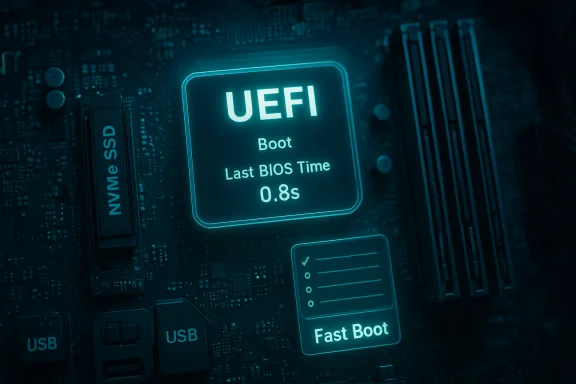
Before Windows draws its logo the machine runs a foundational program stored on the motherboard: the BIOS or, more commonly on modern machines, UEFI. That firmware performs a power‑on self test (POST), enumerates attached hardware (disks, USB devices, network controllers, memory), and decides which device to boot from. The time that firmware spends on those tasks is what Task Manager reports as Last BIOS time on the Startup tab. This value measures the pre‑Windows stage of boot and is a useful diagnostic to tell whether the slowdown happens before Windows takes over. Task Manager only shows that number when the PC is using UEFI boot mode; on machines still running legacy BIOS it may be absent. The number is a simple elapsed‑time measurement of how long firmware initialization took on the last cold boot—useful because it isolates firmware/POST delays from Windows‑side problems like autostart apps or services.
Source: MakeUseOf My PC was taking longer to boot and it had nothing to do with Windows
 Background / Overview
Before Windows draws its logo the machine runs a foundational program stored on the motherboard: the BIOS or, more commonly on modern machines, UEFI. That firmware performs a power‑on self test (POST), enumerates attached hardware (disks, USB devices, network controllers, memory), and decides which device to boot from. The time that firmware spends on those tasks is what Task Manager reports as Last BIOS time on the Startup tab. This value measures the pre‑Windows stage of boot and is a useful diagnostic to tell whether the slowdown happens before Windows takes over. Task Manager only shows that number when the PC is using UEFI boot mode; on machines still running legacy BIOS it may be absent. The number is a simple elapsed‑time measurement of how long firmware initialization took on the last cold boot—useful because it isolates firmware/POST delays from Windows‑side problems like autostart apps or services. Why the firmware stage matters for “speed up PC boot time”
Windows boot time is a pipeline of distinct stages: firmware (BIOS/UEFI and POST), kernel and driver initialization, services and scheduled tasks, and finally the user session and startup programs. People often focus on the last step—disabling startup apps—but the largest gains (or the reason you’re still waiting despite a clean Task Manager list) can live in the very first stage. That’s where Last BIOS time becomes crucial: if that number is high, no amount of pruning in Windows will fix the delay. Community diagnostics and practical how‑tos emphasize a layered approach that starts with firmware-level checks and then addresses kernel, drivers and storage.What “Last BIOS time” actually measures (and its limitations)
- It measures the elapsed seconds the firmware took to run POST and hand control to the OS loader.
- It’s shown in Task Manager → Startup (top‑right) only when the system uses UEFI mode; legacy BIOS machines may not report it.
- The number can fluctuate: different cold boots can have different device states, attached peripherals, or one‑time checks that change timing. Community reports show variation across boots even on the same hardware. Treat a single sample with caution—take several measurements before deciding.
Common causes of long Last BIOS time
- Firmware enumerating many bootable devices (USB drives, external disks, optical drives, network boot). Each extra check adds seconds.
- Connected USB devices or hubs that delay enumeration or cause firmware retries (webcam, hub, external HDDs). Community threads repeatedly show USB peripherals increasing POST times.
- Legacy compatibility features (CSM) or memory training and other POST tests that run if some settings are enabled.
- Overclocked or manually tuned memory/CPU settings that require extra initialization.
- Outdated or buggy firmware that performs extra checks or has known slow paths; vendors regularly release fixes.
- Slow or failing boot drives can sometimes interact with firmware handoff, though most drive‑speed gains are seen after firmware hands control to the OS. For outright sluggish boots (minutes), storage or hardware issues often coexist.
Firmware-level fixes that actually reduce BIOS time
These are the changes that live in UEFI/BIOS. They have a big potential payoff and are often reversible if done carefully.1) Set the correct boot order and disable unused boot devices
If firmware is checking a USB stick, optical drive, or network PXE before your SSD, it wastes time. Move your primary Windows drive to the top of the boot priority list and disable boot options you never use (PXE, optical, USB boot if you don’t need it). This prevents repeated device probing and is one of the fastest, lowest‑risk wins.- Benefit: often shaves several seconds.
- Risk: if you later need to boot from USB, you’ll need the firmware’s one‑time boot menu or reenable the option.
2) Enable UEFI “Fast Boot” (firmware Fast Boot), not to be confused with Windows Fast Startup
UEFI includes a Fast Boot setting that short‑circuits some POST checks at power‑on. This is different from Windows’ Fast Startup (a hybrid hibernation feature). Enabling firmware Fast Boot often removes redundant checks and can reduce Last BIOS time considerably. Many vendors expose this option under Boot or Advanced settings.- Benefit: tangible reduction in POST time.
- Risks and tradeoffs:
- Some USB devices may not be available before the OS loads (keyboard/USB boot may not work without a hotkey).
- It can complicate firmware tasks or one‑time boots; know how to enter the firmware or use the one‑time boot menu.
- For systems with dual‑boot or where other OSes need clean access to disks, Fast Boot can cause problems.
3) Disable legacy/CSM support when using native UEFI boot
Compatibility Support Module (CSM) is a legacy compatibility layer that can slow initialization. If your Windows installation and drives are set up to use UEFI (GPT), disabling CSM removes legacy checks. Only do this if you are certain your OS drive is UEFI‑formatted—changing it improperly can render the system unbootable.4) Unplug or test peripherals (USB systems are frequent offenders)
If the Last BIOS time jumps when a particular device is connected, that device is likely being reinitialized during POST and adding time. Test by performing cold boots with peripherals unplugged and reconnect one by one. Community troubleshooting frequently points to hubs, external drives and even certain keyboards as culprits.5) Update the motherboard firmware (BIOS/UEFI) carefully
Motherboard vendors release updates that fix bugs, improve compatibility and sometimes shorten initialization routines. Updating firmware can help—but it carries greater risk than other tweaks:- Read the vendor changelog to see if a release notes mention boot or POST changes.
- Follow the vendor’s documented update procedure (vendor tools or Q‑flash, etc., ensure stable power, and back up critical data before flashing.
- If you’re uncomfortable, ask a professional or follow vendor guidance step by step.
6) Check memory and overclocking settings
Manual memory timings, aggressive overclocks, or XMP profiles that need extra training can extend POST. If you’re tuning for peak performance and see a higher Last BIOS time as a cost, consider relaxing settings or testing stock profiles to compare. Community reports show tuned memory frequently increases POST time.Windows-side measures that still matter (but won’t fix a long BIOS time)
Even when firmware is the bottleneck, the OS stage matters for perceived boot speed:- Disable unnecessary startup apps (Task Manager → Startup).
- Use Autoruns (Sysinternals) to find hidden autostarts beyond Task Manager.
- Use Windows Fast Startup where appropriate (but understand the differences with firmware Fast Boot and the risks for dual‑boot / BitLocker).
- On HDD systems, the single biggest user‑visible improvement is swapping to an SSD. Firmware tweaks and Windows cleanup are complementary but hardware changes deliver the most dramatic reductions in full boot time.
How to measure, verify and iterate safely
You should always measure before and after any change so you can tell which tweak helped.- Check Task Manager → Startup → Last BIOS time for firmware‑stage timing. Run several cold boots and record the median value.
- Use Event Viewer (Applications and Services → Microsoft → Windows → Diagnostics‑Performance → Operational) and Event ID 100 to see measured boot durations. Community guides recommend Event Viewer as a reliable baseline.
- Use third‑party tools such as BootRacer for an end‑to‑end cold boot measurement if you prefer a simple stopwatch‑style tool. Community writeups frequently pair BootRacer with Event Viewer for verification.
- For advanced diagnostics, capture a Windows Performance Recorder (boot trace) and analyze in Windows Performance Analyzer (WPA). This gives driver‑level breakdowns but is advanced and usually unnecessary for consumer troubleshooting.
Step‑by‑step checklist to reduce Last BIOS time (safe order)
- Record baseline: note Task Manager Last BIOS time across 3 cold boots.
- Unplug all unnecessary USB devices (external drives, hubs, printers). Cold boot and record time.
- Enter UEFI/BIOS Setup and move the Windows boot drive to the top of Boot Priority; disable PXE/optical/USB boot if you don’t use them. Save and reboot.
- If available, enable firmware Fast Boot and test (only if you understand potential USB availability tradeoffs). Reboot and record.
- If applicable, disable CSM (only if you use UEFI/GPT boot). Reboot and record.
- If you have tuned memory/overclock, try a stock profile and record.
- Update BIOS only if the changelog suggests boot/POST fixes, following vendor instructions exactly. Reboot and verify.
- If firmware changes don’t help, revisit Windows steps: prune startup apps, run Autoruns, check Event Viewer and BootRacer.
- If boots are still unacceptably slow, test the boot drive health and consider an SSD upgrade for the largest single improvement in perceived startup speed.
Risks and caveats — what can go wrong and how to avoid it
- Firmware updates can fail and brick a board. Only flash with reliable power and follow the vendor process. Back up data first.
- Enabling firmware Fast Boot may make some USB devices unavailable until the OS loads and can complicate firmware tasks; know how to access the one‑time boot menu or Setup hotkey.
- Windows Fast Startup is a separate feature; it shortens OS boot by preserving kernel state on shutdown but can complicate dual‑boot setups and some drive operations (BitLocker / Linux). Toggle it only after understanding the tradeoffs.
- Disabling the wrong services or startup items can break backup, security or synchronization software—proceed conservatively and test each change. Community guides repeatedly warn about disabling security services unintentionally.
- Absolute boot‑time promises are unreliable—results depend on CPU, firmware, NVMe controller, drive firmware, BIOS version and connected devices. Treat published numbers as typical examples rather than guarantees.
Advanced diagnostics for stubborn cases
If firmware times remain high after the checklist:- Capture a Windows boot trace with Windows Performance Recorder (WPR) configured for a boot trace, then analyze with Windows Performance Analyzer to locate exact driver or firmware delays.
- Collect Event Viewer logs and firmware version details and consult the motherboard vendor support forums; sometimes a known bug or compatibility issue will be documented.
- Try a clean boot (msconfig → Services → Hide Microsoft services → Disable all; disable non‑Microsoft startup items) to isolate Windows‑side delays that might appear after firmware. If cold boot firmware time is low but total boot remains high, the issue is likely Windows‑side.
Practical example: small wins vs hardware limits
A typical path many enthusiasts follow is this: prune autostarts in Windows, fix boot order and disable unused devices in firmware, enable firmware Fast Boot, update BIOS if needed, and finally consider an SSD if the boot drive is an HDD. Each step stacks: some users shave a few seconds with firmware tweaks and gain the most by switching to an SSD. But don’t chase tiny decimals—if your Last BIOS time is sub‑10 seconds and your total time to usable desktop is acceptable, you’ve probably reached a practical limit for that platform. Community reporting and how‑tos all converge on this pragmatic advice.Conclusion
The Takeaway: when your PC is slow to get to the desktop, look beyond Windows. Task Manager’s Last BIOS time is a compact, actionable clue that the delay is happening in firmware. Tightening the boot order, disabling unused boot devices, enabling UEFI Fast Boot (carefully), reducing attached peripherals and, where appropriate, updating the motherboard firmware will often shave real seconds from cold boots. For the most transformative improvement, storage upgrades (HDD → SSD/NVMe) remain the single biggest hardware change you can make—firmware tweaks complement, they rarely replace, that upgrade. Practical tone: measure first, change one thing at a time, and document settings so you can revert. Firmware tuning pays off, but it also has tradeoffs; a small, methodical approach will yield the best balance of speed and stability. If your Last BIOS time is already under ~10 seconds and the system feels snappy, avoid chasing marginal improvements and accept the platform’s hardware limits.Source: MakeUseOf My PC was taking longer to boot and it had nothing to do with Windows
