

If your Windows 11 PC feels sluggish, unresponsive, or slow to boot, the most likely and easiest place to start is the pile of cached and temporary files the operating system and apps create by design. These files are meant to speed things up, but when they grow, become corrupted, or sit on a nearly full drive they can have the opposite effect. This guide explains what those caches are, why clearing them helps, and how to do it safely using only built-in Windows 11 tools. The goal is not to “optimize” the system with magic buttons, but to restore predictable performance and free up space without adding risk.
Windows has always leaned on caching because it is one of the simplest ways to make a general-purpose operating system feel fast. The shell remembers icons, applications hold temporary working data, installers stash leftovers, browsers keep page assets locally, and the update system preserves files that may be needed later. In healthy conditions, this is exactly what you want: less repeated work, quicker launches, fewer network requests, and a more responsive desktop. But the same mechanism that smooths daily use can also become a burden when the system is left untouched for months.
In Windows 11, that burden is often invisible until it becomes annoying. A few megabytes here and a few hundred megabytes there sounds harmless, but over time temporary files, installation remnants, update data, browser caches, thumbnail databases, and log files can add up to several gigabytes. On machines with modest SSDs, especially 256GB or 512GB systems, that is no longer trivia. It can materially affect available storage, and free space matters because SSDs need breathing room to keep write performance and system housekeeping healthy.
The big mistake many users make is assuming that cache is always beneficial and therefore should never be touched. That is only half true. Cache is beneficial when it is current, valid, and small enough to be managed efficiently. It becomes harmful when it is stale, corrupted, duplicated, or simply excessive. At that point the operating system spends more effort managing junk than benefiting from it.
There is also a behavioral problem. People wait until they are desperate to deal with disk clutter, and by then the machine may already be running poorly. That delay is harmful because it lets performance drift downward gradually, which makes the problem feel like “Windows just getting old” rather than a maintenance issue with a fixable cause. Regular cleanup is one of the rare Windows tasks that is both simple and high-value.
The reason cache exists is simple: speed. If File Explorer already has thumbnails for your photos, it can display folders faster. If Edge or another browser has stored page assets, it can redraw a website without fetching every resource again. If Microsoft Store remembers temporary state, it can resume app management faster. That is useful, but only while the stored data remains relevant and clean.
Problems start when the cache outlives its usefulness. A cache can become stale after updates, conflicting application versions, network changes, or interrupted writes. In that condition it can slow things down or trigger odd behavior. Users often misread these symptoms as random bugs, when in reality they are sometimes side effects of accumulated temporary data.
Low disk space is especially dangerous because it reduces Windows’ ability to manage writes efficiently. SSDs are fast, but they still need room for garbage collection and temporary working space. When the drive is nearly full, even otherwise healthy tasks can feel sluggish. That is why freeing space is not just about capacity; it is about keeping the storage subsystem comfortable enough to perform well.
There is also a psychological trap. People adapt to a worsening baseline and stop noticing the regression. What felt like a quick PC six months ago now feels “normal,” even though the machine has quietly become less responsive. Cleanup reverses that drift and often produces a more noticeable improvement than users expect.
To open it, press Windows + R, type cleanmgr, and press Enter. You can also search for “Disk Cleanup” from the Start menu. After selecting the drive, Windows scans the disk and presents the categories that can safely be removed. This includes items such as temporary files, thumbnails, Recycle Bin contents, installation remnants, and sometimes update-related leftovers.
The real value comes from the “Clean system files” option. That expands the scan to include deeper items such as old update packages and other system-level remnants that can consume a surprising amount of storage. For a machine that has gone through many Windows updates, this can be the most impactful part of the process.
Once you enter Storage, Windows performs a scan and groups the results into categories such as temporary files, large or unused files, Recycle Bin data, and applications you may not need. The layout is clearer for less technical users because it frames the problem as storage management instead of raw cleanup. That presentation matters; more people will use a built-in feature they can understand at a glance.
The key subsection is Temporary files. That is where Windows provides a more detailed breakdown of system cache, logs, update remnants, and other service files. It lets you choose with more nuance, which reduces the risk of deleting something you did not mean to delete. For users who want a balance between simplicity and control, this is often the best starting point.
Once enabled, Storage Sense can delete temporary files, empty the Recycle Bin, and optionally clean the Downloads folder after a configured number of days. It can run daily, weekly, monthly, or only when Windows thinks space is running low. That flexibility is useful because not every PC is used the same way. A work laptop, a gaming rig, and a family PC all have different tolerance for automatic cleanup.
What makes Storage Sense valuable is that it changes the maintenance model from reactive to proactive. Instead of waiting for the machine to feel bloated, the system keeps itself tidy in the background. That means fewer surprise slowdowns and fewer moments where you suddenly realize your SSD is nearly full before a large update or game install.
Location history is one example. It stores geolocation data used by Windows and apps. Clearing it can reduce the amount of sensitive data retained by the system and gives you a little more privacy control. That is not just housekeeping; it is a meaningful privacy hygiene step.
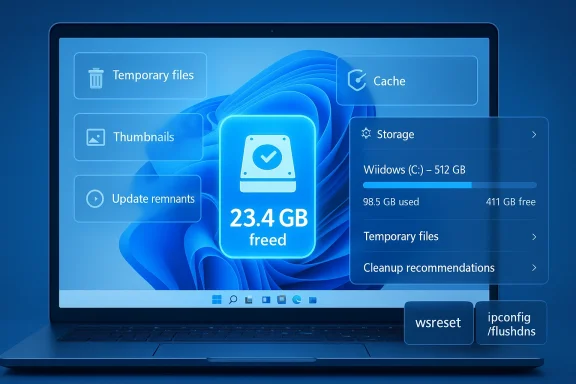
Microsoft Store cache is another major one. If the Store refuses to download, update, or launch apps correctly, resetting the cache can often fix it immediately. The wsreset command is the usual remedy, and the beauty of it is that it clears Store-related temporary data without removing installed apps.
DNS cache is the most technical of the trio, but it is just as practical. It stores domain-to-IP mappings so websites load faster. If those entries become outdated, you can see odd web connectivity behavior. Flushing DNS with ipconfig /flushdns can solve problems after changing networks, DNS servers, or internet providers.
That does not mean third-party utilities are always bad. In specialized scenarios, such as fleet analysis or advanced disk inspection, they can be useful. But they require judgment. A tool that removes too aggressively can delete data you still need, interfere with app behavior, or create new troubleshooting headaches. The more powerful the cleaner, the more dangerous it becomes in inexperienced hands.
There is also the issue of duplication. Many so-called optimizers simply replicate Windows features in a shinier package. Some add background processes of their own, which can paradoxically consume resources while promising to save them. That is not progress; it is marketing layered over maintenance.
Here is a practical sequence that balances effectiveness and safety:
Another thing to watch is SSD capacity pressure. As apps, updates, AI features, and cached content continue to grow, small drives will feel more constrained. That means Windows cleanup tools will become more relevant, not less. For budget laptops and older hardware, even modest cleanup gains can translate into a noticeably better everyday experience.
Windows 11 does not need a miracle cleaner to feel healthy; it needs users to give the built-in maintenance tools a chance before the machine drifts into unnecessary clutter. A little routine attention to cache and temporary files can restore speed, recover space, and reduce odd behavior without any risky system tweaks. For most PCs, especially those with modest SSD capacity, that is enough to make the whole experience feel lighter, cleaner, and more predictable.
Source: Root-Nation.com https://root-nation.com/en/soft-en/lifehacks/en-windows-11-cach-how-to-clear/
 Background
Windows has always leaned on caching because it is one of the simplest ways to make a general-purpose operating system feel fast. The shell remembers icons, applications hold temporary working data, installers stash leftovers, browsers keep page assets locally, and the update system preserves files that may be needed later. In healthy conditions, this is exactly what you want: less repeated work, quicker launches, fewer network requests, and a more responsive desktop. But the same mechanism that smooths daily use can also become a burden when the system is left untouched for months.In Windows 11, that burden is often invisible until it becomes annoying. A few megabytes here and a few hundred megabytes there sounds harmless, but over time temporary files, installation remnants, update data, browser caches, thumbnail databases, and log files can add up to several gigabytes. On machines with modest SSDs, especially 256GB or 512GB systems, that is no longer trivia. It can materially affect available storage, and free space matters because SSDs need breathing room to keep write performance and system housekeeping healthy.
The big mistake many users make is assuming that cache is always beneficial and therefore should never be touched. That is only half true. Cache is beneficial when it is current, valid, and small enough to be managed efficiently. It becomes harmful when it is stale, corrupted, duplicated, or simply excessive. At that point the operating system spends more effort managing junk than benefiting from it.
There is also a behavioral problem. People wait until they are desperate to deal with disk clutter, and by then the machine may already be running poorly. That delay is harmful because it lets performance drift downward gradually, which makes the problem feel like “Windows just getting old” rather than a maintenance issue with a fixable cause. Regular cleanup is one of the rare Windows tasks that is both simple and high-value.
Why this topic matters now
Windows 11 has matured into a platform where more of the user experience is tied to background service data than older desktop versions ever were. Between cloud sync, Store apps, browser activity, update servicing, and modern shell components, the system creates more transient data than many users realize. The result is that “slow PC” complaints often trace back to storage pressure and stale service data rather than some dramatic hardware failure.The practical takeaway
If you maintain a Windows 11 PC proactively, you do not need aggressive third-party “speed boosters.” You need a repeatable cleanup routine, and Windows already includes one. The point of this article is to show you where the useful built-in tools are and which hidden caches are worth knowing about.What Cache Means in Windows 11
Cache is not a single thing in Windows 11. It is an umbrella term for temporary data stored so the system does not have to generate, download, or calculate it again. That includes browser files, preview thumbnails, update leftovers, app state, installer artifacts, and system logs. Some of it is created by Windows itself, some by Microsoft apps, and some by third-party programs.The reason cache exists is simple: speed. If File Explorer already has thumbnails for your photos, it can display folders faster. If Edge or another browser has stored page assets, it can redraw a website without fetching every resource again. If Microsoft Store remembers temporary state, it can resume app management faster. That is useful, but only while the stored data remains relevant and clean.
Problems start when the cache outlives its usefulness. A cache can become stale after updates, conflicting application versions, network changes, or interrupted writes. In that condition it can slow things down or trigger odd behavior. Users often misread these symptoms as random bugs, when in reality they are sometimes side effects of accumulated temporary data.
The difference between useful and harmful cache
A healthy cache is a shortcut. A bad cache is clutter. The distinction depends on freshness, size, and whether the cached data still matches what the system needs today. That is why periodic cleanup is sensible rather than optional.Signs cache may be dragging the system down
- Longer app launch times
- Slower boot or logon behavior
- Browser pages loading more slowly than expected
- Minor freezes or micro-stuttering during routine use
- Update glitches or odd Store behavior
- Storage space disappearing without a clear reason
Why Delaying Cleanup Becomes a Problem
Delaying cleanup does not cause instant failure, but it creates a slow-decline environment. The system gradually loses free space, temporary data becomes more fragmented, and the odds of stale or corrupted entries increase. The user experience may still look “fine” from day to day, yet the machine is becoming less resilient under pressure.Low disk space is especially dangerous because it reduces Windows’ ability to manage writes efficiently. SSDs are fast, but they still need room for garbage collection and temporary working space. When the drive is nearly full, even otherwise healthy tasks can feel sluggish. That is why freeing space is not just about capacity; it is about keeping the storage subsystem comfortable enough to perform well.
There is also a psychological trap. People adapt to a worsening baseline and stop noticing the regression. What felt like a quick PC six months ago now feels “normal,” even though the machine has quietly become less responsive. Cleanup reverses that drift and often produces a more noticeable improvement than users expect.
Common consequences of waiting too long
- Disk space gets consumed by files you no longer need
- Temporary data becomes more likely to conflict with updates
- App and browser behavior gets less predictable
- The system has fewer resources during major installs or upgrades
- Troubleshooting becomes harder because stale caches muddy the diagnosis
Why “small” cleanup can still matter
Even if cleanup only recovers a few gigabytes, that can be enough to move a system from cramped to comfortable. On a laptop with limited storage, that difference is often the line between stable performance and frustrating sluggishness. In other words, the value is not just in the amount removed, but in the headroom restored.Disk Cleanup: The Classic Tool That Still Works
Despite the newer Settings interface, Disk Cleanup remains one of the most reliable ways to clear junk in Windows 11. It is straightforward, familiar, and gives users a clear list of categories before anything is deleted. That makes it a good first choice for people who want control rather than automation.To open it, press Windows + R, type cleanmgr, and press Enter. You can also search for “Disk Cleanup” from the Start menu. After selecting the drive, Windows scans the disk and presents the categories that can safely be removed. This includes items such as temporary files, thumbnails, Recycle Bin contents, installation remnants, and sometimes update-related leftovers.
The real value comes from the “Clean system files” option. That expands the scan to include deeper items such as old update packages and other system-level remnants that can consume a surprising amount of storage. For a machine that has gone through many Windows updates, this can be the most impactful part of the process.
What Disk Cleanup is good at
Disk Cleanup is useful because it is selective. It does not blindly erase everything, and that makes it safer than many consumer “optimizer” utilities. If you are cautious, the tool lets you review the categories before committing.What it typically removes
- Temporary files
- Thumbnails
- Recycle Bin contents
- Delivery optimization files
- DirectX shader cache
- Windows update cleanup data
- Installation remnants
Why it still matters in 2026
Even though Windows 11 has pushed more controls into Settings, the classic utility has not become obsolete. It still solves a very ordinary problem: a buildup of clutter that modern systems create faster than users manage it. That makes it practical, not nostalgic.Storage and Cleanup Recommendations in Settings
Windows 11’s Settings app offers a more modern path through Storage. This area includes “Cleanup recommendations,” which is Microsoft’s newer attempt to surface safe cleanup options in a more approachable way. It is especially useful for users who do not want to hunt through old utilities.Once you enter Storage, Windows performs a scan and groups the results into categories such as temporary files, large or unused files, Recycle Bin data, and applications you may not need. The layout is clearer for less technical users because it frames the problem as storage management instead of raw cleanup. That presentation matters; more people will use a built-in feature they can understand at a glance.
The key subsection is Temporary files. That is where Windows provides a more detailed breakdown of system cache, logs, update remnants, and other service files. It lets you choose with more nuance, which reduces the risk of deleting something you did not mean to delete. For users who want a balance between simplicity and control, this is often the best starting point.
Why Settings can be a better first stop
Settings gives a friendlier overview and is less intimidating than the classic utility. It also helps people who are not sure what disk categories mean, because the recommendations are written in everyday language rather than technical jargon.Best use cases for this approach
- Newer users who want guided cleanup
- Laptops with limited SSD capacity
- Systems that regularly run short on free space
- Users who want a quick health check before major updates
The trade-off
The modern interface is easier to navigate, but it can feel less precise than Disk Cleanup for power users. That is not a flaw so much as a design choice. Settings is for convenience; Disk Cleanup is for control. Using both is not redundant if you want the best result.Storage Sense: The Automatic Safety Net
Manual cleanup is effective, but Windows 11 also gives you an automated layer through Storage Sense. This is the feature that quietly clears temporary files on a schedule so clutter never has time to pile up too far. For many users, this is the real long-term solution.Once enabled, Storage Sense can delete temporary files, empty the Recycle Bin, and optionally clean the Downloads folder after a configured number of days. It can run daily, weekly, monthly, or only when Windows thinks space is running low. That flexibility is useful because not every PC is used the same way. A work laptop, a gaming rig, and a family PC all have different tolerance for automatic cleanup.
What makes Storage Sense valuable is that it changes the maintenance model from reactive to proactive. Instead of waiting for the machine to feel bloated, the system keeps itself tidy in the background. That means fewer surprise slowdowns and fewer moments where you suddenly realize your SSD is nearly full before a large update or game install.
How to think about Storage Sense
Storage Sense is not a performance booster in the dramatic sense. It is a stability tool. Its job is to keep the system from drifting into a bad state where low free space and neglected temp files become a problem.Smart settings to consider
- Run it weekly on everyday consumer PCs
- Use “low free space” behavior on machines with plenty of storage
- Keep Recycle Bin cleanup conservative if you rely on recoverable deletions
- Review whether automatic Downloads cleanup makes sense for your workflow
Hidden Caches People Forget
Some of the most useful cleanup targets are not obvious at all. Windows 11 also stores cached data in places users rarely think about, including location history, Microsoft Store services, and DNS cache. These are not the first things people check, but they can solve stubborn problems when standard cleanup does not help.Location history is one example. It stores geolocation data used by Windows and apps. Clearing it can reduce the amount of sensitive data retained by the system and gives you a little more privacy control. That is not just housekeeping; it is a meaningful privacy hygiene step.
Microsoft Store cache is another major one. If the Store refuses to download, update, or launch apps correctly, resetting the cache can often fix it immediately. The wsreset command is the usual remedy, and the beauty of it is that it clears Store-related temporary data without removing installed apps.
DNS cache is the most technical of the trio, but it is just as practical. It stores domain-to-IP mappings so websites load faster. If those entries become outdated, you can see odd web connectivity behavior. Flushing DNS with ipconfig /flushdns can solve problems after changing networks, DNS servers, or internet providers.
Why these caches matter
These hidden caches are valuable because they sit close to the line between system convenience and system confusion. When they are healthy, you never think about them. When they are stale, they can cause exactly the kind of frustrating, hard-to-explain behavior that sends people down troubleshooting rabbit holes.When to clear hidden caches
- After location-related privacy concerns
- When Microsoft Store apps misbehave
- When web pages fail to resolve correctly
- After switching routers, DNS providers, or ISPs
- When troubleshooting an issue that normal cleanup did not fix
A broader lesson
Not every cache problem is about freeing space. Some are about state. Stale state can be just as disruptive as clutter, especially in services that rely on current network or account information. That is why hidden caches deserve attention in any serious Windows maintenance routine.Third-Party Cleaners: Convenient or Unnecessary?
The third-party cleanup market exists because many users want one-click reassurance. The pitch is always some version of “speed up your PC instantly,” but in practice those claims are often overstated. Windows already provides enough built-in tools for ordinary cache and temporary-file management.That does not mean third-party utilities are always bad. In specialized scenarios, such as fleet analysis or advanced disk inspection, they can be useful. But they require judgment. A tool that removes too aggressively can delete data you still need, interfere with app behavior, or create new troubleshooting headaches. The more powerful the cleaner, the more dangerous it becomes in inexperienced hands.
There is also the issue of duplication. Many so-called optimizers simply replicate Windows features in a shinier package. Some add background processes of their own, which can paradoxically consume resources while promising to save them. That is not progress; it is marketing layered over maintenance.
When a third-party tool might make sense
- Enterprise environments with defined cleanup policies
- Users who need advanced analytics, not just cleanup
- Systems with highly specific storage workflows
- Administrators who understand exactly what each cleanup rule does
Why most home users do not need them
For everyday Windows 11 maintenance, built-in tools are usually enough. They are safer, easier to trust, and less likely to create confusion. If the cleanup task is routine, the routine tool is usually the right answer.A Safe Cleanup Routine for Windows 11
The best approach is to use a layered routine instead of treating cache cleanup as a one-time rescue mission. A good cleanup habit is simple, repeatable, and conservative. It should free space without putting important data at risk.Here is a practical sequence that balances effectiveness and safety:
- Check free space in Storage settings.
- Run Storage Sense or open Cleanup recommendations.
- Use Disk Cleanup, then select “Clean system files.”
- Clear browser cache if the browser feels slow.
- Reset Microsoft Store with wsreset if apps misbehave.
- Flush DNS only when network symptoms suggest it.
- Reboot after cleanup to let Windows rebuild fresh state.
What not to do
- Do not use “optimizer” tools blindly
- Do not wipe Downloads unless you are sure
- Do not clear everything just because it is there
- Do not treat cache clearing as a substitute for backups
- Do not assume slow performance always means a hardware problem
Why a routine beats panic
A planned cleanup routine is better than a desperate one because it keeps the system from getting too far out of shape in the first place. The real win is not the cleanup itself; it is the prevention of avoidable sluggishness.Strengths and Opportunities
Windows 11’s built-in cleanup tools are better than many users realize, and that creates a real opportunity to maintain performance without extra software. The system already includes enough functionality to handle the most common forms of cache buildup, which means users can fix a lot of problems with tools they already own. That simplicity is a strength, not a compromise.- Safer than most third-party cleaners
- Easy to access through Settings or classic tools
- Can recover meaningful disk space
- Helps reduce app, browser, and update issues
- Supports both manual and automatic maintenance
- Improves system predictability on smaller SSDs
- Lets users choose how aggressive cleanup should be
Why this is good platform design
The best maintenance tools are the ones people actually use. By baking cleanup into Windows itself, Microsoft makes it more likely that ordinary users will act before clutter becomes a real problem. That is a quiet but important usability win.Risks and Concerns
Cleanup is beneficial, but it is not risk-free if done carelessly. The main danger is not the built-in tools themselves; it is the assumption that all temporary data is disposable and all “cleaners” are equally safe. That is where users can get into trouble.- Aggressive third-party tools may remove useful data
- Automatic Downloads cleanup can surprise users
- Over-cleaning may affect app convenience or session state
- Users may ignore deeper issues and keep cleaning instead of diagnosing
- Low disk space can still signal a storage upgrade is needed
- Cache clearing will not fix hardware faults or malware
- Some symptoms overlap with network or driver problems
The important caveat
If a machine remains slow after a proper cleanup, the problem may not be cache at all. In that case, further troubleshooting is needed. Cache cleanup is powerful, but it is not a universal cure. That distinction matters because it keeps users from wasting time on the wrong fix.What to Watch Next
The next thing to watch is whether Microsoft continues to make cleanup and storage management more visible inside Settings. Windows 11 is increasingly presenting maintenance tasks as friendly recommendations rather than hidden utilities, and that shift could make good habits easier to sustain. If that trend continues, more users may finally start treating storage hygiene as normal maintenance.Another thing to watch is SSD capacity pressure. As apps, updates, AI features, and cached content continue to grow, small drives will feel more constrained. That means Windows cleanup tools will become more relevant, not less. For budget laptops and older hardware, even modest cleanup gains can translate into a noticeably better everyday experience.
Practical signs the next cleanup is due
- Free space starts dropping below comfortable levels
- Windows update installs take longer than expected
- Browser or app launches become less responsive
- The Downloads folder becomes a storage graveyard
- Store or DNS issues repeat after normal troubleshooting
Windows 11 does not need a miracle cleaner to feel healthy; it needs users to give the built-in maintenance tools a chance before the machine drifts into unnecessary clutter. A little routine attention to cache and temporary files can restore speed, recover space, and reduce odd behavior without any risky system tweaks. For most PCs, especially those with modest SSD capacity, that is enough to make the whole experience feel lighter, cleaner, and more predictable.
Source: Root-Nation.com https://root-nation.com/en/soft-en/lifehacks/en-windows-11-cach-how-to-clear/
