

If Windows 11 feels sluggish on your PC, the issue is often systemic rather than purely hardware — and two default behaviors deserve immediate attention: OneDrive's automatic syncing and Windows 11's modern visual effects. Disabling or tuning these can deliver noticeable gains on older or low‑spec machines without spending a dime.
Windows 11 ships with cloud integration and a polished interface turned on by default. Those conveniences are excellent for many users, but they add background CPU, network, disk, and GPU work that can lead to slower boot times, higher memory pressure, and choppy UI responsiveness — especially on systems with 8 GB of RAM or less. Community testing and troubleshooting guides repeatedly single out cloud sync activity and graphical effects as high‑impact, easy wins when trying to speed up Windows 11.
This article summarizes the core problems, explains why they matter, and gives step‑by‑step guidance to optimize OneDrive, visual effects, and other common Windows 11 performance pain points. It cross‑references community and vendor guidance and flags where claims are version‑ or device‑dependent.
However, the best long‑term solution for persistent sluggishness remains a hardware upgrade: more RAM and an SSD deliver the largest, most consistent improvements. Software tweaking can extend the useful life of an older machine but cannot fully substitute for inadequate hardware. Also, aggressive debloating and registry hacks carry real risk; use supported tools and ensure backups before making irreversible changes.
Windows 11 gives you control: it favors convenience by default, but those same defaults can be tuned to favor raw performance when you need it. Start with the easy, reversible changes — pause OneDrive during heavy work, reduce unnecessary visual effects, trim startup apps — then measure and iterate. For most users, these steps provide measurable gains with minimal risk and no cost, making older devices feel significantly livelier without opening the wallet.
Source: Indeksonline. https://indeksonline.net/en/Speed-up-your-computer-with-these-tips-for-Windows-11/
 Background / Overview
Windows 11 ships with cloud integration and a polished interface turned on by default. Those conveniences are excellent for many users, but they add background CPU, network, disk, and GPU work that can lead to slower boot times, higher memory pressure, and choppy UI responsiveness — especially on systems with 8 GB of RAM or less. Community testing and troubleshooting guides repeatedly single out cloud sync activity and graphical effects as high‑impact, easy wins when trying to speed up Windows 11.This article summarizes the core problems, explains why they matter, and gives step‑by‑step guidance to optimize OneDrive, visual effects, and other common Windows 11 performance pain points. It cross‑references community and vendor guidance and flags where claims are version‑ or device‑dependent.
Why OneDrive sync can slow your PC
What OneDrive does in the background
OneDrive continuously scans designated folders, compares local file metadata with the cloud, and performs uploads/downloads to keep files synchronized. That sounds simple, but on machines with weaker CPUs, limited RAM, or slow storage and network connections, the repeated file enumeration and IO can monopolize resources and generate high disk and CPU utilization spikes. The result is slower application performance, longer app start times, and perceptible UI lag.When OneDrive is most likely to cause problems
- When you have large numbers of files (many folders, small files, or frequent file changes).
- During large synchronizations after initial setup, backup restorations, or major folder changes.
- On PCs with HDDs instead of SSDs, or with limited RAM (under ~8 GB).
- When background upload/downloads occur simultaneously with heavy programs (video editors, IDEs, games).
How to detect OneDrive‑related slowdown
Open Task Manager and watch for:- High disk activity tied to the OneDrive process.
- Network bandwidth spikes matching OneDrive transfers.
- CPU usage increases during periods of heavy file activity.
Practical OneDrive adjustments (step‑by‑step)
- Pause syncing temporarily:
- Click the OneDrive icon in the system tray → Help & Settings → Pause syncing → choose 2 hours/8 hours/24 hours. Resume when heavy work is complete.
- Exclude folders from sync:
- OneDrive Settings → Account → Choose folders → untick nonessential folders to reduce continuous file checks.
- Use Files On‑Demand:
- Keep cloud‑only files rather than syncing everything locally to reduce storage I/O and disk usage.
- Limit startup behavior:
- Settings → Apps → Startup (or Task Manager → Startup) and disable OneDrive if you don’t need always‑on sync at boot.
- For intensive work sessions:
- Sign out of OneDrive or pause sync before launching heavy programs (video editing, virtual machines, large compiles) and resume afterward.
Visual effects: polish versus performance
What visual effects cost
Windows 11 uses animations, shadows, transparency, and other GPU/CPU‑assisted effects to create a modern look. On systems with integrated graphics or limited RAM, these effects add measurable overhead: extra GPU cycles for compositing, slightly higher CPU usage for animations, and more memory for frame buffers and UI state. For many everyday tasks the perceived smoothness is a tradeoff against responsiveness.Who benefits most from disabling visual effects
- Laptops or desktops with integrated graphics (Intel UHD, older AMD APUs).
- Systems with 8 GB RAM or less.
- Users prioritizing raw responsiveness over UI polish (developers, content creators working on heavy workloads).
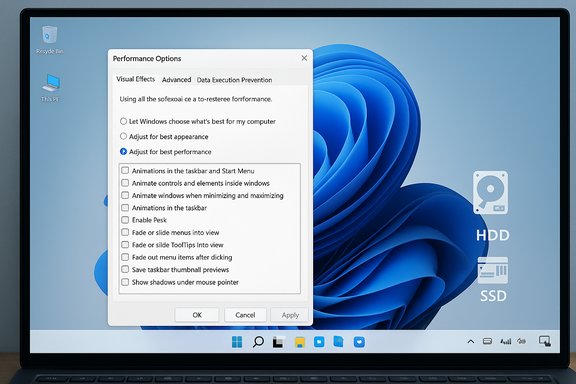
How to tune or disable visual effects (step‑by‑step)
- Open the Performance Options panel:
- Search for "Adjust the appearance and performance of Windows" in Settings or Control Panel → System → Advanced system settings → Performance → Settings.
- Choose one of:
- Adjust for best performance (disables most effects).
- Custom: uncheck only the effects you don’t want (for example, uncheck Animate windows when minimizing and maximizing and Show shadows under windows, but keep Smooth edges of screen fonts for readability).
- Disable Transparency:
- Settings → Personalization → Colors → Transparency effects: Off. This reduces compositing work for the GPU.
- Restart Windows to ensure the new settings are fully applied.
Additional high‑impact tweaks to speed up Windows 11
1) Trim startup programs
Too many programs launching at sign‑in cause boot slowdowns and immediate RAM pressure. Open Task Manager → Startup tab, sort by Startup impact, and disable nonessential apps. Leave critical services enabled (antivirus, disk encryption, backup if required). Reboot and measure boot time improvements with Task Manager.2) Manage background apps and services
For UWP (Store) apps, go to Settings → Apps → Installed apps → Advanced options and set Background app permissions to Never for apps you don’t need running. For Win32 apps, disable startup entries and examine each app’s internal settings for background tasks or auto‑update features.3) Free disk space and maintain storage
- Use Storage Sense (Settings → System → Storage) or Disk Cleanup for system files. Freeing a few gigabytes on the C: drive improves virtual memory availability and update staging.
- For HDD users, run Optimize Drives (defrag) occasionally; for SSDs, avoid defragmentation (Windows handles TRIM).
4) Run DISM component cleanup (advanced)
Use the Deployment Image Servicing and Management (DISM) tool to reclaim space in the component store:- Analyze: dism.exe /online /cleanup-image /AnalyzeComponentStore
- Cleanup: dism.exe /online /cleanup-image /StartComponentCleanup
Run these from an elevated Command Prompt. This safely removes superseded Windows components and can free gigabytes without harming system stability. Use with care and avoid manual deletions inside WinSxS.
5) Update drivers and Windows
Keeping GPU, storage, and network drivers current avoids compatibility slowdowns and can include performance fixes. Check Settings → Windows Update → Advanced Options → Optional Updates for driver packages, and use vendor tools (NVIDIA GeForce Experience, AMD Adrenalin, Intel Driver & Support Assistant) when appropriate. Always create a restore point before driver changes.6) Power mode
Switching to a High performance (or Best performance) power mode while plugged in can prevent CPU throttling during heavy workloads. Settings → System → Power & battery → Power mode. Balance battery life and heat considerations; prefer high‑performance only when needed.7) Page file and virtual memory
On systems with limited physical RAM, a properly sized paging file helps. Settings → System → About → Advanced system settings → Performance → Settings → Advanced → Change Virtual Memory. Uncheck automatic management and set a custom size (commonly 1.5–2× your RAM as a starting point, but adjust based on available storage and workload). Increasing page file size is a stop‑gap for low‑RAM systems; adding physical RAM is superior when possible.How to measure improvements (quick tests)
- Boot time:
- Use Task Manager → Startup impact and note the Startup time before/after changes.
- Real‑world app launch:
- Time how long a heavy app (browser with many tabs, IDE) takes to become responsive.
- Resource monitoring:
- Use Task Manager and Resource Monitor to watch CPU, Disk, and Network usage during typical workload and during heavy sync operations.
- Synthetic checks (optional):
- Use built‑in Performance Monitor counters or a simple stopwatch for repeatable measurements.
Security, privacy, and functional trade‑offs
- Disabling OneDrive startup or pausing sync reduces background work but delays cloud backups until you resume. For users relying on near‑real‑time cloud sync, selective folder exclusion is a safer compromise.
- Turning off visual effects lowers polish; users who depend on certain animations for accessibility may prefer selective disabling rather than a blanket Adjust for best performance.
- Aggressive removal of built‑in apps or using third‑party debloat scripts can break Windows features or future updates; proceed only if you understand the risks and have backups. Community tools exist for debloating, but they are not supported by Microsoft.
Risks, caveats, and unverifiable claims
- Exact performance gains vary by system: the same tweak that saves 10–20% CPU on one laptop might have negligible effect on another. Any stated improvement numbers in community posts are indicative rather than guaranteed.
- Some registry or Group Policy edits referenced in fringe guides may be overwritten by future Windows updates or blocked on managed (work) devices.
- Claims about specific thresholds (for example, visual effects cause trouble below 8 GB RAM) are based on community experience and testing, and while widely observed they are not a hard technical cutoff across every workload or hardware configuration. Treat thresholds as guidance, not law.
Recommended optimization checklist (apply in this order)
- Create a System Restore point and back up critical data.
- Run Windows Update and optional driver updates.
- Free disk space: Storage Sense / Disk Cleanup / remove large unused files.
- Disable nonessential startup apps via Task Manager.
- Pause OneDrive sync for heavy tasks or exclude large folders.
- Adjust visual effects: choose a custom configuration that balances readability and performance.
- Run DISM StartComponentCleanup if you need to reclaim component store space (advanced).
- Reboot and compare measured results using Task Manager and simple timing tests.
Final analysis — strengths and potential risks
Tuning OneDrive and visual effects is a low‑cost, high‑impact approach to improve Windows 11 responsiveness. These changes are reversible, use built‑in controls, and address two of the most common sources of background CPU, disk, and GPU activity. Community and vendor guidance consistently highlight them as among the highest‑ROI tweaks for older systems.However, the best long‑term solution for persistent sluggishness remains a hardware upgrade: more RAM and an SSD deliver the largest, most consistent improvements. Software tweaking can extend the useful life of an older machine but cannot fully substitute for inadequate hardware. Also, aggressive debloating and registry hacks carry real risk; use supported tools and ensure backups before making irreversible changes.
Windows 11 gives you control: it favors convenience by default, but those same defaults can be tuned to favor raw performance when you need it. Start with the easy, reversible changes — pause OneDrive during heavy work, reduce unnecessary visual effects, trim startup apps — then measure and iterate. For most users, these steps provide measurable gains with minimal risk and no cost, making older devices feel significantly livelier without opening the wallet.
Source: Indeksonline. https://indeksonline.net/en/Speed-up-your-computer-with-these-tips-for-Windows-11/
