

Your Windows 11 PC usually isn’t slow because the operating system is mysteriously “bad” so much as because a handful of always-on conveniences are doing real work in the background. The trouble is that those conveniences are rarely neutral: they can consume CPU cycles, disk activity, memory, network bandwidth, and even GPU time, especially on entry-level laptops and aging desktops. Microsoft’s own guidance makes that trade-off clear, but it also means users can claw back noticeable responsiveness by trimming features that add little value to their day-to-day use.
Windows has spent years drifting from a lean local operating system toward a cloud-connected service platform. That shift is visible in everything from startup behavior and sync services to notifications, diagnostics, and personalized surfaces. On a fast premium machine, the overhead can be easy to ignore; on a modest laptop, the same background activity becomes the difference between a machine that feels snappy and one that feels permanently a step behind.
The criticism around Windows 11 is not just that Microsoft has added more features. It is that many of those features are always available, always updated, and often always listening for a chance to personalize, recommend, or synchronize. Microsoft’s own privacy documentation says optional diagnostic data can be used to help keep Windows secure and up to date, troubleshoot issues, and make product improvements. That may be useful to the company and, in some cases, to users, but it also means there is constant background activity that has to be paid for in system resources.
There is also a practical reality that power users understand well: “performance” is not only about raw CPU speed. A slow SSD, a small memory budget, or a weak integrated GPU can turn benign features into visible lag. Startup programs, transparency effects, widget feeds, telemetry services, and sync engines all compete for the same finite pool of resources, and Windows 11 often assumes the machine is built to absorb that load. On lower-end hardware, that assumption is wishful thinking.
That is why the perennial “debloat Windows” advice keeps coming back. The term is a little crude, but the underlying strategy is sound: disable what you do not use, shrink the number of things launching at sign-in, and reduce the amount of live background work the OS performs for features you never asked for. Microsoft itself now points users toward startup management, visual-effect controls, OneDrive tuning, and performance troubleshooting tools, which is a tacit admission that defaults are not always ideal for every machine.
Startup clutter matters because it does not just slow sign-in; it changes the rhythm of the entire session. A pile of auto-launching apps can keep the disk busy, delay network initialization, and create the sense that the machine is “working on something else” whenever you try to open a browser or launch a document. On inexpensive laptops, this can feel especially punishing because there is less memory headroom for those processes to occupy.
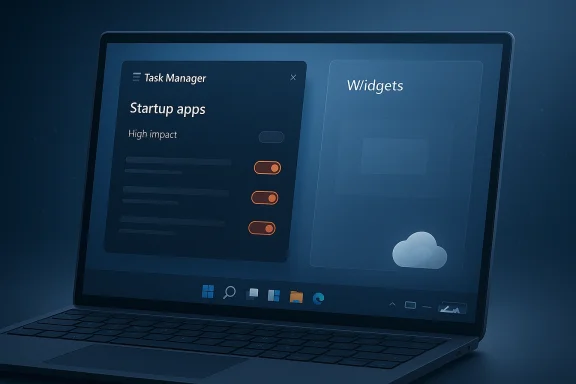
The fix is simple enough that it should be part of basic PC hygiene. Open Task Manager, review the Startup apps tab, and disable anything that does not need to start automatically. If you are unsure, begin with items marked High Impact and work downward; that approach gives you the largest return for the least risk.
The performance cost of visual effects is usually modest on high-end systems, but on older integrated graphics or budget laptops the cumulative effect can be surprisingly noticeable. Window opens feel less immediate, menus take a beat longer to appear, and the whole desktop can seem less crisp. It is not a dramatic transformation by itself, but it often contributes to the broader perception that Windows 11 is “heavy.”
The performance issue with Widgets is partly direct and partly indirect. Directly, they can encourage background updates, feed refreshes, and notifications. Indirectly, they keep the user interface and associated services more active than a minimal desktop setup would require. For people who do not actually use the panel, that is overhead with little upside.
If you do not rely on the Widgets board, disabling the taskbar entry is the cleanest move. You will lose a quick-glance surface, but you will also cut down on a visible part of the OS that exists largely to keep you engaged. That trade-off is especially reasonable on machines where the priority is responsiveness rather than information density.
This is where Windows 11’s cloud-first philosophy can collide with everyday reality. A laptop with a large documents tree, multiple device backups, and a busy work account may spend a lot of time reconciling changes. That can mean constant disk access, delayed file opens, and a perception that the system is never quite idle, even when the user is trying to focus on one task.
The key is not to abandon OneDrive entirely, but to narrow its scope. Use Files On-Demand where appropriate, pause sync during heavy workloads or poor connections, and avoid syncing huge libraries unnecessarily. For many users, the better performance win is not “turn OneDrive off forever,” but reduce how much it has to do at once.
On a single event basis, telemetry is not usually the thing that makes a machine feel slow. The issue is cumulative. Diagnostics, compatibility scans, background data uploads, and associated service activity can create short bursts of CPU, memory, and disk use that are easy to miss individually but obvious when they line up with everyday lag.
Microsoft’s own materials are careful to frame diagnostic data as a tool for improvement, and there is truth in that. Still, for users who want a lean desktop, the question is not whether diagnostics are morally defensible; it is whether the machine should be dedicating resources to them by default. That is a different question, and it is the one that matters when the PC is already struggling.
The same logic that applies to Widgets applies here, but with more direct consequences for gaming. If you are not recording clips, chatting, or using overlay tools, the Game Bar becomes unnecessary weight. On weaker systems, even a modest overlay can add friction, especially when combined with other always-on features and driver overhead.
For non-gamers, or for people who only play occasionally, turning off unnecessary recording or overlay behavior is a rational cleanup step. The goal is not to strip the machine bare, but to make sure the gaming stack is present only when gaming is actually part of the day. Less always-on software means less competition for your frame time.
For office workers, students, and remote teams, Studio Effects can be a legitimate quality-of-life upgrade. But for everyone else, it is a classic case of premium software behavior being projected onto hardware that may not be premium enough to absorb it. If your webcam is already adequate and your machine is already struggling, AI-driven video polish is the sort of convenience that should probably stay off by default.
This is also a preview of where Windows is heading more broadly. Microsoft is increasingly layering AI and quality-of-life effects into core experiences, then letting hardware tiers determine who gets the smooth version. That may be sensible product strategy, but it also means the baseline experience will keep feeling heavier to anyone outside the upper end of the spec sheet.
The broader opportunity for Microsoft is equally clear: the company can rebuild trust by making the OS feel lighter out of the box. Users do not want to spend their first hour after a new install learning how to undo defaults. They want a machine that feels ready on day one, with the optional extras layered on later if they choose them.
There is also a trust problem. Telemetry is one thing when it is clearly explained and easy to inspect, but it becomes harder to defend when users already feel that their PCs are busy doing work for Microsoft instead of for them. If the company does not keep simplifying the story, some users will keep seeing every background process as proof that Windows is getting heavier by design.
There is some evidence that Microsoft understands the assignment. Its support pages increasingly emphasize start-up management, visual simplification, sync controls, and even performance-oriented gaming modes. That suggests the company knows users want a lighter touch, even if the product direction still points toward more connectivity and more intelligence rather than less.
Source: SlashGear 5 Windows 11 Features That Are Causing Your Computer To Run Slow - SlashGear
 Background
Windows has spent years drifting from a lean local operating system toward a cloud-connected service platform. That shift is visible in everything from startup behavior and sync services to notifications, diagnostics, and personalized surfaces. On a fast premium machine, the overhead can be easy to ignore; on a modest laptop, the same background activity becomes the difference between a machine that feels snappy and one that feels permanently a step behind.The criticism around Windows 11 is not just that Microsoft has added more features. It is that many of those features are always available, always updated, and often always listening for a chance to personalize, recommend, or synchronize. Microsoft’s own privacy documentation says optional diagnostic data can be used to help keep Windows secure and up to date, troubleshoot issues, and make product improvements. That may be useful to the company and, in some cases, to users, but it also means there is constant background activity that has to be paid for in system resources.
There is also a practical reality that power users understand well: “performance” is not only about raw CPU speed. A slow SSD, a small memory budget, or a weak integrated GPU can turn benign features into visible lag. Startup programs, transparency effects, widget feeds, telemetry services, and sync engines all compete for the same finite pool of resources, and Windows 11 often assumes the machine is built to absorb that load. On lower-end hardware, that assumption is wishful thinking.
That is why the perennial “debloat Windows” advice keeps coming back. The term is a little crude, but the underlying strategy is sound: disable what you do not use, shrink the number of things launching at sign-in, and reduce the amount of live background work the OS performs for features you never asked for. Microsoft itself now points users toward startup management, visual-effect controls, OneDrive tuning, and performance troubleshooting tools, which is a tacit admission that defaults are not always ideal for every machine.
1. Startup Apps: The Hidden Delay at Boot
The easiest place to start is with startup apps, because they are one of the most direct causes of a Windows 11 machine feeling slow before the desktop is even fully usable. Microsoft says the applications that run automatically at boot can affect both startup speed and the system overall, and Task Manager even labels each startup item by impact. That makes startup load one of the few performance problems where the culprit is both obvious and measurable.Startup clutter matters because it does not just slow sign-in; it changes the rhythm of the entire session. A pile of auto-launching apps can keep the disk busy, delay network initialization, and create the sense that the machine is “working on something else” whenever you try to open a browser or launch a document. On inexpensive laptops, this can feel especially punishing because there is less memory headroom for those processes to occupy.
Why startup bloat hurts so much
A modern Windows desktop often starts with a full stack of helpers: chat clients, cloud storage agents, game launchers, update checkers, vendor utilities, and tray apps. Each one may look harmless in isolation, but together they create a little traffic jam at login. The machine may technically be “on,” yet it is not really ready.The fix is simple enough that it should be part of basic PC hygiene. Open Task Manager, review the Startup apps tab, and disable anything that does not need to start automatically. If you are unsure, begin with items marked High Impact and work downward; that approach gives you the largest return for the least risk.
- Disable apps you do not need immediately after sign-in.
- Prioritize items with High Impact in Task Manager.
- Recheck startup behavior after major software installations.
- Keep security tools if they are genuinely needed at boot.
- Treat vendor “helper” apps with skepticism unless you actively use them.
2. Visual Effects: Pretty Windows, Slower Interactions
Windows 11 leans hard into polish: transparency, animation, fades, shadows, and other interface flourishes that are meant to make the desktop feel modern. The problem is that modern and lightweight are not the same thing. Microsoft’s accessibility guidance explicitly shows that turning off Transparency effects and Animation effects can reduce distractions, which also aligns with the broader goal of reducing overhead on slower hardware.The performance cost of visual effects is usually modest on high-end systems, but on older integrated graphics or budget laptops the cumulative effect can be surprisingly noticeable. Window opens feel less immediate, menus take a beat longer to appear, and the whole desktop can seem less crisp. It is not a dramatic transformation by itself, but it often contributes to the broader perception that Windows 11 is “heavy.”
What to turn off first
If your goal is speed rather than aesthetics, start with the settings Microsoft already exposes in Accessibility > Visual effects. Turn off transparency and animation first, then see whether the machine feels more responsive. If you are chasing every last bit of snappiness, reducing decorative effects is one of the few changes that can improve the feel of the UI without altering how your files or apps work.- Turn off Transparency effects.
- Turn off Animation effects.
- Avoid stacking extra theme utilities that reintroduce visual load.
- Test changes one at a time so you can judge the impact.
- Use the cleaner look as a side benefit, not the main goal.
3. Widgets: Convenience That Never Fully Goes Away
Windows 11 Widgets are presented as a handy board for weather, news, sports, stocks, and other glanceable information, but they are also one more personalized layer sitting on top of the operating system. Microsoft says the Widgets board is personalized using the Microsoft account used to sign in to Windows, and that each widget may rely on data from the app or service behind it. That means Widgets are not just a UI element; they are a gateway into more background activity.The performance issue with Widgets is partly direct and partly indirect. Directly, they can encourage background updates, feed refreshes, and notifications. Indirectly, they keep the user interface and associated services more active than a minimal desktop setup would require. For people who do not actually use the panel, that is overhead with little upside.
A feature built for engagement, not efficiency
Widgets are designed to make Windows feel more alive, but “alive” often means busy. News cards update, badge counts refresh, and content personalizes itself based on account and location signals. Microsoft even notes that some widgets can adapt based on location estimation, which is useful for weather or local information, but also adds another layer of context gathering and processing.If you do not rely on the Widgets board, disabling the taskbar entry is the cleanest move. You will lose a quick-glance surface, but you will also cut down on a visible part of the OS that exists largely to keep you engaged. That trade-off is especially reasonable on machines where the priority is responsiveness rather than information density.
- Remove Widgets from the taskbar if you never open the panel.
- Avoid signing into extra widget services you do not need.
- Remember that third-party widget feeds may collect their own data.
- Consider Widgets a convenience feature, not a core Windows function.
- Re-enable only if the usefulness outweighs the overhead.
4. OneDrive Sync: Useful Until It Starts Competing With Your Work
OneDrive is one of Windows 11’s most important cloud integrations, and it is also one of the easiest ways to create background churn. Microsoft says Files On-Demand can help reduce local storage use, but its own support guidance also warns that syncing too many items can hurt performance, and that large transfers may keep the client in “syncing” or “processing changes” status for a long time. In other words, the feature is useful, but the cost scales badly with complexity.This is where Windows 11’s cloud-first philosophy can collide with everyday reality. A laptop with a large documents tree, multiple device backups, and a busy work account may spend a lot of time reconciling changes. That can mean constant disk access, delayed file opens, and a perception that the system is never quite idle, even when the user is trying to focus on one task.
When sync stops feeling invisible
Sync is supposed to disappear into the background. When it works, it is almost magical; when it does not, it can occupy the tray, trigger errors, and keep asking for attention. Microsoft’s own troubleshooting pages for OneDrive make clear that syncing problems are common enough to warrant dedicated repair guidance, pause controls, and step-by-step remediation.The key is not to abandon OneDrive entirely, but to narrow its scope. Use Files On-Demand where appropriate, pause sync during heavy workloads or poor connections, and avoid syncing huge libraries unnecessarily. For many users, the better performance win is not “turn OneDrive off forever,” but reduce how much it has to do at once.
- Pause sync during large local jobs or limited bandwidth periods.
- Reduce the number of files and folders under active sync.
- Use Files On-Demand for colder, less frequently accessed content.
- Watch for repeated “processing changes” behavior.
- Keep cloud sync for what is actually important, not everything.
5. Diagnostic Data and Telemetry: Small Costs, Persistent Activity
Telemetry is the feature category that tends to trigger the strongest reactions, and for good reason. Microsoft says optional diagnostic data helps keep Windows secure and up to date, troubleshoot problems, and improve products, while the Diagnostic Data Viewer exists specifically so users can inspect what is being collected. That transparency is welcome, but it also confirms that Windows is continuously generating and handling diagnostic events in the background.On a single event basis, telemetry is not usually the thing that makes a machine feel slow. The issue is cumulative. Diagnostics, compatibility scans, background data uploads, and associated service activity can create short bursts of CPU, memory, and disk use that are easy to miss individually but obvious when they line up with everyday lag.
Why telemetry feels worse than it looks on paper
Users tend to experience telemetry as a privacy issue first and a performance issue second. That makes sense, because it is not a visible app in the traditional sense. But the service model behind it means data collection can happen whether the user is watching or not, and on lighter hardware that invisible work can still be felt as jitter, pauses, or fan spin.Microsoft’s own materials are careful to frame diagnostic data as a tool for improvement, and there is truth in that. Still, for users who want a lean desktop, the question is not whether diagnostics are morally defensible; it is whether the machine should be dedicating resources to them by default. That is a different question, and it is the one that matters when the PC is already struggling.
- Review your diagnostics and feedback settings.
- Prefer the minimum data path that still keeps the device supported.
- Use the Diagnostic Data Viewer if you want to understand what is sent.
- Expect more background activity if tailored experiences are enabled.
- Treat telemetry as part of the Windows service model, not an edge case.
6. Xbox Game Bar and Gaming Overlays: Handy, But Not Free
Xbox Game Bar is one of those Windows 11 features that can be genuinely useful for screenshots, recording, and quick in-game controls, but it is also a layer of interface and capture tooling that sits on top of gameplay. Microsoft documents it as a built-in way to record clips and interact with games and apps, and it is clearly intended to help users capture what they are doing. That convenience, however, comes with background services and overlay behavior that some users never need.The same logic that applies to Widgets applies here, but with more direct consequences for gaming. If you are not recording clips, chatting, or using overlay tools, the Game Bar becomes unnecessary weight. On weaker systems, even a modest overlay can add friction, especially when combined with other always-on features and driver overhead.
Gaming features are situational, not universal
Microsoft has also added gaming modes aimed at optimizing performance on certain devices, including the gaming full screen experience on handhelds. That is a clue that the company knows performance is workload-specific, not one-size-fits-all. A feature that helps one class of user can be noise for another, and that is exactly why selective disabling matters.For non-gamers, or for people who only play occasionally, turning off unnecessary recording or overlay behavior is a rational cleanup step. The goal is not to strip the machine bare, but to make sure the gaming stack is present only when gaming is actually part of the day. Less always-on software means less competition for your frame time.
- Disable the Game Bar if you never use overlays or capture.
- Turn off recording features you do not need.
- Keep the tools only on devices that actually game.
- Remember that handheld-oriented gaming features are not for every PC.
- Test games before and after changes to confirm the benefit.
7. Windows Studio Effects: AI-Enhanced, But Potentially Expensive
Windows 11’s Windows Studio Effects are a newer kind of feature creep: AI-assisted camera enhancements designed to improve video calls and camera presence. Microsoft’s support page is unusually direct here, warning that on some devices turning on camera effects can significantly affect performance and battery life. That is one of the strongest official acknowledgments that a Windows feature may have a visible hardware cost even when it is doing something useful.For office workers, students, and remote teams, Studio Effects can be a legitimate quality-of-life upgrade. But for everyone else, it is a classic case of premium software behavior being projected onto hardware that may not be premium enough to absorb it. If your webcam is already adequate and your machine is already struggling, AI-driven video polish is the sort of convenience that should probably stay off by default.
When camera polish becomes a battery drain
The reason Studio Effects stand out is that they sit at the intersection of AI, media processing, and real-time responsiveness. That combination is expensive by nature. It may not matter on a high-end Copilot+ class device, but on midrange or aging systems, every extra effect competes with the rest of the session.This is also a preview of where Windows is heading more broadly. Microsoft is increasingly layering AI and quality-of-life effects into core experiences, then letting hardware tiers determine who gets the smooth version. That may be sensible product strategy, but it also means the baseline experience will keep feeling heavier to anyone outside the upper end of the spec sheet.
- Leave effects off if you do not spend much time on video calls.
- Disable them first on battery-powered systems.
- Re-enable selectively for important meetings.
- Watch for CPU and battery spikes during video use.
- Treat camera enhancements as a premium feature, not a default necessity.
Strengths and Opportunities
There is a genuine upside to the fact that Windows 11 still exposes enough control for users to tune the experience. Microsoft’s own documentation gives you the hooks to reduce startup load, mute visual effects, tame OneDrive, and inspect diagnostics, which means performance optimization is still possible without resorting to unsupported hacks. That makes Windows 11 more fixable than many frustrated users assume.The broader opportunity for Microsoft is equally clear: the company can rebuild trust by making the OS feel lighter out of the box. Users do not want to spend their first hour after a new install learning how to undo defaults. They want a machine that feels ready on day one, with the optional extras layered on later if they choose them.
- Better default startup hygiene could improve first impressions.
- A cleaner, less animated shell would help low-end devices.
- More explicit telemetry controls could reduce distrust.
- Smarter OneDrive defaults could lower background churn.
- Feature-by-feature opt-ins would make Windows feel less cluttered.
- Microsoft could position performance tuning as part of the setup flow.
- Users gain a clearer path to a faster, less distracting desktop.
Risks and Concerns
The main risk is that Windows 11 continues to accumulate features faster than it removes friction. When the OS keeps adding AI effects, cloud hooks, and engagement surfaces, users with modest hardware are left to manage the fallout themselves. That can create the impression that Microsoft is optimizing for demos and ecosystems rather than for everyday responsiveness.There is also a trust problem. Telemetry is one thing when it is clearly explained and easy to inspect, but it becomes harder to defend when users already feel that their PCs are busy doing work for Microsoft instead of for them. If the company does not keep simplifying the story, some users will keep seeing every background process as proof that Windows is getting heavier by design.
- Feature creep can overwhelm modest hardware.
- Users may confuse necessary maintenance with unnecessary bloat.
- More AI effects raise the battery and CPU cost of everyday tasks.
- Sync and diagnostic systems can create hidden latency.
- Poor defaults encourage the perception that Windows is inefficient.
- The line between “helpful” and “intrusive” keeps getting thinner.
- More background services make troubleshooting harder, not easier.
Looking Ahead
What happens next will depend less on any single feature and more on whether Microsoft changes its philosophy. If Windows 11 keeps leaning toward a service-rich, AI-forward model, the company will need to prove that it can still deliver a fast baseline experience on ordinary hardware. That is the real test: not whether a premium machine can handle the extras, but whether the average laptop can stay responsive when the extras are present.There is some evidence that Microsoft understands the assignment. Its support pages increasingly emphasize start-up management, visual simplification, sync controls, and even performance-oriented gaming modes. That suggests the company knows users want a lighter touch, even if the product direction still points toward more connectivity and more intelligence rather than less.
- Watch for more granular opt-outs in future Windows 11 builds.
- Watch whether Microsoft trims defaults on Widgets and diagnostics.
- Watch for further guidance on OneDrive performance tuning.
- Watch whether AI features become more hardware-selective.
- Watch if startup and background app controls get simpler.
- Watch how Microsoft balances reliability messaging against feature growth.
Source: SlashGear 5 Windows 11 Features That Are Causing Your Computer To Run Slow - SlashGear
