

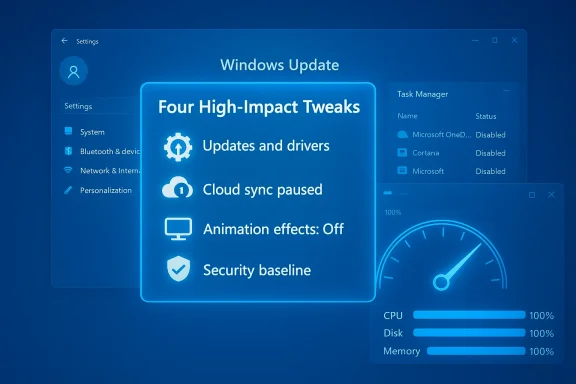
Most Windows 11 slowdowns, glitches, and odd behaviors aren’t caused by mysterious hardware failures or corrupted registries — they’re born of four simple settings and habits: updates and drivers, startup apps and cloud sync, visual effects and notifications, and the security baseline. When IT desks and seasoned admins want a fast, low‑risk triage routine, they run this short checklist first — because it fixes the majority of everyday problems and restores a responsive desktop in minutes.
Windows 11 ships with a lot of capabilities and integration: automatic updates, deep OneDrive integration, animated shell effects, and built‑in security protections. That richness delivers convenience, but it also creates more places where things can go wrong: a faulty quality update, a mismatched driver, an aggressive cloud client doing heavy I/O, or a background app quietly consuming CPU and disk bandwidth. Community troubleshooting guides and vendor notes consistently show that focusing on these four areas gives the highest return on time invested before escalating to deep repairs or hardware changes.
This article walks through those four checks in pragmatic detail, verifies the key commands and settings you’ll use, analyzes strengths and trade‑offs, and provides an escalation path when the basics don’t solve the problem. The goal: get you back to a fast, stable PC without risky tweaks or third‑party “optimizers.”
Source: findarticles.com Users Solve Windows 11 Issues With Four Settings Checks
 Background / Overview
Windows 11 ships with a lot of capabilities and integration: automatic updates, deep OneDrive integration, animated shell effects, and built‑in security protections. That richness delivers convenience, but it also creates more places where things can go wrong: a faulty quality update, a mismatched driver, an aggressive cloud client doing heavy I/O, or a background app quietly consuming CPU and disk bandwidth. Community troubleshooting guides and vendor notes consistently show that focusing on these four areas gives the highest return on time invested before escalating to deep repairs or hardware changes.This article walks through those four checks in pragmatic detail, verifies the key commands and settings you’ll use, analyzes strengths and trade‑offs, and provides an escalation path when the basics don’t solve the problem. The goal: get you back to a fast, stable PC without risky tweaks or third‑party “optimizers.”
1. Updates and Drivers: Start Where Microsoft Starts
Keeping Windows and drivers current is both a defensive and a corrective measure. Quality updates contain security fixes and reliability patches; Optional updates often deliver vendor drivers for GPU, Wi‑Fi, Bluetooth, audio, and storage. Because many real‑world issues — audio dropouts, Wi‑Fi instability, resume‑from‑sleep bugs — are driver or patch related, this is the first stop.What to check (step‑by‑step)
- Open Settings → Windows Update and click Check for updates. Install pending cumulative or quality patches and reboot to allow kernel/driver changes to settle.
- From the same page: Advanced options → Optional updates. Review vendor driver updates (Intel, AMD, NVIDIA, Realtek, Qualcomm) and install those that apply to your hardware.
- If problems began immediately after an update, open Update history → Uninstall updates and roll back the most recent cumulative patch as a controlled mitigation. Use recovery environment options if Windows won’t boot.
Driver sanity checks and rollbacks
- Use Device Manager → Properties → Driver tab → Roll Back Driver when a vendor driver causes regressions (audio crackle, Bluetooth dropouts). If Roll Back isn’t available, download the last known good driver from the OEM or vendor site and install it. Always create a restore point before major driver surgery.
Why this matters
Driver and update regressions are a common root cause and are regularly flagged in Microsoft’s release health notes and community reports. Applying vetted updates or rolling back a troubling patch are among the least invasive and highest‑probability fixes.2. Tame Startup Apps and Pause Heavy Cloud Sync
A fast system at boot is mostly about avoiding unnecessary work. Auto‑starting apps, updaters, messaging clients, and cloud sync processes often race the OS for disk I/O and CPU right after sign‑in. On systems with SATA SSDs or older CPUs, that can transform a fast machine into a sluggish one.Fast checklist
- Press Ctrl+Shift+Esc → Task Manager → Startup. Sort by Startup impact and disable nonessential entries (game launchers, helper apps, auto‑updaters). This prevents auto‑launch; it does not uninstall software.
- Also check Settings → Apps → Startup for the same list; Windows presents status and impact there too. Leave critical services like antivirus, disk encryption, and backup agents enabled if you rely on them.
- For cloud clients (OneDrive, Dropbox): click the client icon and Pause syncing while gaming, editing video, or running installers. For long‑term fixes, exclude large folders (PSTs, VM images, development repos) from sync or enable Files On‑Demand so only selected files are local.
Why pause cloud sync?
Continuous sync of large or frequently written files can saturate disk I/O and network bandwidth. Pausing sync often yields an immediate, measurable responsiveness boost while you work. If pausing helps, move those heavy working files to a non‑synced folder or explicitly exclude them from the client.3. Trim Visual Effects and Reduce Noisy Notifications
Windows 11’s visual polish uses GPU and CPU cycles. On thermally constrained laptops and devices with integrated graphics or limited RAM, transparency, animations, and constant notifications add up. Turning off the most expensive effects provides a noticeable snappier UI on lower‑end hardware.Key toggles and where to find them
- Disable transparency: Settings → Personalization → Colors → Transparency effects: Off. This reduces GPU compositing workload.
- Turn off animations: Settings → Accessibility → Visual effects → Animation effects: Off (or Control Panel → System → Advanced system settings → Performance → Adjust for best performance for a more aggressive approach).
- Mute nonessential notifications: Settings → System → Notifications. At minimum disable Get tips, tricks, and suggestions and post‑update promotional prompts; keep critical channels like Windows Security and Windows Update enabled.
Additional visual/performance options
- For deeper control, open Performance Options and selectively disable effects (for example, keep “Smooth edges of screen fonts” but turn off window animations). This strikes a balance between readability and speed.
Tradeoffs
Disabling visual features sacrifices polish for responsiveness. On modern high‑end hardware the difference may be imperceptible; on older machines, it’s often the single biggest perceptible improvement without hardware upgrades. Accessibility users may rely on some animations; apply changes selectively.4. Verify Security Settings and Run a Clean Scan
Malware, adware, and rogue browser extensions still cause pop‑ups, redirects, and unexplained CPU spikes. The built‑in Windows Security tool is effective for many threats, and running an offline scan detects persistent kernel‑level or boot‑staying malware that a live OS scan might miss.Recommended scan sequence
- Open Windows Security → Virus & threat protection → Quick scan. If symptoms persist, run Microsoft Defender Offline scan to inspect before Windows fully loads.
- If Defender finds nothing but you still suspect nuisanceware, run a reputable second‑opinion on‑demand scanner (for example, Malwarebytes or another lab‑tested tool) — do not install and run overlapping real‑time engines; use on‑demand scanners for confirmation.
- Audit browser extensions, reset the default browser, and enable built‑in tracking protection or site isolation features. Browsers are often the primary workspace and can silently accumulate CPU and memory overhead through extensions and open tabs.
Keep protections enabled
Ensure Real‑time protection, Cloud‑delivered protection, and SmartScreen are enabled for the best balance of detection and usability. Independent test labs regularly rank Microsoft Defender’s core detection highly; still, combine lab data with hands‑on trials when choosing paid AVs.When to Escalate: Deeper Repair Steps
If the four‑point checklist leaves your PC stubbornly slow or unstable, escalate in measured steps rather than leaping to a reinstall.Next diagnostical steps (in order)
- Use Task Manager and Resource Monitor to identify top resource consumers and confirm whether CPU, Disk, Memory, or Network is pegged. Right‑click suspicious processes and choose Open file location to identify origin.
- Run SFC and DISM from an elevated command prompt:
- sfc /scannow
- DISM /Online /Cleanup‑Image /RestoreHealth
These commands repair system files and the component store respectively and are standard, supported troubleshooting steps. - Test memory with Windows Memory Diagnostic and check drive health (SMART) and free space. Ensure at least 10–20% free space on the OS drive to avoid paging pressure.
- If a GPU or kernel driver seems corrupt, perform a clean uninstall (use vendor tools or DDU in Safe Mode for stubborn GPU drivers) and reinstall the latest stable driver from the vendor.
- As a last resort, perform a repair install (in‑place upgrade) using the latest Windows image to refresh the OS while preserving files. If that fails, a Reset this PC (Keep my files) or clean install is the nuclear option after full backup.
When it’s hardware
If diagnostics show constant memory pressure, heavy paging, or thermal throttling, consider hardware upgrades: add RAM (16 GB is a practical sweet spot for heavy multitasking), upgrade an HDD to an SSD (NVMe where possible), or clean cooling and update firmware. These are permanent solutions when software tweaks are exhausted.Critical Analysis: Strengths, Limits, and Risks
This four‑step approach is deliberately conservative and high‑leverage. It’s the sort of checklist IT support uses to recover most user machines quickly. But it’s not a panacea.Strengths
- Low‑risk and reversible: disabling startup apps, pausing OneDrive, toggling visual effects, and running offline scans are easy to reverse and require no external tools. Community evidence shows most users see immediate gains after these steps.
- Targets the most common causes: driver regressions, background sync, resource‑hungry auto‑starts, and malware account for a large share of day‑to‑day problems — so these checks are highly efficient.
Limits and caveats
- Not a substitute for hardware upgrades: if you’re CPU‑ or RAM‑bound, these adjustments won’t change raw processing power or single‑threaded performance. Expect snappier UI but not miracle gains.
- Vendor drivers and updates can introduce regressions: updating drivers from Windows Update is convenient, but vendor websites sometimes offer earlier fixes or hot‑fixes. Keep a rollback plan (restore point, driver backup).
Risks to watch
- Disabling essential startup items can break backups, disk encryption, or enterprise management agents. Know what each entry does before you disable it.
- Uninstalling a security update exposes you to CVEs. Only roll back a patch when you have clear evidence it caused the regression and a mitigation plan is in place.
- Aggressive debloating or registry hacks may be overwritten by future updates or render a device unsupported in enterprise environments. Use those tactics only when you understand the consequences.
Concrete, Actionable Checklist You Can Run in 10–30 Minutes
- Reboot and note whether symptoms persist.
- Settings → Windows Update → Check for updates; install and reboot.
- Settings → Windows Update → Advanced options → Optional updates → install applicable driver updates.
- Ctrl+Shift+Esc → Task Manager → Startup: disable nonessential entries. Settings → Apps → Startup: verify.
- Click OneDrive → Pause syncing while testing heavy tasks; exclude large folders if needed.
- Settings → Personalization → Colors → Transparency effects: Off; Settings → Accessibility → Visual effects → Animation effects: Off.
- Settings → System → Notifications → disable tips and suggestions; keep critical channels.
- Windows Security → Virus & threat protection → Quick scan; if unresolved, run Microsoft Defender Offline scan and then a second‑opinion on‑demand scan.
- If still slow: run sfc /scannow and DISM /Online /Cleanup‑Image /RestoreHealth from an elevated prompt. Reboot and reassess.
Measuring Success and When to Contact Support
Measure before and after with simple, repeatable checks:- Boot time: use Task Manager → Startup impact or time the session from sign‑in to a responsive desktop.
- Resource snapshots: take Task Manager or Resource Monitor screenshots before and after tweaks to compare CPU, Disk, and Memory peaks.
- Reproducible failures that coincide with a specific KB or vendor driver and community/release health notes show no known issue. Gather Event Viewer logs and Reliability Monitor details to help engineers triage.
Conclusion
Before you reinstall Windows, edit the registry, or install a questionable “optimizer,” run these four high‑leverage checks: update Windows and drivers, tame startup apps and cloud sync, trim visual effects and notifications, and verify your security baseline with a clean scan. These steps are built into Windows, are reversible, and — according to community troubleshooting patterns and vendor guidance — resolve the majority of everyday Windows 11 problems quickly. When those measures don’t restore normal operation, escalate methodically with SFC/DISM, memory and storage diagnostics, and finally repair or reinstall options. Start with the simple, measurable fixes; they will save time, reduce risk, and in most cases get the system back to the responsiveness users expect.Source: findarticles.com Users Solve Windows 11 Issues With Four Settings Checks
