

Windows 11 can feel sleek and modern, but on older or underpowered hardware its polish sometimes comes at the cost of responsiveness and battery life. This article walks through practical, safe, and well‑tested ways to speed up and optimize Windows 11 — from quick settings anyone can change to deeper adjustments and the risks you should know before making them. The guidance synthesizes community-tested tweaks and tools while flagging steps that need backups or extra caution.
Windows 11 ships with dozens of background services, integrated cloud features, and default visual effects that are designed for modern hardware and a rich UX. That design is great on current laptops and desktops, but older machines or systems with limited storage/RAM can suffer. The community has developed two complementary approaches:
However, there are important warnings:
Source: Хабр How to Speed Up and Optimize Windows 11
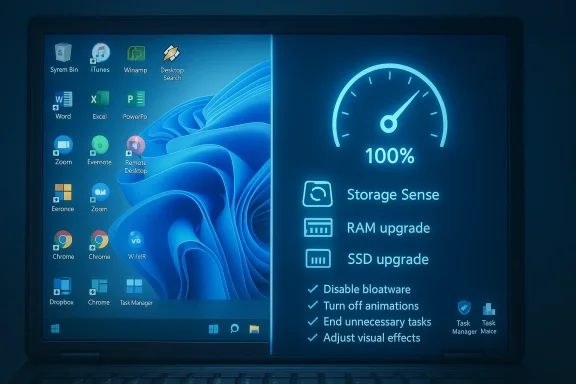 Background / Overview
Windows 11 ships with dozens of background services, integrated cloud features, and default visual effects that are designed for modern hardware and a rich UX. That design is great on current laptops and desktops, but older machines or systems with limited storage/RAM can suffer. The community has developed two complementary approaches:- Use a lighter Windows build (community-maintained "lite" images such as Tiny11) that removes many optional components and preinstalled apps to reclaim disk space and CPU cycles. These builds are often aimed at reviving older hardware but carry licensing and support trade-offs.
- Keep the official Windows 11 image and manually tune settings, remove bloat, disable unnecessary services, and make hardware upgrades where cost-effective. This preserves licensing and update support while achieving significant gains on most machines.
Why some Windows 11 PCs feel slow
There are a few recurring causes for sluggish Windows 11 performance:- Too many background apps and startup processes consuming CPU, RAM, or I/O.
- Aggressive visual effects and animations that use GPU/CPU cycles.
- Heavy indexing or telemetry writing to disk, especially visible on HDDs.
- Inadequate physical RAM causing frequent pagefile use and swapping.
- Old or fragmented storage (HDDs) and outdated drivers or firmware.
- OEM bloatware and preinstalled utilities that continually run and update.
Quick wins you can do in 10–15 minutes
These are low-risk, reversible changes that most users can make immediately.1. Switch power mode to Performance (or Balanced with higher performance)
- Open Settings → System → Power & Battery → Power Mode and choose Best performance (or create a custom power plan in Control Panel for desktops). This allows the CPU to stay in higher performance states and can noticeably reduce lag in interactive tasks. Note: on laptops this will decrease battery life.
2. Disable unnecessary startup apps
- Open Task Manager → Startup and disable programs you do not need automatically launching. Prioritize disabling third‑party cloud clients, updaters, and utilities you rarely use. Less startup churn shortens boot time and frees memory.
3. Turn off or tone down visual effects
- Search “Adjust the appearance and performance of Windows” and choose Adjust for best performance, or pick Custom and keep Smooth edges of screen fonts enabled to preserve readable text. This removes animations and shadows that cost GPU/CPU cycles.
4. Scan for malware and PUPs
- Run Windows Security (Defender) full scan or a reliable third‑party scanner; malicious or poorly behaving software can consume CPU, network, and disk. Community discussions consistently highlight antivirus cleanup as a key step to regain performance.
5. Free disk space and enable Storage Sense
- Remove temporary files, unused apps, and large media. Use Storage Sense or tools like Disk Cleanup to reclaim space; a fuller drive slows system operations and virtual memory.
Deeper system optimizations (recommended with backups)
These steps deliver bigger wins but require more care. Always create a system restore point or full image before making major changes.Disable or limit Windows Search indexing
Indexing speeds search but can tax older HDDs and cause sustained disk activity. You have two reasonable options:- Disable the Windows Search service entirely (services.msc → Windows Search → Stop and set Startup type to Disabled). This halts indexing system-wide. Use this if you rarely search your local files.
- More surgical: open Indexing Options and uncheck folders you don’t need indexed, or rebuild the index to clear corruption. You can also disable indexing on specific folders via folder Properties → Advanced. This preserves quick search where you want it but reduces overhead.
Page file and virtual memory tuning
If your machine has limited RAM (4–8 GB), Windows will use the page file (virtual memory) heavily. Increasing page file size can reduce crashes or "out of memory" behavior when RAM is exhausted.- Settings → System → About → Advanced system settings → Performance → Advanced → Virtual memory. You can set a custom size (initial and maximum). A common practical approach: set initial = 1× RAM, maximum = 1.5–2× RAM for systems without lots of free disk space. For SSDs, leaving Windows to manage pagefile is usually safe and efficient.
Disable SysMain (Superfetch) selectively
SysMain (formerly Superfetch) tries to prefetch frequently used apps into RAM; on low‑spec HDD systems it can cause heavy disk usage. Disabling it can reduce I/O spikes on HDD-equipped systems: services.msc → SysMain → Stop and set Startup type to Disabled. Many community guides recommend this for older HDD machines; however, on SSDs SysMain can improve perceived responsiveness. Test both ways.Use Efficiency mode and per‑app throttling
Windows 11 Task Manager includes an Efficiency mode to reduce resource use for background apps. Right‑click a process → Efficiency mode. This helps on systems where background apps steal CPU cycles, but do not throttle foreground apps you need. Use it for chat clients, updaters, and other background utilities.Removing bloat: manual vs scripted
OEMs and Microsoft ship a number of preinstalled apps and optional features. You can remove many of these manually via Settings → Apps, but careful users and power users often use debloat scripts to automate the process.Win11Debloat and similar scripts
- Community tools like Win11Debloat and “Windows10/11 debloaters” automate uninstalling built‑in apps, disabling telemetry, and adjusting many services. They can give a large, immediate speed and privacy improvement when used correctly. However, scripts run with elevated privileges and can remove functionality you later need. Always review the script, run it on a test machine, and create a full backup or image before using it.
Manual uninstallation (safer for most users)
- Uninstall things you don’t use (Xbox apps, optional games, manufacturer utilities). Use the Apps & Features panel and PowerShell for stubborn packages. If you’re not sure what a package does, Google or community forums can help — don’t remove system-critical components.
Lightweight Windows images (Tiny11) — what they are and the trade-offs
Community projects such as Tiny11 produce slimmed-down Windows 11 ISOs by removing optional components, telemetry, bundled apps, and services to minimize footprint and resource consumption. Advocates report significantly smaller install sizes and faster boot times, especially on older hardware. Tiny11 and similar builds are attractive for breathing life into low‑RAM or old CPUs.However, there are important warnings:
- Licensing and updates: community builds may alter or remove components in ways that complicate official update delivery, and they are not supported by Microsoft. You may also run afoul of licensing if you redistribute modified ISOs.
- Feature gaps: removed features might be useful later (e.g., built‑in drivers, accessibility, or security features).
- Stability and security: smaller attack surface is possible, but modifications can unintentionally disable security controls. Always prefer official images for systems handling sensitive data.
Hardware upgrades that give the biggest ROI
No software tweak can match the impact of a few targeted hardware upgrades:- Replace an HDD with an NVMe or SATA SSD — the single most noticeable upgrade. Boot times, app launches, and overall responsiveness improve dramatically.
- Add RAM — moving from 4 GB → 8 GB or 8 GB → 16 GB reduces paging and keeps more apps in memory. For modern multitasking and browsers, 16 GB is a comfortable target.
- Update storage firmware and drivers — sometimes a firmware update for an SSD or new storage driver reduces stutters.
- Check BIOS/UEFI settings: enabling XMP improves memory speed (if supported), which can benefit overall system responsiveness; enable only if you understand the stability implications.
Advanced troubleshooting and diagnostics
If performance problems persist after the above, take a structured approach:- Create a baseline: record Task Manager CPU/RAM/Disk utilization over a typical session.
- Identify culprits: sort Task Manager by Disk/CPU/Memory to find processes with chronic high usage.
- Test in Clean Boot: use msconfig to perform a clean boot (disable non‑Microsoft services) and enable services one at a time to find the offender.
- Run SFC and DISM to repair system files: sfc /scannow and DISM commands in an elevated prompt.
- Check for driver issues: Device Manager and reliability history can show driver crashes. Update GPU, storage, and chipset drivers from reputable sources.
Safe checklist before making major changes
- Back up user data and create a system image or restore point.
- If using debloat scripts, run them on a secondary/test machine first.
- Document every change so you can revert it.
- For laptops, note battery/runtime impact before switching to performance modes.
- Have installation media and product keys available in case of recovery.
Practical, prioritized plan you can follow today
- Run disk cleanup, remove large unused apps, and enable Storage Sense.
- Scan for malware and PUPs.
- Disable non‑essential startup apps and set the power plan to Performance.
- Turn off or reduce visual effects and enable Efficiency mode for background apps.
- If you have an HDD, consider disabling indexing and SysMain to reduce I/O spikes. Test responsiveness after each step to measure impact.
Risks, myths, and what to avoid
- Myth: “All debloat scripts are dangerous.” Reality: many are safe if audited and used carefully, but they run with admin rights so mistakes are costly. Always inspect scripts and keep backups.
- Risk: Permanently disabling services without knowing dependencies can break features or updates. Research each service before disabling.
- Myth: “Turning off indexing always improves speed.” Reality: On SSDs and modern machines, indexing cost is minimal and search benefits often outweigh the small background IO. Choose based on storage type and usage patterns.
Final thoughts — balancing speed, safety, and convenience
Optimizing Windows 11 is a combination of housekeeping, targeted settings changes, and realistic hardware decisions. For most users the sweet spot is:- Start with quick, reversible tweaks (power plan, startup apps, visual effects).
- Clean up disk space and remove obvious bloat.
- Use Efficiency mode and targeted service tuning.
- Upgrade storage and RAM if budget allows.
- Reserve community‑built light builds like Tiny11 for testing or non‑critical reuse of old hardware, and always weigh licensing and update implications.
Source: Хабр How to Speed Up and Optimize Windows 11
