

Windows 11 can feel instantly modern and oddly slow at the same time — and for many users the culprit is not CPU cores or GPU throughput but a single, decades-old registry value that introduces a tiny, stubborn hesitation into cascading menus. Change that one number and the desktop feels sharper, right-click menus respond like reflexes, and a small but constant source of friction disappears from everyday tasks. ps://www.howtogeek.com/250998/how-to-speed-up-menu-animations-in-windows/)
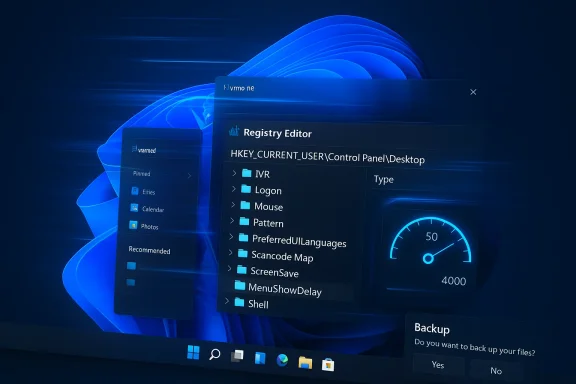
Windows has long balanced responsiveness against accidental input. When you hover a cursor over a menu item that contains a submenu, the system waits for a short interval before expanding that submenu — a protection against menus popping open while you sweep the mouse across the screen. That wait is controlled by the registry string value MenuShowDelay under HKEY_CURRENT_USER\Control Panel\Desktop, and on most s*400 milliseconds by default*.
That half-second is tiny in isolation, but it is invoked constantly: right-clicking files, opening the New* submenu, navigating nested context menus, or working in legacy dialog boxes all trigger that delay. In modern workflows, where dozens of context menus and cascades are opened in a session, the time adds up and the interface feels less responsive than the hardware deserves. Community tests and long-running documentation show this value has persisted through many Windows generations — from Windows 95 into Windows 11 — and remains an effective lever for perceived speed. (windowsforum.com)
Put simply: reducing MenuShowDelay speeds the parts of the UI that annoy people the most — the context menu and cascading submenus — while leaving fully modern components alone. That mismatch can be disorienting (some menus are instant, others still animate), but for many users the net result is a noticeably snappier desktop.
Looking ahead, Microsoft could reduce perceived latency by selectively warming composition hosts, preloading minimal WinUI components for critical short interactions, or adopting a fallback CPU-render path for the smallest, fastest interactions. Those are speculative engineering options, but they illustrate why the current hybrid state produces the exact user-facing oddity that MenuShowDelay tweaks aim to fix.
Source: MakeUseOf Windows 11 menus felt sluggish until I tweaked this one registry
 Background
Windows has long balanced responsiveness against accidental input. When you hover a cursor over a menu item that contains a submenu, the system waits for a short interval before expanding that submenu — a protection against menus popping open while you sweep the mouse across the screen. That wait is controlled by the registry string value MenuShowDelay under HKEY_CURRENT_USER\Control Panel\Desktop, and on most s*400 milliseconds by default*. That half-second is tiny in isolation, but it is invoked constantly: right-clicking files, opening the New* submenu, navigating nested context menus, or working in legacy dialog boxes all trigger that delay. In modern workflows, where dozens of context menus and cascades are opened in a session, the time adds up and the interface feels less responsive than the hardware deserves. Community tests and long-running documentation show this value has persisted through many Windows generations — from Windows 95 into Windows 11 — and remains an effective lever for perceived speed. (windowsforum.com)
What MenuShowD Location: HKEY_CURRENT_USER\Control Panel\Desktop (value name: MenuShowDelay).
- Type: REG_SZ (string) that represents milliseconds.
- Common default: 400 ms on many Windows installations, though some OEM or managed environments may vary.
- Range: You can enter values from 0 up to several thousand (practically speaking, tools and community guidance reference 0–4000 ms). ([howtogeek.com](How to Speed Up Menu Animations in Windows OS evaluates a menu hover, it consults this value and delays opening a submenu by that number of milliseconds. This behavior is implemented at the Win32 menu subsystem level — which means legacy menus (Explorer context menus, classic Control Panel dialogs, older file dialogs, and many Win32 app menus) respect this setting, while modern WinUI/XAML components (for example, the Windows 11 Start menu and many system flyouts) often do not. That hybrid architecture explains why some parts of Windows feel instantaneous while others appear sluggish.
Why this matters on Windows 11
Windows 11 is a hybrid platform. Microsoft has been migrating shell surfaces to WinUI/XAML and separate host processes (StartMenuExperienceHost, ShellExperienceHost), which provide better isolation, richer visuals, and long-term maintainabilitith trade-offs: some modern surfaces now involve GPU composition or process boundaries that alter per-interaction latency. Meanwhile, countless useful UI elements remain tied to the older Win32 menu path — and those are precisely the surfaces where MenuShowDelay still exerts influence.Put simply: reducing MenuShowDelay speeds the parts of the UI that annoy people the most — the context menu and cascading submenus — while leaving fully modern components alone. That mismatch can be disorienting (some menus are instant, others still animate), but for many users the net result is a noticeably snappier desktop.
How to change MenuShowDelay safely (step-by-step)
This is a low-risk, reversible tweak if you follow basic safety steps. Do not run arbitrary *.reg files from unknown sources; back up first.- Create a System Restore point or export the registry key you'll change: open System Protection → Create. This gives you a simple rollback point if needed.
- Press Windows + R, type regedit, and press Enter. Accept the UAC prompt.
- In Registry Editor, navigate to HKEY_CURRENT_USER\Conlect the Desktop key.
- In the right-hand pane, locate MenuShowDelay. If it does not exist, create it: right-click → New → String Value → name it MenuShowDelay.
- Doubl and change the Value data to the number of milliseconds you want (for example, 50). Click OK.
- Sign out and sign back in — or restart the PC — for the change to take effect. A logoff is sufficient in most m])
Recommended values and how to choose one
Not all users prefer the same balance between speed and accidental activation. Community experimentation and long-running guidance converge on a few sensible ranges:- 0 ms — eliminates the delay entirely. Menus can feel hyper-responsive but may open unintentionally when you pass over menu items. Many users find this too aggressive for daily work.
- 10–30 ms — ultra-fast feel with less accidental popup than 0; can be ideal for power ckly.
- 50–100 ms — a practical sweet spot for many: the UI feels immediate without a chaotic menu experience. The value 50 ms is commonly recommended as a good compromise.
- 150–200 ms — snappier than default but still conservative; useful for those who like some hesiggests 150–200 ms as a pleasant compromise.
Companion tweaks that amplify the effect
MenuShowDelay addresses a specific layer of perceived latency. Combine it with these companion changes to make the desktop feel consistently more responsive:- Turn off animation effects (Accessibility → Visual effects → Animation effects → Off). This disables many WinUI fade/slide effects that introduce perceptual lag on modern surfaces. Users commonly report a flatter but snappier feel.
- Disable Transparency effects (Settings → Personalization → Colors → Transparency effects → Off). This reduces composition work for the GPU and improves contrast on some panels; the impact on raw responsiveness is modest but meaningful in constrained systems.
- Trim startup programs (Task Manager → Startup) and pause heavy background syncs (like OneDrive) while testing. Reducing background I/O and CPU contention lowers the system’s baseline latency.
- Audit and disable slow thions. Many slow right-click menus are caused by third-party shell extension handlers that run synchronously when the context menu is built. Use tools such as Sysinternals Autoruns (Explorer tab) or NirSoft’s uView to locate and disable nonessential handlers, then sign out and test again. This often yields larger practical wins than registrn.micro
- Consider a selective classic context menu or a shell cleanup utility (like Nilsoft Shell replacements) only after weighing their maintenance and compatibility trade-offs. Some shell replacements change menu behavior unpredictably; if you try them, test thoroughly. Community reports show uninstalling such tools can alter fading and delay behavior in ways that are not always straightforward to fix.
Measuring the effect — how to confirm improvement
“Feels faster” is useful, but if you want to quantify change, adopt a simple A/B test:- Record a short screen capture at high frame rate (60+ fps) and measure frames between right-click and menu fully visible. Repeat three times before and after the tweak and compTime real workflows: use a stopwatch to time operations that matter (open File Explorer → right-click → New → Folder creation). Repeat runs pre- and post-change. Averaging over multiple runs reduces noise.
- Log boot and app launch timing via Windows' Diagnostics-Performance logs (Event Viewer) if you’re also tuning startup items.
Risks, trade-offs and accessibility considerations
This tweak is low risk, but it is not without trade-offs:- Usability side effectelay to 0 or very low values increases accidental submenu activation. For users with less precise pointing devices — or for those who rely on slower transitions for cognitive orientation — the change can be disorienting. Consider accessibility implications before applying across a family operformance silver bullet: MenuShowDelay tweaks perception of responsiveness; they do not speed disk I/O, reduce RAM pressure, or increase CPU throughput. If your device uses an HDD, has low RAM, or is overwhsks, those issues remain the dominant factors for objective performance. Invest in storage and RAM improvements if you need raw speed.
- Registry editing caution: Mistakes in Registry Editor cane the user profile behave oddly. Export the Desktop key or create a restore point before making changes. Reversion is as simple as setting MenuShowDelay back to 400 and signing out.
- Enterprise policy and management: On corporate-managed machines GPO or endpoint management tools may prevent or revert changes. Always validate with IT and test in a pilot group before rolling out registry-level adjustments across a fleet. Some companies intentionally manage these settings for consistency and to meet accessibility standards.
For IT administrators and power users: rollout guidance
If a team or enterprise wants to standardize menu responsiveness, follow these steps:- Test matrix: Try representative hardware (integrated GPU, discrete GPU, thin client) to ensure changes do not disrupt workflows.
- Group Policy or scripts: If permitted, deploy a Group Policy Prefistry update that sets MenuShowDelay for targeted OUs only. Document the change and provide rollback instructions.
- Pair with accessibility checks: Consult your accessibility or assistive-technology teams to confirm the reduced delay does not harm screen-reader workflows or users who rely on motion cues.
- Combine with shell-extension governance: Use tools like Autoruns to maintain a minimal, trunsions. This prevents regressions from third-party installers.
Why Microsoft’s direction complicates universal fixes — and what they could do
inUI and compositor-driven shell surfaces gives the platform a modern foundation but also splits the UI stack. The MenuShowDelay registry key lives in the Win32 subsystem; WinUI elements often have independent animation controls. That split means a single registry tweak cannot make every menu instant — yetreated holistically can still be improved by combining a few focused changes (menu delay, animation tweaks, shell-extension cleanup).Looking ahead, Microsoft could reduce perceived latency by selectively warming composition hosts, preloading minimal WinUI components for critical short interactions, or adopting a fallback CPU-render path for the smallest, fastest interactions. Those are speculative engineering options, but they illustrate why the current hybrid state produces the exact user-facing oddity that MenuShowDelay tweaks aim to fix.
Final checklist — 10 minutes to a snappier desktop
- Create a System Restore point.
- Export HKEY_CURRENT_USER\Control Panel\Desktop to backup the key.
- Chang ms.
- Turn off Animation effects (Accessibility settings).
- Turn off Transparency effects.
- Run Autoruns or ShellExView, hide Microsoft entries, and disable suspect shell extensions.
- Log out and back in.
- Test right-click menus and nested submenus for accidental pops. Tweak MenuShowDelay in small increments if necessary.
Conclusion
A single registry string — MenuShowDelay — is one of the most effective knobs available to users who want Windows 11 to feel snappier without hardware upgrades. It targets a specific, perceptible source of latency in legacy menus and, when combined with sensible animation and shell-extension housekeeping, produces a consistently faster-feeling desktop. The change is small, reversible, and immediately noticeable for anyone who fights slow context menus in their daily workflow. Try it, measure it, and if you don’t like the behavior, restore the original 400 ms setting — the tweak is designed to be safe and reversible, and for many the payoff is the line between tolerating Windows and enjoying it.Source: MakeUseOf Windows 11 menus felt sluggish until I tweaked this one registry
