

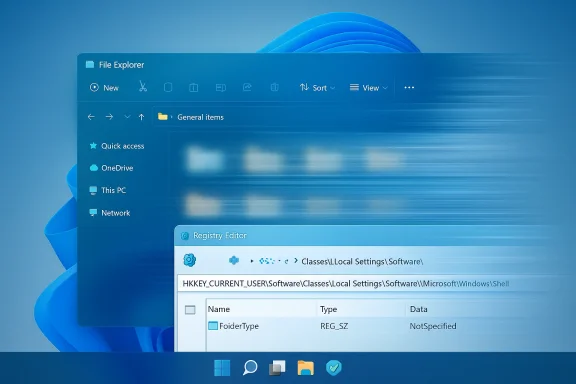
Windows 11’s File Explorer can go from pleasantly responsive to maddeningly slow for one simple reason: it’s still doing a legacy “content sniff” every time you open a folder. That behavior — Automatic Folder Type Discovery — dates back to Windows XP and still triggers thumbnail/preview handlers, cloud metadata queries, and template selection on modern systems. For many users the obvious fix is the same one enthusiasts have used for years: add a per‑user registry entry that forces Explorer to treat folders as General items (no sniffing) by setting FolderType = NotSpecified. The tweak is surgical, reversible, widely documented by community and tech sites, and for users who open large or heterogeneous folders it often delivers an immediate and noticeable snappiness improvement. ])
Automatic Folder Type Discovery is the logic inside File Explorer that inspects a folder’s contents and decides whether to present it using the Pictures, Music, Documents, Videos, or General items template. That decision changes which columns appear, whether thumbnails are shown, and which preview handlers can run.
On paper the feature is helpful: open a folder full of MP3s and Explorer shows Artist, Album and Duration; open a folder of photos and you get thumbnails. In practice, the discovery step forces Explorer to:
Note: Some articles and quick guides (including the XDA piece many readers have seen) describe the same goal but show a slightly different path or abbreviated instructions. Ty used path includes the nested Bags\AllFolders\Shell keys shown above; if those keys don’t exist you’ll create them in order. If you follow other short guides, double‑check you’re creating FolderType under the AllFolders\Shell branch.
Windows Registry Editor Version 5.00
[HKEY_CURRENT_USER\Software\Classes\Local Settings\Software\Microsoft\Windows\Shell\Bags\AllFolders\Shell]
"FolderType"="NotSpecified"
or PowerShell (run as your user):
Set-ItemProperty -Path 'HKCU:\Software\Classes\Local Settings\Software\Microsoft\Windows\Shell\Bags\AllFolders\Shell' -Name 'FolderType' -Value 'NotSpecified' -Type String
Community examples and admin guides include these exact commands. Use them cautiously and always keep backups.
Adding to the problem, Windows keeps a per‑user Bags cache and a BagMRU size limit (historically 4–5k folders) that influences when Explorer loses remembered views and repeats the sniff. Users hitting the cache limit can experience recurrent sniffing even for folders they’ve customized. Adjusting BagMRU size or clearing the Bags key are advanced options for power users, but they carry risk and should be used only with proper backups.
At the same time, mainstream Windows fixes have also chipped away at other causes of Explorer lag — Microsoft’s updates to OneDrive integration and Explorer in various builds have reduced context‑menu delays for cloud files. That means you should pair this registry tweak with keeping Windows and OneDrive clients up to date. If the lag you experience is specifically tied to cloud files or a known Windows update, an OS update may be the better long‑term fix.
Personal / single machine
If you want a copy‑ready .reg file or a scripted PowerShell snippet tailored to your environment (single user, small team, or an enterprise pilot), I can assemble an exportable script and safe rollback steps next — ready for import or Group Policy testing.
Source: XDA I fixed Windows 11 File Explorer lag by disabling this legacy service
 Background: what Automatic Folder Type Discovery actually does
Automatic Folder Type Discovery is the logic inside File Explorer that inspects a folder’s contents and decides whether to present it using the Pictures, Music, Documents, Videos, or General items template. That decision changes which columns appear, whether thumbnails are shown, and which preview handlers can run.On paper the feature is helpful: open a folder full of MP3s and Explorer shows Artist, Album and Duration; open a folder of photos and you get thumbnails. In practice, the discovery step forces Explorer to:
- enumerate file names and basic metadata,
- evaluate file type heuristics (majority file type),
- trigger thumbnail handlers and preview handlers for recognized formats, and
- query any registered cloud providers (OneDrive, Dropbox placeholders) or third‑party shell extensions that respond to enumeration events.
The registry fix: what to change, and where
The community consensus on how to stop the sniffing is consistent: create a per‑user registry entry that instructs Explorer to treat all unspecified folders as the generic template.- Registry key (canonical path):
HKEY_CURRENT_USER\Software\Classes\Local Settings\Software\Microsoft\Windows\Shell\Bags\AllFolders\Shell - Value to create:
Name: FolderType
Type: REG_SZ (String)
Data: NotSpecified
Note: Some articles and quick guides (including the XDA piece many readers have seen) describe the same goal but show a slightly different path or abbreviated instructions. Ty used path includes the nested Bags\AllFolders\Shell keys shown above; if those keys don’t exist you’ll create them in order. If you follow other short guides, double‑check you’re creating FolderType under the AllFolders\Shell branch.
Step‑by‑step: safely apply the tweak
Before you change the registry, back up and understand the consequences. The steps below are the safest, minimum set for most users.- Back up:
- Press Windows+R, type regedit and press EnEditor.
- From Regedit’s File menu choose Export and select All to save a full registry export (or create a System Restore point). This export typically ranges in hundreds of megabytes; keep it somewhere safe.
- Navigate (or paste) the full path:
- HKEY_CURRENT_USER\Software\Classes\Local Settings\Software\Microsoft\Windows\Shell\Bags\AllFolders\Shell
- If the Bags → AllFolders → Shell keys don’t exist, create them in that order (right‑click → New → Key).
- Create the value:
- In the Shell key, right‑click in the right pane → New → String Value.
- Name it exactly FolderType (capitalization not strictly enforced but follow exactly).
- Double‑click the new FolderType value and set its data to: NotSpecified
- Apply the change:
- Restart File Explorer (open Task Manager → Processes → Windows Explorer → Restart) or sign out and sign back in / reboot.
- Test:
- Open a folder that used to feel slow (large Downloads, a folder with mixed media), time the open, and verify the view defaults to your chosen global view.
Windows Registry Editor Version 5.00
[HKEY_CURRENT_USER\Software\Classes\Local Settings\Software\Microsoft\Windows\Shell\Bags\AllFolders\Shell]
"FolderType"="NotSpecified"
or PowerShell (run as your user):
Set-ItemProperty -Path 'HKCU:\Software\Classes\Local Settings\Software\Microsoft\Windows\Shell\Bags\AllFolders\Shell' -Name 'FolderType' -Value 'NotSpecified' -Type String
Community examples and admin guides include these exact commands. Use them cautiously and always keep backups.
What you gain — and what you lose
Benefits- Faster opens for heavy folders: For folders with many files or mixed types, you remove the sniff-and-trigger step that causes short but frequent delays.
- Consistent views: Explorer stops switching templates unexpectedly; views remain predictable.
- Reversible and per‑user: The change is per‑user and reversible by deleting the FolderType string. It’s non‑destructive compared with global system changes.
- Loss of automatic templates: Media folders no longer get specialized columns or thumbnails automatically. If you rely on Explorer automatically switching to show Artist or Dimensions, you’ll need to set those views manually per folder or use desktop.ini overrides.
- Not a universal cure for Explorer lag: Explorer slowness can be caused by bad storage (failing HDD), heavy antivirus scanning, corrupted thumbnail caches, buggy shell extensions, or cloud provider issues (OneDrive). This tweak addresses a specific cause — automatic folder sniffing. Diagnostic steps should precede blanket changnd managed machines:** If your computer is governed by Group Policy or managed configuration, per‑user registry edits can be overwritten or cause policy conflicts. Test in a controlled environment before rolling out to corporate fleets.
Why modern Windows still suffers from this legacy behavior
The root cause is historical: the folder‑template system and Explorer’s “Bags” cache are legacy pieces dating back to Windows XP and Vista. They were useful when disks were slow and folder contents were relatively small, but the same mechanism now fires a chain of handlers (thumbnailers, previewers, cloud metadata requests) that interact with modern subsystems introduced in Windows 10 and 11.Adding to the problem, Windows keeps a per‑user Bags cache and a BagMRU size limit (historically 4–5k folders) that influences when Explorer loses remembered views and repeats the sniff. Users hitting the cache limit can experience recurrent sniffing even for folders they’ve customized. Adjusting BagMRU size or clearing the Bags key are advanced options for power users, but they carry risk and should be used only with proper backups.
Real‑world evidence and independent corroboration
This registry tweak is not a single blog’s “tip” — it’s been tested and documented across many independent communities and tech publishers. Guides from TheWindowsClub, NinjaOne, SmallVoid, SuperUser threads, and multiple forum posts all describe the same path and outcome (FolderType = NotSpecified in the AllFolders\Shell key) as a safe, reversible way to stop auto‑classification and reduce Explorer overhead in common slow scenarios. That breadth of independent sources gives the fix more credibility than an isolated anecdote.At the same time, mainstream Windows fixes have also chipped away at other causes of Explorer lag — Microsoft’s updates to OneDrive integration and Explorer in various builds have reduced context‑menu delays for cloud files. That means you should pair this registry tweak with keeping Windows and OneDrive clients up to date. If the lag you experience is specifically tied to cloud files or a known Windows update, an OS update may be the better long‑term fix.
Testing plan and rollout advice (personal and enterprise)
If you plan to use this tweak regularly — or deploy it in a managed setting — follow a measured rollout.Personal / single machine
- Create a System Restore point and export the relevant registry path.
- Apply the FolderType change and restart Explorer.
- Use the machine for 24–72 hours doing your usual heavy‑folder workflows (Downloads, media libraries, project folders).
- If you rely on automatic image/video thumbnails for quick browsing, verify whether the productivity gains outweigh the convenience loss.
- Pilot on 5–10 machines representing the main user roles (design, engineering, admin).
- Log performance differences with and without the change; capture user feedback on lost automatic views.
- If acceptable, automate with a signed .reg import or a simple PowerShell script and provide rollback instructions.
- Coordinate with policy owners: a per‑user HKCU change might be overwritten; consider a documented GPO approach or a supported utility.
- Test against endpoint protection: some AV products intercept enumeration and may change the outcome; test with AV vendor guidance.
- Document business impact: if users rely on media metadata columns, provide training on how to set folder-specific views or use per-folder desktop.ini templates.
How to revert
To re-enable Automatic Folder Type Discovery:- Open Registry Editor and delete the FolderType string created at:
HKEY_CURRENT_USER\Software\Classes\Local Settings\Software\Microsoft\Windows\Shell\Bags\AllFolders\Shell - Restart Explorer or sign out/sign in.
Alternatives to the global tweak
If you like the idea of faster folders but can’t live without automatic templates in some locations, consider these middle‑ground options:- Manually set a folder’s template and rely on Explorer’s saved view (right‑click → Properties → Customize → Apply to folder). This is per folder and more work, but preserves media templates where you need them.
- Use a tool like WinSetView or SetFolderType to programmatically set desktop.ini‑based folder types across a tree. These utilities let you set consistent views without disabling auto detection entirely.
- Disable specific preview handlers or cloud provider features (e.g., pause OneDrive sync) for folders where previews cause the problem.
- Use alternate file managers (Directory Opus, Total Commander) for specialized workflows where Explorer’s behavior is a limiting factor.
Final analysis: when to use this tweak
- Use it if:
- You frequently open large, mixed‑content folders and notice short but frequent delays.
- You value consistent, predictable views over automatic template switching.
- You’re comfortable applying a small, per‑user registry edit and have created a backup.
- Don’t rely on it if:
- Your primary slowdown is caused by disk health, heavy antivirus, or cloud provider bugs — diagnose those first.
- You depend heavily on automatic media templates for day‑to‑day work and don’t want to reconfigure many folders manually.
- You’re managing enterprise machines where policy will conflicange.
If you want a copy‑ready .reg file or a scripted PowerShell snippet tailored to your environment (single user, small team, or an enterprise pilot), I can assemble an exportable script and safe rollback steps next — ready for import or Group Policy testing.
Source: XDA I fixed Windows 11 File Explorer lag by disabling this legacy service
