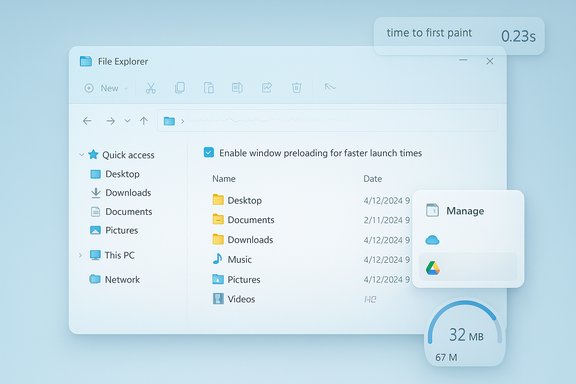
Windows 11 Explorer Preload: Tiny Speed Gain, Noticeable RAM Cost

  • Thread Author
Microsoft’s latest Insider preview brings a pragmatic — if limited — fix for one of Windows 11’s most visible annoyances: preloading File Explorer to make the first window appear faster, but early hands‑on tests show the improvement is modest and comes with a measurable memory cost.

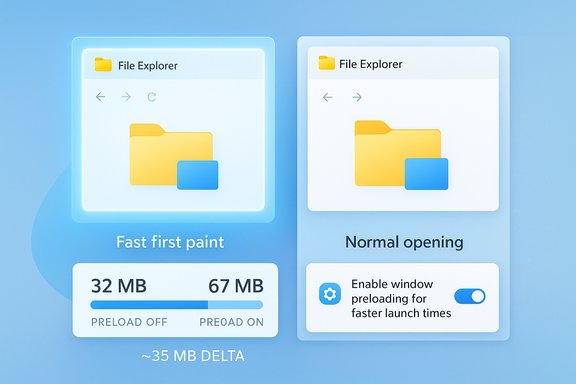
Comparison of fast-first paint with preloading versus normal File Explorer opening, showing a ~35 MB delta.Background​

Windows 11’s File Explorer has been a recurring complaint since the OS’s early releases: users and reviewers reported perceptible “cold‑start” pauses, context‑menu lag, and occasional visual stutters that made everyday file management feel less immediate than on Windows 10. Microsoft’s response in the latest Insider Preview — Build 26220.7271 (KB5070307) — is to test a warm‑start or preload approach: keep a lightweight portion of Explorer initialized in the background so it paints quickly when requested. This experiment is surfaced to Insiders via a toggle in File Explorer → View → Options → Folder Options → View labeled “Enable window preloading for faster launch times.” The engineering choice mirrors prior Microsoft tactics: Edge and Office already use background startup strategies to improve perceived launch speed. Preloading is deliberately conservative — it avoids a full rearchitecture of the shell and instead trades a small, predictable background cost for faster first interactions. Microsoft characterizes this feature as an exploration and is collecting telemetry and Insider feedback before deciding on broader rollout.

What Microsoft shipped in Build 26220.7271​

The preload experiment (what it does)​

  • Enable window preloading for faster launch times — an optional toggle that, when enabled, keeps a warmed or suspended Explorer runtime resident after sign‑in so the first visible paint happens faster.
  • The preload is not a complete persistent UI instance; it’s a minimal warmed state designed to reduce process initialization time and UI composition latency.
  • The setting is exposed to Insiders and is reportedly enabled by default for devices receiving the experiment, with the ability to opt out immediately.

Context‑menu reorganization​

Alongside preloading, Microsoft is tidying the right‑click menu by grouping seldom‑used verbs into a Manage file flyout and moving cloud provider actions into provider‑specific submenus. The goal is twofold: reduce menu height and lower the number of dynamic queries that run on every context‑menu open, thereby shaving some of the perceived latency. This is a UI change intended to reduce clutter and, in theory, micro‑latency caused by enumerating many third‑party or cloud provider entries.

Hands‑on tests: what reviewers actually measured​

Several outlets and community testers ran side‑by‑side experiments with the preload toggle. The most widely circulated measurements come from Windows Latest, which tested the feature inside a VM with 4 GB of RAM and reported the following:
  • Idle File Explorer resident memory (preload disabled): roughly 32.4 MB.
  • Idle File Explorer resident memory (preload enabled): roughly 67.4 MB — an increase of about ~35 MB.
Windows Latest’s practical takeaways were consistent across test scenarios:
  • The preloaded Explorer window does paint faster on a cold open, but the improvement is often subtle and most visible in slow‑motion comparisons (0.25× playback).
  • Under heavy load (for example, 16 open Edge tabs), the warmed Explorer produced a clear and perceptible improvement in launch speed.
  • The preload does not address the longer‑running, on‑demand costs that dominate everyday sluggishness: folder enumeration, thumbnail/preview handler delays, and context‑menu construction remain largely unchanged.
Windows Report, Guru3D, and other outlets repeated the same pattern: measurable but modest launch gains, accompanied by a small memory tax and no cure for in‑window jank.

Cross‑check and reproducibility​

Independent community reports and forum threads corroborate the measured memory delta and the limited scope of the fix. Multiple testbeds reported an idle memory increase in the tens of megabytes when preload is enabled, and consistent observations that context‑menu latency and folder navigation speed did not improve meaningfully. These repeated observations make the core claims reproducible across different reviewers and hardware profiles — though the absolute numbers vary by configuration and installed shell extensions.

Why Windows 11’s Explorer can feel slower than Windows 10​

Understanding the root causes helps explain why preloading is a pragmatic but limited fix.

1) Mixed rendering stacks: Win32 legacy + WinUI modernization​

Both OS versions run the same long‑standing shell core (explorer.exe, shell32). The divergence comes from the UI layer:
  • Windows 10 leaned heavily on native Win32 widgets for Explorer UI elements.
  • Windows 11 overlays that legacy core with WinUI/XAML elements (WinUI 2 via XAML Islands historically, migrating toward WinUI 3 and the Windows App SDK). This hybrid model increases rendering and composition steps, introducing additional initialization and paint stages.
That extra composition work can add a few dozen to hundreds of milliseconds to UI readiness, which is perceptible when the action in question is something users expect to be instantaneous.

2) Dynamic context‑menu construction and third‑party extensions​

Modern context menus frequently query:
  • Cloud providers (OneDrive, Dropbox overlays),
  • Copilot or AI‑driven verbs,
  • Third‑party shell extensions (antivirus, compression tools, preview handlers).
Those queries happen on demand when the user right‑clicks. Preloading the Explorer process cannot eliminate the need to enumerate and initialize those extensions at click time. Each additional handler adds latency that compounds with Windows 11’s heavier baseline.

3) Heavier default services and integrations​

Windows 11 ships with more background services and deeper integration with cloud and AI capabilities by default. That raises the OS’s idle resource baseline and leaves fewer immediate CPU/memory headroom for foreground interactions on constrained systems, making small latencies more visible. Preloading trades a small, constant memory reservation for a perceptual win, but it does not reduce these other systemic costs.

Practical impact: who benefits and who should be cautious​

Beneficiaries​

  • Users on mid‑range systems (e.g., older NVMe or SATA SSD with 8GB RAM) will likely notice a smoother first open, especially when the machine is under load.
  • Power users who frequently close and re‑open Explorer windows can get small but cumulative savings in time and perceived responsiveness.
  • Insiders and testers who want to evaluate the trade‑off before a potential broad rollout.

Who should be cautious​

  • Low‑RAM systems (4GB or less): a persistent 30–40 MB reservation can matter when multiple background services are active, particularly on thin clients or VDI environments.
  • Battery‑sensitive devices: preloading may slightly increase background wake events or I/O; while Microsoft argues the impact should be minimal, enterprise pilots should evaluate battery telemetry first.
  • Enterprise fleets: admins should not flip the setting globally until Microsoft publishes an official resource budget, Group Policy controls, and telemetry‑backed guidance. Pilot and measure first.

How to try it now (Insider Preview only)​

  • Join the Windows Insider Dev or Beta channel and install Build 26220.7271 (if available).
  • Open File Explorer, click the three‑dot menu → Options → View tab.
  • Find and toggle Enable window preloading for faster launch times.
  • Reboot and measure using Task Manager and real‑world workflows. If Explorer feels worse, toggle it off.

Critical analysis: strengths, limitations, and risks​

Strengths​

  • Low engineering risk: preloading is conservative and reversible via a user toggle, making it safe for staged experimentation.
  • Visible UX wins for cold starts: on many devices, the first paint is measurably faster, improving perceived snappiness for one of Windows’ most frequent workflows.
  • Complementary UI cleanup: the context‑menu reorganization reduces top‑level clutter and may indirectly reduce some dynamic enumeration cost by hiding rarely used verbs behind a flyout.

Limitations​

  • Not a structural fix: preloading does nothing to address folder enumeration, network/OneDrive placeholder resolution, or third‑party shell extension delays — the real sources of many Explorer slowdowns.
  • Memory tax: the warmed state adds a device‑dependent resident memory overhead (commonly ~30–35 MB in tests), which is small on modern hardware but not negligible on constrained systems.
  • Perceptual vs measurable benefit: many of the improvements are perceptual and often only visible in slow‑motion or under specific load patterns, meaning everyday users may not feel a dramatic change.

Risks and unknowns​

  • Lack of a published memory budget: Microsoft has not (as of the Insider notes) published firm telemetry or a capped memory budget for the preload feature; that makes enterprise planning harder.
  • Unclear heuristics: it is not yet public whether preload will be adaptive (only on devices that meet certain thresholds) or blanket‑enabled. Blanket enabling could harm constrained devices.
  • Battery and I/O side effects: while outlets report minimal impact, there is a plausible risk of increased background I/O or wake events that could affect battery life and SSD endurance on heavily used mobile devices; robust telemetry will be needed to confirm the impact across device classes.

Deeper fixes Microsoft could pursue​

Preloading is an understandable short‑term mitigation, but the long‑term fidelity and responsiveness of File Explorer likely require broader engineering work:
  • Reduce runtime composition layers: where feasible, consolidate or optimize the WinUI/Win32 composition path so that fewer rendering stages are required for common elements.
  • Asynchronous shell extension handling: make third‑party handlers non‑blocking for critical UI flows; enumerate them asynchronously and populate UI slots progressively.
  • Policy and telemetry for preload: publish explicit memory budgets, adaptive heuristics, and enterprise Group Policy controls so admins can make informed, scalable decisions.
  • Granular preload scope: allow the OS to warm only the UI skeleton on low‑end devices while leaving heavier components dormant until demand.
  • Developer guidance: create clearer documentation and SDK patterns to help ISVs move heavy preview/thumbnail work off the UI thread.
These approaches are more invasive and time‑consuming than a toggleable preload, but they’re the kind of work that would address the root causes of jank rather than masking them.

Practical checklist for users and IT teams​

  • If you rely on Explorer heavily and use a mid‑spec machine, try the preload toggle and measure real workflows before committing.
  • If you manage fleets, run a small pilot across representative hardware: measure memory, battery, and experiential metrics before broader deployment.
  • If Explorer still feels sluggish after preload, audit third‑party shell extensions (ShellExView is a common tool) and disable heavy preview handlers for problematic file types.
  • Consider alternative file managers for critical workflows that demand extreme speed — several mature third‑party options exist that trade UI polish for raw responsiveness.

What we can expect next​

Microsoft is treating preloading as an experiment in the Insider channels and has indicated broader rollout will be driven by telemetry and feedback. Several outlets expect a staged release to the stable population in early 2026, but that timeline is tentative and depends on what the data shows. Until Microsoft publishes concrete resource budgets, enterprise controls, or telemetry‑backed guidance, the feature should be considered tentative.

Conclusion​

The File Explorer preload in Build 26220.7271 is a sensible, low‑risk attempt to make a high‑frequency UI feel snappier. It delivers a measurable cold‑start improvement and a manageable memory cost on most modern hardware. But it’s a targeted band‑aid: it does not address the deeper architectural sources of Explorer sluggishness — mixed rendering stacks, dynamic context‑menu construction, and third‑party handler delays — that make Windows 10 feel snappier in some micro‑interactions.
For end users on mainstream hardware the preload will likely be a net positive; for low‑RAM devices and enterprise fleets it merits careful pilot testing and conservative rollout. The real win for the platform will be when Microsoft pairs pragmatic experiments like preload with more structural fixes and clear telemetry-driven guidance so users and admins can choose the best balance of performance, resource usage, and battery life.
Source: PC Gamer Windows 11 File Explorer is slower than Windows 10 while consuming more RAM
 

Microsoft’s latest Insider experiment — preloading a lightweight instance of File Explorer at sign‑in to shave milliseconds off the first open — reads like a pragmatic triage, but testing and community reports show it fixes the cold start symptom without addressing the deeper performance problems that frustrate many Windows 11 users.

A frosted Windows File Explorer UI with a time-to-first-paint timer and floating storage gauge.Background / Overview​

Microsoft introduced the preload experiment in Windows 11 Insider Preview Build 26220.7271 (KB5070307) and exposed it behind a simple toggle labelled “Enable window preloading for faster launch times” under File Explorer → View → Options → Folder Options → View. The company framed the change as an exploration intended to improve perceived launch performance, not as a wholesale rewrite of Explorer’s internals. That description is important: the preload targets the specific cold‑start pause users see after boot or when Explorer is not resident. It does this by warming a small portion of the app during idle time so the first visible paint occurs faster. Early rollout has been limited to Dev and Beta channel Insiders so Microsoft can gather telemetry and user feedback.

What Microsoft shipped and how it’s presented​

  • The experimental preload is available in Insider build 26220.7271 (KB5070307) and is toggleable in Folder Options.
  • The same build also reorganizes the right‑click context menu, grouping less‑used verbs into a Manage file flyout and moving cloud provider items into provider submenus — a UX declutter intended to reduce menu population time and visual noise.
  • Microsoft has positioned the change as incremental and reversible, asking Insiders to file detailed reports if problems arise.
These are low‑risk, telemetry‑driven moves: warm the runtime during idle and simplify the most visible menus to improve perceived responsiveness. But real world tests show the gains are narrow in scope.

The preload promise — measured gains and contested costs​

Early hands‑on measurements show a predictable pattern: enabling preload reduces the time to first paint for File Explorer, but it does not materially accelerate operations that depend on folder enumeration, network I/O, thumbnail/preview handlers, or third‑party shell extensions.
  • Independent testing by media outlets observed perceptible first‑open speedups but also measured a noticeable increase in idle memory usage — commonly tens of megabytes. One detailed test found idle explorer memory rose from roughly 32.4 MB to 67.4 MB (≈ +35 MB) after enabling the warmed state.
  • Other reports call the overhead “small” in absolute terms, and for many modern systems 35 MB is negligible. But for low‑RAM devices, thin clients, or heavily loaded virtual desktops, every reserved megabyte and any additional background work matters. Microsoft has not published a device‑class memory or battery budget for the warmed state, leaving administrators to measure trade‑offs themselves.
Notably, some early community posts described smaller RAM footprints — the variance likely reflects differences in hardware, Explorer build variants, and which preview/preview handlers are present. Those conflicting figures underline one point: the exact memory and battery cost is device and configuration dependent, so broad generalizations are risky without wider telemetry.

Benchmarks vs. perception: why the preload feels like a band‑aid​

The preload fixes a single UX metric — time‑to‑first‑paint — but most users’ complaints about File Explorer are about interactive responsiveness after launch: slow context menus, stuttering while scrolling big folders, delayed thumbnails, and sluggish network share enumeration.
  • Tests show the preload speeds the initial window appearance, but context menu latency and folder enumeration times remain unchanged, because those are dominated by I/O, preview handlers, and third‑party shell extensions rather than the runtime cold start.
  • Comparative tests continue to show Windows 10’s Explorer often outperforms Windows 11 in raw folder enumeration and context menu responsiveness on identical hardware. This stems from how Windows 11’s Explorer layers modern UI frameworks (WinUI/XAML) on top of legacy Win32/COM shell components. The extra rendering and composition work adds overhead that preload alone cannot remove.
In short: the preload reduces the visible delay when the app appears, but it doesn't reduce the time Windows spends populating menus, querying cloud providers, or generating thumbnails — the operations that most frequently cause the feeling of “jank.”

Root causes: architecture, handlers, and third‑party integrations​

File Explorer’s performance profile today is the result of a hybrid stack: legacy Win32 shell foundations combined with newer WinUI/XAML surfaces and many third‑party extensions and cloud integrations.
  • The migration to WinUI/Windows App SDK introduced additional composition layers. Where Windows 10 relied on native Win32 controls, Windows 11 often composes UI elements using WinUI, which can add per‑paint overhead and complexity around event handling. Preloading hides only the startup costs of those frameworks — not the per‑interaction costs.
  • Third‑party shell extensions and preview handlers (e.g., for cloud storage overlays, archive utilities, or media thumbs) often execute synchronously when Explorer enumerates a folder or renders a context menu. Poorly written handlers can block the shell and produce the appearance of sluggishness; preloading cannot neutralize these blocking behaviors.
  • Cloud integrations (OneDrive, Dropbox, Google Drive) add network round trips and placeholder resolution that introduce unpredictable latency, especially on slow networks or when the client is aggressively synchronizing. The preload does not alter these cloud enumeration mechanics and may even trigger early queries in some configurations.
These combined factors explain why enabling a warmed Explorer can make the first click feel instant while everyday interactions still lag: different subsystems dominate different latency profiles.

User backlash and the broader narrative​

The reaction among enthusiasts and enterprise IT is mixed.
  • Many users applaud Microsoft for attempting a low‑risk, reversible optimization that produces visible results for a specific pain point. The opt‑out toggle and staged Insider rollout are the right operational approach for testing.
  • Power users and admins, however, describe the preload as a cosmetic fix that skirts a deeper problem: Microsoft is layering temporary patches on an increasingly complex shell rather than committing to a structural refactor. That sentiment has been building as Windows has added features like gallery view, tighter cloud sync, and AI integrations without always prioritizing the shell’s raw performance.
  • For enterprises, the lack of published Group Policy / ADMX controls and absence of a public resource budget for preload means pilots and measured testing are required before enabling the feature fleet‑wide. Microsoft will need clearer manageability options if preload graduates from Insider to production.
This backlash is as much about perception and trust as it is about megabytes of RAM: users want Microsoft to prioritize the everyday responsiveness of their primary workflows rather than rely solely on incremental perceptual wins.

Security, accessibility and manageability considerations​

Preloading any component of the shell carries secondary risks and testing requirements.
  • Security: initializing preview subsystems earlier may increase the attack surface if preview handlers run code sooner than before. Microsoft typically gates previews using heuristics (Mark of the Web, file reputation) but earlier initialization necessitates careful security reviews.
  • Accessibility: reorganizing the context menu into nested flyouts can change focus traversal and screen reader announcements. Microsoft must validate keyboard navigation and ARIA labeling to avoid regressions for assistive technology users.
  • Manageability: enterprises expect centralized controls (GPO/MDM) and explicit telemetry. Until Microsoft publishes those controls and budgets, IT teams should pilot carefully and maintain a rollback plan.
These considerations justify Microsoft’s cautious rollout strategy — the company is testing in Insider rings and asking for targeted feedback — but they also mean a comprehensive enterprise adoption timeline will trail consumer rollout.

Practical advice for users and administrators today​

For readers facing Explorer slowness, the preload is one lever among several. Practical, actionable steps:
  • If you’re an Insider and see the toggle, compare behavior with preload enabled and disabled, and measure for your common workflows (local folders, network shares, OneDrive).
  • Audit third‑party shell extensions with tools like ShellExView and temporarily disable non‑Microsoft handlers to isolate slow components.
  • Reduce active cloud overlays: unsync rarely used cloud folders to avoid background enumeration delays.
  • Rebuild the thumbnail/cache database if Explorer stalls when rendering previews.
  • For enterprise images, withhold enabling preload until Group Policy/MDM controls and telemetry budgets are published; pilot across representative hardware and workflows first.
These mitigations address many common causes of Explorer lag and are complementary to the preload experiment.

Comparative analysis: Windows 10, macOS Finder, and Linux file managers​

Comparisons with other platforms clarify the design tradeoffs:
  • Windows 10’s Explorer was often praised for raw responsiveness because it used fewer high‑level UI layers and less integrated cloud plumbing. When Microsoft replaced some native components with WinUI/XAML surfaces, aesthetic gains came with rendering overhead that influences responsiveness in complex scenarios.
  • macOS Finder and many lightweight Linux file managers prioritize lean frameworks and fast enumeration; they often outperform Windows 11 Explorer in context‑menu and folder enumeration benchmarks, particularly on older hardware. That said, they don’t always match Windows in ecosystem integrations like OneDrive/SharePoint out of the box.
The lesson: modern features and cloud integrations are valuable, but they must be balanced with architectural efficiency — or users will experience perceptual regressions even as features multiply.

Engineering trade‑offs and plausible pathways to improvement​

If Microsoft wants to restore the “snappy” Explorer experience broadly, the options are familiar but non‑trivial:
  • Modularization: allow users or admins to opt out of resource‑heavy features (preview pane, cloud overlays, live thumbnails) at a granular level. Microsoft has experimented with selective toggles in Insider builds, but enterprise‑grade policy controls are needed.
  • Revisit handler lifecycles: delay initialization of non‑essential preview handlers and shell extensions until needed, or run them asynchronously to avoid blocking the shell. This is a systems engineering task requiring backwards compatibility effort and ecosystem coordination.
  • Architectural refactor or rewrite: a ground‑up modernization to reduce WinUI/Win32 friction would be the most durable solution but also the riskiest and most resource‑intensive. That’s likely why Microsoft chose incrementalism with the preload experiment.
  • Transparency: publish telemetry categories (time‑to‑first‑paint, memory footprint, battery impact) for Insiders so the community and admins can make data‑driven decisions. The lack of published budgets for preload undermines trust and slows enterprise adoption.
These pathways are not mutually exclusive; a combined strategy (modularization + better handler lifecycles + targeted refactors) is the pragmatic long‑term approach.

Cross‑checking the claims and flagging unverifiable points​

Several specific claims in early coverage deserve careful qualification:
  • Claim: “Preload uses only 10–20 MB of RAM.” Multiple independent hands‑on tests show larger, device‑dependent numbers (commonly measured in the tens of megabytes, ~+35 MB in one VM test). The exact footprint varies by configuration and cannot be stated universally without broader telemetry. Treat single‑figure claims as anecdotal unless Microsoft publishes a device class breakdown.
  • Claim: “Preloading will fix all Explorer lags.” This is incorrect. Preload addresses the cold start; it does not change folder enumeration, network latency, or blocking shell extensions. Independent tests and community analysis corroborate that deeper sluggishness remains.
  • Claim: “Rollout will be complete by early 2026.” Some outlets project an early‑2026 staged rollout if telemetry is positive, but Microsoft has not committed to a firm GA date. Any timeline beyond Insider testing should be treated as provisional until Microsoft publishes firm plans.
Where claims are unverifiable or speculative, the correct stance is caution: pilot, measure, and wait for Microsoft telemetry or wider independent benchmarks.

Broader implications: product priorities and user trust​

The preload episode is emblematic of a larger tension in Windows development: balancing ambitious new features (AI integrations, cloud services, visual redesigns) against the day‑to‑day performance of the OS’s foundation. Users and administrators judge the platform by its core, highly frequent interactions; diminishing returns in that area erode user confidence even as feature counts climb.
Microsoft’s conservative engineering approach (telemetry‑driven, experimental toggles) is sensible for risk control, but perception matters: repeated small patches can feel like band‑aids if they do not deliver measurable systemic improvements across diverse hardware classes.

Conclusion​

The File Explorer preload is a sensible, low‑risk experiment that buys Microsoft a perceptual win: faster first opens with a modest and measurable memory cost. For many users it will make Explorer feel snappier on the first click. However, testing shows it is not a cure for the broader set of performance issues rooted in hybrid UI architecture, synchronous preview handlers, cloud enumeration, and third‑party shell extensions. What matters next is follow‑through: Microsoft should publish telemetry and resource budgets, provide enterprise manageability controls, harden handler lifecycles, and be prepared to pursue deeper modularization or targeted refactors where telemetry shows persistent pain. Until then, the preload will remain a pragmatic stopgap — useful in many cases, insufficient in others, and a reminder that perceived speed is only part of the performance story.

Appendix: quick fact checks mentioned in this piece
  • The preload experiment is present in Windows 11 Insider Preview Build 26220.7271 (KB5070307).
  • Independent tests report idle memory increases commonly in the tens of megabytes (one measured ~+35 MB).
  • Windows 10 reached end of support on October 14, 2025; extended security options exist for eligible devices.

Source: WebProNews Microsoft’s Windows 11 File Explorer Preload Fix Fails to Fix Core Lags
 

Back
Top