

Windows 11 still does not offer a native “Pin to taskbar” command for ordinary folders, drives, This PC, Recycle Bin, or classic Control Panel applets, but users can work around the restriction by creating shortcuts that launch those targets through Explorer or Control Panel commands. The workaround is simple enough to feel accidental, but its persistence says something larger about Microsoft’s uneasy relationship with the Windows desktop. The company wants the taskbar to be a clean app launcher, while many users still treat it as the fastest route into the places where work actually happens. That mismatch is why a one-word shortcut edit has become a small but revealing Windows 11 survival skill.
Windows 11’s taskbar was never just a visual refresh. It was a reset of old assumptions, and one of the assumptions Microsoft discarded was that the taskbar should be able to hold nearly anything a user finds important. Windows 10 let power users drag folders, system locations, and other oddities into convenient reach. Windows 11 narrowed that idea, putting the emphasis back on applications.
That sounds tidy in a product demo. In real use, it breaks a pattern that has been part of Windows muscle memory for decades: users do not only launch apps; they jump into projects, folders, drives, admin panels, and diagnostic tools. A designer may want a client assets folder one click away. A sysadmin may want Network Connections or Sound settings without spelunking through Settings. A home user may simply want Downloads pinned where it has always been.
The strange part is that Windows 11 is not technically incapable of doing this. The taskbar still accepts shortcuts, and Explorer can still open a folder, a shell namespace object, or a classic applet from a command. What changed is the visible affordance. Microsoft took away the obvious menu entry, leaving the underlying plumbing in place for anyone willing to wrap the target in something Windows recognizes as an app.
That is why the workaround feels so quintessentially Windows. The front door is locked, but the side entrance is still there, unlabeled, functional, and apparently not going anywhere.
The practical version is almost comically small. Create a desktop shortcut to the folder, open the shortcut’s Properties dialog, and edit the Target field so that
This is not a hack in the reckless sense. It does not require registry edits, unsupported system file replacement, or shell patching. It uses the same Explorer executable Windows itself relies on for navigating the file system. That is precisely why it is appealing: the workaround lives inside Windows’ own model rather than fighting it from the outside.
There is one cosmetic catch. Once the shortcut target becomes Explorer-based, Windows often gives it the generic File Explorer icon. That defeats the whole point if you are building a row of pinned shortcuts to different folders. The fix is to use the shortcut’s Change Icon option and choose a better symbol from Windows’ built-in icon libraries such as
That icon step matters more than it sounds. A taskbar is valuable because it compresses recognition into a glance. Six identical Explorer icons are not a productivity boost; they are a small guessing game. The workaround only becomes genuinely useful when each pinned destination has a distinct visual identity.
The deeper Windows oddities begin with locations such as This PC, Recycle Bin, and Control Panel. These are not normal folders, even when they look like folders in File Explorer. They are shell namespace objects, which means they live in Windows’ internal map of special locations rather than at a conventional path like
That is where CLSIDs enter the picture. A CLSID is a globally unique identifier that Windows uses to refer to COM objects and shell locations. In the taskbar workaround, it lets a shortcut tell Explorer to open something like This PC directly, even though there is no ordinary folder path to paste into the Target field.
For This PC, the shortcut target uses
This is where Windows 11’s redesign looks less like a clean break and more like a layer of taste placed on top of a much older operating system. Microsoft can remove a context-menu item, but it cannot easily erase the shell namespace without breaking enormous amounts of legacy behavior. So the user-facing path disappears while the administrative and compatibility path remains.
That is the central tension of Windows 11 customization. The interface says, “Do it this way.” The platform says, “Actually, there are five other ways if you know the incantation.”
Control Panel applets are launched through
For many users, these applets are not nostalgia. They are muscle memory attached to real workflows. Network adapter settings, playback devices, date and time adjustments, uninstall lists, and power plans are all areas where the classic interfaces can still be more direct than their modern Settings equivalents.
This is not necessarily because the old Control Panel is better designed. Much of it is visually inconsistent, cramped, and built around assumptions from another era. But it is information-dense, predictable, and often one click closer to the specific control an experienced user wants.
That is why pinning applets to the taskbar feels less like customization and more like resistance against interface churn. If Microsoft keeps moving settings, renaming pages, and burying legacy dialogs behind intermediate screens, users will keep preserving the shortest known path. The taskbar becomes a private map through Windows’ unresolved transition.
That means a pinned folder shortcut will launch an Explorer window, and the live thumbnail preview may attach to the main File Explorer icon rather than the custom pinned shortcut. If File Explorer is not already pinned, a separate Explorer icon can appear while the window is open. Close the window, and that temporary icon disappears.
This is the point where the workaround stops feeling like a restored feature and starts feeling like a compromise. It gives you one-click launch access, but it does not give you fully native taskbar identity. The shortcut is custom; the window grouping is not.
For some users, that will be harmless. If the taskbar is mainly a launcher, the preview behavior is secondary. For others, especially those who rely on taskbar grouping and thumbnails to move among several open windows, the mismatch can be irritating enough to outweigh the convenience.
There is no clean built-in fix because the behavior follows from how Windows sees the process. If you pin a shortcut that launches
That can be attractive. Native-feeling folder pinning, more flexible taskbar behavior, and older grouping options are exactly what some Windows 11 users miss. For a personal machine, the trade-off may be reasonable, especially for people who view Windows 11’s taskbar as a downgrade rather than a modernization.
In managed environments, the calculus changes. Shell-modifying utilities add support risk, update risk, and a layer of uncertainty every time Microsoft ships a cumulative update or feature release. They may be useful, but they are not the same as a harmless shortcut on the desktop.
That distinction matters for IT pros. The Explorer shortcut method is low-risk because it does not alter the operating system. It can be documented, removed, and recreated easily. A shell replacement or patcher is a policy decision, not just a convenience tweak.
The irony is that the small workaround may be more enterprise-friendly than the more complete fix. It accepts Windows 11’s architecture and works around its UX omission. ExplorerPatcher challenges the direction of the product itself.
Microsoft’s modern desktop design is increasingly prescriptive. The company wants clean defaults, centered icons, simplified menus, recommended content, and fewer visible legacy affordances. That can help less technical users avoid clutter, but it also strips away some of the improvisational power that made Windows feel personal.
Windows has historically won not because it had the purest interface, but because it tolerated mess. Users could build workflows that made sense only to them. Admins could pin obscure tools, script repetitive tasks, and carve direct routes through complex systems. The desktop was not merely a surface; it was a workbench.
Windows 11 still has that workbench under the glass, but Microsoft has made more of it feel hidden or unofficial. The folder-pinning workaround succeeds because the old workbench is still there. The need for the workaround exists because the modern surface pretends that kind of customization is outside the intended experience.
That is a dangerous line for Windows to walk. The platform’s most loyal users are often the ones with the weirdest workflows. When the interface removes their shortcuts in the name of simplicity, it risks confusing neatness with productivity.
That distinction should not be hard for Microsoft to accommodate. A native “Pin folder to taskbar” command could preserve guardrails while acknowledging reality. Windows could treat pinned folders as Explorer destinations, expose clearer icon choices, and explain the preview behavior honestly. It would not require rebuilding the shell from first principles.
The same applies to system locations. This PC, Recycle Bin, Control Panel, Network Connections, Sound, and Power Options are not obscure toys to the people who use them daily. They are operational surfaces. Hiding them behind Settings searches or legacy commands does not make Windows more modern; it makes Windows slower for the people who know what they are doing.
The persistence of these workarounds is evidence of unmet demand. If users keep rediscovering CLSIDs, applet names, and Explorer arguments, the problem is not that users are eccentric. The problem is that the official UI no longer exposes the shortcuts they need.
Microsoft does not have to bring back every Windows 10 behavior to respect that. But it should recognize that removing visible customization does not remove the desire for customization. It merely pushes users toward undocumented paths, third-party patchers, and forum lore.
 Microsoft Cleaned Up the Taskbar by Making It Less Useful
Windows 11’s taskbar was never just a visual refresh. It was a reset of old assumptions, and one of the assumptions Microsoft discarded was that the taskbar should be able to hold nearly anything a user finds important. Windows 10 let power users drag folders, system locations, and other oddities into convenient reach. Windows 11 narrowed that idea, putting the emphasis back on applications.That sounds tidy in a product demo. In real use, it breaks a pattern that has been part of Windows muscle memory for decades: users do not only launch apps; they jump into projects, folders, drives, admin panels, and diagnostic tools. A designer may want a client assets folder one click away. A sysadmin may want Network Connections or Sound settings without spelunking through Settings. A home user may simply want Downloads pinned where it has always been.
The strange part is that Windows 11 is not technically incapable of doing this. The taskbar still accepts shortcuts, and Explorer can still open a folder, a shell namespace object, or a classic applet from a command. What changed is the visible affordance. Microsoft took away the obvious menu entry, leaving the underlying plumbing in place for anyone willing to wrap the target in something Windows recognizes as an app.
That is why the workaround feels so quintessentially Windows. The front door is locked, but the side entrance is still there, unlabeled, functional, and apparently not going anywhere.
The One-Word Fix Works Because Explorer Becomes the App
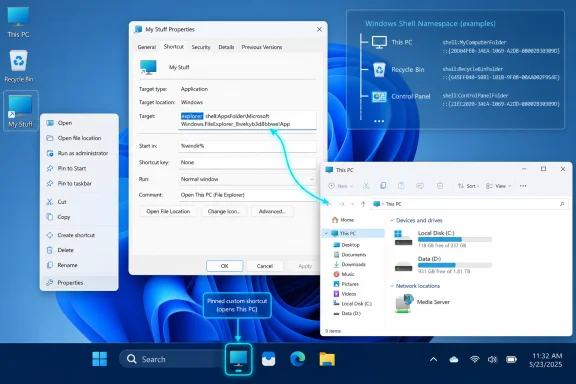
The basic trick is to stop asking the taskbar to pin a folder. Instead, you ask it to pin a shortcut that runs File Explorer with the folder as its argument. Windows sees the shortcut as an application launch, because it starts withexplorer, and the folder path becomes the destination Explorer opens.The practical version is almost comically small. Create a desktop shortcut to the folder, open the shortcut’s Properties dialog, and edit the Target field so that
explorer and a space appear before the folder path. A shortcut that once pointed directly at a folder now points at Explorer launching that folder, which is enough to make the “Pin to taskbar” option appear.This is not a hack in the reckless sense. It does not require registry edits, unsupported system file replacement, or shell patching. It uses the same Explorer executable Windows itself relies on for navigating the file system. That is precisely why it is appealing: the workaround lives inside Windows’ own model rather than fighting it from the outside.
There is one cosmetic catch. Once the shortcut target becomes Explorer-based, Windows often gives it the generic File Explorer icon. That defeats the whole point if you are building a row of pinned shortcuts to different folders. The fix is to use the shortcut’s Change Icon option and choose a better symbol from Windows’ built-in icon libraries such as
imageres.dll or shell32.dll.That icon step matters more than it sounds. A taskbar is valuable because it compresses recognition into a glance. Six identical Explorer icons are not a productivity boost; they are a small guessing game. The workaround only becomes genuinely useful when each pinned destination has a distinct visual identity.
Drives, This PC, and Recycle Bin Expose the Older Windows Beneath
Ordinary folders are the easy case because they have ordinary file system paths. Drives are similar enough that the same Explorer wrapper works: create a shortcut to the drive, edit the target so Explorer launches it, give it a sensible icon, and pin it. It is inelegant, but it is easy to understand.The deeper Windows oddities begin with locations such as This PC, Recycle Bin, and Control Panel. These are not normal folders, even when they look like folders in File Explorer. They are shell namespace objects, which means they live in Windows’ internal map of special locations rather than at a conventional path like
C:\Users\Name\Documents.That is where CLSIDs enter the picture. A CLSID is a globally unique identifier that Windows uses to refer to COM objects and shell locations. In the taskbar workaround, it lets a shortcut tell Explorer to open something like This PC directly, even though there is no ordinary folder path to paste into the Target field.
For This PC, the shortcut target uses
explorer.exe shell:::{20D04FE0-3AEA-1069-A2D8-08002B30309D}. For Recycle Bin, the corresponding identifier is {645FF040-5081-101B-9F08-00AA002F954E}. For the Control Panel shell, it is {26EE0668-A00A-44D7-9371-BEB064C98683}. These strings are ugly, but they are not arbitrary magic; they are part of the old Windows shell architecture that still underpins the modern desktop.This is where Windows 11’s redesign looks less like a clean break and more like a layer of taste placed on top of a much older operating system. Microsoft can remove a context-menu item, but it cannot easily erase the shell namespace without breaking enormous amounts of legacy behavior. So the user-facing path disappears while the administrative and compatibility path remains.
That is the central tension of Windows 11 customization. The interface says, “Do it this way.” The platform says, “Actually, there are five other ways if you know the incantation.”
Classic Control Panel Applets Survive Because Settings Still Has Gaps
The most useful version of this trick may not be folders at all. It may be classic Control Panel applets, because Windows 11 continues to straddle two configuration worlds. Microsoft has spent years moving settings into the modern Settings app, but many legacy panels remain faster, denser, or simply more familiar for certain jobs.Control Panel applets are launched through
control.exe, which means they can also be wrapped in a pinnable shortcut. A shortcut target such as control powercfg.cpl opens Power Options. control mmsys.cpl opens the classic Sound dialog. control ncpa.cpl opens Network Connections. control appwiz.cpl opens the old Programs and Features interface.For many users, these applets are not nostalgia. They are muscle memory attached to real workflows. Network adapter settings, playback devices, date and time adjustments, uninstall lists, and power plans are all areas where the classic interfaces can still be more direct than their modern Settings equivalents.
This is not necessarily because the old Control Panel is better designed. Much of it is visually inconsistent, cramped, and built around assumptions from another era. But it is information-dense, predictable, and often one click closer to the specific control an experienced user wants.
That is why pinning applets to the taskbar feels less like customization and more like resistance against interface churn. If Microsoft keeps moving settings, renaming pages, and burying legacy dialogs behind intermediate screens, users will keep preserving the shortest known path. The taskbar becomes a private map through Windows’ unresolved transition.
The Preview Problem Reveals the Price of the Trick
There is, however, no perfect illusion here. The pinned icon may look like a folder, drive, or applet, but the running process is still Explorer or Control Panel. Windows groups taskbar windows according to the underlying executable, not according to the friendly story the shortcut icon is telling.That means a pinned folder shortcut will launch an Explorer window, and the live thumbnail preview may attach to the main File Explorer icon rather than the custom pinned shortcut. If File Explorer is not already pinned, a separate Explorer icon can appear while the window is open. Close the window, and that temporary icon disappears.
This is the point where the workaround stops feeling like a restored feature and starts feeling like a compromise. It gives you one-click launch access, but it does not give you fully native taskbar identity. The shortcut is custom; the window grouping is not.
For some users, that will be harmless. If the taskbar is mainly a launcher, the preview behavior is secondary. For others, especially those who rely on taskbar grouping and thumbnails to move among several open windows, the mismatch can be irritating enough to outweigh the convenience.
There is no clean built-in fix because the behavior follows from how Windows sees the process. If you pin a shortcut that launches
explorer.exe, Windows will treat the resulting window as Explorer. The taskbar is not confused; it is being consistent in a way that exposes the workaround’s limits.ExplorerPatcher Is the Escape Hatch, Not the Same Kind of Fix
Users who want the Windows 10 taskbar back wholesale often end up looking at third-party tools such as ExplorerPatcher. That is a different category of solution. It does not merely create a shortcut that Windows will accept; it changes the taskbar experience more broadly, restoring old behaviors that Microsoft removed or redesigned.That can be attractive. Native-feeling folder pinning, more flexible taskbar behavior, and older grouping options are exactly what some Windows 11 users miss. For a personal machine, the trade-off may be reasonable, especially for people who view Windows 11’s taskbar as a downgrade rather than a modernization.
In managed environments, the calculus changes. Shell-modifying utilities add support risk, update risk, and a layer of uncertainty every time Microsoft ships a cumulative update or feature release. They may be useful, but they are not the same as a harmless shortcut on the desktop.
That distinction matters for IT pros. The Explorer shortcut method is low-risk because it does not alter the operating system. It can be documented, removed, and recreated easily. A shell replacement or patcher is a policy decision, not just a convenience tweak.
The irony is that the small workaround may be more enterprise-friendly than the more complete fix. It accepts Windows 11’s architecture and works around its UX omission. ExplorerPatcher challenges the direction of the product itself.
The Real Story Is Microsoft’s Narrower Definition of Productivity
It is tempting to treat this as a minor tips-and-tricks item, and at the surface level it is. Addexplorer, change an icon, pin the shortcut, move on. But small frictions reveal product philosophy, and Windows 11’s taskbar has always revealed more philosophy than Microsoft seems eager to discuss.Microsoft’s modern desktop design is increasingly prescriptive. The company wants clean defaults, centered icons, simplified menus, recommended content, and fewer visible legacy affordances. That can help less technical users avoid clutter, but it also strips away some of the improvisational power that made Windows feel personal.
Windows has historically won not because it had the purest interface, but because it tolerated mess. Users could build workflows that made sense only to them. Admins could pin obscure tools, script repetitive tasks, and carve direct routes through complex systems. The desktop was not merely a surface; it was a workbench.
Windows 11 still has that workbench under the glass, but Microsoft has made more of it feel hidden or unofficial. The folder-pinning workaround succeeds because the old workbench is still there. The need for the workaround exists because the modern surface pretends that kind of customization is outside the intended experience.
That is a dangerous line for Windows to walk. The platform’s most loyal users are often the ones with the weirdest workflows. When the interface removes their shortcuts in the name of simplicity, it risks confusing neatness with productivity.
The Thirty-Second Shortcut Is Really a Vote for the Old Desktop
The practical lesson is straightforward, but the strategic lesson is more interesting. Users are not asking for the taskbar to become a dumping ground. They are asking for the right to decide which destinations matter enough to live beside their apps.That distinction should not be hard for Microsoft to accommodate. A native “Pin folder to taskbar” command could preserve guardrails while acknowledging reality. Windows could treat pinned folders as Explorer destinations, expose clearer icon choices, and explain the preview behavior honestly. It would not require rebuilding the shell from first principles.
The same applies to system locations. This PC, Recycle Bin, Control Panel, Network Connections, Sound, and Power Options are not obscure toys to the people who use them daily. They are operational surfaces. Hiding them behind Settings searches or legacy commands does not make Windows more modern; it makes Windows slower for the people who know what they are doing.
The persistence of these workarounds is evidence of unmet demand. If users keep rediscovering CLSIDs, applet names, and Explorer arguments, the problem is not that users are eccentric. The problem is that the official UI no longer exposes the shortcuts they need.
Microsoft does not have to bring back every Windows 10 behavior to respect that. But it should recognize that removing visible customization does not remove the desire for customization. It merely pushes users toward undocumented paths, third-party patchers, and forum lore.
The Shortcuts Worth Keeping Beside Start
The best use of this workaround is selective. A taskbar full of custom shell shortcuts can become its own cluttered mess, but a few carefully chosen destinations can make Windows 11 feel dramatically less obstructive. The trick is to pin the places that interrupt your day most often, not every place you might someday visit.- A frequently used project folder becomes genuinely useful on the taskbar when it saves repeated trips through File Explorer.
- A drive shortcut makes sense for external disks, NAS mappings, or secondary volumes that are part of a daily workflow.
- This PC is worth pinning if you regularly move among drives and dislike File Explorer’s default landing page.
- Recycle Bin belongs on the taskbar for users who keep a clean desktop but still want fast access to deleted files.
- Classic applets such as Sound, Network Connections, Power Options, and Programs and Features remain valuable when Settings adds extra clicks.
- The workaround is safest when treated as a launcher convenience rather than a complete restoration of Windows 10 taskbar behavior.
References
- Primary source: TweakTown
Published: Wed, 20 May 2026 20:37:06 GMT
Windows 11 will not let you pin a folder to the taskbar, but a 30-second workaround does
Windows 11 doesn't offer folder pinning to the taskbar, but a one-word edit to a shortcut target brings it back - and it works for drives and applets, too. www.tweaktown.com
- Official source: learn.microsoft.com
Pin your app to the taskbar - Windows apps | Microsoft Learn
You can programmatically pin your app to the taskbar, and you can check if it's currently pinned.learn.microsoft.com - Official source: support.microsoft.com
Use a screen reader to explore and navigate the Start menu in Windows | Microsoft Support
Learn how to navigate the Start menu in Windows using a keyboard and screen reader.support.microsoft.com - Related coverage: tomsguide.com
How to pin to the taskbar in Windows 11 | Tom's Guide
Here's how to pin items to the taskbar in Windows 11www.tomsguide.com - Related coverage: howtogeek.com
How to Pin File Explorer to the Taskbar in Windows 11
Never lose File Explorer again. www.howtogeek.com
- Related coverage: makeuseof.com
How to Pin Almost Anything to the Windows 11 Taskbar
Windows 11 now lets you pin folders, files, websites, and even drives to the taskbar for quick access. Here's how. www.makeuseof.com
- Official source: microsoft.com
How to Create Start Menu Folders | Microsoft Windows
Organize your Windows Start menu by grouping apps into folders. Learn how to create, name, and move folders to curate your own Start menu layout.www.microsoft.com
- Related coverage: allthings.how
How to Pin Recycle Bin to Taskbar on Windows 11
Pinning the recycle bin to the taskbar used to be an impossible task. Until now. Here's how you can smoothly pin the trashcan icon to your taskbarallthings.how - Related coverage: guidingtech.com
How to Add File Explorer and Folders to Taskbar in Windows 11
Want to customize the Windows 11 taskbar? Here's how you can add File Explorer and folders to the taskbar in Windows 11.www.guidingtech.com
- Related coverage: windowsdigitals.com
How to Create "This PC" Shortcut on Desktop in Windows 11
"This PC" icon missing on desktop? Here's how to create This PC shortcut on desktop, pin it to Start or via keyboard shortcut in Windows 11.www.windowsdigitals.com
