Microsoft’s latest Insider experiment for File Explorer promised to make the most‑used Windows UI surface feel faster — but early tests and community reports show the background‑preload approach trades a small, persistent RAM cost for only modest launch gains while leaving the deeper interaction slowness intact.
Windows’ File Explorer is a deceptively simple app: it’s how most people spend dozens of clicks every day to open documents, move downloads, attach files to messages, and manage folders. Because of that frequency, even tiny delays add up into a daily headache. Microsoft acknowledged this long‑running complaint and, in November 2025, began experimenting in the Windows Insider channels with a low‑risk mitigation: keep parts of Explorer warmed in memory during idle time so the first visible window paints faster. The change appears in Insider Preview builds identified around Build 26220.7271 (KB5070307) and is exposed to testers as a Folder Options checkbox labeled “Enable window preloading for faster launch times.” The preload is paired with a UX tweak: the right‑click context menu is being restructured so seldom‑used commands are grouped under a new “Manage file” flyout and cloud provider actions are placed in provider submenus to reduce top‑level clutter. Microsoft frames both changes as experiments that will be tuned through telemetry and Feedback Hub inputs before any broader rollout.
For ordinary users on modern desktops, the preload will likely be harmless and occasionally helpful. For users on budget laptops, tablets, or older machines, the extra reserved RAM may reduce multitasking headroom, and those users should test the toggle and consider temporary mitigations (disable preload, reduce animations, change File Explorer’s default open location). Enterprises should pilot the change broadly before deployment and require vendors with shell extensions to validate compatibility. Microsoft appears to be listening — the changes are staged, toggleable, and explicitly experimental. The company can still choose to tune defaults, add smarter heuristics, roll back elements of the experiment, or pursue deeper refactorings depending on Insider feedback and telemetry. The preload is a useful incremental tool in the toolbox, but it is not a substitute for long‑term investment in root‑cause fixes to restore the responsiveness many users remember from older Windows releases.
The next visible checkpoint will be broader telemetry signals from Microsoft and follow‑up Insider flights that either refine the preload heuristics, adjust the default behavior, or advance the deeper platform optimizations needed to make Explorer feel both modern and snappy across the full device spectrum.
Source: ProPakistani Windows 11 Promises to Make File Explorer Faster — By Making It Slower
 Background / Overview
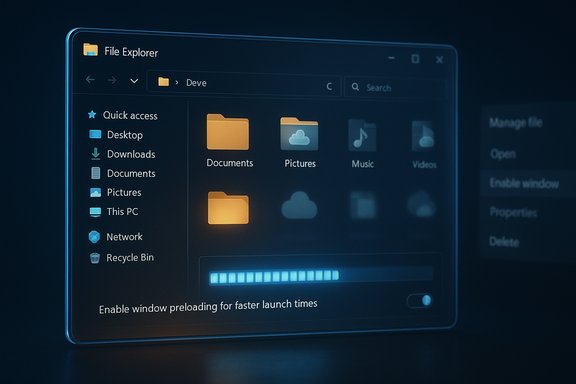
Windows’ File Explorer is a deceptively simple app: it’s how most people spend dozens of clicks every day to open documents, move downloads, attach files to messages, and manage folders. Because of that frequency, even tiny delays add up into a daily headache. Microsoft acknowledged this long‑running complaint and, in November 2025, began experimenting in the Windows Insider channels with a low‑risk mitigation: keep parts of Explorer warmed in memory during idle time so the first visible window paints faster. The change appears in Insider Preview builds identified around Build 26220.7271 (KB5070307) and is exposed to testers as a Folder Options checkbox labeled “Enable window preloading for faster launch times.” The preload is paired with a UX tweak: the right‑click context menu is being restructured so seldom‑used commands are grouped under a new “Manage file” flyout and cloud provider actions are placed in provider submenus to reduce top‑level clutter. Microsoft frames both changes as experiments that will be tuned through telemetry and Feedback Hub inputs before any broader rollout. What Microsoft shipped in Insider builds
The preload toggle and where to find it
When present on a device, the preload toggle is located here:- Open File Explorer (Win + E).
- Click the three‑dot menu → Options.
- Switch to the View tab.
- Look for the checkbox “Enable window preloading for faster launch times.”
Context‑menu reorganization
The right‑click menu has been shortened at the top level. Infrequently used actions (Compress to ZIP, Copy as path, Set as desktop background, Rotate left/right) are grouped under the Manage file flyout, and cloud provider options are nested under provider flyouts. The goal is to reduce vertical menu length and per‑click dynamic queries so the menu scans faster for common actions. Microsoft says the wording and placement may change during the experiment.Independent testing: what reviewers and community testers found
Multiple independent hands‑on tests and community reproductions have converged on three practical findings:- Preloading measurably improves cold‑start perceived launch times for File Explorer, particularly on systems with slower storage or under full CPU/memory load. The warmed skeleton allows the first paint to happen faster.
- The preload increases Explorer’s idle memory footprint by a small but measurable amount. Repeated measurements from community tests put the resident memory roughly in the mid‑30 MB increase range — in tests where Explorer went from ~32 MB idle to ~67 MB when preloading was enabled (a ~35 MB delta). That overhead is tiny on modern desktops but matters on 4–8 GB machines that have less headroom for multitasking.
- Preloading does not fix deeper, interaction‑time stalls. Context menus, folder enumeration (especially for folders with many thumbnails or cloud placeholders), and preview/thumbnail handler delays still occur because those costs happen at interaction time—not at process startup. Testers found the context menu remained slow under load even with preload enabled.
Why preloading was chosen — the engineering rationale
Preloading is a pragmatic, low‑risk approach that Microsoft has used before. The company has employed similar warm‑start patterns in Edge (Startup Boost) and Office (prelaunch tasks) to shorten perceived launch latency without altering core APIs or breaking third‑party compatibility. The engineering logic is simple:- Many elements that make Explorer slow on first open are predictable and inexpensive to initialize (UI skeleton, common COM interfaces, icon caches). Do that work during idle time.
- Leave the heavy, unpredictable tasks (deep folder enumeration, network queries, third‑party shell extension work) alone; those must still be done lazily at interaction time.
- Deliver a perceptual improvement quickly while buying time to investigate more structural fixes.
The architectural reasons Explorer still feels slow in Windows 11
A crucial context for evaluating the experiment is the hybrid nature of the Windows shell in Windows 11. The modern Explorer overlays legacy Win32/COM shell behavior with WinUI/XAML elements as Microsoft migrates UI components via the Windows App SDK. That hybrid architecture introduces extra rendering and marshaling steps:- WinUI/XAML elements often render into off‑screen surfaces and are composited by the Desktop Window Manager, adding per‑frame overhead versus the immediate‑mode Win32 drawing used historically.
- Converting legacy shell extension outputs and third‑party handlers into modern XAML visuals requires cross‑framework synchronization, which can create latency spikes.
- Cloud integrations, “Home” view recent/recommendations, and Copilot hooks add asynchronous network queries that delay render readiness in some folder views.
Who is affected — real‑world impact
- Devices with 4–8 GB RAM: The additional ~30–35 MB reserved by the preload is small, but on low‑memory systems every megabyte matters. When Chrome or other heavy apps are open, that small reservation can push the OS to a tighter working set and cause paging, which amplifies lag.
- Battery‑sensitive laptops and tablets: Any background resident process, even if suspended, introduces some additional power state complexity. Microsoft hasn’t published a battery impact budget for preload; battery‑sensitive users should test and opt out if they see regressions.
- Power users and enterprise fleets with legacy shell extensions: Preloading changes process lifecycle timing. Poorly maintained third‑party shell extensions or enterprise overlays might behave differently when Explorer’s initialization timeline shifts, potentially exposing edge‑case bugs. Enterprises should pilot before wide deployment.
- Users who primarily care about context‑menu speed and in‑folder interactions: Preload won’t materially help these scenarios; the structural fixes needed are deeper than a warmed process.
Practical steps for users and administrators
If the new preload experiment is present on your device and it’s causing problems—or you just want to test the behavior yourself—you can toggle it off quickly:- Open File Explorer (Win + E).
- Click the three‑dot menu and choose Options.
- In the Folder Options dialog, go to the View tab.
- Uncheck “Enable window preloading for faster launch times.”
- Restart or sign out/in to ensure the warmed state is removed.
- Reduce visual effects: Turn off Transparency and Animation effects under Settings → Accessibility → Visual effects to reduce rendering overhead and perceived latency in many places. Windows Latest demonstrated that disabling these can yield a noticeably snappier Explorer experience.
- Change Explorer’s default open location to “This PC” instead of Home: The Home view loads network/recommendation tiles that can delay first‑paint; switching to This PC avoids that work and can make the default open feel faster.
- Audit and disable third‑party context‑menu handlers: Use a shell‑extension manager to temporarily disable non‑essential context‑menu entries; these are frequent culprits behind slow right‑click menus.
- For enterprises: pilot the Insider build in a controlled set of devices, file telemetry/feedback items and require ISVs to test their shell extensions under the warmed lifecycle.
Critical analysis — strengths, limitations, and risk profile
Strengths
- Low‑risk, reversible experiment: The toggleable nature and staged Insider rollout allow Microsoft to collect telemetry and iterate without forcing a global change. That’s the right approach for a platform component with a huge compatibility surface.
- Real, measurable perceptual wins for cold starts: On low‑spec devices and in heavy‑load scenarios, preloading produces an observable improvement in first‑paint latency. For users who frequently open Explorer from a cold state, the change can feel meaningful.
- Context‑menu declutter is a sensible UX move: Grouping seldom‑used commands improves scanability and reduces the frequency of long dynamic queries when the menu first opens. That’s a maintainability gain as well as a performance tactic.
Limitations and risks
- Band‑aid, not a cure: Preloading addresses perception of cold starts, not the fundamental causes of Explorer lag (thumbnail/preview handlers, network enumeration, complex third‑party shell extensions, WinUI/Win32 bridging costs). Expect continued user complaints until deeper subsystems are optimized.
- Memory and battery trade‑offs: Even a modest reserved working set can harm multi‑tasking on constrained devices or introduce measurable battery impact in edge cases. Microsoft has not published explicit memory/battery budgets for the feature, making it hard for admins to plan with confidence. Treat exact numbers from independent tests as empirical observations rather than Microsoft‑declared budgets.
- Third‑party compatibility hazards: Changes in process lifecycle timing can unmask bugs in poorly maintained shell extensions. Enterprise IT teams should test commonly used extensions under the warmed lifecycle.
- Perception vs. reality risk: If Microsoft leans on preloading as the primary fix, the public perception may be that the company is using workarounds instead of investing in long‑term architectural improvements — a narrative that resonates with users who prefer systemic fixes. Multiple outlets and commenters have framed the preload as symptomatic of a broader prioritization issue between feature polish and raw performance.
What to expect next — reasonable scenarios
- Microsoft will gather Insider telemetry and Feedback Hub reports, then iterate. That may mean tuning the default (enabled vs. disabled), adding heuristics to disable preload under low RAM/battery saver profiles, or reducing the warmed footprint. The company has historically made similar changes iteratively in other products, and that pattern seems likely here.
- If telemetry shows the memory cost outweighs user benefit on a meaningful segment of devices, Microsoft may revert the default to disabled and only enable preload on devices that meet a minimum spec — or deliver a smarter preload that shuts off under memory pressure.
- Longer term, Microsoft will likely need to address the root causes: faster, more efficient thumbnail/preview handler execution, better virtualization or sandboxing of third‑party handlers to avoid blocking the UI thread, and further migration work to reduce cross‑framework synchronization overhead. Those are heavier engineering efforts that will take multiple releases.
Verification, caveats and flagged claims
- Claim: “File Explorer with preload uses ~67 MB of RAM idle (vs ~32 MB without).” That finding is reproducible in multiple independent hands‑on tests reported publicly, but results vary by device and measurement method; treat the number as an indicative ballpark rather than a universal constant. Microsoft has not published an official per‑device memory budget for preload.
- Claim: “File Explorer is always slower in Windows 11 than Windows 10.” That statement is overbroad. Controlled comparisons show Windows 11’s Explorer can feel slower on many machines due to mixed rendering stacks and added features, but on modern hardware with NVMe and lots of RAM the difference may be negligible. Early independent tests reporting that Windows 10 opens Explorer faster were done on specific devices and workloads; they do not prove universal regression. Readers should treat such comparisons as workload‑dependent observations rather than absolute truths.
- Claim: “Preload solves context‑menu slowness.” This is false. The preload accelerates process startup only; context menus often rely on dynamic enumeration of shell extensions and cloud providers at interaction time and remain a separate performance problem. Multiple independent tests corroborate that.
Final verdict — measured optimism with clear conditions
The preload experiment is a pragmatic, low‑risk engineering tactic that delivers a real but narrow win: faster first paint for File Explorer in some scenarios. It’s appropriate as a stopgap while Microsoft works on deeper architectural improvements. However, the tests make a clear point: warming a process in memory is not the same as fixing in‑interaction jank. The modest memory trade‑off — small on big desktops, material on low‑RAM devices — and the unchanged context‑menu and enumeration performance mean the experiment is not a universal remedy.For ordinary users on modern desktops, the preload will likely be harmless and occasionally helpful. For users on budget laptops, tablets, or older machines, the extra reserved RAM may reduce multitasking headroom, and those users should test the toggle and consider temporary mitigations (disable preload, reduce animations, change File Explorer’s default open location). Enterprises should pilot the change broadly before deployment and require vendors with shell extensions to validate compatibility. Microsoft appears to be listening — the changes are staged, toggleable, and explicitly experimental. The company can still choose to tune defaults, add smarter heuristics, roll back elements of the experiment, or pursue deeper refactorings depending on Insider feedback and telemetry. The preload is a useful incremental tool in the toolbox, but it is not a substitute for long‑term investment in root‑cause fixes to restore the responsiveness many users remember from older Windows releases.
The next visible checkpoint will be broader telemetry signals from Microsoft and follow‑up Insider flights that either refine the preload heuristics, adjust the default behavior, or advance the deeper platform optimizations needed to make Explorer feel both modern and snappy across the full device spectrum.
Source: ProPakistani Windows 11 Promises to Make File Explorer Faster — By Making It Slower