

Microsoft’s experiment to “preload” File Explorer in Windows 11 is an unassuming tweak with outsized consequences: it can shave fractions of a second off the app’s cold start while nearly doubling Explorer’s idle memory footprint in some tests, and those trade‑offs are now shaping how enthusiasts, IT administrators and OEMs talk about the operating system’s perceived performance.
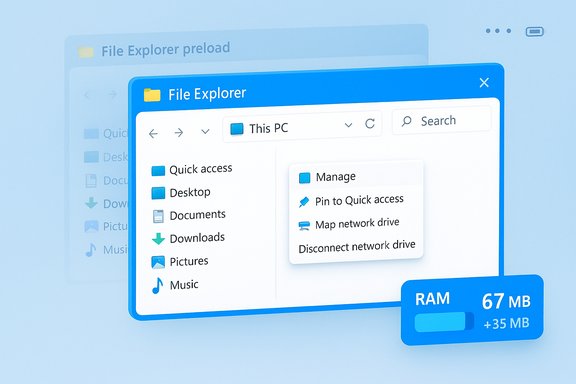
Windows 11 Insider Preview Build 26220.7271 (KB5070307) exposes an experimental toggle in File Explorer’s Folder Options labelled “Enable window preloading for faster launch times.” The option, when enabled, keeps a light-weight Explorer instance warmed in the background so that opening File Explorer feels near-instant to the user. Microsoft frames the change as an exploration rather than a full architectural rewrite, and the setting is currently visible to testers in Dev and Beta channels so telemetry and Feedback Hub reports can guide any broader rollout. Multiple news outlets and hands‑on reviews corroborate the feature’s presence in the preview builds and describe the UI toggle and context‑menu reorganization that accompanied the experiment. The context menu changes — grouping lesser-used commands under a Manage file flyout and moving cloud provider verbs into provider submenus — are presented as companion changes intended to reduce clutter while Microsoft tests the preload behavior.
If Microsoft pairs preloading with robust gating heuristics (skip on low RAM, respect battery saver), explicit admin controls, and targeted fixes to shell extension behavior, the feature could graduate from an Insider experiment to a broadly beneficial capability. If those safeguards do not materialize, the risk is that preloading becomes a visible but contested default that many power users and IT admins will opt to disable.
If you want a compact checklist to act on today:
Source: RaillyNews Performance and Memory Impacts of Preloading Feature for Windows 11 File Explorer
 Background
Windows 11 Insider Preview Build 26220.7271 (KB5070307) exposes an experimental toggle in File Explorer’s Folder Options labelled “Enable window preloading for faster launch times.” The option, when enabled, keeps a light-weight Explorer instance warmed in the background so that opening File Explorer feels near-instant to the user. Microsoft frames the change as an exploration rather than a full architectural rewrite, and the setting is currently visible to testers in Dev and Beta channels so telemetry and Feedback Hub reports can guide any broader rollout. Multiple news outlets and hands‑on reviews corroborate the feature’s presence in the preview builds and describe the UI toggle and context‑menu reorganization that accompanied the experiment. The context menu changes — grouping lesser-used commands under a Manage file flyout and moving cloud provider verbs into provider submenus — are presented as companion changes intended to reduce clutter while Microsoft tests the preload behavior. What the early tests actually measured
Launch speed: perceptible but modest
Independent hands‑on testing shows a consistent pattern: preloading reduces the cold‑start delay and the time to first paint, making the first Explorer window appear faster, especially on older or disk-bound systems. However, the gains are perceptual and often small — dramatic only in slow‑motion captures or when comparing HDD-bound systems to SSDs. High-end systems that already open Explorer quickly see only marginal benefit.Memory: a measurable increase
One of the clearest and most repeatable findings is increased resident memory when preloading is enabled. In a widely-circulated test, Explorer’s idle RAM usage rose from roughly 32–35 MB (cold state) to about 67.4 MB when the warmed instance was resident — an increase on the order of ~35 MB. That result has been reproduced in multiple early reviews and community measurements, and appears to be the most concrete cost of the optimization so far.What didn’t improve: enumeration, context menus, preview handlers
Crucially, preloading does not fix deeper sources of Explorer sluggishness. Tests show the context menu, folder enumeration on slow or remote shares, and preview/thumbnail handlers remain just as slow as before because those tasks either run on demand or are dominated by third‑party components and I/O latency that preloading does not address. In short: preloading helps the first paint; it does not remove the underlying runtime costs of the shell’s extensibility model.Why preloading behaves the way it does: a technical primer
File Explorer in Windows 11 is not just a single, monolithic Win32 UI — it’s a hybrid composed of legacy shell components (explorer.exe, COM-based shell APIs) layered with modern UI frameworks (WinUI/XAML via the Windows App SDK). That layering increases composition and initialization work at paint time. Preloading moves some of that initialization to idle time:- It likely instantiates the UI skeleton (address bar, command bar, basic UI plumbing) and primes in‑memory caches (icons, thumbnails) so the first paint happens quickly.
- It may register or prime a limited set of preview/thumbnail handlers to reduce first-use stalls.
- The warmed instance is designed to remain dormant or suspended to minimize CPU usage while conserving memory for fast resume.
Cross‑checking the key claims (numbers and effects)
- The memory delta (~35 MB) is documented by independent testing and reproduced in community reports; multiple outlets have published the same general measurement ranges. These figures are consistent across reviewers but remain device‑dependent (extensions, architecture, caches), so treat them as indicative, not absolute.
- The perceived speed improvement — a snappier first window — is repeatedly observed by testers, but the absolute time saved varies widely with storage type (HDD vs SSD), CPU, RAM, and installed extensions. High-end systems see negligible gains.
- Microsoft has not published a formal memory budget or low‑level implementation details for the preload mechanism; those internal mechanics remain undocumented and therefore flagged as unverifiable beyond observational benchmarks. Early reporting and the Insider toggle are the best available evidence.
Comparative context: Windows 10 vs Windows 11 Explorer performance
A recurring theme in coverage is that some File Explorer operations feel slower in Windows 11 than they did in Windows 10, and Microsoft has publicly acknowledged and is testing fixes. Hands‑on reports argue that even with preloading, Windows 11’s Explorer can still feel less fluid than its Windows 10 counterpart for certain workflows — a conclusion reinforced by independent tests and commentary. Microsoft’s staged experiment is therefore an incremental step to regain parity in perceived responsiveness rather than a full performance overhaul.Enterprise and OEM implications
OEM perspective and adoption headwinds
Major OEMs have taken note. Dell’s earnings commentary highlighted a slower Windows 11 transition compared with the Windows 10 upgrade cycle, noting adoption lags and a large installed base still on Windows 10; that context gives weight to concerns about perceived performance and upgrade hesitancy. When hardware and enterprise migration timelines already constrain adoption, small regressions in day‑to‑day UX — such as a slower File Explorer — can influence upgrade decisions and OEM messaging.Enterprise deployment concerns
For IT administrators, preloading raises three main questions:- Manageability: Will Group Policy or Intune controls be available to disable preload across fleets? Early Insider builds only expose a per‑device Folder Options toggle; enterprises should expect policy controls before broad deployment.
- VDI/Session Host density: Preloading increases per-session resident memory. In VDI or multi‑user environments that rely on tight memory budgets, the warmed instance could reduce session density or require imagery adjustments.
- Compatibility: Preloaded Explorer may initialize third‑party shell extensions earlier, which can expose latent stability issues or unexpected background activity. Enterprises must include AV/EDR, backup agents, and any context‑menu‑delivering software in their compatibility test matrix.
Risk assessment: what could go wrong
- Memory pressure on low‑RAM systems: On 4–8 GB machines, a persistent warmed Explorer instance could push memory footprints into swap, slowing overall performance more than it speeds Explorer launches. Early reports advise caution on constrained devices.
- Battery impact: Preloading shifts initialization work into idle or sign‑in time; if heuristics don’t respect battery‑saver modes, laptops could experience reduced battery life. Independent tests have not shown catastrophic battery drain, but this is a plausible risk to validate on representative mobile hardware.
- Third‑party extension exposure: Shell extensions, preview handlers and cloud provider integrations are often the real culprits for context‑menu and enumeration slowdowns. Preloading can cause those components to initialize in the background, potentially surfacing crashes or network activity at unexpected times. Robust extension gating will be necessary.
- Privacy and network side effects: Any background access to cloud metadata or network mounts must respect user sign‑in state and enterprise policies to avoid accidental data fetches while the machine is idle. Preloading must be conservative about network operations.
How to try, measure and control the feature (practical steps)
- Confirm your Insider channel and build: ensure your device has received Windows 11 Insider Preview Build 26220.7271 (Dev or Beta).
- Locate the toggle:
- Open File Explorer → click View → Options → Folder Options → View tab.
- Look for Enable window preloading for faster launch times and check/uncheck as desired.
- Measure objectively:
- Use a stopwatch or simple script to record time from a click (taskbar icon or Win+E) to first responsive paint.
- Record idle explorer.exe memory usage before and after enabling the toggle (Task Manager or Process Explorer).
- On laptops, monitor battery telemetry during sign‑in and the first few minutes of idle time.
- Rollback in enterprise images: until GPO/MDM controls appear, include the toggle state in your pilot image checklist and document user‑level rollback steps for help desks.
Recommendations for different audiences
- For everyday users on modern desktops (8 GB+ RAM, SSD): try the preload if Explorer cold starts irritate you; the memory cost is usually negligible and the perceived snappiness may be worth it.
- For battery‑sensitive laptop owners: remain conservative. Test battery impact before enabling on your main device.
- For IT administrators and VDI teams: pilot the change on representative hardware, include imaging and session host tests, and insist on Group Policy/Intune controls before broad rollout. Validate compatibility with endpoint protection, file-system filters and backup agents.
- For ISVs and shell‑extension developers: ensure deferred initialization patterns, avoid blocking network I/O during load, and test in preloaded background contexts to catch race conditions early.
Longer‑term outlook: is preloading a stopgap or a step forward?
Preloading is a pragmatic, low‑risk optimization that follows established Microsoft patterns (Edge’s Startup Boost, Office prelaunch tasks). It addresses the most conspicuous symptom — the cold‑start pause — with minimal disruption to APIs and compatibility. But without parallel work on the root causes that make Explorer feel sluggish (legacy shell layers, heavy preview handlers, network enumeration inefficiencies and third‑party extension quality), preloading will remain a perceptual fix rather than a systemic cure.If Microsoft pairs preloading with robust gating heuristics (skip on low RAM, respect battery saver), explicit admin controls, and targeted fixes to shell extension behavior, the feature could graduate from an Insider experiment to a broadly beneficial capability. If those safeguards do not materialize, the risk is that preloading becomes a visible but contested default that many power users and IT admins will opt to disable.
Final verdict: pragmatic, measurable, but incomplete
The preload experiment is an engineering‑elegant band‑aid that improves the perceived snappiness of a core user surface without demanding risky rewrites. The memory trade‑off is real and measurable — tests show roughly a ~35 MB increase in idle Explorer memory in at least one controlled test — but that cost is small on modern desktops and more meaningful on low‑RAM devices and shared session hosts. The key points that will determine success are heuristics, manageability and follow‑through on the deeper performance fixes that preloading cannot address. Microsoft’s method — ship an opt‑out preview, gather telemetry and iterate — is sensible. OEMs and enterprise IT are watching closely; Dell’s public comments about a slower Windows 11 transition underline that performance perception matters for adoption and messaging. For now, users should test before they trust, administrators should pilot before they deploy, and developers must harden shell extensions against background initialization scenarios.If you want a compact checklist to act on today:
- If you’re on an Insider build and annoyed by Explorer cold starts, enable the toggle and measure your real‑world improvement.
- If you manage fleets or VDI, do not assume preload is harmless — pilot, measure memory and battery impact, and demand policy controls.
- For everyone: keep an eye on Microsoft telemetry announcements and subsequent Insider builds for refined heuristics and administrative templates that will decide whether preloading becomes a net win in production environments.
Source: RaillyNews Performance and Memory Impacts of Preloading Feature for Windows 11 File Explorer
