

Microsoft’s latest attempt to fix File Explorer’s long-standing sluggishness in Windows 11 — an experimental feature that preloads the app into RAM at startup — has produced predictable gains in cold-start painting but also predictable trade-offs: roughly doubling Explorer’s idle RAM footprint in independent tests and leaving the deeper, day-to-day sluggishness unresolved.
Windows 11’s File Explorer has been a conspicuous sore point since the OS’s early releases. Users consistently reported slower cold starts, janky UI element painting, and noticeable delays when opening context menus compared with the leaner Explorer experience in Windows 10. Microsoft has used the Insider channels to trial several mitigations, and the most notable recent experiment is bundled in Windows 11 Insider Preview Build 26220.7271 (KB5070307): an optional setting that keeps a lightweight portion of File Explorer warmed in memory to accelerate the first visible paint. That build also pairs the preload experiment with a context-menu reorganization — moving less-common verbs into a “Manage file” flyout and grouping cloud-provider actions into provider-specific submenus — aimed at reducing menu height and visual clutter while attempting to sidestep some of the dynamic enumeration delays.
Source: TechSpot Windows 11's updated File Explorer remains painfully slow despite using twice as much RAM
 Background
Windows 11’s File Explorer has been a conspicuous sore point since the OS’s early releases. Users consistently reported slower cold starts, janky UI element painting, and noticeable delays when opening context menus compared with the leaner Explorer experience in Windows 10. Microsoft has used the Insider channels to trial several mitigations, and the most notable recent experiment is bundled in Windows 11 Insider Preview Build 26220.7271 (KB5070307): an optional setting that keeps a lightweight portion of File Explorer warmed in memory to accelerate the first visible paint. That build also pairs the preload experiment with a context-menu reorganization — moving less-common verbs into a “Manage file” flyout and grouping cloud-provider actions into provider-specific submenus — aimed at reducing menu height and visual clutter while attempting to sidestep some of the dynamic enumeration delays. What Microsoft shipped (the experiment)
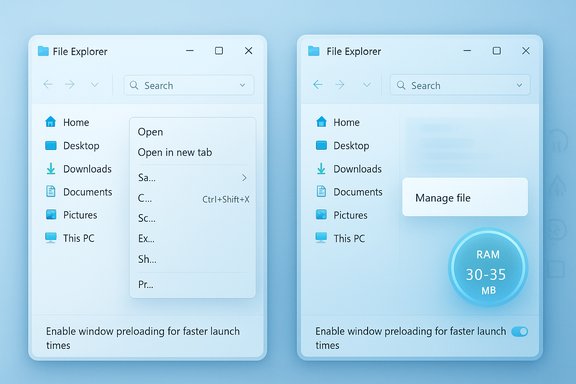
- An opt-in (toggleable) File Explorer preloading feature surfaced in Folder Options as “Enable window preloading for faster launch times.” The option is enabled by default for many Insiders but may be turned off by users who prefer the legacy behavior.
- A context-menu declutter that groups rarely used commands under a Manage-file flyout and moves cloud provider commands into submenus to make the top-level menu shorter and more scannable.
What independent testing found
Several hands-on tests and slow-motion comparisons performed by independent outlets and community testers converge on the same practical observations:- The preload feature does reduce cold‑start time and makes the first visual paint of a new Explorer window appear faster, particularly on systems under load or with slower storage. The improvement is measurable and visible in video comparisons, though often subtle for modern desktops.
- Enabling preload increases Explorer’s idle memory usage by approximately 30–35 MB on tested machines — raising the observed resident memory from roughly ~32–35 MB to ~67 MB in multiple repeatable tests. That measurement has been reproduced across different review environments.
- The preload does not fix contextual and runtime delays: folder enumeration latency, thumbnail/preview stalls, and slow context‑menu construction remain largely unaffected because those costs occur at interaction time rather than during initial startup.
The technical picture: why Explorer still feels slow
The modern Windows 11 shell is not an entirely new piece of software — it’s a complex composition of legacy and modern technologies. The most important architectural facts to understand:- File Explorer’s core file‑management engine remains anchored in the Win32/COM shell for compatibility with decades of extensions and integrations.
- Microsoft has been progressively overlaying that legacy core with WinUI/XAML surfaces — first via XAML Islands and WinUI 2 and increasingly by migrating components to WinUI 3 through the Windows App SDK. That modernization brings richer visuals and new features (tabs, flyouts, modern command bars) but also extra rendering and composition layers.
- Those mixed rendering stacks create additional work per UI interaction: off‑screen composition, cross-framework marshaling, and more complex paint paths. The result is measurable: micro‑delays in painting or in assembling dynamic elements (for example, right‑click context menus that must query shell extensions, cloud providers, Copilot integrations, and third‑party verbs on demand).
Why WinUI/XAML matters (a deeper dive)
- WinUI/XAML draws UI elements differently than classic Win32 controls — often rendering inside off‑screen surfaces and compositing output through the Desktop Window Manager. That lifted compositor approach can add per-frame overhead compared to the immediate-mode drawing of native Win32 widgets.
- The hybrid approach (legacy shell + modern UI) creates “bridging” costs: converting Win32 shell state and extension output into modern XAML visuals requires synchronization between frameworks, which can introduce latency spikes — especially when many extensions or cloud queries are involved.
- Cloud integration and “Recent files / Recommendations” tiles in the Home view add asynchronous network queries and enumeration steps that can delay a fully interactive UI, particularly on devices with constrained I/O or network conditions. Preloading doesn’t remove the need to enumerate cloud providers on demand.
The memory trade-off: how big a burden is the preload?
Measured figures from independent tests are consistent: enabling preloading increases Explorer’s idle resident set by roughly 30–35 MB on tested machines, from the low‑30s to the mid‑60s in megabytes. That amount is small on a modern desktop with 16–32 GB of RAM, but it is non‑trivial for constrained devices like budget laptops, older machines, tablets, and VDI images where every megabyte counts. Important caveat: Microsoft has not published a formal memory budget or telemetry baseline for the preload experiment. Tests are device‑dependent — the delta can vary with installed shell extensions, preview handlers, and the specific Explorer state on a machine. Treat the published numbers as reproducible examples, not absolute guarantees.User impact and who should care
- Casual desktop users on modern hardware (16 GB RAM or more, NVMe SSDs) will likely see little harm and some perceptible benefit: a snappier first open and a slightly cleaner context menu layout.
- Power users who open/close Explorer and context menus hundreds of times per day will notice the remaining friction: slow context‑menu population, delayed enumerations for network or cloud folders, and intermittent thumbnail/preview stalls. These are not fixed by preload.
- IT administrators, VDI architects, and users of low‑RAM devices should proceed cautiously: the preload trades memory for responsiveness and may be undesirable as a default in environments where memory footprint and battery life are priorities. Pilot and measure before enabling company‑wide.
Practical guidance: what users and admins can do now
- If you’re an Insider and want to test the change:
- Open File Explorer → View → Options → Folder Options → View.
- Toggle “Enable window preloading for faster launch times” on or off to compare behavior on your hardware.
- If you experience slow context menus or hangs:
- Audit and temporarily disable third‑party shell extensions (tools like ShellExView can help).
- Turn off Explorer Home view items that enumerate cloud/online content (Recent files / Office.com recommendations).
- Restart the Explorer process from Task Manager to clear transient state.
- Keep drivers and firmware updated — storage and driver bugs can amplify UI jank.
These are tried, practical mitigations while Microsoft iterates further. - For enterprise rollouts:
- Pilot the preload toggle on representative endpoint groups and measure memory impact and user-perceived latency.
- Wait for Microsoft to publish enterprise controls and documented budgets before enabling it broadly.
- Consider delaying mass migration to Windows 11 on constrained hardware while optimizations continue.
What Microsoft’s choice reveals about priorities and trade-offs
Microsoft’s decision to try a preload — rather than undertake a complete re‑architecture of Explorer — reflects a conservative, telemetry-driven engineering philosophy: deliver measurable perceptual wins with low deployment risk, gather data, and iterate. This mirrors prior work (Edge Startup Boost, Office prelaunch) and is a reasonable short-term tactic. However, it also underscores a broader challenge: balancing modern UI ambitions (WinUI/XAML, Copilot hooks, cloud integrations) with the performance expectations of a decades-old desktop experience. Users who value raw responsiveness over visual modernity will find the trade-offs unsatisfying. The long-term fix likely requires deeper optimization of rendering paths, tighter heuristics for when to preload, and more aggressive pruning or asynchronous handling of dynamic menu enumeration.Risks and open questions
- Will Microsoft gate preload behind heuristics (minimum RAM, energy saver mode, or device class) to mitigate impact on low‑spec devices? Early signals suggest heuristics are likely essential, but public details are not yet available.
- Could preloading lead to earlier initialization of buggy third‑party shell extensions and thus expose background instability? Yes — preloading shifts the activation window for many components and could reveal latent faults earlier. Enterprises relying on bespoke shell extensions should test carefully.
- Has Microsoft committed to improving the underlying WinUI/XAML costs or to reverting certain elements if telemetry shows persistent regressions? The company frames the work as experimental and telemetry‑backed; a broader rework remains an open engineering decision.
What a credible roadmap toward a real fix would look like
- Short term: refine preload heuristics (per‑device minimums, energy‑saver opt‑outs), document memory budgets, and provide enterprise policy controls. Improve the context menu’s default content and defer heavy extension queries where possible.
- Medium term: audit and optimize WinUI-to-Win32 composition paths, reduce unnecessary synchronous queries in context menu construction, and make cloud/AI hooks more asynchronous or lazy‑loaded.
- Long term: consider a lighter-weight renderer for shell-critical micro‑interactions or a more aggressive decoupling of feature-rich views (Home/Recommended) from the core file navigation path so that everyday interactions remain snappy. This is more invasive engineering but will be required to fully close the gap with Windows 10’s efficiency.
Conclusion
Microsoft’s File Explorer preload experiment is an honest, incremental response to a visible problem: it buys a measurable improvement in first‑open perception with a modest memory cost and a conservative rollout model. Independent testing consistently shows the trade-off — roughly a 30–35 MB idle increase for a snappier first paint — but it also confirms what users already knew: the deeper sources of Windows 11 Explorer sluggishness (mixed rendering stacks, dynamic context‑menu enumeration, preview handlers and third‑party extensions) remain. For most modern PCs the preload is a tolerable and even welcome tweak, but on low‑RAM or mission-critical fleets the cost matters. The only durable solution will be a combination of targeted optimizations in the WinUI/XAML composition paths, smarter heuristics for background warming, and deliberate engineering to make dynamic components asynchronous and less blocking. Until then, preloading is a pragmatic band‑aid: useful, measurable, but not the fundamental fix many users are asking for.Source: TechSpot Windows 11's updated File Explorer remains painfully slow despite using twice as much RAM
