

Microsoft’s recent preview tweak for File Explorer — an optional background preload that warms part of explorer.exe at boot — does exactly what it promises: the first folder open after sign-in is noticeably snappier. But the change is a pragmatic patch, not an architectural cure, and it exposes a broader pattern in Windows 11 engineering: quick, telemetry-driven workarounds that improve perception while leaving deeper systemic causes untouched.
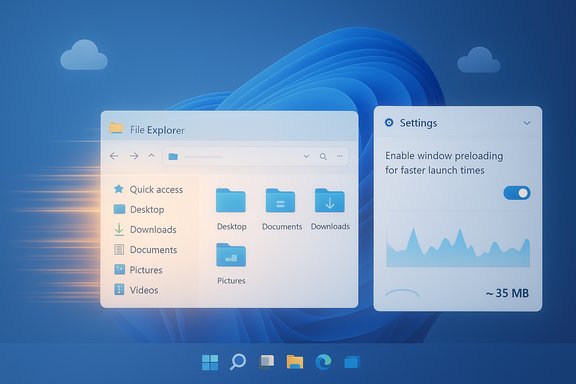
File Explorer sits at the center of daily Windows work: open a folder, attach a file, save a download — most users hit Explorer dozens of times a day. Since Windows 11 launched, a persistent complaint has been the cold-start delay — the brief but noticeable lag the first time Explorer opens in a session. That delay can feel like a regression compared with Windows 10 on many machines, and it’s driven by a mixture of UI composition, thumbnail and preview handler initialization, cloud-provider enumeration (OneDrive placeholders), and third‑party shell extensions. Microsoft has acknowledged the symptom and is now experimenting with an opt‑out preload to reduce perceived latency. The change appears in Windows 11 Insider Preview Build 26220.7271 (KB5070307) and is being evaluated in Dev and Beta channels. When the experiment shows up on a device, users will see a new checkbox in File Explorer → View → Options → Folder Options → View labeled “Enable window preloading for faster launch times.” The toggle is visible to Insiders and can be disabled, which is a sensible roll‑out pattern for an experiment that trades background RAM for foreground responsiveness.
Source: TechRadar https://www.techradar.com/computing...-underline-a-fundamental-problem-with-the-os/
 Background / Overview
File Explorer sits at the center of daily Windows work: open a folder, attach a file, save a download — most users hit Explorer dozens of times a day. Since Windows 11 launched, a persistent complaint has been the cold-start delay — the brief but noticeable lag the first time Explorer opens in a session. That delay can feel like a regression compared with Windows 10 on many machines, and it’s driven by a mixture of UI composition, thumbnail and preview handler initialization, cloud-provider enumeration (OneDrive placeholders), and third‑party shell extensions. Microsoft has acknowledged the symptom and is now experimenting with an opt‑out preload to reduce perceived latency. The change appears in Windows 11 Insider Preview Build 26220.7271 (KB5070307) and is being evaluated in Dev and Beta channels. When the experiment shows up on a device, users will see a new checkbox in File Explorer → View → Options → Folder Options → View labeled “Enable window preloading for faster launch times.” The toggle is visible to Insiders and can be disabled, which is a sensible roll‑out pattern for an experiment that trades background RAM for foreground responsiveness. What Microsoft shipped (the facts)
- The feature is delivered as an exploration in Build 26220.7271 and is not yet a final, universally deployed change.
- The user control lives in File Explorer’s Folder Options as Enable window preloading for faster launch times (View tab).
- A parallel UI cleanup reworks the right‑click context menu: less‑used actions (Compress to ZIP, Copy as path, image rotate, Set as desktop background) are grouped under a Manage file flyout, and cloud provider actions are moved into provider‑specific submenus.
- The preload is an engineering pattern Microsoft has used before (Edge Startup Boost, Office prelaunch) — warm predictable initialization during idle so the interactive path is faster.
Hands‑on results: what early tests say
Independent hands‑on testing reported by outlets and community testers shows consistent, repeatable results:- Cold‑start time: In some tests the un‑warmed File Explorer took roughly ~2.0 seconds to reach a fully painted and interactive state on first open after boot. With preloading enabled, that was reduced by roughly 0.6–1.0 seconds in the same environment — a material fractional improvement for a frequently used operation.
- Memory footprint: Tests measured Explorer’s idle memory usage rising from about ~32 MB without the preload to around ~67 MB with the preload enabled — an increase on the order of ~35 MB. That overhead is small on modern desktops but measurable, and it’s the central trade‑off critics point to.
- Under load: The perceptual benefit is clearer under CPU/IO pressure (many tabs in a browser, heavy background work) where the warmed instance avoids competing initialization costs at the moment a user clicks to open a window.
Why the preload works (and why it’s limited)
The mechanics in plain terms
Preloading is a warm‑start technique: perform deterministic initialization during idle time (or at boot) so when the user asks for Explorer the UI skeleton and common caches are already prepared. Practically this likely means:- Instantiating a lightweight explorer.exe process or warming a suspended state.
- Initializing the address bar, command bar, common controls, and basic UI composition.
- Priming caches used for initial paint (icons, small thumbnail caches).
- Possibly registering a minimal set of preview/thumbnail handlers or deferring heavier ones until needed.
The limits — what it does not fix
Preloading does not, and cannot in isolation, fix:- Slow folder enumeration on network shares or remote filesystems.
- Misbehaving third‑party shell extensions that inject latency the first time a context menu is expanded.
- Slow thumbnail and preview handlers that process large files (video, RAW images).
- Deeper rendering overhead if WinUI/XAML composition is the bottleneck.
Strengths of Microsoft’s approach
- Targeted, low‑risk improvement. Shipping the preload as an experiment with a visible toggle is responsible: users can try it and opt out if regressions appear. The staged Insider rollout gives Microsoft telemetry while limiting blast radius.
- High perceptual value. Reducing a first‑open pause by under a second is meaningful because Explorer is a frequent touchpoint; shaving that wait off is a real UX improvement for many users, especially on lower‑end hardware.
- Reuses proven patterns. Microsoft previously used similar warm‑start heuristics in Edge and Office; the approach is low complexity and can be monitored and tuned via telemetry.
- Maintains backward compatibility. Because this is additive and toggleable, it avoids breaking compatibility with third‑party extensions or enterprise images — at least initially.
The risks and trade‑offs
- Cumulative memory creep. A single warmed Explorer instance might cost ~35 MB in tests, but if Microsoft increasingly preloads other subsystems (Photos, Office, Store helpers), those small increments can add up on memory‑constrained devices and thin clients. What looks tiny on a 16 GB desktop can be a problem on an 4 GB tablet or VDI image.
- Battery and suspend impact. Any resident background process has potential implications for standby/resume and battery life on laptops. Microsoft must ensure the warmed state is suspended efficiently and does not prevent low‑power transitions. This detail is not publicly specified in the preview notes. (Flagged as a transparency gap.
- Mismatch between perception and root causes. Preload hides the symptom but does not simplify or fix problematic third‑party handlers, network I/O patterns, or cloud provider behavior. Users who see repeated in‑window jank will still be dissatisfied.
- Enterprise manageability. Enterprises require explicit Group Policy/MDM controls and telemetry‑backed guidance before enabling such features broadly. Until Microsoft publishes ADMX or management controls, wide deployment must be cautious.
What Microsoft should do next (a constructive checklist)
- Publish clear resource budgets and heuristics for preload. Explain how memory, CPU, and battery impact were measured on representative hardware.
- Add Group Policy / MDM controls and ADMX templates so IT can manage the feature at scale before any default enterprise rollout.
- Publish a telemetry‑driven gating strategy: low‑RAM or VDI images should default to preload off, desktops to on, or something of that nature.
- Attack the root causes in parallel:
- Tighten how shell extensions are initialized; make extension loading lazy and sandboxed.
- Optimize thumbnail/preview handlers and give users explicit controls to disable heavy handlers.
- Continue work to harmonize Win32 and WinUI rendering to reduce composition overhead.
- Be transparent about rollout timelines and expected changes so enterprise admins and OEMs can test ahead.
Practical guidance for users and admins
- If you’re an Insider tester: try the preview and measure the trade‑off on representative hardware. The toggle is in File Explorer → View → Options → Folder Options → View.
- If you’re on production machines: treat preload as an experiment. Wait for Group Policy controls and published guidance before enabling across a fleet. Pilot in small rings first.
- If Explorer still feels sluggish after enabling preload:
- Audit third‑party shell extensions with ShellExView and disable nonessential ones.
- Disable heavy preview handlers (video, RAW) for troubleshooting.
- Try switching Explorer’s default open location from Home to This PC (a small UX tweak that can reduce initial background enumeration).
- Consider a fast third‑party file manager for workflows that demand low latency.
- For battery‑sensitive laptops: measure battery drain with preload enabled versus disabled before committing; the OS preview does not yet publish explicit battery numbers. (This is a recommended cautionary step.
A journalist’s appraisal: useful, honest, but not the whole story
Microsoft’s preload is an honest engineering choice: it delivers a measurable, user‑visible improvement with a low risk profile, and it’s been implemented as an experiment rather than a forced default. That’s the right way to test trade‑offs at scale. Early testing from multiple outlets and community pilots shows this is a net positive for the first‑open latency. Yet the fix also highlights an uncomfortable truth about how Windows 11 evolved. A modernized, visually richer shell brought new layers (WinUI/XAML on top of Win32) and tighter cloud integrations, and those layers have introduced new surface area for latency. The preload is a clever band‑aid that improves perceived performance, but it’s not a substitute for deeper simplification and surgical refactors where needed. Critics who call it a mere “fudge” are right to demand root‑cause work; defenders who point out the small memory cost are also correct that the trade is modest on most desktops. Both viewpoints are valid.What to watch next
- Will Microsoft publish memory/battery budgets and admin controls before general rollout? The community is asking for clear policy controls and telemetry guidance.
- Will Microsoft pair preload with deeper refactors that reduce dependency on third‑party handlers or move them out of the critical path? That’s the long‑term fix many power users want.
- How will OEMs and enterprise fleets react to cumulative preloads if Microsoft extends this pattern to other apps? The sum of multiple small preloads will be what matters in the field, not any single 35 MB bump.
Conclusion
The File Explorer preload in Build 26220.7271 is the kind of pragmatic, telemetry‑driven tweak that produces genuine day‑to‑day benefits: faster first opens and a cleaner context menu for many users. It’s delivered as an experiment, it’s toggleable, and early independent testing shows a tangible reduction in cold‑start time at a modest memory cost. But it also crystallizes a larger point: Microsoft is leaning on incremental, surface‑level optimizations while deeper architectural debt — mixed Win32/WinUI composition, heavyweight preview handlers, and third‑party shell extension behavior — remains. Preload is a sensible short‑term play, yet the full remedy will require a clearer plan, transparent telemetry budgets, enterprise controls, and targeted refactors that remove the causes of jank rather than merely buffering them behind idle‑time warmups. Until that work is visible and measurable, users should welcome the speed boost while keeping expectations calibrated: a nicer veneer, not a cure.Source: TechRadar https://www.techradar.com/computing...-underline-a-fundamental-problem-with-the-os/
