

Windows 11’s File Explorer can feel sluggish in ways that seem impossible on modern hardware: slow folder opens, stuttering when scrolling, and delays when right‑clicking files. The culprit is often not a failing SSD or a clogged background process but a decades‑old feature — automatic folder type discovery — that still runs each time Explorer inspects a folder’s contents to decide whether it should present Pictures, Music, Documents, or General items. Disabling that content sniffing with a targeted registry tweak (forcing a universal FolderType of NotSpecified) frequently turns a laggy Explorer into a snappy, work‑friendly tool; the tweak is well documented in community guides and has become a staple recommendation for power users and admins chasing performance.
Key:
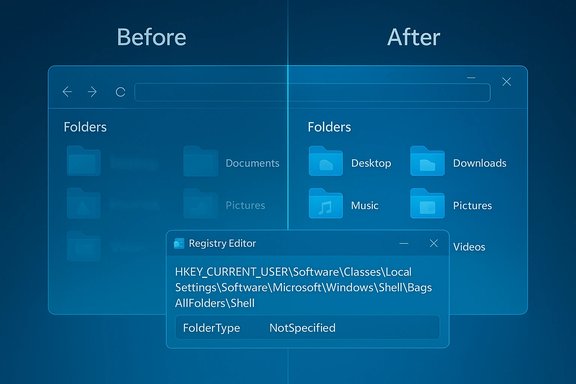
HKEY_CURRENT_USER\Software\Classes\Local Settings\Software\Microsoft\Windows\Shell\Bags\AllFolders\Shell
Value:
Name = FolderType
Type = REG_SZ (String)
Data = NotSpecified
This forces Explorer to skip Automatic Folder Type Discovery for folders without a specific (saved) view template, using a generic template instead. Community guides and PowerShell snippets documenting the same path appear consistently across independent sources.
Source: WebProNews Windows 11 File Explorer Lag: Legacy XP Feature Fix via Registry Tweak
 Background
The legacy that lingers
Automatic folder type discovery dates back to Windows XP-era behavior that attempted to be smart about how folders are presented. Explorer inspects file types and metadata inside each folder and then applies a template (columns, thumbnail rules, default sort) to match the folder’s apparent contents. That auto‑classification was meant to save clicks, but it’s a scanning step that still runs in modern Windows versions and can add measurable I/O and CPU overhead when folders contain thousands of items. Community documentation going back many years shows the same registry approach to neutralize the behavior, underscoring how persistent the underlying mechanism has been across OS releases.Why this matters in Windows 11
Windows 11 introduced several UI modernizations — WinUI elements, tighter cloud integration (OneDrive placeholders), and new shell components — that changed Explorer’s composition and increased the number of subsystems involved in painting a folder window. Those systems (thumbnail/preview handlers, cloud providers, third‑party shell extensions) can be triggered by folder sniffing and amplify perceived lag, even on fast NVMe drives and multi‑core CPUs. As Microsoft iterates on Explorer performance, community‑sourced fixes like the FolderType tweak remain attractive because they address a small, well‑defined cost: the content sniffing and view selection pass that happens on folder open. Many how‑tos and community threads document this symptom and remedy.How automatic folder type discovery creates lag
The scanning and the chain reaction
When Explorer opens a folder it may:- Enumerate file names and metadata.
- Fire thumbnail and preview handlers for recognized media.
- Query cloud providers for placeholder status or metadata.
- Evaluate heuristics to pick a folder template (Photos, Music, Documents, etc..
Not just local I/O: cloud and third‑party handlers
OneDrive integration, preview handlers (for RAW images, video codecs, office formats), and third‑party shell extensions can all be triggered by the discovery process. These modules can make seemingly local folder operations wait on network or heavy CPU tasks. Microsoft’s recent Insider experiments and the public discourse around Explorer performance reflect this complexity: fixes that only address perceived launch latency (for example, preloading Explorer in the background) help some symptoms but don’t eliminate the root scanning work that occurs when opening heavy folders.The registry tweak that neutralizes folder sniffing
What the tweak does — plain language
The registry edit creates a user‑level policy telling Explorer to treat every folder as a generic folder type. Instead of scanning contents and choosing a specialized view, Explorer applies a default “All items / NotSpecified” template instantly. The result is a significant reduction in work during folder open, which frequently translates to dramatically faster folder load times in dense directories.Exact registry path and value
Create the following key (per‑user):Key:
HKEY_CURRENT_USER\Software\Classes\Local Settings\Software\Microsoft\Windows\Shell\Bags\AllFolders\Shell
Value:
Name = FolderType
Type = REG_SZ (String)
Data = NotSpecified
This forces Explorer to skip Automatic Folder Type Discovery for folders without a specific (saved) view template, using a generic template instead. Community guides and PowerShell snippets documenting the same path appear consistently across independent sources.
Step‑by‑step instructions (safe application)
- Create a restore point and export the current registry key you will edit.
- Open Registry Editor (regedit.exe) as the current user.
- Navigate to HKEY_CURRENT_USER\Software\Classes\Local Settings\Software\Microsoft\Windows\Shell.
- If present and you want a clean start, delete the Bags and BagMRU keys (note: deleting Bags removes saved folder view state; you can skip deletion but the clean approach is recommended to reset view state first).
- Under the Shell key, create the following subkeys in order: Bags → AllFolders → Shell.
- Select the Shell key under AllFolders, right‑click the right pane and choose New → String Value.
- Name the new value FolderType and double‑click it to set its data to NotSpecified.
- Restart the Explorer process: open Task Manager → find Windows Explorer → Restart. A system reboot is optional but will ensure a complete refresh.
Quick PowerShell example for experienced users
The community has published short PowerShell scripts that perform the same action, removing Bags/BagMRU, recreating the proper keys, and setting FolderType. Use these only after exporting registry state and confirming administrative policies do not prevent per‑user edits. Many administrators script these steps when rolling out optimized images for power‑user workstations.Measured results and real‑world reports
Community experience
Multiple user reports and forum threads describe immediate, visible speedups after applying the tweak: folder open times drop from seconds to sub‑second, large media directories become navigable without pauses, and context menu or thumbnail stalls are less frequent. IT administrators in some communities have scripted the change for fleets encountering productivity losses tied to Explorer lag. The pattern repeats across multiple independent forum threads and how‑tos, lending weight to the recommendation.What performance gains look like
Reported outcomes vary by workload:- Dense project/media folders: large reductions in folder enumeration time.
- Mixed content folders with many preview handlers: elimination of the repeated preview handler calls triggered during sniffing.
- General desktop use with many cloud placeholders: smoother navigation, especially when combined with indexing and visual‑effect adjustments.
Microsoft’s evolving response and why the tweak persists
Preloading Explorer and visible experiments
Microsoft has acknowledged Explorer performance concerns and begun iterative changes. An Insider Preview build (part of the 25H2 preview stream) introduced an experimental toggle — Enable window preloading for faster launch times — that keeps a small portion of Explorer warmed in memory to reduce cold‑start latency. That experiment appears in Windows 11 Insider Preview Build 26220.7271 (KB5070307) and is visible under File Explorer → View → Options → Folder Options → View on devices receiving the flight. The preload approach improves the perceived launch speed but does not remove the scanning work Explorer may still do when opening large folders.Regressions and concurrent issues
A December 2025 preview update (KB5070311) attempted to extend dark‑mode coverage but introduced a jarring white flash in File Explorer for some users when dark mode is enabled. Microsoft documented this as a known issue and used a Known Issue Rollback and follow‑up patches to mitigate the regression. Those events illustrate the difficulty of changing Explorer’s rendering and behavior at scale: small internal changes can cause visible regressions and force Microsoft to apply targeted rollbacks while they iterate on a clean fix.Why Microsoft hasn’t removed the feature outright
Automatic folder type detection is still useful for many users who prefer content‑aware views (e.g., automatic Picture views or Music details). Removing or making it off by default would be a visible behavior change for many, so Microsoft’s engineers have balanced backward compatibility and convenience against a less common but impactful performance pain point. In the meantime, community and enterprise admins have filled the gap with documented registry tweaks and scripted rollouts.Alternatives and complementary fixes
Low‑risk GUI first
Try these non‑registry steps before editing system state:- Set File Explorer to open to This PC instead of Home (reduces cloud queries at startup).
- Disable the Preview pane (Alt+P) and thumbnails (File Explorer → Options → View → Always show icons, never thumbnails).
- Clear thumbnail cache and reset folder views (Disk Cleanup and File Explorer Options).
- Audit shell extensions with tools like ShellExView and disable suspect third‑party handlers.
- Pause or adjust OneDrive sync while working in very large folders.
Third‑party file managers and shell patches
Alternative file managers (e.g., Total Commander or modern replacements) sidestep Explorer’s sniffing entirely and can be faster by design for heavy workloads. Tools like ExplorerPatcher or ViVeTool let advanced users revert or tweak Explorer chrome (WinUI vs legacy ribbon) and may avoid some WinUI‑related paint/regression issues — but these tools carry compatibility and update fragility risks. Community projects can help smooth UX regressions (e.g., eliminating white flashes), but they are not official Microsoft patches and should be used cautiously on production machines.Enterprise deployment options
For managed fleets, use scripted, reversible approaches:- Pilot the registry tweak on a small set of workstations with representative workloads.
- Deploy via Intune or Group Policy scripts only after thorough testing.
- Monitor telemetry and user feedback; keep a rollback plan.
Risks, caveats, and rollback
What you lose when you force NotSpecified
- Automatic, content‑optimized folder templates are disabled. Users who rely on Explorer making view choices for photos or music will need to set those views manually.
- Some per‑folder customizations stored in the Bags cache may be lost if you clear Bags as part of the cleanup step.
- Future Windows updates may change behaviors or reintroduce automatic classification in new ways; community registry hacks are not guaranteed to survive every feature update unaltered.
System safety and best practices
- Always export the key you plan to change and create a System Restore point before editing the registry.
- Test the tweak on a single machine first; measure performance, file view behavior, and any unexpected side effects.
- If anything goes wrong, delete the FolderType value and restore the Bags key from your exported registry snippet, then restart Explorer or reboot.
- For enterprise use, prefer Group Policy or signed scripts and maintain rollback documentation.
Flagging unverifiable claims
Community discussions sometimes quote precise percentage improvements or micro‑benchmarks; treat those as anecdotal unless they come from a controlled benchmark report. When vendors publish release notes or KBs, rely on those official documents for exact build numbers, workarounds, and Known Issue Rollback instructions rather than informal forum summaries. If a particular speed claim or numeric win is business‑critical, reproduce the measurement in your environment before mass deployment.Practical checklist: apply and verify
- Create a System Restore point and export HKEY_CURRENT_USER\Software\Classes\Local Settings\Software\Microsoft\Windows\Shell.
- If you want a clean slate, delete Bags and BagMRU (export them first).
- Create Bags → AllFolders → Shell and add FolderType (REG_SZ) = NotSpecified.
- Restart Explorer or reboot.
- Test representative heavy‑folder workflows (large photo folders, project directories) and measure open times.
- If undesirable side effects appear, delete the FolderType value and restore exported keys.
Conclusion
File Explorer lag in Windows 11 is often a symptom of a long‑running design trade‑off: convenience through automatic discovery versus the raw speed demanded by heavy workflows. The FolderType = NotSpecified registry tweak is a surgical, documented, and reversible way to eliminate the discovery pass that triggers thumbnail/preview and cloud queries for every folder open. It’s not a silver bullet — Microsoft’s ongoing Insider experiments (preloading Explorer and UI tweaks) and fixes for regressions show the OS is evolving — but for power users, creatives, and admins who need immediate, reliable responsiveness, the registry approach is a practical tool in the optimization toolkit. As always, apply the change with backups and verification, and consider combining it with UI tweaks and shell‑extension audits for the best outcome.Source: WebProNews Windows 11 File Explorer Lag: Legacy XP Feature Fix via Registry Tweak
