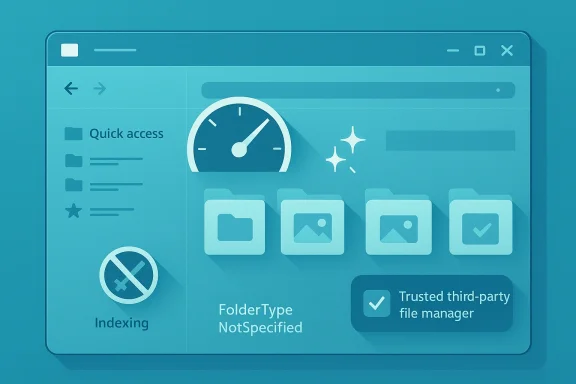
Pocket‑lint’s short, practical checklist for speeding up Windows 11’s File Explorer is the kind of hands‑on guidance that saves time and frustration: clear Explorer caches, turn off Quick Access, tame indexing, apply a targeted Registry tweak to stop folder sniffing, and—if you still need more—switch to a third‑party file manager. These five “sneaky” steps are low‑friction, largely reversible, and address the most common causes of sluggish folder loads and context‑menu delays that users report across hardware generations. The strategies are simple to test and, when combined with a careful measurement routine, often deliver a noticeably snappier Explorer without a reinstall or hardware upgrade.
File Explorer is more than a file browser: it’s the shell window into Windows’ file system, the home for desktop rendering, and a hub for many third‑party integrations (cloud clients, backup agents, thumbnail handlers). That ubiquity is why even small latencies—one‑second folder opens, stuttering while scrolling, or sluggish right‑click menus—compound into a daily productivity tax. The five steps Pocket‑lint outlines tackle the dominant, recurring causes of Explorer slowdowns: accumulated cache and history, view‑level heuristics, background indexing and sync activity, and costly UI initialization paths. These fixes trade convenience (some features are toned down) for responsiveness and are best applied incrementally so you can measure the effect.
Source: Pocket-lint 5 sneaky steps I take to speed up Windows 11's File Explorer
 Background / Overview
File Explorer is more than a file browser: it’s the shell window into Windows’ file system, the home for desktop rendering, and a hub for many third‑party integrations (cloud clients, backup agents, thumbnail handlers). That ubiquity is why even small latencies—one‑second folder opens, stuttering while scrolling, or sluggish right‑click menus—compound into a daily productivity tax. The five steps Pocket‑lint outlines tackle the dominant, recurring causes of Explorer slowdowns: accumulated cache and history, view‑level heuristics, background indexing and sync activity, and costly UI initialization paths. These fixes trade convenience (some features are toned down) for responsiveness and are best applied incrementally so you can measure the effect.1. Clear cache and history — a lightweight reset that often helps
Why it works
File Explorer keeps several caches (thumbnail database, jump lists, recent items) that speed normal use but can bloat or corrupt over time. When caches are inconsistent or the recent/history entries point to cloud/slow network locations, Explorer waits while it validates items. Removing stale exploratory state forces Explorer to rebuild only what you use, often shortening cold starts and eliminating “Working on it…” stalls.How to do it (quick and safe)
- Open File Explorer → View → Options → General → Privacy → click Clear to remove recent file and folder history.
- For thumbnails, open an elevated Command Prompt and run:
- taskkill /f /im explorer.exe
- del /f /s /q %LocalAppData%\Microsoft\Windows\Explorer\thumbcache_*.db
- start explorer.exe
This stops Explorer, deletes the thumbnail cache files, and restarts Explorer so thumbnails are rebuilt on demand. Use this only if simple clearing doesn’t help.
What to expect and risks
- Expect short bursts of disk activity the first time you open folders that need thumbnails rebuilt. On SSDs this is minor; on HDDs it can be slightly noticeable.
- No data is lost by clearing Explorer history or deleting thumbnail caches, but closing unsaved applications during the Explorer restart is prudent.
- If you rely heavily on the Quick Access “recent files” convenience, that view will be empty until it repopulates—this is reversible.
2. Disable Quick Access (or set File Explorer to open to This PC)
The trade‑off: convenience vs. startup cost
Quick Access is useful: it aggregates frequently and recently used items. But that convenience requires Explorer to query a set of places at launch—sometimes triggering cloud providers, shell extensions, or indexing lookups. For users on low‑powered hardware or machines where Explorer’s Home view stutters, switching the default open location to This PC or disabling Quick Access’s “recent files” can reduce the number of early queries and speed initial opens.How to change it
- File Explorer → View → Options → General → Open File Explorer to: This PC.
- Or, in the same Options pane, uncheck Show recently used files in Quick access and Show frequently used folders in Quick access to preserve Quick Access but stop live aggregations.
Analysis
- This is one of the lowest‑risk, highest‑reward moves: it requires no admin privileges and is instantly reversible.
- The performance improvement is most visible on machines with many shell extensions, slow cloud sync clients, or where “Home” triggers extra network activity. For users who depend on Quick Access for a rapid workflow, selectively removing problematic pins or using This PC may be preferable to turning Quick Access off entirely.
3. Pump the brakes on indexing — control where Windows scans
What indexing does (and why it can slow things)
Windows Search builds a background index of file metadata and contents so searches return quickly. Indexing is helpful, but it consumes I/O and CPU when it scans lots of files—especially on rotational drives or overloaded systems. If Explorer feels sluggish while the index rebuilds or if you have large seldom‑accessed folders, you’re paying that background cost.Two safe ways to adjust indexing
- Per‑drive: In File Explorer, right‑click a drive → Properties → uncheck Allow files on this drive to have contents indexed in addition to file properties, Apply → OK. This prevents content indexing for that volume.
- Per‑location: Settings → Privacy & security → Searching Windows → Advanced Options → Modify locations. Remove folders you don’t need indexed (archive folders, large media libraries). This keeps indexing for active work areas but spares the rest.
Consequences and guidance
- Disabling indexing reduces background I/O, but makes searches slower and less featureful (content search won’t be instant). A good compromise is to exclude large, rarely used folders while keeping your active work directories indexed.
- For users who rely on near‑instant filename search across many volumes, dedicated third‑party indexers like “Everything” can be faster and less intrusive—considered later in this article.
4. Dive into the Registry — disable Automatic Folder Type Discovery (with caution)
The underlying problem: Explorer’s “sniffing” behavior
Explorer tries to be smart: it inspects a folder’s contents and selects a folder template (Pictures, Music, Documents, General items). This content detection forces extra enumeration and can trigger thumbnail/preview handlers or cloud provider queries, producing a visible pause in directories with many files. Power users have long pointed to this automatic folder type discovery as a recurring cause of lag, even on fast machines.The registry tweak that neutralizes sniffing
The common community fix forces Explorer to treat all folders as generic by setting a FolderType value to NotSpecified:- Registry key: HKEY_CURRENT_USER\Software\Classes\Local Settings\Software\Microsoft\Windows\Shell\Bags\AllFolders\Shell
- Value name: FolderType
- Value type: REG_SZ
- Value data: NotSpecified
Strong warnings and safe practices
- The Registry is powerful and dangerous. A misplaced edit can corrupt profile state or destabilize Explorer. Always back up the registry (export the key) or create a System Restore point before making changes.
- The tweak is reversible: remove or reset the FolderType value and restart Explorer. Test on a non‑critical machine first if you manage multiple corporate devices or require certain folder templates for workflows (e.g., media production pipelines that rely on the Photos template).
- Not every environment benefits equally. Systems with few large folders, or users who rely heavily on gallery/thumbnail views, may perceive reduced convenience after the change. Consider applying the tweak only for problem directories or as part of a staged rollout.
5. Switch to an alternative file manager — when Explorer’s limits are the problem
Why third‑party file managers can feel faster
Third‑party file managers often take a different architectural approach: lighter UI composition, optimized file enumeration, faster internal indexing, or the avoidance of heavy shell extension initialization. For users who work with massive folder trees, large media collections, or need split‑pane and multi‑tab workflows, many alternatives are built for velocity and productivity.Popular categories and examples
- Lightweight, performance‑focused managers that shine on HDDs and under heavy I/O loads.
- Advanced power‑user tools (dual‑pane, batch rename, file queueing, checksum verification).
- Microsoft Store or vendor‑backed apps that integrate with Windows APIs but maintain their own UI for speed.
What to watch for before switching
- Vendor reputation and update cadence. Prefer well‑maintained apps with transparent update logs.
- Enterprise policy and endpoint protection: third‑party file system access patterns may trigger rules in corporate environments—test before wide deployment.
- Feature trade‑offs: some file managers optimize for speed by omitting thumbnail/preview handlers or deep integration features you rely on in Explorer.
Putting it together: a safe, repeatable troubleshooting routine
The best approach is iterative: change one thing, measure, and then move to the next. Here’s a reproducible routine to apply Pocket‑lint’s five steps without introducing unnecessary risk.- Baseline measurement
- Time several folder opens (Downloads, Pictures, a large project folder) and note CPU, Disk, and I/O in Task Manager → Performance. Record times to reopen each folder twice (cold and warm).
- Clear cache and history
- Clear Quick Access history and, if needed, delete thumbnail caches. Retest folder opens and record results.
- Switch File Explorer to This PC / disable Quick Access aggregations
- Change the Open location or disable Quick Access history. Retest.
- Adjust indexing for large folders
- Exclude archive folders from indexing or disable indexing on a less‑used drive. Retest and compare.
- Apply Registry tweak only if needed and after a backup
- Back up registry or create a System Restore point, then apply FolderType = NotSpecified and restart Explorer. Retest. If results are negative, revert.
- Consider a third‑party file manager if Explorer still lags for your workload
- Trial a reputable alternative and compare real‑world tasks (copy‑move large batches, open deep folder trees).
Critical analysis: strengths, limits and potential risks
Strengths of Pocket‑lint’s list
- Low barrier to entry. Most steps use built‑in Windows controls; no third‑party cleanup utilities or risky scripts are required. They are reversible and easy to test.
- High practical ROI. For many users—particularly those on HDDs, low RAM, or with bloated Downloads folders—these changes deliver meaningful responsiveness improvements without hardware changes.
- Triage first. The approach encourages trying quick fixes before moving to Registry edits or reinstalling Windows, which is sensible troubleshooting hygiene.
Limits and caveats
- Not a substitute for hardware upgrades. No amount of tuning replaces extra RAM, a faster SSD, or a newer CPU when workloads demand it. These fixes reclaim lost software efficiency but won’t match the gains from a hardware uplift.
- Trade‑offs in convenience. Disabling Quick Access or folder sniffing removes features some users find valuable. Weigh the speed advantage against lost shortcuts and templates.
- Registry edits are risky for some deployments. While the FolderType tweak is widely documented and often effective, modifying the Registry in managed environments should follow change control and testing procedures.
Potential security and compatibility risks
- Third‑party file managers require scrutiny. They need deep file system access and can interact strangely with cloud sync clients or endpoint protection rules. Install only from reputable vendors and test against company policies.
- Excluding folders from indexing affects searchability. If users rely on instant content search (for example, searching within documents), excluding locations will slow or disable those results. Make exclusions surgical, not global.
Practical recommendations and an action checklist
- Start with non‑destructive changes: clear Explorer history, switch to This PC, disable thumbnail previews temporarily. These are instant and reversible.
- Measure before and after: time folder opens and watch Task Manager to see what background process (if any) spikes during folder opens. This tells you whether cloud clients or AV are the real bottleneck.
- Exclude large, seldomly accessed folders from indexing rather than disabling indexing system‑wide. It reduces background work while preserving search for active work areas.
- Reserve the Registry tweak for stubborn cases and always back up before editing. If you manage many machines, pilot the change on a small set first.
- If Explorer continues to underperform for your workload, evaluate a trusted third‑party file manager and measure real tasks (batch copies, deep folder navigation). Prefer solutions with an active maintenance record.
Conclusion
Pocket‑lint’s five steps are an effective and pragmatic toolkit for reviving a sluggish Windows 11 File Explorer. They span from trivial (clear history) to advanced (Registry tweak), and together create a graded path that balances speed, convenience, and safety. For most users, the sequence—clear caches, remove Quick Access obligations, selectively disable indexing, and as a last resort apply the FolderType registry change—will recover a brisk Explorer experience. When those measures are insufficient, a well‑chosen third‑party file manager can deliver the specialized performance needed for heavy workflows. As always, changes should be applied incrementally, measured, and backed up, and registry edits should be treated with particular care.Source: Pocket-lint 5 sneaky steps I take to speed up Windows 11's File Explorer