

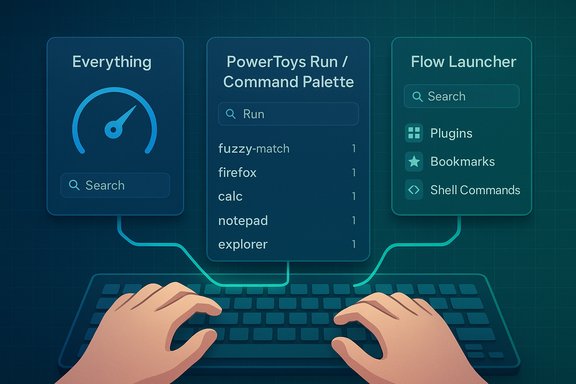
If Windows search has ever left you staring at a blank Start menu while the clock ticks, there are three practical, battle-tested replacements that restore speed, control, and reliability: Everything, PowerToys Run / Command Palette, and Flow Launcher. Each solves a specific pain point—instant filename lookups, a keyboard-first Spotlight-style launcher, and a highly extensible command/launcher platform—and together they give Windows users a fast, keyboard-centric alternative to the inconsistent and ad-laden built-in search experience.
Windows Search evolved to cover many scenarios—local file names, contents, and web integration—but that breadth comes with trade-offs: indexing churn, background resource use, inconsistent results for non-standard folders, and an interface that prioritizes web suggestions and promoted content over local exactness. For users who rely on rapid lookups, a separate approach is often more productive: let a focused tool index one thing very well (file names), another act as a universal launcher and quick command bar, and a third act as an extensible workbench for plugins and custom actions. This is the model these three apps follow, and it’s the one I recommend for anyone who spends time hunting for files or launches by habit rather than muscle memory. The technical behaviors and recommended installs below are verified against vendor documentation and independent reports.
Flag: any numeric performance claims (for example, indexing speeds “in seconds” or memory footprints) depend on file counts, drive speed, and configuration; vendor documentation provides ranges but test results will vary by machine. If you need enterprise-wide deployment guidance, coordinate with IT for permitted services and centralized deployment methods (winget, Intune, or packaged installers).
Takeaway: replace the slow, noisy, or ad-prone parts of Windows Search by adopting a focused stack—Everything for instant file names, PowerToys Run/Command Palette for a supported quick launcher, and Flow Launcher for plugin-driven workflows—and reclaim the speed and simplicity that modern desktop productivity demands.
Source: How-To Geek If Windows search drives you crazy, these 3 apps are a much better choice
 Background
Windows Search evolved to cover many scenarios—local file names, contents, and web integration—but that breadth comes with trade-offs: indexing churn, background resource use, inconsistent results for non-standard folders, and an interface that prioritizes web suggestions and promoted content over local exactness. For users who rely on rapid lookups, a separate approach is often more productive: let a focused tool index one thing very well (file names), another act as a universal launcher and quick command bar, and a third act as an extensible workbench for plugins and custom actions. This is the model these three apps follow, and it’s the one I recommend for anyone who spends time hunting for files or launches by habit rather than muscle memory. The technical behaviors and recommended installs below are verified against vendor documentation and independent reports. Everything: blistering, names-first file search
Everything is the go-to tool when you need to find a file by name in milliseconds. It isn’t a content searcher by default; it’s a filename and path indexer built to be extremely lightweight and instantly responsive.How Everything works (short technical primer)
- Everything indexes local NTFS volumes by reading file name and path information and keeping a compact in-memory database that updates in real time via the file system change journal. That design is the secret to its speed: it doesn’t try to be all things at once, so name lookups return almost instantly even on millions of files. This behavior and indexing scope are documented by the developer.
- For full‑text content searches you can combine Everything with other tools, or enable non-default options, but that will increase memory and indexing cost. The default configuration focuses on names and metadata for maximum responsiveness.
Installation and recommended settings
- Download the installer from the official Voidtools page or use the portable binary if you prefer no install. The installer offers an “Install Everything Service” option; choose it for consistent, system-wide NTFS indexing without running the client elevated.
- Let Everything finish its initial index (this often completes in seconds to minutes depending on file count and drive speed).
- Optional settings to enable:
- Index file sizes or folder sizes only if you need sorting by those attributes—these increase memory use.
- Enable the preview pane from View if you want quick file peeks without launching the associated app.
Strengths, use cases, and trade-offs
- Strengths:
- Unmatched filename speed—no other common Windows tool matches its raw responsiveness for name/path lookups.
- Very small steady-state resource footprint when used with sensible index options.
- Advanced query support (wildcards, Boolean logic, regex) for power users.
- Trade-offs:
- Not optimized for full-text content searches by default; combine it with other tools for content-heavy tasks.
- Network shares and non-NTFS volumes require extra configuration and may be slower.
- Corporate IT policies can restrict background services; check with administrators before deploying widely.
Practical workflow tips
- Use Everything for “where is that file I named last week?” lookups; combine it with a lightweight launcher (PowerToys Run or Flow Launcher) to open found items without switching contexts.
- Pin common folders with bookmarks (Everything supports saved searches/bookmarks) to minimize repetitive queries.
- Keep Everything running on machines where you need instant results; the in-memory database is the trade-off that enables the speed.
PowerToys Run / Command Palette: the Microsoft-backed Spotlight alternative
Microsoft PowerToys contains a collection of utilities for power users; the launcher pieces—PowerToys Run and the newer Command Palette—give you a Spotlight-like quick bar that works anywhere on the desktop.What you get and how to install
- PowerToys is free and open source and can be installed via the Microsoft Store, GitHub releases, or the Windows Package Manager (winget). The documented winget command is:
- winget install --id Microsoft.PowerToys --source winget.
- Once installed, enable PowerToys Run (or the newer Command Palette) from the PowerToys dashboard and configure an activation hotkey. The default for PowerToys Run is Alt+Space. The Command Palette may use a different default like Win+Alt+Space depending on your version.
Core capabilities
- Search and launch applications, files, folders, and Windows settings with instant fuzzy-matching results.
- Special search prefixes and quick actions:
- Start with a dot (. to filter specifically for applications.
- Use a question mark (? to bias toward files/folders.
- Dollar sign ($) or other system plugins for settings and commands.
- Keyboard-driven result actions:
- Tab through results to open containing folders, run as administrator, or copy paths.
- Quick math and unit/currency conversions directly in the bar.
- Extensible: PowerToys supports plugins and is evolving into the Command Palette model with richer extensibility.
Why use PowerToys Run / Command Palette
- It’s lightweight, Microsoft-supported, and integrates safely with Windows update channels.
- Excellent for users who want a polished, keyboard-first launcher without introducing third-party update/telemetry uncertainty.
- The Command Palette signals Microsoft’s investment in a more capable, extensible launcher that can replace PowerToys Run over time. The evolution has been covered by multiple outlets and Microsoft documentation.
Caveats and practical notes
- Hotkey conflicts can happen: Alt+Space is a long-standing Windows shortcut for the window system menu and some apps may rely on it; PowerToys provides conflict detection and lets you change the activation key. If you run into interactions, rebind to something you won’t clash with.
- PowerToys updates frequently; enable only the modules you use to reduce background footprint.
Flow Launcher: the plugin-rich, customizable command center
Flow Launcher is designed to be a highly extensible and community-driven launcher. Where PowerToys aims to be an official, lean launcher, Flow Launcher offers a plugin ecosystem that lets you shape the tool into a personal command hub.Core features
- Hotkey-activated launcher (Alt+Space by default historically, but fully configurable) that searches for apps, files, web bookmarks, and more while you type.
- A plugin ecosystem that supports:
- Browser bookmark searching (default keyword usually “b”).
- Shell/command execution, process termination, web searches, and site-specific shortcuts (e.g., “wiki” for Wikipedia).
- Integration with Everything for instant file results when Everything is installed. Flow’s Explorer plugin can use Windows Search or Everything depending on configuration.
- A theme and font store plus community-shared themes and a plugin store for one-click installs. The project’s GitHub releases and plugin infrastructure are actively maintained.
Installation and integration tips
- Install Flow Launcher from its GitHub releases or the project website.
- In Settings → Plugins, configure the browser bookmarks plugin (set the path to your browser’s user data directory) to enable bookmark search using the “b” shortcut or a custom keyword. Some browsers store bookmarks in profile subfolders—Flow’s docs and community threads explain the correct path patterns.
- If you use Everything, enable the Explorer plugin’s Everything source for instant file name responses in Flow Launcher. This combines Everything’s speed with Flow’s UI and plugin actions.
Strengths and typical workflows
- Strengths:
- Extensibility: Thousands of community plugins range from simple toggles (dark mode) to full-blown integrations (Notion managers, package manager front-ends).
- Unified actions: Launch apps, run shell commands, open bookmarks, kill processes, and run web searches from a single, keyboard-driven surface.
- Customizable: Themes, multiple keywords per plugin, and a “home page” plugin area let you tailor the launcher’s behavior.
- Typical workflows:
- Use Flow as your daily "command palette": hit the hotkey, type "b calendar" to open a bookmark, or “>” to execute a shell command.
- Combine Flow with Everything for the fastest file open workflows: search in Flow, open the file in an editor, or execute a command on it without leaving the keyboard.
Risks and downsides
- Plugin security and quality vary: evaluate plugins from reputable authors or the official store and avoid running arbitrary code from unknown sources.
- A plugin-heavy setup can become complex to manage; prefer a small set of stable plugins for everyday productivity.
Putting the three together: a practical configuration for maximum speed
These tools are complementary, not mutually exclusive. Here’s a recommended stack and the rationale:- Everything — for instantaneous filename/path lookups and as a dedicated, purpose-built indexer. Keep it running to serve the quickest file name results.
- PowerToys Run (or Command Palette) — the Microsoft-backed quick launcher for system commands, quick app launches, and safe integration with Windows settings. Use this as the universal "open app / do quick calc" hotkey.
- Flow Launcher — the extensible workbench for bookmarks, web shortcuts, shell commands, and plugin-driven workflows. Use Flow when you want extra actions like bookmark searches, one-off shell commands, or plugin-driven automations.
Security, privacy, and enterprise considerations
- Prefer official sources: Voidtools (Everything), the official Flow Launcher GitHub/releases page, and Microsoft PowerToys are the recommended download locations. Avoid repackaged binaries from unknown sites.
- Services and permissions:
- Everything can run as a Windows service (recommended for system-wide NTFS indexing). That service accesses low-level file system information; in managed environments this can trigger policy blocks—coordinate with IT before rolling it out across corporate fleets.
- Flow Launcher plugins may read bookmarks or other local data; only enable plugins you trust.
- Telemetry and open source:
- PowerToys and Everything are open-source projects (PowerToys is Microsoft-maintained on GitHub; Everything publishes documentation about indexing behaviour). Open-source projects are more auditable, but plugin ecosystems like Flow’s require vetting.
Troubleshooting and tuning
- Hotkey conflicts: change the launcher hotkeys immediately after install to avoid clashes with apps that use Alt+Space or other global shortcuts. PowerToys has a hotkey conflict detector built into settings.
- Indexing surprises: if files don’t appear in Everything, check:
- That the target volume is NTFS and that Everything has the service/privilege needed to index it.
- Network or external drives might need explicit configuration or manual inclusion.
- Plugin failures in Flow: reload plugin data (F5) after changing bookmark paths, and consult the plugin’s README for required directories—community threads often document browser profile path quirks.
What these tools won’t fix (and when to rely on Windows Search)
- If you need full-text, content-heavy searches across many document types (PDF body text, inside large OneNote notebooks, or email message bodies), Windows Search’s Enhanced mode or enterprise search platforms may still be required. Everything focuses on names and paths and isn’t a full content indexer by default. Combining tools is the pragmatic approach: Everything for names, Windows Search or dedicated content search tools for body text.
- Integrated OS behaviours: certain Start menu, Cortana, and system-level integrations rely on Windows’ native search surface; replacing the Start UI entirely can be disruptive for casual users who expect those experiences.
Final verdict and practical rollout
Windows Search has improved in parts, but it still makes trade-offs that hurt discoverability and speed for power users and professionals. Swapping or augmenting it with specialized tools is a pragmatic, low-risk way to reclaim time and reduce friction.- Install Everything first if your primary pain is "where did I save that file?" Let it index your local drives and configure it to run as a service for the cleanest experience.
- Add Microsoft PowerToys (Run or Command Palette) for a supported, safe, and fast launcher that integrates well with system features and receives regular updates from Microsoft. Use the winget command for a scriptable install.
- Add Flow Launcher if you want a customizable, plugin-driven environment for bookmarks, shell commands, and custom automations—or if you want an alternative visual style with a broad set of community extensions. Combine it with Everything for the best file-opening performance.
Flag: any numeric performance claims (for example, indexing speeds “in seconds” or memory footprints) depend on file counts, drive speed, and configuration; vendor documentation provides ranges but test results will vary by machine. If you need enterprise-wide deployment guidance, coordinate with IT for permitted services and centralized deployment methods (winget, Intune, or packaged installers).
Takeaway: replace the slow, noisy, or ad-prone parts of Windows Search by adopting a focused stack—Everything for instant file names, PowerToys Run/Command Palette for a supported quick launcher, and Flow Launcher for plugin-driven workflows—and reclaim the speed and simplicity that modern desktop productivity demands.
Source: How-To Geek If Windows search drives you crazy, these 3 apps are a much better choice
