Microsoft appears to have acknowledged one of Windows 11’s longest‑running UX complaints — the increasingly cluttered and slow right‑click context menu — and is rolling out a developer‑facing fix that could shrink, reorganize, and modernize how apps surface commands in File Explorer and other WinUI apps.
Windows’ context menu is the product of two decades of incremental extension: shell extensions, legacy COM verbs, installer‑added items, and newer app registrations all append entries with little enforced structure. The result is a long, sometimes redundant, and often confusing list of actions when a user right‑clicks a file or folder. Microsoft’s earlier Windows 11 redesign attempted to improve this by folding common commands into a compact top row and pushing legacy items into an overflow, but that approach only reduced the symptom — it did not stop the menu from growing again as more functionality (including AI/Copilot items) was added.
Over the past weeks, screenshots and a demonstration from a WinUI Community Call have shown a new pattern that aims to address the root cause by providing a modern API and control for split menu items — a single row that presents a primary action and a tightly related secondary flyout. The preview material and early documentation point to a WinUI control currently referred to as SplitMenuFlyoutItem, distributed via the Windows App SDK preview channel.
Source: Neowin Microsoft is fixing cluttered context menus in Windows 11 apps
 Background
Windows’ context menu is the product of two decades of incremental extension: shell extensions, legacy COM verbs, installer‑added items, and newer app registrations all append entries with little enforced structure. The result is a long, sometimes redundant, and often confusing list of actions when a user right‑clicks a file or folder. Microsoft’s earlier Windows 11 redesign attempted to improve this by folding common commands into a compact top row and pushing legacy items into an overflow, but that approach only reduced the symptom — it did not stop the menu from growing again as more functionality (including AI/Copilot items) was added.Over the past weeks, screenshots and a demonstration from a WinUI Community Call have shown a new pattern that aims to address the root cause by providing a modern API and control for split menu items — a single row that presents a primary action and a tightly related secondary flyout. The preview material and early documentation point to a WinUI control currently referred to as SplitMenuFlyoutItem, distributed via the Windows App SDK preview channel.
What Microsoft showed (overview)
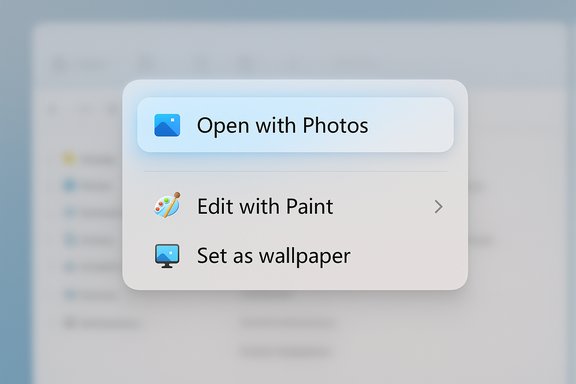
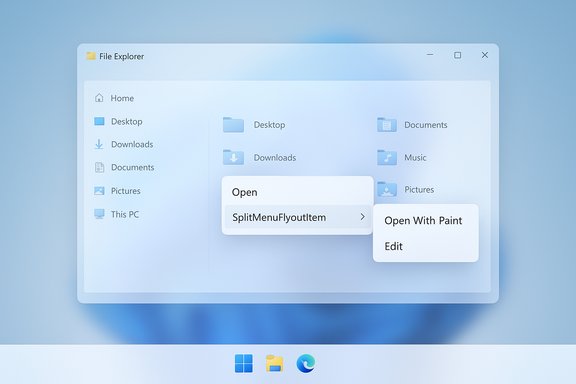
During the WinUI Community Call, Microsoft’s WinUI team demonstrated examples of a split context menu in action: a single menu entry like “Open with Photos” that behaves as a hybrid control — clicking the left side executes the default action, while a small chevron on the right opens a compact side flyout with related actions (such as “Open with Paint,” “Edit,” or other apps). The control is being shown as part of the WinUI/Windows App SDK ecosystem so developers can adopt it inside their apps. Important clarifications from the preview material:- The change is presented as a WinUI control aimed at developers, not a system‑wide shell replacement guaranteed to appear in File Explorer immediately.
- The control’s interaction model is a familiar split‑button pattern adapted for context menus: left = execute, right = expand secondary items.
How the SplitMenuFlyoutItem control works
Interaction model (user side)
- Left area: executes the primary action immediately (e.g., open file in primary app).
- Right area (chevron): expands a compact secondary flyout with related commands and alternate apps (e.g., “Open with > Paint, Editor, …”).
- Overflow: legacy or less relevant verbs can be relegated to a "Show more options" overflow to preserve discoverability without cluttering the primary list.
Developer surface (how apps implement it)
- The control is exposed via WinUI and distributed through the Windows App SDK preview packages, enabling developers to:
- declare a default/primary command,
- populate the secondary flyout with grouped related actions,
- provide context‑aware behavior (different secondary items by file type).
Technical benefit
- Moving menu composition to WinUI/WinRT enables modern, out‑of‑process registration and asynchronous enumeration of items, which can reduce the fragility and performance issues associated with in‑process COM shell extensions. This is an explicit design goal behind the modern control model.
Why this matters: benefits for users and developers
- Reduced vertical clutter. The split model compresses multiple similar entries into a single, denser row, shortening menus and reducing mouse travel.
- Contextual relevance. Developers (or the shell) can promote the most relevant action for the filetype, keeping the surface focused.
- Faster common tasks. Frequently used commands are one click away; secondary or advanced actions are tucked into a predictable place.
- Cleaner developer model. WinUI provides a formal API for grouping related actions instead of relying on ad‑hoc COM hooks, which helps standardize behavior across apps.
Critical analysis: limitations and risks
The split context menu is a sensible and pragmatic approach, but it is not a silver bullet. The path to a clean experience faces several non‑trivial hurdles:1) Legacy compatibility
The Windows shell still relies heavily on COM interfaces (IContextMenu, IContextMenu2, IContextMenu3) that allow third‑party code to inject menu items at render time. Those entries run in‑process with Explorer and do not automatically map to the new WinUI registration model. Without a robust compatibility layer or migration path, many legacy utilities risk being pushed behind the overflow or hidden entirely from the primary menu. This could break workflows for power users and enterprises that depend on those verbs.2) Developer adoption lag
Smaller vendors and open‑source tools may not prioritize migrating to WinUI/Windows App SDK packages, particularly if they target older Windows versions. That will prolong a mixed experience where some apps adopt split entries and others remain in the overflow.3) Discoverability and accidental actions
A split row introduces two distinct interaction targets. Users accustomed to clicking anywhere on a row to get a submenu may accidentally trigger the primary action, and vice versa. There’s real potential for a brief learning curve or mistakes until the behavior becomes familiar. Clear affordances and persistent settings (pinning a secondary item to the primary slot) would help mitigate this.4) Performance pitfalls
If the secondary flyout must synchronously enumerate many providers (for example, dozens of registered apps or cloud providers), the secondary menu could be slow to open, negating some benefits. The control needs asynchronous patterns and caching guidance to avoid introducing latency.5) Accessibility compliance
Hybrid split controls must be keyboard navigable, screen‑reader friendly, and predictable in focus order. If accessibility is under‑specified, the redesign could reduce usability for assistive technology users. Microsoft and third‑party developers must prioritize solid Automation and focus semantics for both the primary and secondary targets.Enterprise, privacy, and policy considerations
- Enterprise control: Administrators will require Group Policy or MDM controls to manage which actions appear by default, especially to hide cloud or AI actions that could send file metadata or contents off‑box. Early previews have not yet documented the enterprise management surface for the split menu, so IT teams should monitor preview release notes closely.
- Privacy/telemetry: Promotion logic that favors frequently used apps may rely on local telemetry. Enterprises and privacy‑conscious users will want clarity on whether that promotion promotes cloud actions or Copilot features by default. Policies to suppress cloud‑bound actions should be available.
- Compatibility testing: Organizations that rely on custom shell integrations (backup agents, security tools, VCS clients, compression utilities) must test those workflows on preview SDKs and Insider builds once available. Vendors should be contacted to confirm their migration plans.
How Microsoft can (and should) manage migration
A smooth transition requires a multi‑pronged approach:- Publish clear migration guides and samples in the Windows App SDK and WinUI Gallery that show how to:
- map legacy COM verbs to SplitMenuFlyoutItem,
- implement asynchronous enumeration,
- set accessibility properties for split controls.
- Provide a compatibility shim that can translate common legacy patterns into the split model rather than silently hiding items behind “Show more options.”
- Expose enterprise policies to manage promoted/default verbs and to disable cloud/AI actions by default.
- Ship WinUI Gallery samples demonstrating correct focus, keyboard, and screen‑reader behavior to set accessibility expectations.
Timeline, availability, and verification
Current evidence indicates the split menu concept is present in developer previews and WinUI community demos; the control is being made available through the Windows App SDK preview channel for developers to experiment with. There is no confirmed general availability date for a system‑wide rollout in File Explorer, and the screenshots shown in the community call are representative examples, not a guaranteed final UX for the shell. Treat the specifics (exact control name, shipping plan for Explorer) as preview‑stage details that may change. Developers who want to prototype should:- install the latest Windows App SDK preview packages and inspect WinUI Gallery samples, and
- test behavior across assistive technologies and with any third‑party shell extensions their app integrates with.
- watch Insider channels for early File Explorer integrations,
- coordinate with vendors that supply shell extensions, and
- plan pilot rollouts before broad enterprise deployment.
Practical recommendations
- For everyday users: expect reduced clutter if Microsoft and app developers adopt the pattern, but keep in mind that legacy items may remain in the overflow for some time. If a required tool disappears from the default menu, use “Show more options” or consult vendor documentation.
- For developers: start experimenting now with the Windows App SDK preview and adapt your context‑menu registrations to the SplitMenuFlyoutItem pattern. Prioritize keyboard navigation and screen‑reader semantics in your design.
- For IT admins: inventory mission‑critical shell extensions and test them against preview SDKs; demand vendor compatibility plans and watch for Group Policy controls that manage promoted verbs and AI actions.
The bigger picture: a sensible direction, not a finished product
The split context menu proposal addresses a long‑standing, structural problem: menus grew because the platform allowed disparate parties to append items with little common taxonomy. By offering a modern control and a developer‑driven model, Microsoft is shifting the responsibility for organization back to app teams, while giving the shell an opportunity to display a cleaner surface. If executed carefully — with a solid compatibility shim, clear migration guides, enterprise controls, and thorough accessibility testing — the split menu could be one of the quiet, high‑impact usability wins for Windows 11. But the devil is in the details: migration friction, developer inertia, discoverability tradeoffs, and performance edge cases must be handled explicitly. Microsoft’s next moves — publishing authoritative docs, releasing stable SDK samples, and surfacing a transparent rollout plan — will determine whether this remains a promising demo or becomes a practical improvement in everyday Windows workflows.Conclusion
Microsoft’s WinUI‑led approach to split context menus represents a pragmatic, developer‑centric response to the long‑running problem of cluttered, inconsistent right‑click menus in Windows. The proposed SplitMenuFlyoutItem control offers a clear interaction model (primary left action + compact secondary flyout) that can reduce vertical clutter, improve relevance, and enable modern registration patterns that are safer and more maintainable than legacy COM extensions. This is a meaningful technical direction and — if Microsoft couples it with compatibility tooling, enterprise policy controls, and rigorous accessibility standards — it could materially improve File Explorer and app context menus. For now, the work lives in previews and community demos; the final user experience depends on developer adoption and how Microsoft handles the migration story. The coming months of WinUI preview releases and Insider builds will be the place to verify how this idea matures into a shipped feature.Source: Neowin Microsoft is fixing cluttered context menus in Windows 11 apps