

Microsoft's WinUI team has quietly handed developers the first real tool to address one of Windows 11’s most persistent annoyances: the bloated, hard-to-scan right‑click context menu—by prototyping a split, hybrid menu control that groups related actions under a single, smarter line item.
Since Windows 11 launched, the context (right‑click) menu has been a poster child for design tradeoffs between minimalism and productivity. The OS introduced a trimmed, icon‑rich top layer and relegated older, legacy entries behind a “Show more options” overflow. That choice cleaned up the visual surface for casual users but created a two‑step workflow for anyone who relied on the classic, one‑tap access to advanced commands.
Power users responded with registry tweaks, third‑party utilities, and long how‑to threads—clear signals that the new design sacrificed efficiency for aesthetics. Meanwhile, the menu continued to balloon as apps, cloud integrations, and AI features added new verbs, creating both duplication and noise. The problem became not simply “too many items” but a lack of structure: entries were mixed, duplicated, and often irrelevant to the selected file or context.
Across the developer and IT communities, the call for a programmable, structured menu model grew louder. Microsoft’s response, presented during a WinUI Community Call in early November, is a developer‑first control that aims to bring structure back to context menus without reversing the visual simplification.
Practical example:
The new split model is WinUI‑centric, which means:
However, the success of this approach hinges on Microsoft’s ability to shepherd the larger ecosystem, particularly legacy shell extension authors and enterprise tooling vendors. Without a clear and supported migration path for COM‑based extensions, the shiniest WinUI control will not by itself resolve the core cause of context‑menu clutter.
The control is a meaningful step forward: it gives app teams a standard, testable way to reduce menu noise while keeping important actions within reach. But it is, for now, an enabling technology rather than an immediate cure for the everyday Windows 11 File Explorer experience. Expect a multi‑year transition: incremental adopter wins inside modern apps first, followed by gradual shell integration only after Microsoft addresses compatibility, accessibility, and enterprise policy needs.
The control’s potential is clear—cleaner menus, faster primary actions, and a standard approach for app makers—but the path to a truly decluttered, system‑wide experience requires Microsoft to bridge legacy compatibility, support enterprise controls, and shepherd adoption across the ecosystem. For now, the ball is in the developer community’s court: early adoption, rigorous accessibility testing, and vendor coordination will determine whether the split menu becomes a quiet UX revolution or another promising demo that never fully arrives in File Explorer.
Source: WinBuzzer Microsoft Tackles Windows 11’s Cluttered Context Menus With New Developer Tool - WinBuzzer
 Background
Since Windows 11 launched, the context (right‑click) menu has been a poster child for design tradeoffs between minimalism and productivity. The OS introduced a trimmed, icon‑rich top layer and relegated older, legacy entries behind a “Show more options” overflow. That choice cleaned up the visual surface for casual users but created a two‑step workflow for anyone who relied on the classic, one‑tap access to advanced commands.Power users responded with registry tweaks, third‑party utilities, and long how‑to threads—clear signals that the new design sacrificed efficiency for aesthetics. Meanwhile, the menu continued to balloon as apps, cloud integrations, and AI features added new verbs, creating both duplication and noise. The problem became not simply “too many items” but a lack of structure: entries were mixed, duplicated, and often irrelevant to the selected file or context.
Across the developer and IT communities, the call for a programmable, structured menu model grew louder. Microsoft’s response, presented during a WinUI Community Call in early November, is a developer‑first control that aims to bring structure back to context menus without reversing the visual simplification.
Overview of Microsoft’s Proposal
What Microsoft showed
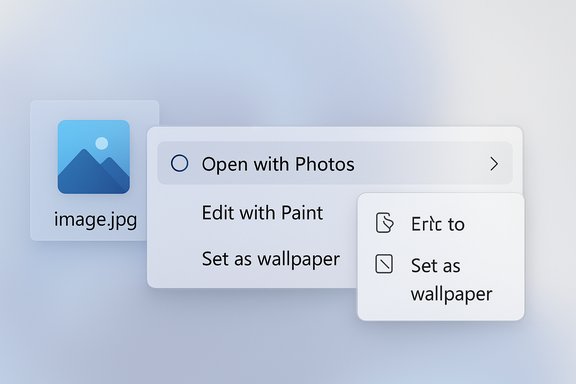
Microsoft introduced a WinUI control—referenced in preview materials as SplitMenuFlyoutItem—that implements a split menu or hybrid submenu pattern. The idea borrows from the well‑known split button UI: a single menu row exposes a primary action on the left and a compact, related secondary list on the right via a small chevron or split affordance.Practical example:
- Instead of separate entries for “Open with Photos,” “Edit with Photos,” and “Set as wallpaper,” the menu would show one row—Open with Photos—where:
- Clicking the left side executes the default “Open” action immediately.
- Clicking or hovering the small chevron on the right opens a side flyout with related verbs (Edit with Paint, Set as wallpaper, Open with other apps).
Where the control will appear first
The control is currently being distributed through the Windows App SDK experimental/preview channel (the Windows App SDK 2.0 experimental branch). That means it is available for developers to test and prototype in WinUI 3 applications, but it is not yet a system‑level replacement in the Explorer shell. Experimental APIs are explicitly flagged as such: they may change, carry build‑time warnings, and are not supported for production publishing.Why this matters
- For end users, a well‑implemented split menu can dramatically reduce pointer travel, cognitive load, and menu height. It restores a single‑click primary action while preserving discoverability for secondary tasks.
- For developers and ISVs, a native WinUI control replaces ad‑hoc, inconsistent implementations and encourages a consistent interaction model across apps.
- For the Windows ecosystem, a standardized control enables Microsoft to shepherd a gradual migration path away from chaotic shell‑injection patterns toward a structured, context‑aware model.
Technical deep dive: how SplitMenuFlyoutItem fits into the ecosystem
The WinUI control model
WinUI’s menu system already supports MenuFlyoutItem and MenuFlyoutSubItem constructs. The proposed SplitMenuFlyoutItem extends that surface by combining a primary action and an inline, compact flyout into a single control. The control is expected to provide:- APIs to define a primary command and an ordered set of secondary commands.
- Accessibility hooks for assistive technologies (aria/automation properties).
- Keyboard navigation semantics for left/right activation, expand/collapse, and focus movement.
- Templates and styling options consistent with WinUI design language.
Compatibility with legacy shell extensions
This is the trickiest technical aspect. Traditional Windows shell verbs are injected by third‑party shell extensions that implement COM interfaces such as IContextMenu, IContextMenu2, and IContextMenu3. Those extensions run in‑process with Explorer and can add items dynamically at menu render time.The new split model is WinUI‑centric, which means:
- Native Explorer integration will require Microsoft to either map legacy COM verbs into the split model automatically or provide a compatibility shim that preserves items but reorders them into the split layout.
- Without an explicit migration path, legacy extensions may remain visible only in the overflow “Show more options” list, undermining the primary goal of decluttering.
- Enterprise tools and antivirus/backup utilities that rely on shell extensions may need to update installers and registration logic to expose verbs via the Windows App SDK model or a new registration API.
Accessibility, keyboard, and input modalities
Any successful menu redesign must handle multiple interaction modes:- Keyboard users expect single‑key activation, arrow navigation, and a consistent focus model.
- Screen‑reader users require clear announcements for split affordances (e.g., “Open with Photos, expanded menu”).
- Touch and pen users must be able to reliably access the secondary flyout without accidental activation.
Performance and reliability considerations
Because many shell extensions run in Explorer’s process space, keeping as much menu logic as possible out of Process Explorer (i.e., in app processes or via a safe enumeration API) improves reliability. Moving to a WinUI control could encourage safer, out‑of‑process patterns, but Microsoft must carefully design interoperability so that:- Menu item enumeration remains fast—no perceptible lag when right‑clicking folders containing many shell‑registered verbs.
- Crash containment is improved—third‑party failures should not take Explorer down or freeze the menu.
Strengths and benefits
- Cleaner top‑level menus: The split model directly targets vertical menu height and duplication, producing a shorter, easier‑to‑scan list.
- Primary action kept first: Users can still perform the most common task with a single click—no penalty to productivity.
- Encourages consistent app behavior: A native WinUI control removes incentives for each app to implement its own nonstandard split behavior.
- Scalable as features grow: As AI features, cloud actions, and integrations proliferate, a structured grouping model curbs menu bloat.
- Developer control over grouping: App teams can define context‑sensitive secondary items and tune the primary default, improving relevance.
Key risks and limitations
- Legacy compatibility is unresolved: The majority of problematic menu entries today come from legacy shell extensions. Unless Microsoft ships a robust mapping or migration plan, many third‑party verbs will remain in overflow and the root cause will persist.
- Developer adoption lag: Smaller vendors and long‑tail utilities may not migrate to WinUI/Windows App SDK quickly, leading to a mixed, inconsistent menu experience for months or years.
- Discoverability tradeoffs: Grouping is powerful, but if done poorly it can hide seldom‑used but critical commands. Designers must balance decluttering with discoverability and surface the right defaults.
- Accessibility regressions risk: A split affordance is an added complexity for screen‑reader and keyboard users if not implemented with rigorous guidance.
- Enterprise policy and compliance: Enterprises often use group policy to expose or hide specific verbs. Microsoft must expose new policy controls to manage promoted defaults and to opt out of AI/cloud entries.
- No guaranteed timeline for Explorer integration: The preview control lives in the Windows App SDK experimental channel; it is not yet a guaranteed, system‑wide change in File Explorer.
What remains unverified or tentative
- The control name and API shape are based on preview/demonstration materials; Microsoft has historically adjusted API names and semantics between preview and general availability.
- There is no confirmed public timeline for a stable release or for automatic adoption into the Windows shell (Explorer). Early demos and screenshots are proof‑of‑concept, not a shipping commitment.
- Slide‑deck percentage improvements (menu height reductions) are illustrative and will vary by configuration; those numbers should be treated as indicative, not guaranteed.
Practical guidance
For developers (recommended first steps)
- Install the Windows App SDK experimental/preview packages and inspect the WinUI Gallery samples for the split menu control.
- Prototype SplitMenuFlyoutItem in non‑production builds to verify keyboard, touch, and screen‑reader behavior.
- Map your app’s existing menu verbs to the primary/secondary model—decide which action should be the default.
- Test with common shell extensions and installers to see how third‑party verbs interact with your app’s context menus.
- Provide telemetry or optional opt‑in UX tests so you can monitor whether the new grouping improves discoverability and task completion.
For IT administrators and enterprise teams
- Monitor the Windows App SDK preview channel and Insider builds for Explorer experiments that demonstrate system‑wide adoption.
- Coordinate with vendors that supply shell extensions (backup tools, antivirus, file managers) to plan updates or migration guidance.
- Prepare Group Policy/MDM templates to manage promoted verbs and to disable or control cloud/AI menu entries where needed.
- Pilot the change with a representative user group before broad rollouts to prevent workflow disruption.
For power users
- Expect incremental improvements: you may see split menus first inside WinUI 3 apps that adopt the control.
- Current workarounds (restoring the classic menu via registry edits or third‑party tools) will still work until Microsoft announces a stable transition.
- Track Insider releases if you want early hands‑on with Explorer‑level changes as they arrive.
A roadmap that Microsoft should follow
- Publish a clear compatibility/migration plan for legacy shell extensions, including:
- A shim or translation layer that maps IContextMenu injections into the split model.
- A modern registration API for installers to declare primary and secondary verbs without editing the shell’s registry in fragile ways.
- Ship WinUI Gallery samples and migration guides that demonstrate:
- Proper keyboard focus and accelerator semantics for split items.
- Screen‑reader friendly labels and patterns.
- Performance best practices for enumerating large numbers of app verbs.
- Provide enterprise controls (Group Policy/MDM) for:
- Locking default primary verbs.
- Hiding/allowing specific third‑party verbs.
- Controlling AI/cloud integrations and telemetry.
- Offer tooling to help third‑party vendors adopt the new registration method (e.g., PowerShell modules, Visual Studio templates).
Verdict: a promising middle path, but not a silver bullet
The SplitMenuFlyoutItem concept is an elegant, pragmatic attempt to reconcile two conflicting user needs: a clean, modern top‑level menu and fast access to legacy or less‑frequent actions. As a developer‑first control in the Windows App SDK experimental channel, it’s exactly the kind of enabling technology that can produce consistent, high‑quality UX across applications—if developers adopt it.However, the success of this approach hinges on Microsoft’s ability to shepherd the larger ecosystem, particularly legacy shell extension authors and enterprise tooling vendors. Without a clear and supported migration path for COM‑based extensions, the shiniest WinUI control will not by itself resolve the core cause of context‑menu clutter.
The control is a meaningful step forward: it gives app teams a standard, testable way to reduce menu noise while keeping important actions within reach. But it is, for now, an enabling technology rather than an immediate cure for the everyday Windows 11 File Explorer experience. Expect a multi‑year transition: incremental adopter wins inside modern apps first, followed by gradual shell integration only after Microsoft addresses compatibility, accessibility, and enterprise policy needs.
Conclusion
Microsoft’s split menu prototype acknowledges a long‑standing UX failure and offers a sensible, modern control that could restore structure to Windows 11’s chaotic context menus. Delivered via the Windows App SDK experimental channel, SplitMenuFlyoutItem gives developers the first practical way to group related actions and keep default behavior one click away.The control’s potential is clear—cleaner menus, faster primary actions, and a standard approach for app makers—but the path to a truly decluttered, system‑wide experience requires Microsoft to bridge legacy compatibility, support enterprise controls, and shepherd adoption across the ecosystem. For now, the ball is in the developer community’s court: early adoption, rigorous accessibility testing, and vendor coordination will determine whether the split menu becomes a quiet UX revolution or another promising demo that never fully arrives in File Explorer.
Source: WinBuzzer Microsoft Tackles Windows 11’s Cluttered Context Menus With New Developer Tool - WinBuzzer
