

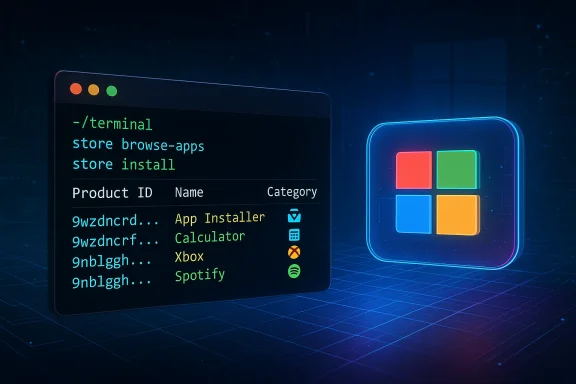
Microsoft has quietly given the Microsoft Store a power-user face-lift: a native command-line interface (Store CLI) that lets you browse, install, and update Store apps directly from a terminal without firing up the graphical Store app. Released in February 2026, the Store CLI is aimed at developers, administrators, and command-line enthusiasts who want scriptable, repeatable management of Store-based apps — and it arrives at a moment when Microsoft is pushing to make the Store both more developer-friendly and more automation-ready.
The Microsoft Store has gone through several iterations over the past few years as Microsoft balanced the needs of consumers, enterprise IT, and independent developers. Historically, Store access on Windows has been GUI-first, with command-line alternatives limited to two paths: the broader Windows Package Manager (winget) and developer-focused tools for publishing (msstore dev tools). The new Store CLI fills a gap between those ecosystems by offering a terminal-native interface that speaks the Store’s catalog semantics directly.
Microsoft describes the Store CLI as designed for devices where the Microsoft Store is enabled. Its core gifts are straightforward:
For Microsoft, this is an incremental but strategically coherent move: by improving discoverability and lowering friction for both developers and power users, the company nudges the Store toward a more developer-friendly future, while also acknowledging that many workflows today are automation-first.
Adoption will hinge on a handful of follow-ups: clearer documentation for paid and managed installs, richer enterprise integration, and expanded logging and output options. Organizations and developers who try the Store CLI now will gain immediate productivity wins in their scripts and test workflows, but enterprises should treat it as an early-stage tool: promising, useful, and worth integrating carefully rather than blindly.
The Store CLI is not just another command — it’s a signal that the Microsoft Store is evolving to meet modern workflows. For administrators, developers, and power users who live in the terminal, that change will be welcomed — provided Microsoft follows through on the enterprise and licensing clarifications that will make this CLI truly production-ready.
Source: Technobezz Microsoft Launches Command Line Interface for Its Windows App Store
 Background
The Microsoft Store has gone through several iterations over the past few years as Microsoft balanced the needs of consumers, enterprise IT, and independent developers. Historically, Store access on Windows has been GUI-first, with command-line alternatives limited to two paths: the broader Windows Package Manager (winget) and developer-focused tools for publishing (msstore dev tools). The new Store CLI fills a gap between those ecosystems by offering a terminal-native interface that speaks the Store’s catalog semantics directly.Microsoft describes the Store CLI as designed for devices where the Microsoft Store is enabled. Its core gifts are straightforward:
- Discover apps via curated lists, categories, searches and filters.
- Install apps by product ID with a single command.
- Update individual apps or scan and apply updates to installed Store apps from the terminal.
store browse-apps, store install <product-id>, and store update <product-id> — that mirrors common Store UI activities while providing output formatted for scripts and terminals.What the Store CLI actually does (today)
The initial rollout focuses on a pragmatic set of functions that support discovery and lifecycle management of Store apps from a CLI context. Features you’ll see when you try it:store browse-appsand category-focused browsing commands. Use filters for category, subcategory, listing type (top-free, top-paid, new releases), market, and language to surface curated lists in CLI-friendly tables.store searchandstore show <product-id>to find apps and inspect product metadata (publisher, product ID, pricing metadata where applicable).store install <product-id>to initiate installation of a Store app directly from the terminal. The command invokes the Store client’s install pipeline without launching the full GUI.store update <product-id>andstore updatesto update specific apps or to scan and apply updates across installed Store apps.- Inventory / reporting helpers:
store installedlists installed Store apps;store similarhelps discover alternatives; publisher-scoped listing commands let you enumerate apps by publisher. - Output formatted for text terminals: table columns, colorized lines in supporting terminals, and machine-friendly fields for scripting.
How Store CLI fits into Microsoft’s tooling landscape
Microsoft already maintains multiple CLIs that touch the Store and app lifecycle:- WinGet (Windows Package Manager) — A flexible, open-source package manager that can install a wide variety of packages, including some that mirror Store apps. WinGet is focused on desktop app distribution across many sources and is popular with sysadmins and devs for provisioning systems.
- msstore (Developer CLI / publishing tools) — A CLI for developers to publish and manage app listings and perform Partner Center tasks, intended for CI/CD workflows and developer-side publishing.
- winapp CLI and other developer-focused tooling — Newer CLIs to simplify app packaging, MSIX generation, and other packaging steps for developers.
- Use Store CLI when you want to interact with the canonical Store catalog and its listings, including the Store’s metadata and curated lists.
- Use WinGet when you want multi-source installs, package manifests not tied to the Store, or broader package management for non-Store software.
- Use msstore and other developer CLIs for publishing, CI/CD, and developer-focused workflows that manage app submissions or Partner Center operations.
Who benefits most
- Developers and power users who prefer the terminal and want a compact way to find, install, and update Store apps without context switching into a GUI.
- Sysadmins and automation engineers who need to script Store app deployments for lab setups, developer workstations, or smaller fleets where Store apps are permitted.
- DevOps and CI/CD pipelines where scripted Store installs are part of test environments or automated validation (though enterprise licensing and purchase workflows require verification — see Limitations).
- Scripting enthusiasts who want Store-specific metadata (product IDs, publisher info, curated lists) exposed in terminal output for downstream processing.
Example usage patterns
- Discover top utility apps in a market:
store browse-apps --category Utilities --listing top-free --market en-US- Search for a productivity app and inspect details:
store search "notes" --market en-USstore show 9NBLGGH4XXXXX(sample product ID formats are returned by search)- Install a product by its Store product ID:
store install 9NBLGGH4XXXXX- Update a specific installed app:
store update 9NBLGGH4XXXXX- Check and update all installed Store apps:
store updatesstore installed | xargs -n1 store update(example pipeline — adapt to your shell)
--help flag (store --help) is the first stop for syntax and option details.Strengths and immediate wins
- Scriptable discovery and installs. The Store CLI makes common Store tasks automatable, which opens efficient workflows for image creation, lab automation, and developer environment provisioning.
- Store-native catalog semantics. Because it speaks the Store directly, you get canonical product IDs and metadata that other package managers do not always expose.
- Bridges GUI and terminal worlds. For many power users, the Store CLI reduces friction by avoiding the Store’s GUI, while still relying on the Store’s installation pipeline for app integrity and licensing.
- Developer-focused momentum. The CLI launch is part of a broader effort to lower friction for developers — from improved Partner Center analytics to new packaging CLIs — which could translate to a healthier Store ecosystem over time.
Limitations and cautionary notes
- Requires the Microsoft Store to be enabled. The Store CLI only operates on devices where the Microsoft Store is present and enabled. If your organization disables the Store via policy, the CLI will not work.
- Purchase and licensing workflows are unclear in early documentation. It is not yet fully documented how the CLI handles paid apps, in-app purchases, or per-user licensing without interactive user sign-in. Expect interactive or account-bound flows for paid content; test carefully before relying on the CLI for paid-app provisioning at scale.
- Not a wholesale replacement for winget. WinGet still covers a broader universe of software sources and is better suited to non-Store packages, enterprise manifests, or cross-source provisioning.
- Enterprise workflows and MDM integration vary. If your organization uses MDM, managed distribution, or private Store catalogs, validate how the Store CLI interacts with managed app assignments and enterprise store policies.
- Progress feedback in early versions is limited. Some early hands-on reports indicate that terminal feedback during installs can be minimal compared to GUI progress bars — which can make unattended installs feel opaque unless additional logging is available.
Security, governance, and supply-chain considerations
The Store has a vetting model that mitigates many risks common in third-party distribution. However, the CLI introduces new operational patterns that change threat models:- Scripting increases attack surface for automation flaws. Scripts that run
store installwithout validation can become vectors for accidental installs of wrong packages. Always incorporate checksums, product ID verification, or allowlists in automation. - Credential handling and account boundaries. If paid content or subscriptions require interactive sign-in, avoid embedding credentials in scripts. Prefer approved enterprise distribution models and service principals where supported.
- Enterprise policy enforcement. Organizations that want to restrict Store app installs must maintain policy controls (Group Policy, MDM) because the CLI respects the same Store enablement state as the GUI. If your policy is “Store disabled,” the CLI will not circumvent that.
- Auditability. Ensure installs run with logging enabled and integrate CLI logs into your audit pipeline. A lack of GUI can make it easier to miss who installed what unless you have centralized logging or management tooling.
- Supply-chain trust. The Store reduces the risk of malicious installers, but no vetting process is perfect. Use the CLI in conjunction with endpoint protection and application allowlists.
Enterprise adoption: opportunities and hurdles
Opportunities:- Use the CLI to preset developer workstations with Store apps required for productivity or dev tooling.
- Automate test-lab provisioning where Store apps are part of test suites or QA scenarios.
- Combine
storecommands with PowerShell or CI pipelines to prepare environments reproducibly.
- Enterprises that block the Store by policy will need to change governance to leverage the CLI.
- Paid-app distribution remains complex until Microsoft documents clear licensing flows for headless installs.
- Device management solutions must be updated to interpret and report installs performed by the Store CLI for true visibility.
- Test the CLI in an isolated lab to observe account, licensing, and update behaviors for your typical app set.
- Build allowlists around product IDs rather than free-text names to avoid accidental installs.
- Instrument any automation with logging and failure handling to maintain audit trails.
Developer impact and the Store ecosystem
For developers, the Store CLI is a small but meaningful signal: Microsoft is investing in making the Store more script-friendly and accessible across non-GUI workflows. That helps:- Lower friction for testing installs and update behavior in continuous integration environments.
- Expose Store metadata programmatically so third-party analytics or reporting tools can more cleanly reference canonical product IDs and curated lists.
- Encourage developers to think about Store discovery and install flows that integrate with automation-first environments.
Practical guidance: how to get started (step-by-step)
- Open a terminal (PowerShell, Windows Terminal, or Command Prompt) on a Windows device with the Microsoft Store enabled.
- Run
store --helpto confirm the CLI is present and to list available commands and options. - Try a discovery command:
store browse-apps --category Productivity --listing top-free --market en-US- Observe the returned product IDs and metadata.
- Test an install on a non-critical machine:
store install <product-id>(replace<product-id>with an ID returned by browse or search)- Note the terminal output; verify the app appears in Start and launches successfully.
- Test update behavior:
store update <product-id>- Or check full-scan behavior:
store updates - Incorporate into a script cautiously:
- Add checks: confirm the product ID matches expected metadata via
store show <product-id>before invokingstore install. - Capture output and errors to a log file for audit.
What’s missing or needs watching
- License and purchase automation. The earliest docs and announcements don’t fully clarify how purchases, paid app licensing, and subscription flows work in headless or scripted installs. This will be critical for enterprises and automation scenarios; expect Microsoft to publish clarifications or expand capabilities over time.
- Offline and enterprise distribution features. WinGet offered enterprise-friendly offline download features. If Microsoft wants the Store CLI to fully support enterprise distribution and air-gapped networks, additional capabilities for offline package retrieval and signed artifact caching will be necessary.
- Telemetry and logging primitives. For the CLI to be enterprise-ready, admins will want robust logging, exit codes, and possibly structured JSON output for machine parsing. Early reports suggest the output is CLI-friendly, but enterprises should test the level of detail available for diagnostics.
- MDM and Partner Center integration. Deeper alignment with Partner Center’s app assignments, managed distribution and policy-based installs is a logical next step — and something enterprises will be watching closely.
Risk / Reward: How to weigh adoption
Reward:- Faster, scriptable workflows for Store app management.
- Easier environment provisioning for devs and testers.
- Better alignment with automation-first practices Microsoft is promoting across its platform.
- Unclear behaviors around paid apps and enterprise licensing.
- Potential for gaps in enterprise visibility and compliance if logging is inadequate.
- Organizational policy friction where the Store is intentionally disabled.
Final analysis: a pragmatic but important step
The Store CLI isn’t a flashy, ground-up reimagining of app distribution — nor does it attempt to replace established tools like WinGet or the msstore developer CLI. Instead, it’s a pragmatic tool that fills a specific set of use-cases: easy, scriptable, Store-native discovery and lifecycle management from the terminal. That simplicity is its strength.For Microsoft, this is an incremental but strategically coherent move: by improving discoverability and lowering friction for both developers and power users, the company nudges the Store toward a more developer-friendly future, while also acknowledging that many workflows today are automation-first.
Adoption will hinge on a handful of follow-ups: clearer documentation for paid and managed installs, richer enterprise integration, and expanded logging and output options. Organizations and developers who try the Store CLI now will gain immediate productivity wins in their scripts and test workflows, but enterprises should treat it as an early-stage tool: promising, useful, and worth integrating carefully rather than blindly.
The Store CLI is not just another command — it’s a signal that the Microsoft Store is evolving to meet modern workflows. For administrators, developers, and power users who live in the terminal, that change will be welcomed — provided Microsoft follows through on the enterprise and licensing clarifications that will make this CLI truly production-ready.
Source: Technobezz Microsoft Launches Command Line Interface for Its Windows App Store
