

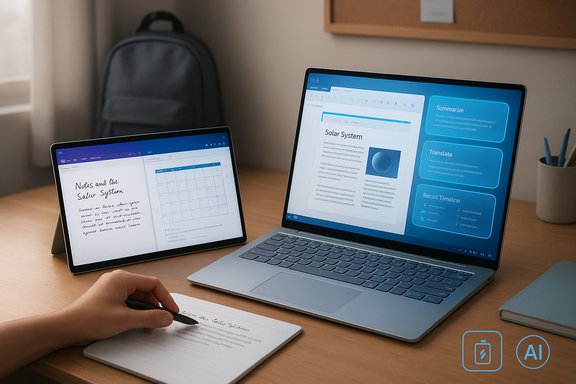
Microsoft has positioned the Surface family — now billed as Surface Copilot+ PCs — squarely at the center of a new student productivity play, promising lightweight hardware, long battery life, pen-first note taking, and one-touch access to on-device AI that can summarize, translate, and organize classwork.
For students juggling lectures, labs, group projects, and part-time work, that promise is compelling: a single device that can capture ideas by hand, transcribe them by voice, summarize long readings with AI, and slot everything into a calendar or task list — all while lasting a full day away from a power outlet. This article distills the features Microsoft highlights for students, validates the technical claims that matter, and lays out practical study hacks, accessory recommendations, and the real-world risks to weigh before buying into the Copilot+ Surface ecosystem.
Surface’s latest marketing centers on two main ideas: hardware designed for portability and everyday student tasks, and integrated AI that’s always one keystroke or tap away. The core hardware models aimed at students are the Surface Laptop and Surface Pro, each available in modernized designs with new internal silicon options and features that Microsoft groups under the Copilot+ PC banner.
On the software side, Microsoft has pushed deeper Windows 11 and Microsoft 365 integrations — features like a dedicated Copilot key to launch the AI assistant, local AI-powered capabilities that assist with summaries, translations, and recall (a searchable snapshot history), plus familiar productivity tools such as OneNote, Word, and Outlook with improved dictation and Copilot-assisted workflows. These capabilities are designed to help students save time on repetitive tasks and spend more time studying and creating.
At the same time, the real-world value depends on honest assessment: battery claims versus your daily routine, AI outputs versus scholarly standards, and hardware choices versus the software you actually need. For students considering Surface as a campus companion, the smartest approach is a short proof-of-concept: test your essential apps, experiment with Copilot workflows on trial or demo units, and configure privacy settings intentionally. When matched to the right major and used with informed expectations, Surface Copilot+ PCs can be powerful study tools — but they’re not a universal silver bullet, and students should weigh compatibility, privacy, and cost against the promises on the box.
Source: Microsoft Surface study hacks and organization tools | Microsoft Surface
For students juggling lectures, labs, group projects, and part-time work, that promise is compelling: a single device that can capture ideas by hand, transcribe them by voice, summarize long readings with AI, and slot everything into a calendar or task list — all while lasting a full day away from a power outlet. This article distills the features Microsoft highlights for students, validates the technical claims that matter, and lays out practical study hacks, accessory recommendations, and the real-world risks to weigh before buying into the Copilot+ Surface ecosystem.
 Background / Overview
Surface’s latest marketing centers on two main ideas: hardware designed for portability and everyday student tasks, and integrated AI that’s always one keystroke or tap away. The core hardware models aimed at students are the Surface Laptop and Surface Pro, each available in modernized designs with new internal silicon options and features that Microsoft groups under the Copilot+ PC banner.On the software side, Microsoft has pushed deeper Windows 11 and Microsoft 365 integrations — features like a dedicated Copilot key to launch the AI assistant, local AI-powered capabilities that assist with summaries, translations, and recall (a searchable snapshot history), plus familiar productivity tools such as OneNote, Word, and Outlook with improved dictation and Copilot-assisted workflows. These capabilities are designed to help students save time on repetitive tasks and spend more time studying and creating.
Why Microsoft Surface is pitched as ideal for students
Microsoft’s messaging for students focuses on three pillars: portability, productivity, and AI assistance. Each pillar aims to map directly to common student pain points.- Lightweight and portable: Surface devices are built to be carried between lecture halls, libraries, and study cafés without feeling like a burden. Many models weigh under four pounds and are slim enough to slide into a backpack pocket.
- Long battery life: Microsoft’s media-playback tests report up to 20–22 hours of local video playback on some Surface Laptop sizes under tightly controlled conditions, which the company uses to support “full day use” claims. Real-world battery life varies with brightness, wireless use, and workload, but these devices are engineered to be among the longer-lasting thin-and-light Windows laptops.
- Pen and touch support: Surface devices remain among the best Windows choices for stylus-first note-taking, with styluses that support pressure sensitivity, tilt, and haptic feedback on compatible models — an advantage for math, diagrams, and design classes.
- Built-in AI: The Copilot ecosystem promises to reduce the time students spend reshaping content, summarizing readings, and translating materials — tasks that quickly add up across a semester.
Meet Surface Copilot+ PCs: Surface Laptop and Surface Pro
Surface Laptop: classic clamshell for long writing sessions
The Surface Laptop remains a solid choice for students who prioritize a premium typing experience and long battery life. Newer Copilot+ Laptop editions offer:- Thin bezels, bright touchscreens in 13.8" and 15" sizes.
- Up to multi-day battery endurance in light use and explicit long-playback test claims for video (20–22 hours in manufacturer testing conditions).
- A premium keyboard and large precision touchpad for sustained essay writing and research.
- Options for Qualcomm Snapdragon X-series or Intel Core Ultra silicon depending on configuration and market, which matter for app compatibility and performance.
Surface Pro: tablet flexibility plus laptop power
The Surface Pro continues to be the flexible 2-in-1: tablet-first for reading and sketching, attachable keyboard for typing, and optional Flex Keyboard accessories that add pen storage and a haptic touchpad. For students this means:- Detachable form factor for note-taking in lecture, reading in tablet mode, and full productivity when docked with a keyboard.
- Support for a Surface Slim Pen (latest generation) with tilt, pressure, and haptic feedback on compatible displays — useful for handwritten equations, diagrams, and annotation.
Study hacks and workflows that leverage Surface strengths
The combination of stylus input, Windows multitasking, and Copilot AI can change how students capture, process, and recall course material. Below are practical hacks and step-by-step workflows tailored to common student tasks.1. Lectures: capture, transcribe, and annotate
- Use the Surface Slim Pen and OneNote in Windows Ink mode to take handwritten notes during class; OneNote preserves ink, lets you search handwriting after conversion, and organizes notebooks by course.
- Enable voice typing or use the transcribe features in Word/OneNote to produce a verbatim or summarized transcript of the lecture for later review.
- After class, ask Copilot to summarize the transcript into a 1-paragraph overview, a 3-bullet study list, and a short practice quiz — then paste those into your course notebook.
2. Reading and research: speed up literature review
- Use split-screen Snap Layouts in Windows 11 to place a PDF or journal article on one side and OneNote or Word on the other.
- Highlight or annotate key passages with pen input, then ask Copilot to produce a concise summary or extract key citations and terms for your bibliography.
- Use Copilot’s translation features if you’re reading material in another language; full-slide and document translation capabilities extend across several Office apps.
3. Group projects: coordinate and iterate faster
- Start with a shared Copilot Pages, OneDrive, or Teams document and use Copilot to draft a project outline and roles.
- Use the Copilot key to quickly generate meeting agendas, summarize group chats or long email threads, and convert action items into Planner or To Do tasks.
- For deliverables, ask Copilot to rewrite or condense sections for clarity, or to create speaker notes for presentations.
4. Exam prep: focused, AI-guided revision
- Ask Copilot to convert class notes into spaced-repetition flashcards or practice questions.
- Use the Slim Pen to annotate flashcards with diagrams or mnemonic sketches.
- Record yourself answering practice questions and use Word/Teams transcription features to capture and refine the answers.
Key productivity features explained (and what to watch for)
Dedicated Copilot key
Many newer Surface models include a Copilot key on the keyboard for immediate AI access. This makes invoking the assistant one physical action away — useful in rapid workflows like “summarize this email” or “generate a 100-word summary of these notes.” It’s a convenience feature that lowers friction between thought and action.Split-screen multitasking and Snap Layouts
Windows 11’s Snap Layouts let students keep lecture video or slides on one side while taking notes in OneNote or composing in Word on the other. This reduces task-switching overhead and helps maintain context when studying.Handwritten note capture and ink-to-text
Surface devices support rich pen input with pressure sensitivity and tilt; OneNote and Word can convert handwriting to text and make handwriting searchable. For STEM students, ink is especially valuable for working through equations, diagrams, and problem-solving steps.Voice dictation and transcription
Windows voice typing and Microsoft 365’s dictation/transcribe features have matured into reliable tools for converting lectures or spoken thoughts into editable text. They’re not perfect — accents, room acoustics, and overlapping speech reduce accuracy — but they significantly speed up the transition from spoken idea to editable notes.Translate and summarize at scale
Copilot’s integration into Office apps includes the ability to translate documents and slides into dozens of languages and to summarize long documents. This can be a game-changer for multi-language scholarship and for condensing long readings into digestible study notes.Accessories and practical gear for students
- Surface Slim Pen (latest generation): best for handwritten notes, diagrams, and marking up PDFs. Haptic feedback and tilt/pressure support make it feel closer to pen-on-paper.
- Detachable or folio keyboards for Surface Pro: convert tablet mode to laptop mode quickly for essays and research.
- USB-C hubs or docks: useful for connecting external displays in dorm rooms or libraries.
- Protective sleeve and a small power bank: help extend portability for long campus days.
Battery life — what the numbers really mean
Microsoft’s quoted numbers (e.g., “up to 20–22 hours of local video playback”) come from controlled lab tests — typically looping video playback with fixed brightness and disabled adaptive features. Those numbers should be treated as maximum benchmarks, not everyday expectations.- Real-world factors that reduce battery life: screen brightness, Wi‑Fi/streaming, background syncing, and heavy AI workloads.
- Practical tip: enable power saver modes, lower brightness in large lecture halls, and disable nonessential background apps when you need a full day of battery.
Security, privacy, and “Recall” — the trade-offs
Microsoft has introduced on-device features that record and index activity — notably the “Recall” capability that creates searchable local snapshots of on-screen activity. For students, this can be a productivity boon: quickly pulling up a page you saw days ago or recovering an unsaved excerpt. But it raises important privacy questions.- Opt-in versus default: Microsoft states that such snapshot features are under user control, but setup flows and defaults can influence how many users actually enable them.
- Local storage and encryption: vendors emphasize local encryption and on-device processing, but encrypted local snapshots still increase the surface area if the device is compromised.
- Institutional contexts: college IT policies and managed devices might restrict or disable such features, particularly in enterprise or education-managed configurations.
ARM-based silicon and app compatibility: practical caveats
Many newer Copilot+ Surfaces ship with ARM-based silicon (Qualcomm Snapdragon X-series) which delivers excellent power efficiency and strong AI performance on supported workloads. However, ARM-based Windows introduces compatibility considerations:- Emulation vs native apps: Windows on Arm uses an emulation layer to run legacy x86/x64 programs. Emulation performance has improved, but heavy x64 professional applications (certain Adobe Creative Cloud apps, specialized engineering software, or games) may run slower or be blocked.
- Driver and peripheral support: some older peripherals or drivers may not have ARM64 equivalents; VPN clients and kernel-level drivers are common pain points.
- Practical buy advice: check that the essential apps you rely on (stat packages, lab software, engineering tools) have native ARM builds or perform acceptably under emulation before choosing an ARM-only configuration.
Cost, education pricing, and value questions
Surface devices are premium-priced relative to many basic student laptops, but they bundle unique value: touchscreen + pen input, premium keyboards, and AI features integrated into the OS. Microsoft typically offers education pricing and seasonal student discounts, and many institutions participate in bulk procurement programs; these avenues can materially reduce out-of-pocket cost for students.- Consider refurb or certified returns as budget alternatives — they often carry a warranty and are materially cheaper.
- Balance form-factor and required software: a midrange Surface that meets software compatibility needs and includes a pen can be more cost-effective than a top-spec model you don’t fully use.
Risks, limits, and where marketing overpromises
Microsoft’s student-oriented messaging highlights speed, AI convenience, and “all-day” battery life, but real-world users should be wary of several over-simplified or unverifiable claims:- “Full day use” is subjectively defined. Lab-tested video-playback numbers don’t directly translate to mixed-use student days that include web research, video calls, and heavy multitasking.
- AI assistance is extremely useful but not infallible. Copilot can generate summaries, draft outlines, and produce translations — but these outputs must be checked for accuracy, nuance, and possible hallucinations. For academic work, AI should assist human judgement, not replace it.
- Local AI features like Recall raise legitimate privacy concerns. Even when data is stored locally and encrypted, the mere presence of a continuous capture system requires careful configuration, particularly for sensitive coursework or regulated data.
- ARM app compatibility is improved, but not universal. Some specialized campus or departmental software may not run well on ARM devices, or may require workarounds.
Quick buying checklist for students
- Confirm required apps run well (native or acceptably under emulation) on the model you’re considering.
- Choose the form factor that matches your primary tasks: Surface Pro for note-taking and sketching; Surface Laptop for sustained typing and battery life.
- Prioritize RAM and storage if you work with large datasets, VMs, or media projects.
- Plan for accessories: pen, keyboard, and protective sleeve add practical value.
- Review privacy settings (Recall, transcription, cloud sync) during initial setup and enable device encryption.
Conclusion
Surface Copilot+ PCs represent a thoughtful blend of hardware and software that can genuinely speed many student workflows: quick summaries, fast transcription, touch-and-pen note capture, and convenient multitasking. For typical undergraduates and many graduate students, those features convert directly into less time spent on mechanical tasks and more time for learning and analysis.At the same time, the real-world value depends on honest assessment: battery claims versus your daily routine, AI outputs versus scholarly standards, and hardware choices versus the software you actually need. For students considering Surface as a campus companion, the smartest approach is a short proof-of-concept: test your essential apps, experiment with Copilot workflows on trial or demo units, and configure privacy settings intentionally. When matched to the right major and used with informed expectations, Surface Copilot+ PCs can be powerful study tools — but they’re not a universal silver bullet, and students should weigh compatibility, privacy, and cost against the promises on the box.
Source: Microsoft Surface study hacks and organization tools | Microsoft Surface
