

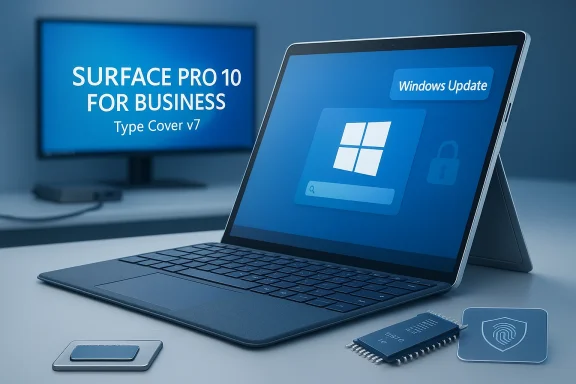
Microsoft has quietly shipped a targeted firmware and driver rollup for the Surface Pro 10 for Business, addressing a mix of security vulnerabilities and real‑world reliability issues that have frustrated users and IT teams — notably a fingerprint authentication bypass, keyboard non‑responsiveness after hibernation, screen flicker and stability problems with extended‑monitor setups, plus updated Type Cover firmware and Intel graphics components.
The Surface Pro 10 family sits squarely in the productivity‑first segment of Microsoft’s Surface line. The recent rollup is device‑specific and targeted at Surface Pro 10 for Business configurations running Windows 11, Version 23H2 or later. Microsoft’s update history entry for the model lists the December 3 release (documented as “December 3 release”) alongside the component names that will be staged to devices based on their configuration.
This update follows Microsoft’s pattern for Surface servicing: small, cumulative firmware/driver bundles that pair security mitigations with fixes for device interactions (accessories, docking, display pipelines). Because the payload low‑level drivers, the vendor explicitly treats rollout as staged and cautions that firmware delivered through Windows Update is not reversible via a simple uninstall — recovery relies on system restore or a full recovery image if something goes wrong.
Reliability and productivity: the keyboard‑after‑hibernation bug is a real workflow break for many users. Hibernation and resume are standard for mobile workers who detach their Type Cover, travel, or rely on docked/undocked scenarios. A non‑responsive Type Cover on resume can block logins, trigger helpdesk calls, and slow day‑to‑day operations. Likewise, Flex Keyboard charging failures and flicker/blue‑screens on extended monitors are common pain points in hybrid work setups. Fixing these increases uptime and reduces support overhead.
Enterprise risk and manageability: because firmware is bundled into the update, the change is low‑level and irreversible through Windows Uplot and stage the rollout carefully. If an environment depends heavily on specific docking hardware, third‑party Type Covers, or legacy peripherals, the update could interact with older firmware on those accessories and surface regressions that require cross‑vendor coordination.
Bottom line: if you manage Surface Pro 10 for Business devices, prioritize a small pilot now, verify the fixes that matter to your users (fingerprint reliability, keyboard resume behavior, display stability), and then schedule a staged roll‑out with confirmed recovery plans. Treat third‑party reports (for example, package‑size estimates) as useful context but validate critical operational metrics yourself before broad deployment.
Conclusion
Microsoft’s December Surface Pro 10 firmware rollup closes a security gap in biometric authentication and corrects a cluster of usability issues that affect productivity in hybrid workflows. The fixes are meaningful, but the update’s low‑level nature demands caution: pilot thoroughly, preserve recovery images, and coordinate with peripheral vendors where docked workflows are common. Apply the update after testing if you see the documented symptoms in your environment — and if you manage fleets, treat this as a high‑priority staged deployment item with careful monitoring and rollback contingency planning.
Source: Windows Report https://windowsreport.com/surface-p...t-addresses-security-and-connectivity-issues/
 Background
The Surface Pro 10 family sits squarely in the productivity‑first segment of Microsoft’s Surface line. The recent rollup is device‑specific and targeted at Surface Pro 10 for Business configurations running Windows 11, Version 23H2 or later. Microsoft’s update history entry for the model lists the December 3 release (documented as “December 3 release”) alongside the component names that will be staged to devices based on their configuration. This update follows Microsoft’s pattern for Surface servicing: small, cumulative firmware/driver bundles that pair security mitigations with fixes for device interactions (accessories, docking, display pipelines). Because the payload low‑level drivers, the vendor explicitly treats rollout as staged and cautions that firmware delivered through Windows Update is not reversible via a simple uninstall — recovery relies on system restore or a full recovery image if something goes wrong.
What Microsoft changed: quick summary
- Security fixes
- A documented fingerprint authentication bypass mitigation intended to prevent potential spoofing attacks.
- Additional mitigations addressing potential privilege escalation, denial‑of‑service, and information disclosure scenarios. (support.microsoft.com)
- Reliability and usability fixes
- Resolves a keyboard non‑responsiveness issue after the device resumes from hibernation.
- Fixes a problem that could stop the Flex Keyboard battery from charging while the host is asleep.
- Improves stability for extended‑monitor setups and reduces blue‑screen conditions tied to multi‑display workflows.
- Addresses screen flickering and camera/graphics interface issues that could cause the device to stop responding or restart.
- Updated components
- Intel graphics driver components (listed as 32.0.101.6737 in Microsoft’s notes).
- Surface Type Cover v7 firmware (Surface Extension 2.131.28.0) and a Surface USB UDE Fingerprint controller update (1.115.30.0).
- ELAN WBF fingerprint sensor driver updates (example version 4.15.12412.20033 listed for some configurations).
Technical breakdown: what’s in the package
Below is an engineer‑friendly list of the notable components Microsoft lists for the December rollout. These entries are taken from Microsoft’s Surface Pro 10 for Business update history and corroborated by independent update trackers that catalog Surface payloads.- Intel Corporation — Extension and s (driver build 32.0.101.6737). These target Intel graphics and extension layers affecting display stability, TDR (Timeout Detection and Recovery) behavior, and interactions between graphics and camera stacks.
- Surface — Extension — Surface Type Cover v7 Firmware Update (Surface Extension 2.131.28.0) — updates Type Cover microcontroller firmware and related surface extension services.
- Surface — USB — 1.115.30.0 — updates the Type Cover v7 fingerprint UDE (USB Device Emulation) controller driver.
- ELAN Finger Print — Biometric driver (documented example 4.15.12412.20033) — updates WBF sensor behavior and biometric stack compatibility with the UDE controller updates.
- Additional Intel and Surface system components may be included depending on device state and prior updates.
Why these fixes matt for users and IT
Security: a biometric bypass fix is not trivial. Biometric authentication (Windows Hello / ELAN/Type Cover fingerprint solutions) is commonly used to speed sign‑in and enforce access policies. A bypass that could be exploited locally to authenticate without the enrolled fingerprint would materially weaken endpoint protection and could be used in targeted attacks against unattended or shared machines. Microsoft’s mitigation reduces that risk for affected Surface Pro 10 configurations.Reliability and productivity: the keyboard‑after‑hibernation bug is a real workflow break for many users. Hibernation and resume are standard for mobile workers who detach their Type Cover, travel, or rely on docked/undocked scenarios. A non‑responsive Type Cover on resume can block logins, trigger helpdesk calls, and slow day‑to‑day operations. Likewise, Flex Keyboard charging failures and flicker/blue‑screens on extended monitors are common pain points in hybrid work setups. Fixing these increases uptime and reduces support overhead.
Enterprise risk and manageability: because firmware is bundled into the update, the change is low‑level and irreversible through Windows Uplot and stage the rollout carefully. If an environment depends heavily on specific docking hardware, third‑party Type Covers, or legacy peripherals, the update could interact with older firmware on those accessories and surface regressions that require cross‑vendor coordination.
Deployment guidance: recommended steps for users and IT
Microsoft’s recommended installation path is the Surface app → Help & support → Check for updates, or simply use Windows Update. For managed environments, use the Microsoft Update Catalog, Windows Update for Business, WSUS, or Endpoint Manager to control pacing. But operational best practice goes further:- Pilot on a representative group
- Select devices that match your fleet profile: docked notebooks, Type Cover v7 users, and those using external monitors/docks.
- Confirm prerequisites
- Ensure target devices are on Windows 11, Version 23H2 or greater where the update is documented to be available.
- Backup / cause firmware installed via Windows Update cannot be uninstalled, produce a current system image or recovery media for high‑value endpoints.
- Validate biometrics and enrollments
- After updating, test Windows Hello for Business flows and have a plan for re‑enrolling fingerprints if necessary.
- Monitor and collectvent logs, Reliability Monitor, and feedback hub traces for any anomalies post‑deploy.
- Communicate to users
- Tell users to expect a reboot and note improvements (keyboard resume fix, reduced flicker). Encourage them to report any accessory or dtly.
Troubleshooting: if the update doesn’t resolve the symptom
If, after installing the update, a Surface Pro 10 still showss sequence:- Confirm the update actually installed via the Surface app and Windows Update; reboot if a restart is pending.
- Detach and reattach the Type Cover; some firmware revisions reinitialize on reconnect.
- Open Device Manager and check the Type Cover, USB controllers, and Biometric device entries for warning icons; attempt driverUpdate or the Microsoft Update Catalog.
- Re‑enroll fingerprints after confirming driver versions and UDE controller state — biometric enrollment requires authentication during the process.
- For persistent external display flicker, test with a different dock/cable and update dock firmware where possible; sometimes the issue lies with the dock or DisplayPort/HDMI chain.
- If these steps fail, gather soft support case; Surface firmware problems that persist after official rollups may require vendor investigation.
Risks, caveats, and things IT should watch for
- Firmware rollback limitations. Microsoft’s update path does not permit simple rollback of firmware components via Windows Update. If a regression occurs, recovery is typically a system restore or reimaging the device with a recovery image. Plan accordingly.
- Staged rollout behavior. Devices may receive the update at different times. If an endpoint does not see the update immediately, that is expected for staged deployments; admins can accelerate delivery via the Update Catalog or management tools.
- Third‑party docking hardware and accessories. Complex docks or legacy accessories with old firmware can still trigger display or stability problems even after the host is updated. Test representative peripheral combinations.
- Package size uncertainty. Several outlets have reported a download footprint near ~1 GB for this class of rollup. Microsoft’s official update history does not publish an exact package size; treat the ~1‑GB figure as unverified reporting until you measure payload size for your configuration or consult the Microsoft Update Catalog.
- **User friction during biometric re‑enrollmentrequired or behaves inconsistently after driver changes, expect helpdesk tickets and plan for assisted re‑enrollment windows.
The security angle: why the fingerprint fix deserves attention
Biometric authentication is convenient, but it replaces knowledge (passwords) with possession and biological factors that, when implemented imperfectly, create distinctive attack surfaces. Microsoft’s stated mitigation for a “fingerprint authentication bypass” is significant because:- A bypass could allow local unauthorized access to a device protected by fingerprint enrollment.
- In many organizations, a local breach is the first step to credential theft, lateral movement, or data exfiltration.
- Unlike many kernel‑level CVEs that require remote exploitation, biometric bypasses are typically exploited physically or locally and therefore directly affect endpoint physical security practices.
Hands‑on: step‑by‑step for individual Surface owners
- Open the Surface app and go to Help & support → Check for updates. If an update appears, follow the prompts to open Windows Update oad and install it.
- Expect the process to require a restart — firmware-level changes complete only after reboot.
- After reboot, validate:
- Type Cover responds after hibernate/resume.
- Flex Keyboard charges while the host sleeps.
- Fingerprint sign‑in works; if login fails, have a fallback credential (PIN or password) ready to re‑enroll fingerprints.
- If Windows Update does not display the update but you believe it shnsult your admin or use the Microsoft Update Catalog in enterprise environments to stage the package.
Recommendations for IT administrators (concise)
- Pilot first: choose 5–20 representative devices (including docked and mobile users).
- Preserve recovery images for pilot devices and for a subset of your fleet.
- Validate domain‑join, BitLocker/UEFI state, and Windows Hello for Business enrollment workflows after updates.
- Coordinate with third‑party dock vendors to test combined behavand user feedback to detect any regressions early; be ready to collect traces and escalate to Microsoft if necessary.
Final assessment and takeaway
This Surface Pro 10 rollup is a sensible, targeted maintenance release that addresses both security and reliability issues with tangible user impact. The biometric mitigation alone justifies rapid pilot testing for business customers that rely on Windows Hello, while the Type Cover and display fixes should reduce everyday friction for hybrid workers. Because the update bundles firmware and driver changes that are staged by Microsoft and not trivially reversible, a controlled deployment — pilot, validate, then wide roll‑out — is the prudent course.Bottom line: if you manage Surface Pro 10 for Business devices, prioritize a small pilot now, verify the fixes that matter to your users (fingerprint reliability, keyboard resume behavior, display stability), and then schedule a staged roll‑out with confirmed recovery plans. Treat third‑party reports (for example, package‑size estimates) as useful context but validate critical operational metrics yourself before broad deployment.
Conclusion
Microsoft’s December Surface Pro 10 firmware rollup closes a security gap in biometric authentication and corrects a cluster of usability issues that affect productivity in hybrid workflows. The fixes are meaningful, but the update’s low‑level nature demands caution: pilot thoroughly, preserve recovery images, and coordinate with peripheral vendors where docked workflows are common. Apply the update after testing if you see the documented symptoms in your environment — and if you manage fleets, treat this as a high‑priority staged deployment item with careful monitoring and rollback contingency planning.
Source: Windows Report https://windowsreport.com/surface-p...t-addresses-security-and-connectivity-issues/
