

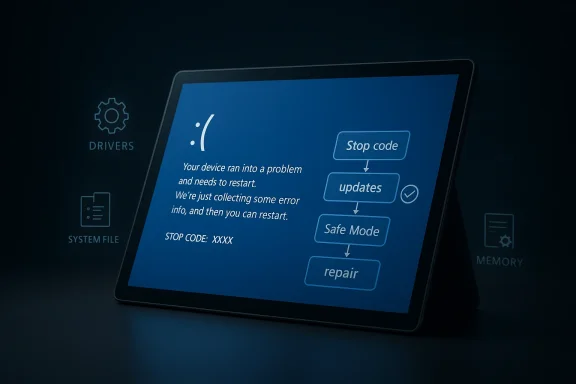
Microsoft’s Surface Pro 11 is supposed to be one of the company’s most polished Windows tablets, but blue screens have a way of exposing just how many moving parts sit beneath that premium finish. When a BSOD hits a Surface Pro 11, it is usually not random bad luck; it is Windows forcing a hard stop because something in the hardware, firmware, driver stack, or system files has gone wrong. The practical question is not whether the crash is serious, but which layer is failing and how quickly you can isolate it. Microsoft’s own guidance points to a familiar escalation path: check the stop code, remove recent changes, update drivers and firmware, test memory and storage, and then move to recovery or reset if needed. (support.microsoft.com)
The Surface Pro 11 occupies an awkward but important place in Microsoft’s hardware story. It is a flagship Windows 11 device, but it is also a tightly integrated system where Microsoft controls far more of the stack than it does on a typical PC. That creates a real advantage in design consistency, yet it also means that a bad firmware revision, a buggy graphics driver, or a misbehaving update can ripple across the whole experience. Microsoft’s update history for the device shows that reliability fixes are not an exception; they are a recurring part of the product’s lifecycle. (support.microsoft.com)
That matters because blue screens on a Surface are not just generic Windows problems. They often sit at the intersection of firmware, drivers, and the device’s modern low-power architecture. Microsoft’s support pages explicitly say unexpected restarts can be caused by hardware, drivers, or software, and that the stop code can help identify the failure class. In other words, the blue screen is not the diagnosis; it is the alarm bell. (support.microsoft.com)
The “10 fixes” style of troubleshooting article is popular because it gives readers a concrete ladder to climb, but it also tends to flatten important distinctions. A one-off blue screen after a recent update is not the same as repeat crashes during sleep, resume, or startup. Likewise, a system file repair is useful only if the root cause is truly software corruption; it will not cure a bad SSD, unstable RAM, or a driver that keeps reintroducing the same fault. The real value of a troubleshooting guide is not the number of steps, but the order in which they are tried. (support.microsoft.com)
For Surface owners, that order should start with Microsoft’s own ecosystem tools. The Surface app can check driver and firmware health, and the Surface Diagnostic Toolkit can surface common device issues without forcing users to guess. Microsoft’s support documentation also recommends updating through Windows Update and the Surface app rather than hunting for drivers from third-party sites. That guidance is boring, which is exactly why it is useful. (support.microsoft.com)
The upside is that Microsoft can patch these issues centrally. The downside is that a problematic package can affect many devices at once before users realize a pattern exists. When that happens, the user experience can feel paradoxical: a premium tablet that seems more fragile than a cheaper laptop because it depends so heavily on a synchronized software stack. That is the tradeoff of modern hardware integration. (support.microsoft.com)
That clue becomes especially valuable on a Surface Pro 11 because the device may be crashing during resume, install, or boot, not just under load. A repeatable stop code after sleep points you in a different direction than a crash during a firmware update or while opening a camera app. In troubleshooting, pattern recognition beats panic every time. (support.microsoft.com)
That is why the Technobezz-style advice to install optional driver updates is directionally correct, even if it is too generic on its own. The important nuance is that Surface users should use Microsoft’s delivery channels first, because those packages are tailored to the device. A random driver from an unrelated vendor is more likely to introduce another variable than solve the original one. (support.microsoft.com)
This is where the advice in many how-to articles becomes more persuasive than it first appears. If a Surface Pro 11 started BSODing immediately after a cumulative update, the fastest way to learn something is often to back out the change and test stability. A working rollback tells you more than a thousand guesses. (support.microsoft.com)
On a Surface Pro 11, that distinction matters because RAM is not user-serviceable and storage failures can be more consequential than they are on a desktop. The device’s compact design makes it elegant, but it also limits the range of self-repair options. Once you have ruled out updates and drivers, you are no longer doing casual troubleshooting; you are trying to determine whether service is needed. (support.microsoft.com)
Then strip the system back to basics. Disconnect docks, USB devices, external storage, adapters, and anything else that adds another driver or power path into the mix. Microsoft’s guidance to remove new hardware is simple, but on a Surface it can be surprisingly revealing because so much accessory behavior is mediated through the system stack. (support.microsoft.com)
That is especially useful on a Surface Pro 11 because the device may be stable enough in a reduced state to let you uninstall the last driver, remove a bad update, or capture logs before the crash returns. Safe Mode does not solve the problem on its own, but it gives you a cleaner stage on which to observe it. In troubleshooting, a reduced environment is often the most honest environment. (support.microsoft.com)
That is more important than it sounds. On a Surface Pro 11, the right driver may be packaged with firmware or a component update that would never appear in a generic search. Installing from Microsoft’s own channels also reduces the odds that you will break the very integration layer that makes the device work well in the first place. (support.microsoft.com)
That should reassure users in one sense and worry them in another. It is reassuring because Microsoft is shipping fixes. It is worrisome because a premium device should not require as much midstream stabilization as a simpler laptop. Modern tablets are software products as much as hardware products, and the Surface line makes that reality impossible to ignore. (support.microsoft.com)
If the device is crashing on wake, reboot, or shutdown, the latest firmware may be doing more than patching security. It may be reworking timing, thermal behavior, or power-state transitions that can directly affect blue-screen frequency. On a Surface, those small details often determine whether the system feels solid or flaky. (support.microsoft.com)
That said, these tools are best understood as integrity checks, not universal cures. If the Surface Pro 11 is blue-screening because of a faulty driver or failing storage hardware, SFC may return clean results and still leave the crash untouched. The value of the scan is not just repair; it is exclusion. A clean result narrows the field. (support.microsoft.com)
The challenge is that storage issues can be intermittent. A disk that is “mostly fine” can still produce just enough corruption to cause Windows instability without showing obvious symptoms during a single short test. That is why repeated crashes matter more than a single success run. (support.microsoft.com)
That is a hard reality for a premium tablet. The lack of user-serviceable memory helps with thinness and reliability under normal conditions, but it leaves owners fewer options when things go wrong. The diagnosis may be simple; the remedy may not be. (support.microsoft.com)
The toolkit does not replace judgment, but it does add Surface-specific context. That matters because a Surface can fail in ways that look like normal Windows instability even when the root cause is tied to firmware, touch, battery, or thermal behavior. A generic PC tool may miss that nuance entirely. (support.microsoft.com)
That is especially true on a Surface Pro 11 because the device is designed around reliability through controlled repair paths, not open-ended tinkering. If a crash survives all the software steps, the user is no longer trying to optimize the machine; they are trying to protect their data and restore dependability. At that point, hardware triage is the mature choice. (support.microsoft.com)
On a Surface Pro 11, that cost can be especially annoying because the machine may have multiple layers of sign-in, work-account, and firmware-related configuration that need to be rebuilt. A reset can absolutely restore stability, but it can also turn a localized problem into a half-day recovery project. Not every broken system should be wiped just because wiping is easy. (support.microsoft.com)
That advice is even more important for business users. A Surface Pro 11 in a managed environment may have encryption, enrollment, or app-association settings that are painful to recreate. A reset that ignores those dependencies can create a support problem bigger than the original BSOD. (support.microsoft.com)
This is also where the Surface line’s strengths show up. The Surface app, the Surface Diagnostic Toolkit, and staged firmware releases give regular users a reasonably clear path through a scary failure. That does not eliminate the blue screen, but it does reduce the odds of spiraling into random internet fixes. (support.microsoft.com)
That is why the official update channel matters so much in managed environments. If a Surface Pro 11 fleet starts crashing after resume or shutdown, IT admins want the ability to test a firmware release in a controlled ring before it reaches everyone. A consumer can reboot and retry; an enterprise has to think about operational continuity. The same blue screen can be an annoyance or an outage. (support.microsoft.com)
The second thing to watch is how Microsoft balances consumer simplicity with enterprise control. The more Windows 11 and Surface updates can be staged, measured, and validated before broad release, the less often users will need to play detective after a sudden crash. That is not just a support issue; it is a trust issue. People forgive bugs more easily than they forgive uncertainty. (support.microsoft.com)
Source: Technobezz Microsoft Surface Pro 11 Keeps Crashing with Blue Screen (10 Fixes)
 Overview
The Surface Pro 11 occupies an awkward but important place in Microsoft’s hardware story. It is a flagship Windows 11 device, but it is also a tightly integrated system where Microsoft controls far more of the stack than it does on a typical PC. That creates a real advantage in design consistency, yet it also means that a bad firmware revision, a buggy graphics driver, or a misbehaving update can ripple across the whole experience. Microsoft’s update history for the device shows that reliability fixes are not an exception; they are a recurring part of the product’s lifecycle. (support.microsoft.com)That matters because blue screens on a Surface are not just generic Windows problems. They often sit at the intersection of firmware, drivers, and the device’s modern low-power architecture. Microsoft’s support pages explicitly say unexpected restarts can be caused by hardware, drivers, or software, and that the stop code can help identify the failure class. In other words, the blue screen is not the diagnosis; it is the alarm bell. (support.microsoft.com)
The “10 fixes” style of troubleshooting article is popular because it gives readers a concrete ladder to climb, but it also tends to flatten important distinctions. A one-off blue screen after a recent update is not the same as repeat crashes during sleep, resume, or startup. Likewise, a system file repair is useful only if the root cause is truly software corruption; it will not cure a bad SSD, unstable RAM, or a driver that keeps reintroducing the same fault. The real value of a troubleshooting guide is not the number of steps, but the order in which they are tried. (support.microsoft.com)
For Surface owners, that order should start with Microsoft’s own ecosystem tools. The Surface app can check driver and firmware health, and the Surface Diagnostic Toolkit can surface common device issues without forcing users to guess. Microsoft’s support documentation also recommends updating through Windows Update and the Surface app rather than hunting for drivers from third-party sites. That guidance is boring, which is exactly why it is useful. (support.microsoft.com)
Why Surface Pro 11 BSODs Deserve a Different Approach
A Surface Pro 11 crash should be treated differently from a generic desktop BSOD because the device’s update path is more controlled and its failure modes are often more layered. Microsoft ships firmware, touch, power, and system-aggregator updates through its own channels, and those packages can directly affect stability. That means the “latest driver” is not just a nice-to-have; on a Surface, it is often part of the fix itself. (support.microsoft.com)The Surface stack is tightly coupled
On a modular desktop, you might replace a GPU, swap RAM, or roll back a chipset driver independently. On a Surface, the hardware is more integrated and more OEM-specific, so the same crash symptom can involve a narrower but deeper set of possibilities. Microsoft’s own Surface Pro 11 update history shows repeated reliability work tied to sleep, shutdown, boot, black-screen behavior, and blue-screen reduction. That is a strong signal that firmware-level tuning remains a live issue for this product line. (support.microsoft.com)The upside is that Microsoft can patch these issues centrally. The downside is that a problematic package can affect many devices at once before users realize a pattern exists. When that happens, the user experience can feel paradoxical: a premium tablet that seems more fragile than a cheaper laptop because it depends so heavily on a synchronized software stack. That is the tradeoff of modern hardware integration. (support.microsoft.com)
Stop codes still matter
Microsoft’s blue-screen guidance remains clear: the stop code tells you something about the failure class, even if it does not point to the exact root cause. Codes like MEMORY_MANAGEMENT or PAGE_FAULT_IN_NONPAGED_AREA can suggest memory or driver problems, while other errors may implicate storage or low-level system faults. If users write down the code before the machine reboots, they preserve a crucial clue. (support.microsoft.com)That clue becomes especially valuable on a Surface Pro 11 because the device may be crashing during resume, install, or boot, not just under load. A repeatable stop code after sleep points you in a different direction than a crash during a firmware update or while opening a camera app. In troubleshooting, pattern recognition beats panic every time. (support.microsoft.com)
- Write down the stop code
- Note whether the crash follows sleep, boot, or an app launch
- Track whether it began after a Windows or firmware update
- Record any newly attached accessories or peripherals
- Preserve the first crash pattern before changing too many variables
The Most Likely Causes
The most common causes of a Surface Pro 11 blue screen are familiar Windows culprits, but they are worth ranking properly. First come driver conflicts, then recent updates, then corrupted system files, and finally the more stubborn hardware suspects such as storage or memory. Microsoft’s support guidance explicitly frames unexpected restarts as a product of hardware, driver, or software problems, which is exactly why a systematic approach matters. (support.microsoft.com)Drivers remain the top suspect
Drivers are still the single most likely explanation because they bridge operating system behavior and device-specific hardware functions. On Surface devices, driver and firmware updates are often distributed through Windows Update and the Surface app, which means a single bad package can produce instability that looks like a hardware failure. Microsoft’s own Surface update pages repeatedly call out reliability fixes around startup, shutdown, blue screen reduction, and sleep-resume stability. (support.microsoft.com)That is why the Technobezz-style advice to install optional driver updates is directionally correct, even if it is too generic on its own. The important nuance is that Surface users should use Microsoft’s delivery channels first, because those packages are tailored to the device. A random driver from an unrelated vendor is more likely to introduce another variable than solve the original one. (support.microsoft.com)
Updates can help, or hurt, depending on timing
If the crashes began after a recent Windows Update, the update itself becomes a prime suspect. Microsoft’s blue-screen page recommends removing new hardware, then uninstalling recent updates if needed, before moving on to restore options. That hierarchy reflects the reality that a lot of crash patterns are timing-related rather than permanent defects. (support.microsoft.com)This is where the advice in many how-to articles becomes more persuasive than it first appears. If a Surface Pro 11 started BSODing immediately after a cumulative update, the fastest way to learn something is often to back out the change and test stability. A working rollback tells you more than a thousand guesses. (support.microsoft.com)
Corruption and hardware faults are the hard cases
If the machine still crashes after rollbacks, updated drivers, and system file repairs, the problem may be deeper. Corrupted Windows files can cause repeat failures, which is why Microsoft still endorses standard repair utilities and recovery paths. But if memory or storage is failing, software repair becomes only a temporary mask. (support.microsoft.com)On a Surface Pro 11, that distinction matters because RAM is not user-serviceable and storage failures can be more consequential than they are on a desktop. The device’s compact design makes it elegant, but it also limits the range of self-repair options. Once you have ruled out updates and drivers, you are no longer doing casual troubleshooting; you are trying to determine whether service is needed. (support.microsoft.com)
How to Triage the Problem Without Making It Worse
The best blue-screen playbook is the one that changes the fewest variables at a time. Microsoft’s own recommendation begins with simple removal of new hardware and then moves toward updates and restore options. That sequence is not glamorous, but it reduces the risk of making a recoverable issue harder to diagnose. (support.microsoft.com)Start with the least invasive checks
If a Surface Pro 11 has crashed once and then recovered normally, the first move is not a reset. Restart it, monitor it, and note whether the crash pattern repeats under the same conditions. A single BSOD can be a transient glitch, but recurring crashes usually mean a deeper conflict that will not resolve itself. (support.microsoft.com)Then strip the system back to basics. Disconnect docks, USB devices, external storage, adapters, and anything else that adds another driver or power path into the mix. Microsoft’s guidance to remove new hardware is simple, but on a Surface it can be surprisingly revealing because so much accessory behavior is mediated through the system stack. (support.microsoft.com)
Safe Mode is the clean-room test
If the Surface crashes before you can do much, Safe Mode is the right next move. It loads Windows with minimal drivers and services, which helps separate third-party software problems from core operating system problems. If the device becomes stable in Safe Mode, the odds improve that the issue is tied to an update, driver, or startup app rather than the hardware itself. (support.microsoft.com)That is especially useful on a Surface Pro 11 because the device may be stable enough in a reduced state to let you uninstall the last driver, remove a bad update, or capture logs before the crash returns. Safe Mode does not solve the problem on its own, but it gives you a cleaner stage on which to observe it. In troubleshooting, a reduced environment is often the most honest environment. (support.microsoft.com)
Keep the fix order disciplined
- Restart and test for repeat behavior.
- Write down the stop code and crash timing.
- Remove newly attached peripherals.
- Enter Safe Mode if the system is unstable.
- Undo recent updates or driver changes.
- Move to repair tools only after those checks fail.
Firmware and Driver Updates on Surface Pro 11
For Surface Pro 11 owners, firmware and driver updates are not peripheral maintenance; they are central to stability. Microsoft explicitly tells users to keep Surface drivers and firmware current, and to use the Surface app to check health and open Windows Update for available packages. That is the official path, and it exists because Surface reliability is tightly tied to those updates. (support.microsoft.com)Use Microsoft’s channels first
The Surface app is the easiest place to start because it is device-aware and points you to the right update status. Microsoft says you can open the app, expand Help & support, and check for updates from there. If the app detects issues, it can surface them before you start swapping drivers blindly. (support.microsoft.com)That is more important than it sounds. On a Surface Pro 11, the right driver may be packaged with firmware or a component update that would never appear in a generic search. Installing from Microsoft’s own channels also reduces the odds that you will break the very integration layer that makes the device work well in the first place. (support.microsoft.com)
Reliability fixes are already baked into the update history
Microsoft’s Surface Pro 11 update history includes repeated fixes for stability, boot behavior, sleep-session crashes, and blue-screen reduction. In February 2026, for example, Microsoft listed reliability improvements for the consumer Surface Pro 11 line; in March 2026, the business model received firmware updates targeting touch reliability. Those entries show that the company is still actively tuning the device’s behavior after launch. (support.microsoft.com)That should reassure users in one sense and worry them in another. It is reassuring because Microsoft is shipping fixes. It is worrisome because a premium device should not require as much midstream stabilization as a simpler laptop. Modern tablets are software products as much as hardware products, and the Surface line makes that reality impossible to ignore. (support.microsoft.com)
Optional updates are not optional in practice
The Technobezz advice to check optional updates is broadly sensible, but Surface users should treat it as a structured maintenance step rather than a random hunt. Windows Update, the Surface app, and Microsoft’s official driver pages should be the primary sources of truth. Microsoft specifically notes that updates may be staged and not delivered to every Surface at the same time, which is why checking manually can matter. (support.microsoft.com)If the device is crashing on wake, reboot, or shutdown, the latest firmware may be doing more than patching security. It may be reworking timing, thermal behavior, or power-state transitions that can directly affect blue-screen frequency. On a Surface, those small details often determine whether the system feels solid or flaky. (support.microsoft.com)
- Check the Surface app first
- Install updates through Windows Update
- Review Surface update history for crash-related fixes
- Avoid third-party driver downloads unless Microsoft directs you there
- Re-test stability after each update cycle
- Treat sleep, wake, and shutdown crashes as firmware-sensitive
System File and Disk Repairs Still Matter
If drivers and firmware do not solve the problem, system repair tools are still worth running. Microsoft continues to support blue-screen recovery through built-in repair options, and corrupted Windows files can definitely create instability. On a Surface Pro 11, that means tools like SFC, DISM, and disk checks still have a place in the sequence. (support.microsoft.com)SFC and DISM are about integrity, not miracles
System File Checker is useful because it verifies whether protected Windows files have been altered or damaged. If SFC finds corruption it cannot repair, DISM can often restore the component store that SFC depends on. Together, they address a class of problems that can mimic driver instability or random application crashes. (support.microsoft.com)That said, these tools are best understood as integrity checks, not universal cures. If the Surface Pro 11 is blue-screening because of a faulty driver or failing storage hardware, SFC may return clean results and still leave the crash untouched. The value of the scan is not just repair; it is exclusion. A clean result narrows the field. (support.microsoft.com)
Storage problems can masquerade as software issues
A failing SSD can trigger read errors that cascade into crashes, hangs, or strange boot behavior. Microsoft’s general recovery guidance encourages checking the system via the normal recovery path before escalating to reset or reinstall, and a storage health check belongs in that middle tier. A Surface Pro 11 user seeing recurring BSODs during file access, updates, or startup should treat storage as a credible suspect. (support.microsoft.com)The challenge is that storage issues can be intermittent. A disk that is “mostly fine” can still produce just enough corruption to cause Windows instability without showing obvious symptoms during a single short test. That is why repeated crashes matter more than a single success run. (support.microsoft.com)
Memory errors are a major divider
Microsoft’s blue-screen documentation still calls out memory-related stop codes, and Windows Memory Diagnostic remains a useful screen. On a Surface Pro 11, memory is not something the user can reseat or replace, which changes the meaning of a failure result. If memory tests keep failing, the problem moves quickly from software troubleshooting to service planning. (support.microsoft.com)That is a hard reality for a premium tablet. The lack of user-serviceable memory helps with thinness and reliability under normal conditions, but it leaves owners fewer options when things go wrong. The diagnosis may be simple; the remedy may not be. (support.microsoft.com)
Hardware Checks, Diagnostics, and the Service Threshold
At some point, repeat BSODs stop looking like a software problem and start looking like a hardware signal. Microsoft’s support pages explicitly recommend using the Surface app and Surface Diagnostic Toolkit before resetting or submitting a service order. That sequence is important because it distinguishes between solvable configuration issues and defects that need hardware attention. (support.microsoft.com)Surface Diagnostic Toolkit is the platform-specific advantage
Microsoft positions the Surface Diagnostic Toolkit as a focused way to test common device issues. It can help identify problems that generic Windows tools may not recognize, and it is especially useful when the Surface app already suggests something is off. On a Surface Pro 11, that makes it one of the most relevant tools available before you escalate further. (support.microsoft.com)The toolkit does not replace judgment, but it does add Surface-specific context. That matters because a Surface can fail in ways that look like normal Windows instability even when the root cause is tied to firmware, touch, battery, or thermal behavior. A generic PC tool may miss that nuance entirely. (support.microsoft.com)
When service becomes the rational answer
Microsoft’s support flow says that if the Surface still isn’t working properly after diagnostics and reset, the next step is service. That is not an admission of defeat; it is how a closed hardware system is supposed to work. If the problem persists after updates, integrity scans, and recovery steps, the economics of further troubleshooting usually stop making sense. (support.microsoft.com)That is especially true on a Surface Pro 11 because the device is designed around reliability through controlled repair paths, not open-ended tinkering. If a crash survives all the software steps, the user is no longer trying to optimize the machine; they are trying to protect their data and restore dependability. At that point, hardware triage is the mature choice. (support.microsoft.com)
Signs the problem has crossed the line
- Crashes persist after firmware and driver updates.
- Safe Mode still shows instability.
- SFC and DISM do not find or repair corruption.
- Memory tests repeat errors.
- Storage checks show recurring faults.
- The device crashes during sleep, boot, or shutdown even after rollback.
Resetting the Surface Pro 11: Last Resort, Not First Instinct
A reset is often presented as the clean, decisive answer, but it is really the most disruptive step in the chain. Microsoft does list reset and recovery as valid paths after simpler troubleshooting fails, yet it also places those options after update checks, diagnostics, and targeted repair. That order is sensible because a reset erases useful state and can mask the original cause. (support.microsoft.com)Why people reach for reset too quickly
Reset feels satisfying because it promises a fresh start. It also relieves the user of having to understand which specific change caused the crash, which makes it psychologically attractive when the machine is unstable. But that convenience comes with a cost in time, app reinstallation, configuration, and possibly data protection work before the reset begins. (support.microsoft.com)On a Surface Pro 11, that cost can be especially annoying because the machine may have multiple layers of sign-in, work-account, and firmware-related configuration that need to be rebuilt. A reset can absolutely restore stability, but it can also turn a localized problem into a half-day recovery project. Not every broken system should be wiped just because wiping is easy. (support.microsoft.com)
Recovery should be data-aware
Before any reset, users should back up files if the machine remains readable. If the device is crashing but still accessible in short windows, that is the moment to preserve documents, photos, and any unique configuration data. Microsoft’s recovery guidance assumes you may need to move through several steps before a reinstall, and data safety has to come first in that sequence. (support.microsoft.com)That advice is even more important for business users. A Surface Pro 11 in a managed environment may have encryption, enrollment, or app-association settings that are painful to recreate. A reset that ignores those dependencies can create a support problem bigger than the original BSOD. (support.microsoft.com)
Use reset to confirm, not to conceal
If the device is reset and still crashes afterward, the evidence points strongly toward hardware or deep firmware trouble. If it stabilizes, the root cause was more likely corruption, configuration drift, or a bad update. Either way, reset should be a diagnostic endpoint, not an emotional reflex. (support.microsoft.com)- Back up files before resetting
- Prefer repair steps first
- Use reset to confirm whether the issue is software-bound
- Expect to reinstall apps and rejoin accounts
- Treat recurring crashes after reset as a service signal
- Do not assume reset is a cure for failing hardware
Consumer vs Enterprise Impact
Surface Pro 11 blue screens land differently depending on who owns the device. A consumer may be frustrated by downtime, but an enterprise user has to think about fleet consistency, update rings, and whether the crash pattern matches a known firmware regression. Microsoft’s own Surface documentation reflects that reality by separating consumer support flows from business-oriented deployment and diagnostic guidance. (support.microsoft.com)Home users want fast recovery
For consumers, the priority is usually getting back to the desktop with minimal data loss. That means the most valuable advice is also the most practical: check the stop code, roll back the obvious change, and update through Microsoft’s tools before attempting a reset. If the machine is still usable, the goal is to preserve momentum rather than do forensic analysis. (support.microsoft.com)This is also where the Surface line’s strengths show up. The Surface app, the Surface Diagnostic Toolkit, and staged firmware releases give regular users a reasonably clear path through a scary failure. That does not eliminate the blue screen, but it does reduce the odds of spiraling into random internet fixes. (support.microsoft.com)
Enterprises need predictability
In business settings, a blue-screen pattern is less about one defective device and more about whether an update is safe to deploy broadly. Microsoft’s Surface update histories are especially important here because they document when stability fixes are shipped, and they can be used to confirm whether a crash trend lines up with a particular package. Enterprises can then adjust rollout timing rather than discover instability the hard way. (support.microsoft.com)That is why the official update channel matters so much in managed environments. If a Surface Pro 11 fleet starts crashing after resume or shutdown, IT admins want the ability to test a firmware release in a controlled ring before it reaches everyone. A consumer can reboot and retry; an enterprise has to think about operational continuity. The same blue screen can be an annoyance or an outage. (support.microsoft.com)
The broader lesson for Surface customers
The Surface Pro 11 is a case study in how premium hardware now behaves like a living software platform. Stability is not solely about manufacturing quality; it is also about whether Microsoft continues to refine the firmware, power behavior, and driver package after launch. The device gets better when those layers are synchronized, and worse when they are not. (support.microsoft.com)Strengths and Opportunities
Microsoft’s support and update ecosystem gives Surface Pro 11 owners a genuine advantage over generic PC troubleshooting. The combination of staged firmware updates, the Surface app, and the Surface Diagnostic Toolkit creates a relatively clear recovery ladder, which is more than many Windows devices can claim. The result is a platform that can often be repaired without immediately resorting to a wipe. (support.microsoft.com)- Device-specific firmware updates help address issues that generic Windows patches cannot.
- Surface app health checks make it easier to spot problems early.
- Surface Diagnostic Toolkit adds Surface-aware diagnostics before drastic action.
- Microsoft’s blue-screen guidance gives users a logical escalation path.
- Staged update delivery reduces the chance of every device taking the same bad change at once.
- Repair-first workflows protect files and settings better than immediate reset.
- Recent reliability fixes show Microsoft is still actively refining the device. (support.microsoft.com)
Risks and Concerns
The biggest risk is that Surface Pro 11 owners may mistake a symptom for the cause. A blue screen can be driven by a driver, a firmware package, a storage fault, or corrupted system files, and the wrong fix can waste time or make the system less stable. The more integrated the device, the more careful the diagnosis has to be. (support.microsoft.com)- Bad firmware can affect many devices before the pattern is obvious.
- Driver rollback guesswork can create new conflicts.
- Resetting too early can erase useful evidence and personal data.
- Storage faults may hide behind software-like symptoms.
- Memory failures on a soldered design can push the device toward service quickly.
- Third-party utilities can complicate a system already under stress.
- Repeated forced restarts may make a marginal problem worse. (support.microsoft.com)
Looking Ahead
The important thing to watch next is whether Microsoft continues to reduce the Surface Pro 11’s crash surface through firmware and driver work. The update history already shows a pattern of stability fixes, including blue-screen reduction, startup fixes, and sleep-related reliability changes. If that continues, the device will feel more mature; if it stalls, owners will keep seeing the Surface as a premium product that still needs too much babysitting. (support.microsoft.com)The second thing to watch is how Microsoft balances consumer simplicity with enterprise control. The more Windows 11 and Surface updates can be staged, measured, and validated before broad release, the less often users will need to play detective after a sudden crash. That is not just a support issue; it is a trust issue. People forgive bugs more easily than they forgive uncertainty. (support.microsoft.com)
- Future Surface firmware releases
- Additional blue-screen reliability fixes
- Whether sleep and shutdown crashes continue to shrink
- How quickly Surface app diagnostics surface real issues
- Whether more crashes trace back to update timing rather than hardware
- How Microsoft handles service escalation when repairs fail
Source: Technobezz Microsoft Surface Pro 11 Keeps Crashing with Blue Screen (10 Fixes)
Last edited:
