

I switched to Hyprland’s dynamic tiling and never looked back — the change made Windows 11 feel like a nostalgia relic by comparison, because Linux gives you tools that rethink how you work with windows, updates, apps and even old hardware. What follows is a practical, evidence-backed walk-through of five deceptively simple Linux tools and workflows that expose where Windows still feels stuck, why they matter for real-world productivity and security, and what to watch for before you make the jump.
Windows 11 polished the interface and added conveniences (Snap Layouts, improved capture tools, virtual desktops), but many Linux-first ideas remain functionally different: keyboard-first tiling, live boot environments with persistence, user-controlled updates and snapshots, single-source package management, and simple, reliable process control. Those design differences change everyday workflows — not just aesthetics — and can be decisive for power users, refurbishers, IT technicians and privacy-conscious people who want deterministic, recoverable systems. The remainder of this article breaks down the five tools, shows the concrete gains and trade-offs, and verifies the claims with available documentation and community reporting.
(For practical how‑to steps and detailed troubleshooting, refer to the distribution documentation and the community-maintained guides cited in this piece.
Source: How-To Geek These 5 simple Linux tools make Windows 11 look outdated
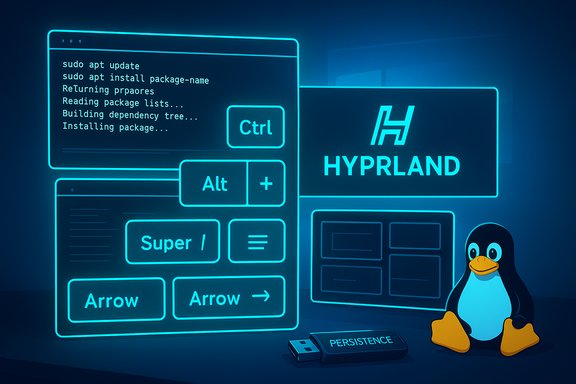 Background / Overview
Windows 11 polished the interface and added conveniences (Snap Layouts, improved capture tools, virtual desktops), but many Linux-first ideas remain functionally different: keyboard-first tiling, live boot environments with persistence, user-controlled updates and snapshots, single-source package management, and simple, reliable process control. Those design differences change everyday workflows — not just aesthetics — and can be decisive for power users, refurbishers, IT technicians and privacy-conscious people who want deterministic, recoverable systems. The remainder of this article breaks down the five tools, shows the concrete gains and trade-offs, and verifies the claims with available documentation and community reporting.Hyprland and dynamic tiling: keyboard-first workflows that reclaim attention
What dynamic tiling is, and why it matters
A tiling window manager organizes windows into non-overlapping “tiles” rather than free-floating panels. When a new window appears, the compositor resizes and positions other windows automatically. The result is deterministic layouts, instant window placement, and a keyboard-first interaction model that reduces repeated mouse micro‑adjustments — a measurable productivity win for multi‑window work. Windows 11 added Snap Layouts and FancyZones, but those are still manual or GUI-driven helpers compared with the full programmatic tiling model used by Hyprland and other Linux tilers.Hyprland in practice — muscle memory over fiddling
Hyprland (a Wayland compositor with tiling behavior) and similar projects give you hotkeys to switch, resize, promote, or close tiles without touching the mouse. Typical workflows replace repeated drag/resize cycles with a couple of keystrokes. Community reviews show a short learning curve (a day or two to become fluent for many users) and big daily time savings once those keystrokes become muscle memory. If you’re on Windows and curious, there are now Windows projects that attempt tiling overlays (FancyWM, GlazeWM, Seelen UI), but they’re overlays — not native tiling compositors — and tend to have edge-case interoperability issues with games and special windows. If you want the clearest tiling experience today, the Linux Wayland ecosystem remains the most mature option.Strengths and practical advice
- Strength: deterministic layouts and keyboard-first navigation dramatically reduce context-switch friction.
- Strength: tilers are scriptable and composable with workspaces and per-app rules for repeatable project setups.
- Caveat: tiling forces a different mental model; plan a weekend of learning and a staged configuration rollout, not a sudden switch.
Live-bootable OS + persistence: carry your OS on a stick, revive old PCs
Live USBs and persistence — test before you commit
Linux distributions ship “live” images that boot a full OS from removable media so you can test hardware, drivers, and workflow before you install. Tools like Ventoy make it trivial to carry multiple ISOs on one stick and add persistence plugins for distros that support it — persistence lets you save settings, files and installed packages between boots (turn a USB stick into a portable personal OS). This is a standard, well-documented workflow and a practical advantage over Windows’ installer-first approach.Practical uses: testing, rescue kits, and portable workstations
- Try distros and desktop environments on the exact machine you own without touching the internal disk.
- Build a multi-ISO rescue stick (Ventoy) for installers, rescue environments and diagnostic tools — one USB that boots many images, no reformat required.
- Create a persistent live USB to carry your personal environment (settings, browser profile, local tools) and boot it on any PC. Ventoy and persistence plugins formalize this workflow and reduce the fiddly manual partitioning that used to be necessary.
Reviving old machines
Specialist lightweight distros (Puppy, antiX, Tiny Core) and “frugal” installs run well on very low RAM and old CPUs, extending the practical lifetime of machines that Windows can no longer service. Community reporting and project docs show practical baselines: many lightweight distros target 512 MB–2 GB class hardware; some (antiX, Puppy family) are explicitly designed for sub‑1 GB systems and live-USB use. If your goal is reuse rather than replacement, Linux’ live+persist model is a field-tested method.Updates, Timeshift and the “you decide” model
The Windows problem: forced or opaque updates
Windows historically pushes updates automatically and may require forced restarts at inconvenient times. That interrupts work and creates recoverability anxiety. Many long-time Windows users have experienced mid-task reboots triggered by servicing behavior and cumulative updates.Linux alternative: package managers + snapshot tools (Timeshift)
Linux separates package distribution from the user action. Package managers (APT, Pacman, DNF, etc. present available updates; you choose when to run upgrades. More importantly, snapshot tools like Timeshift (rsync or btrfs snapshot based) create a fast rollback point before large changes. The practical result: you can upgrade safely, test, and if an update breaks the system you can restore a working snapshot quickly — fewer panic-worthy “Do not turn off your device” moments. This design is a core advantage that Linux tooling brings to desktop reliability.Commands and examples you will actually use
- Update and upgrade on Arch: sudo pacman -Syu (fetches and upgrades packages).
- Install Firefox (pacman): sudo pacman -S firefox.
- Install Firefox on Debian/Ubuntu: sudo apt install firefox.
These are accurate command forms used daily by Linux users and taught in major distro docs; package managers unify search, install and removal in one trusted channel.
Strengths and risks
- Strength: user-controlled updates that do not force immediate reboots and are easier to schedule around work.
- Strength: Timeshift-style snapshots provide low-overhead rollback ability for system-level failures.
- Risk: Some users may skip important security updates if they over-customize update behavior; the power to delay comes with responsibility. Choose an update cadence and automation policy that matches your security needs.
Package managers: single-sourced installs, safer provenance
Why a package manager changes the security model
On Windows, installing most apps still means downloading an .exe from a website, clicking through installers and hoping you got the right binary. On Linux, package managers connect to curated repositories. Packages are signed, dependencies are tracked, and system-wide updates are atomic and auditable. That reduces attack surface from fake installers, bundled adware and inconsistent uninstallers. The difference is functional, not just philosophical: package managers empower reproducible installs and easier clean removals.Everyday examples
- Debian/Ubuntu: sudo apt install firefox — apt pulls from distro repositories.
- Arch: sudo pacman -S firefox — pacman installs from the configured repos.
- Windows equivalents (winget / Chocolatey) exist, but repositories, integration depth and user expectations are different: Linux package ecosystems remain more mature for system-level software distribution.
Benefits
- Single tool for search/install/upgrade/remove.
- Digital signatures and repository curation improve integrity and reduce counterfeit installers.
- Removes the “leftover ghost files” uninstall problem: package managers remove package files and can purge configuration when asked to.
killall (and the Linux approach to process control) vs Windows’ process tools
The problem on Windows
When an application freezes, Task Manager and its End Task can usually help, but some failure modes lead to stubborn processes or a frozen Task Manager itself. Windows command-line tools like tasklist and taskkill exist for scripted or forced termination, but they require specific names or PIDs and are not always as ergonomic for quick, repeated interventions. Recent preview regressions in Windows have shown how fragile process tooling can become in complex update rolls.The Linux alternative: kill, pkill, killall
Linux offers simple, predictable commands for process control. If a GUI app freezes, open a terminal and run:- killall firefox
That command locates processes by name and sends a termination signal; you do not need to hunt for a PID to act. Combined with standard Unix signal semantics (SIGTERM then SIGKILL) and tools like ps/top/htop, it gives you fast, scriptable control. For scripted mass termination, filtering by user or other attributes is straightforward with pkill, ps and other core utilities. This model is simple, repeatable and often faster than digging through GUI process trees.
Practical comparison and caution
- Windows: taskkill /IM notepad.exe or taskkill /PID 1234 /F — effective but requires knowing the image name or PID. Task Manager and Sysinternals provide GUI alternatives.
- Linux: killall firefox — no PID hunting; works reliably for named processes.
- Caveat: forceful kills discard unsaved state; use them deliberately and pair with snapshotted system recovery or app-level autosave.
Evaluating the trade-offs: strengths, risks, and realistic expectations
What Linux does notably better
- Predictable windowing workflows with tilers that reduce manual micromanagement and increase keyboard efficiency.
- Live testability and portability through live USBs, Ventoy and persistence plugins for on-the-go or rescue use.
- Update control + snapshots via package managers and Timeshift — fewer surprise reboots and fast rollbacks.
- Single-sourced installs that reduce installer-borne malware and leftover cruft.
- Simple process control with killall/pkill that’s fast for scripted or ad-hoc intervention.
Real risks and limits to acknowledge
- Application compatibility: many professional Windows-only titles (some Adobe features, niche engineering suites) still have no drop-in Linux replacement; virtualization or cloud Windows may remain necessary. Test mission-critical apps before committing.
- Hardware/driver edge cases: very new Wi‑Fi chips, vendor‑specific power management or fingerprint readers can be problematic and demand manual driver work or kernel updates. Live-USB testing is essential.
- Anti-cheat for games: competitive titles can rely on Windows-only kernel-level anti-cheat, making Linux impractical for some multiplayer games. Verify each title’s compatibility before migrating for gaming reasons.
- Learning curve and maintenance responsibility: Linux gives power — you choose updates and tools. That control requires a plan: scheduled updates, occasional CLI troubleshooting, and snapshot-based rollback discipline.
Practical checklist: try these five things today
- Boot a live USB of a friendly distro (Linux Mint, Ubuntu, or a lightweight spin) using Ventoy to avoid repeated rewrites; check Wi‑Fi, sound and printing in the “Try” session.
- On a test machine, install Timeshift (or enable snapshot features) and test taking and restoring a snapshot before you install large updates.
- Try a tiling workflow in a VM or a live session (i3/Hyprland or FancyWM if you’re on Windows) and learn 6–8 core shortcuts to feel the speed gains.
- Use the package manager to install a common app (example: sudo apt install firefox or sudo pacman -S firefox) and observe how installs and removals are handled centrally.
- Practice force‑quitting a frozen app: on Windows use taskkill; on Linux try killall firefox — note the different ergonomics and scriptability.
Conclusion
The five tools and workflows above — dynamic tiling, live-boot with persistence, user-controlled updates and snapshots (Timeshift), trusted package managers, and straightforward process control — are not mere curiosities. They reshape how you interact with your desktop: less friction, faster recovery from mistakes, and predictable, auditable system maintenance. None of these features are magic bullets — Linux brings trade-offs, compatibility considerations, and a bit of learning — but for users who value control, recoverability and efficiency, the Linux toolkit makes Windows 11 feel increasingly conservative and, in practical terms, stuck in a different design philosophy. Try the live-USB route first, test your apps and hardware, adopt Timeshift snapshots as a safety net, and learn a handful of tiling or package-manager commands. Those steps give you the largest day-to-day wins with the smallest risk.(For practical how‑to steps and detailed troubleshooting, refer to the distribution documentation and the community-maintained guides cited in this piece.
Source: How-To Geek These 5 simple Linux tools make Windows 11 look outdated
