

I switched my Microsoft account from a password to a passkey — and within days the stream of automated sign-in attempts from unfamiliar countries turned into harmless noise because there was nothing left for attackers to guess.
Passwords are still the most common cause of account takeovers, but the industry is moving fast toward a different model: passkeys — cryptographic, device-bound credentials that replace typed secrets with a private key unlocked by biometrics or a PIN. Major platform vendors are pushing consumers to adopt passwordless sign-ins, and Microsoft has been one of the most aggressive in making passkeys first-class for its consumer ecosystem. The company rolled out a passkey-focused sign-in experience and now supports making a free Microsoft account entirely passwordless; that means the account has no reusable password at all, only passkeys and other approved sign-in methods. That shift is more than marketing. Removing passwords from an account dramatically reduces exposure to credential theft, password-spraying, brute-force attacks, and — most importantly — phishing. Because passkeys are bound to the original website origin and backed by asymmetric cryptography (private/public key pairs), a malicious site can’t trick your browser into handing over anything useful. Microsoft’s own documentation and product updates explain how the passwordless flow is designed and which legacy scenarios still require a password.
Source: ZDNET I replaced my Microsoft account password with a passkey - and you should, too
 Background: why this matters right now
Passwords are still the most common cause of account takeovers, but the industry is moving fast toward a different model: passkeys — cryptographic, device-bound credentials that replace typed secrets with a private key unlocked by biometrics or a PIN. Major platform vendors are pushing consumers to adopt passwordless sign-ins, and Microsoft has been one of the most aggressive in making passkeys first-class for its consumer ecosystem. The company rolled out a passkey-focused sign-in experience and now supports making a free Microsoft account entirely passwordless; that means the account has no reusable password at all, only passkeys and other approved sign-in methods. That shift is more than marketing. Removing passwords from an account dramatically reduces exposure to credential theft, password-spraying, brute-force attacks, and — most importantly — phishing. Because passkeys are bound to the original website origin and backed by asymmetric cryptography (private/public key pairs), a malicious site can’t trick your browser into handing over anything useful. Microsoft’s own documentation and product updates explain how the passwordless flow is designed and which legacy scenarios still require a password. Overview: what a passwordless Microsoft account looks like
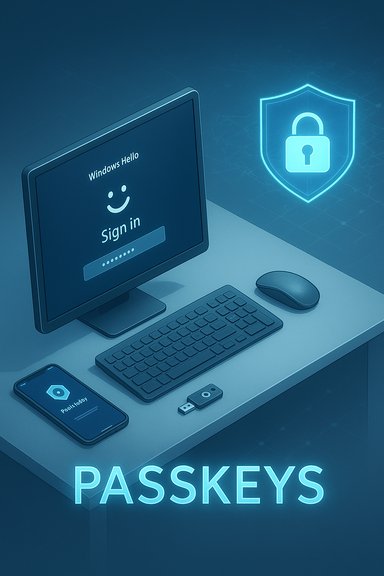
A passwordless (passkey-first) Microsoft account typically combines these elements:- A passkey tied to a device (Windows Hello, Touch ID on Mac, or a hardware FIDO2 security key).
- The Microsoft Authenticator app set up for phone sign-in (push notifications), or a TOTP authenticator as a backup.
- At least one additional, account-recognized fallback (alternate email or phone).
- A recovery code stored off-device for emergency account recovery.
Why passkeys are more secure — the technical logic
Passkeys are built on the FIDO2/WebAuthn standards and public‑key cryptography. The essential security advantages are:- Private keys never leave your device; only the public key is stored by the service.
- The browser and platform enforce origin checks, so a passkey created for login.microsoft.com won’t authenticate on a malicious, look-alike domain.
- Local user verification (biometrics or PIN) is required to release the private key for signing, preventing remote thieves from using a stolen passkey without your device and biometric/PIN.
- Cloud-synced passkeys are encrypted and typically protected by a vault PIN and by the platform’s recovery model, reducing risk from device loss when implemented properly.
The practical tradeoffs: strengths and risks
Strengths (what you gain)
- Phishing resistance: Because authentication requires the private key bound to the original origin, automated phishing attacks fail.
- No password reuse: Removing a password eliminates credential stuffing attacks that rely on reused secrets.
- Faster authentication: Passkey flows frequently reduce sign-in friction; Microsoft reports improved sign-in success and speed in its trials.
- Device-tied control: Lost or stolen passwords can be used from anywhere; passkeys require the physical device (and biometric/PIN).
Risks and operational costs (what to plan for)
- Lockout risk if you’re unprepared: Removing the password increases the chance of being permanently locked out unless you set up recovery and multiple sign-in methods first.
- Legacy compatibility: Older apps and devices still expect passwords. Microsoft explicitly calls out devices and apps (Xbox 360, Office 2010-era clients, Windows 8.1 and earlier, IMAP/POP-based services, some Remote Desktop scenarios) that won’t work seamlessly with a passwordless account.
- Dependency on recovery flows and cloud sync: Synced passkeys are convenient, but they shift part of your trust model to the cloud-sync provider and their recovery design. If you prefer an air-gapped model, consider hardware FIDO2 keys as the primary authenticator.
- Device compromise remains a threat: If your device is fully compromised (rooted/jailbroken or infected with advanced malware), passkeys and biometrics won’t stop session hijacking or local token theft.
- Support complexity for organizations: For enterprises and managed environments (Entra/Azure AD), administrators can enforce password removal at the directory level but typically need careful migration and help‑desk procedures.
How to switch your Microsoft account to passkeys — practical sequence and safety checks
Before removing your Microsoft account password, prepare. The single biggest cause of regret reported by early adopters is skipping the recovery/preparation steps and getting locked out. Follow a staged migration.1. Inventory dependencies and legacy apps
Check which devices and services depend on your Microsoft account (Xbox consoles, older Outlook clients, IoT devices that send mail via SMTP/IMAP, Remote Desktop connections, etc.. If you depend on any of the legacy items Microsoft lists, plan for transitional strategies or keep at least one account with a password until you can replace the legacy dependency.2. Configure at least two strong sign-in methods
Set up multiple recognition/recovery paths before you touch the password:- Install and register the Microsoft Authenticator app and enable phone sign-in (push notifications); this is Microsoft’s default recommendation for consumer passwordless accounts.
- Create a device-bound passkey using Windows Hello on a supported Windows PC, Touch ID on a Mac, or a hardware FIDO2 security key.
- Optionally, set up a TOTP authenticator (e.g., Authy, Google Authenticator) as an extra fallback, ideally on a second device.
3. Add alternate contact methods
From the account security page, add at least one alternate email (not the same as your Microsoft account email) and a backup phone number. These are used to send verification codes during recovery flows. Consider adding a trusted family member’s phone or email as an additional recovery contact.4. Create and securely store a recovery code
Generate a Microsoft account recovery code and print or securely store it offline — a hardware-encrypted password manager, a safe, or a secure paper copy in a safe deposit box. Microsoft’s support documentation shows the generation steps and warns that recovery codes can’t be retrieved later if you lose them; you must generate a new one instead. This code is your “break glass” option.5. Test sign-ins thoroughly across devices
Before turning the passwordless toggle on, test every sign-in method and every device where you’ll need access:- Sign into a new browser session using the Authenticator push.
- Sign into another PC using the saved passkey (Windows Hello).
- Test the backup TOTP code, SMS, and alternate email code.
- Test the recovery code flow (simulate a passwordless device loss) — do this carefully to avoid locking yourself out.
6. Turn on passwordless mode
After you’ve verified the methods and stored the recovery code, use the Microsoft account Security > Advanced security options page to turn on the passwordless option. You can leave the toggle off for a week while you continue to test; Microsoft’s page and the UI explicitly let you enable it when ready. Once enabled, the account’s password entry is removed and the sign-in flow uses passkeys and the Authenticator app by default.Step-by-step: the user-facing workflow (concise)
- Sign in at account.microsoft.com > Security > Manage how I sign in.
- Add the Microsoft Authenticator app (choose phone sign-in). Scan the QR code and approve a test login.
- Add a passkey by choosing “Face, fingerprint, PIN, or security key” and finishing the Windows Hello or hardware key flow.
- Add an alternate email and a backup phone number, and set up a separate TOTP authenticator if desired.
- Generate a recovery code and store it securely offline.
- Wait, test, and then enable “Passwordless account” on the same management page.
Real-world tips and hardening recommendations
- Use a physical FIDO2 security key as the highest-assurance fallback for critical accounts. Keep it in a safe place distinct from your device.
- If you enable cloud-synced passkeys (via Microsoft Password Manager or a third-party manager), treat the vault PIN and recovery keys as highly sensitive credentials.
- For cross-platform users, consider keeping an alternate recovery method that is platform-agnostic (alternate email and a hardware key).
- If you are an admin in an organization using Entra (Azure AD), understand the difference between consumer Microsoft Accounts and work/school accounts; enterprise controls are different and often more prescriptive.
- Regularly export and back up any encryption passkeys or vault recovery artifacts if your chosen password manager supports safe export for disaster recovery.
What to expect after you remove your password
- You will see fewer password-based sign-in attempts reported in your account activity (those automated brute-force attempts become irrelevant).
- Devices and apps that still require passwords will not be able to sign in unless you re-enable a password or create app-specific credentials where available.
- If you later decide you need a password again (to support legacy devices), Microsoft allows you to re-add a password through the account security settings.
Verification and claims that need caution
Some widely quoted figures (for example: daily passkey registration numbers or dramatic percentages of sign-in speed improvement) come from vendor announcements and third-party reporting; they are useful for context but should be treated cautiously unless independently verifiable. Microsoft has public guidance and product pages documenting the passwordless flow and recovery options, and reputable outlets (The Verge, TechRadar, Forbes) have reported on Microsoft’s rollout strategy and UI changes; those sources corroborate the general direction and capabilities. However, adoption and exact performance metrics vary by region, device mix, and rollout stage, so treat vendor marketing numbers as illustrative rather than absolute fact.Conclusion: should you do it?
For most non-legacy users, switching a free Microsoft account to passkeys is a net security and usability win — provided you prepare properly.- If you use modern devices and mainstream apps and you can set up multiple recovery options, the passwordless model significantly reduces the risk of account takeover.
- If you rely on older hardware, legacy apps, or services that require text passwords, delay removing your password until you’ve migrated those dependencies.
- Follow a staged approach: configure multiple authenticators, add email/phone backups, generate and store a recovery code, test thoroughly, then enable the passwordless toggle.
Source: ZDNET I replaced my Microsoft account password with a passkey - and you should, too
