

Microsoft Teams is rolling out two highly requested usability updates — the ability to pop out meeting side panes (Chat, Notes and, for licensed customers, Copilot) and a user-facing option to customize banner notification placement — and both are already available in preview channels for the new Teams client on desktop, with broader rollouts planned. These changes are subtle on the surface but significant in practice: they address long-standing multitasking and distraction problems for power users and personal accounts alike, while also introducing new admin, licensing, and privacy considerations for IT teams and individuals.
Microsoft has steadily evolved Teams from a corporate-first communication hub into a unified platform that serves work, education and personal users. That unification — launched in 2024 — removed the confusing split between “personal” and “work” clients, but it left usability gaps that users have been asking Microsoft to fix: more flexible windowing for meetings and less intrusive notifications. The two recent preview features are aimed squarely at those pain points. These improvements arrive through Microsoft’s preview channels — the Teams Public Preview and the Microsoft 365 Targeted Release program — and require the new Teams desktop client on Windows or macOS. Administrators controlling enterprise update policies must explicitly enable preview features for managed environments. The Copilot pane additionally requires a Microsoft 365 Copilot license.
These Microsoft Teams updates are reminders that meaningful improvements often come in small, well-targeted steps — and they add up. If your organization or personal workflow involves heavy use of Teams meetings, it’s worth testing the pop-out panes and notification placement now in preview and planning a controlled rollout to capture the productivity benefits while managing the operational and privacy trade-offs.
Source: Neowin https://www.neowin.net/news/microsoft-teams-for-personal-users-gets-crucial-feature/
 Background
Microsoft has steadily evolved Teams from a corporate-first communication hub into a unified platform that serves work, education and personal users. That unification — launched in 2024 — removed the confusing split between “personal” and “work” clients, but it left usability gaps that users have been asking Microsoft to fix: more flexible windowing for meetings and less intrusive notifications. The two recent preview features are aimed squarely at those pain points. These improvements arrive through Microsoft’s preview channels — the Teams Public Preview and the Microsoft 365 Targeted Release program — and require the new Teams desktop client on Windows or macOS. Administrators controlling enterprise update policies must explicitly enable preview features for managed environments. The Copilot pane additionally requires a Microsoft 365 Copilot license. What changed: pop-out meeting panes and notification placement
Pop-out Chat, Notes and Copilot panes — how it works
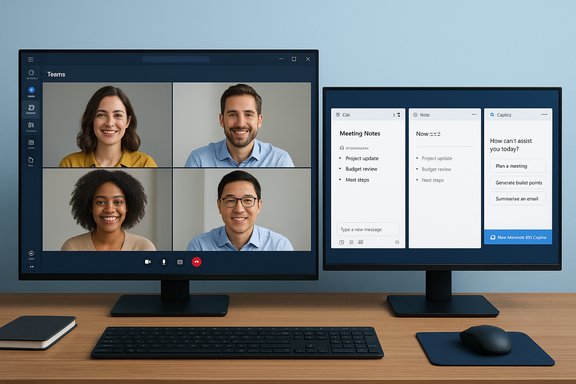
- During a Teams meeting you’ll now see a small pop-out icon on the top of the side panes for Chat, Notes and Copilot.
- Clicking that icon opens the pane in a separate, resizable window you can move across monitors.
- Multiple panes can be popped out simultaneously so you can arrange a multi-window meeting workspace (for example, meeting window + chat pane + notes pane across two monitors).
Customize notification location — small change, big impact
- Teams notifications (banner toasts) can now be moved off the default bottom-right corner to any of four positions: Bottom-right, Top-right, Bottom-left, or Top-left.
- The setting lives in Settings → Notifications and activity → Display in the new Teams client.
- Initially this is rolling out via Public Preview and Targeted Release channels; Microsoft’s roadmap and message center entries show a staged rollout for the web and desktop clients.
Why these features matter (and who benefits)
Productivity and multitasking
Popping out panes materially changes how people use Teams in multitask-heavy scenarios. Power users with multiple monitors can keep chat in view while following meeting content on another screen, or place Copilot beside a live meeting to generate summaries without losing context. For knowledge workers, educators, and community organizers juggling multiple conversations, this reduces tab- and pane-switching overhead and preserves flow.Better screen-sharing and presentation hygiene
Moving notifications away from the default location prevents banner pop-ups from appearing over slides, documents, or shared applications. That is useful not only from a productivity perspective but also for privacy and professionalism during external presentations. Admins and users can avoid uncomfortable leaks of unrelated messages during customer demos or classroom sessions.Accessibility and personal preference
Allowing users to pick notification placement makes Teams more accommodating for users with specific visual or ergonomic needs. Small UX changes like these have outsized benefits for users with cognitive load issues or specific monitor arrangements.Technical and rollout details you should verify before expecting it
- Requirement: The new Teams desktop client on Windows or macOS is required; legacy/old clients do not have these preview options.
- Preview channels: You must be in Teams Public Preview or Microsoft 365 Targeted Release to see the features immediately; IT-controlled tenants must enable “Show preview features” in update policies.
- Copilot licensing: The Copilot pane requires a Microsoft 365 Copilot license and is subject to tenant and geographic availability. This is not a free personal feature.
- Web rollout: Microsoft’s message center shows staged dates for the web rollout (early to mid-April windows in Microsoft’s schedule), with broader general availability scheduled occasionally later — check your tenant’s message center for exact timing. Rollout timelines can and do shift; admins should consult Microsoft 365 admin communications for tenant-specific dates.
How to enable and use the features (step-by-step)
For end users (pop-out panes)
- Update to the latest new Teams client on Windows or macOS.
- Join a Teams meeting.
- Look for the pop-out icon at the top of the Chat, Notes or Copilot side pane and click it.
- Move and resize the popped-out window. Arrange multiple popped-out panes as needed across monitors.
For end users (notification placement)
- Open Teams → click your profile → Settings.
- Go to Notifications and activity → Display.
- Choose Bottom-right, Top-right, Bottom-left or Top-left.
- Test by sending a message or waiting for a banner to confirm placement.
For administrators
- To allow preview features for tenant users, enable “Show preview features” within Teams update policies. For Targeted Release users, manage access via the Microsoft 365 admin center. Keep an eye on your Message Center posts (MC IDs) for the specific rollout schedule and scope.
Licensing, security and privacy implications
Licensing: Copilot is paid and extra
Copilot is not bundled with the free personal Teams experience; it sits behind a Microsoft 365 Copilot license. Organizations and individuals should budget for the additional license if they want Copilot’s popped-out pane and AI capabilities in meetings. Microsoft’s documentation calls this out clearly.Security: keep admin controls in mind
Admins retain control over which users can access preview features. That’s important for organizations that manage compliance and change management tightly: enabling Public Preview broadly can expose tenants to experimental behavior and UI changes. Admins should pilot features with a small group before enabling them organization-wide.Privacy: reduced accidental exposure, but watch Copilot
Moving notification banners away from the shared area reduces accidental exposure of private messages. However, the Copilot pane — by its nature — processes meeting text and content to provide summaries and actions. Organizations must treat Copilot use as a potential data-handling vector and verify how meeting data is processed and stored under their Copilot licensing and tenant configuration. If Copilot is enabled, IT and compliance teams must review data residency, retention and access controls tied to Copilot.Observed and likely user experience impacts
- Immediate reduction in friction for multitaskers and multi-monitor users.
- Cleaner, less disruptive presentations and screen-shares.
- Incremental productivity uplift for people who rely on Teams for both personal and professional contexts.
- A modest learning curve for casual users who may not expect additional windows during meetings.
- Potential for more fragmentation if some participants use popped-out panes (and Copilot) and others do not; however, the feature is client-side and non-disruptive to others.
Risks, limitations and unanswered questions
1. Preview stability and bugs
These features are initially available in preview channels. Early adopters should expect occasional bugs or inconsistent behavior until the feature reaches general availability. Admins should consider phased tests.2. Performance impacts
Popping out multiple panes increases the number of windows and rendering workloads on desktop clients. On low-end hardware or congested networks, users might see performance degradation. IT should monitor CPU/GPU and network impact during pilot tests.3. Copilot privacy and cost
Copilot brings powerful AI assistance but raises both cost and governance questions. Copilot’s data footprint and processing model must be reviewed by security teams before enabling it widely. Additionally, Copilot requires a paid license — it’s not a default for personal users.4. Partial rollout inconsistency
Because the features are client-side and tied to preview programs and tenant settings, some users in a meeting may have them while others do not. That’s not functionally damaging, but it can create uneven workflows between participants.5. Mobile parity
Popped-out windows are desktop-only — mobile users will not get an equivalent experience yet. Notification placement parity across devices may also lag, so mixed-device teams should account for experience differences.How this stacks up against competitors
Other collaboration platforms offer windowing flexibility and notification placement options in varying degrees. Microsoft’s advantage is the integration with the broader Microsoft 365 ecosystem (Outlook, OneDrive, SharePoint and Copilot). The pop-out panes align Teams more closely with user expectations from traditional desktop productivity apps and reduce the friction where Teams competes directly with Slack, Zoom and Google Meet for meeting-based work. The Copilot integration, however, is a differentiator because of the AI capability — but it’s gated by licensing, which competitors approach differently.Practical recommendations
- Administrators: pilot the features with a small cross-functional group before enabling tenant-wide preview access. Use message center advisories to schedule communication about changes.
- Power users: join Teams Public Preview or ask your admin for Targeted Release access to try the features early. Evaluate whether pop-outs fit your multi-window workflow and confirm Copilot licensing needs if you want AI features.
- Security teams: review Copilot data processing agreements and retention policies before enabling AI features for production meetings. Confirm whether popped-out pane data stays client-side or is logged to tenant services.
- All users: experiment with notification placement during non-critical meetings to find where banners are least disruptive for your workflow. Even a small change in banner position can significantly reduce interruptions.
The big picture: incremental features, cumulative effect
Neither the pop-out panes nor the notification placement option are revolutionary by themselves — but together they reflect Microsoft’s incremental, user-centered approach to Teams: small UX refinements that remove friction and improve real-world meeting behavior. These are the kinds of changes that, over time, change how people structure remote workdays and manage attention across multiple apps. For personal users who previously felt Teams was clunky for casual meetings and community use, the unified client plus these quality-of-life updates make Teams more competitive in both personal and mixed-use scenarios.Final verdict — should you care?
Yes — especially if you:- Rely on Teams for multi-monitor workflows,
- Frequently present or share your screen,
- Plan to use Copilot in meetings (and are willing to provision the license),
- Or simply want fewer distractions from banner notifications.
These Microsoft Teams updates are reminders that meaningful improvements often come in small, well-targeted steps — and they add up. If your organization or personal workflow involves heavy use of Teams meetings, it’s worth testing the pop-out panes and notification placement now in preview and planning a controlled rollout to capture the productivity benefits while managing the operational and privacy trade-offs.
Source: Neowin https://www.neowin.net/news/microsoft-teams-for-personal-users-gets-crucial-feature/
