

Microsoft is finally making it harder to hang up on people by accident: the Teams desktop app will move the Quit action out of the Windows jump list and leave it accessible only from the system tray, while the client gains an optional “confirm before leaving” setting and a separate “hide meeting toolbar” tweak for reclaiming screen real estate.
Accidentally leaving a Teams call is a surprisingly common irritation in modern hybrid work. Users frequently report hitting Leave instead of Share, or misclicking the jump list entries on the Windows taskbar and ending a meeting mid‑presentation. That behavior has generated steady feedback over the last few years, and Microsoft’s product team has acknowledged the problem and taken steps to reduce those “oops” moments.
The changes announced late in 2025 and updated in December affect two separate but related areas of the Windows desktop experience: the Windows jump list for the Teams taskbar icon, and in‑meeting UI controls. The jump list update replaces the old Quit shortcut with meeting‑centric quick actions; the in‑meeting updates include a user setting to confirm before leaving and a separate hideable toolbar to reduce UI clutter. These are incremental fixes, not a full redesign—small adjustments aimed at reducing friction for millions of users.
Why this matters: the jump list is a single‑click surface that many users rely on for quick actions. Moving Quit out of that space reduces the probability of a single misclick terminating an active call. For presenters and meeting hosts, that decreases embarrassing interruptions and small but costly productivity hiccups. But it also changes muscle memory for users who have historically relied on the jump list to close apps quickly.
Recommended admin checklist
Microsoft’s broader UX pattern has favored opt‑in toggles and staged rollouts rather than sweeping, irreversible changes. That’s sensible: a small number of users may be briefly disoriented, but the team can iterate based on feedback without breaking the workflow of millions. Past missteps — such as heavy‑handed quit confirmation flows — reinforce why Microsoft is choosing lighter weight, optional interventions here.
That said, the changes introduce short‑term friction for some users and impose small documentation and support work for IT teams. The balance of benefits versus costs leans heavily positive, especially for knowledge workers and meeting hosts who share screens regularly. Organizations should treat this as an opportunity to update training materials, pilot accessibility scenarios, and reduce the number of “I accidentally left” incidents that interrupt productive meetings.
Source: Windows Central No more awkward accidental hang‑ups — Teams is changing how you exit calls
 Background
Accidentally leaving a Teams call is a surprisingly common irritation in modern hybrid work. Users frequently report hitting Leave instead of Share, or misclicking the jump list entries on the Windows taskbar and ending a meeting mid‑presentation. That behavior has generated steady feedback over the last few years, and Microsoft’s product team has acknowledged the problem and taken steps to reduce those “oops” moments. The changes announced late in 2025 and updated in December affect two separate but related areas of the Windows desktop experience: the Windows jump list for the Teams taskbar icon, and in‑meeting UI controls. The jump list update replaces the old Quit shortcut with meeting‑centric quick actions; the in‑meeting updates include a user setting to confirm before leaving and a separate hideable toolbar to reduce UI clutter. These are incremental fixes, not a full redesign—small adjustments aimed at reducing friction for millions of users.
What Microsoft is changing (and why it matters)
Removing Quit from the jump list
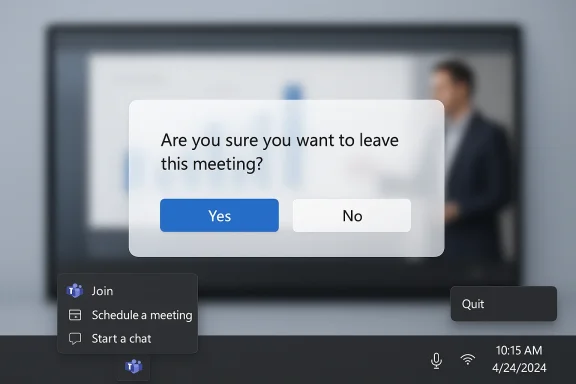
Microsoft’s official Message Center notice explains the practical change: Teams’ Windows jump list will add quick meeting actions (join upcoming or ongoing meetings, schedule a meeting, start a new chat) and remove the “Quit” option from the jump list entirely. Going forward, quitting the Teams process will be possible only from the Teams system tray (the “notification area”) to reduce accidental exits triggered from the taskbar jump list. Administrators are not required to take action — the update will be delivered automatically through the Teams desktop app.Why this matters: the jump list is a single‑click surface that many users rely on for quick actions. Moving Quit out of that space reduces the probability of a single misclick terminating an active call. For presenters and meeting hosts, that decreases embarrassing interruptions and small but costly productivity hiccups. But it also changes muscle memory for users who have historically relied on the jump list to close apps quickly.
The in‑meeting “confirm before leaving” option
In addition to moving Quit, Microsoft has exposed a setting that asks users to confirm before leaving a meeting. When enabled, clicking Leave will produce a small confirmation prompt so that users who intended to click Share (or any nearby icon) don’t kick themselves — or the meeting — out by mistake. The option is found in Teams Settings under General (look for the Ask to confirm before leaving a meeting toggle). This is an opt‑in toggle designed to give users control over whether they receive the extra gate.Hide the meeting toolbar to reclaim screen space
Separately, Microsoft is rolling out a hideable meeting toolbar that lets users conceal the persistent control bar (mute, camera, share, participants, chat, etc.) to maximize content during screenshares and presentations. The toolbar is summonable by hovering or pressing Tab, and the rollout is being staged with a target of broad availability in March (per Microsoft’s roadmap entries and reporting by outlets tracking the roadmap). This reduces accidental clicks on the control strip while giving presenters more pixel budget for shared content.Timeline and rollout details — verified
- Microsoft published the Message Center communication (Message ID MC1184652) on November 11, 2025 and later updated the timeline on December 19, 2025. The update explicitly states the change to the jump list, including the removal of Quit and the addition of quick meeting actions.
- Rollout schedule (as published): Microsoft began the rollout in mid‑November 2025 and expected to complete the worldwide rollout by mid‑February 2026; specialized clouds (GCC, GCCH, DoD) had a slightly different start date but the same expected completion (mid‑February 2026). That revised timeline was confirmed in the December update. Administrators should read those dates as targeted windows rather than single‑day pushes — Microsoft stages updates across rings and tenants.
- The hideable meeting toolbar is tracked as a Microsoft 365 Roadmap item with targeted availability in March (target month, not a hard guarantee). Roadmap items are planning signals; tenant‑specific Message Center notices provide the authoritative schedule when the tenant’s ring is ready.
How the new jump list will work in practice
What you’ll see after the update
- The jump list will show upcoming and ongoing meetings and provide one‑click actions to join directly from the Windows taskbar without opening the full Teams window.
- Quick actions such as “Schedule a meeting” and “Start a new chat” will be added to the jump list, giving faster access to common tasks.
- The Quit option will no longer be present on the taskbar jump list; to quit Teams you will open the system tray and use the Quit option from the Teams tray menu.
User ergonomics and muscle memory
This is a pragmatic tradeoff: you lose one quick-close surface (the jump list) but you gain protection against accidental meeting exits. Users accustomed to right‑click → Quit on the taskbar will need to adapt by making the system tray their new habit for fully closing the client. For power users who keep Teams in the background or use it across multiple accounts, the system tray remains the correct place to manage process lifecycle.Settings and short workarounds to prevent accidental hang‑ups
If you want fewer accidental exits today, or to prepare your team before the jump list change arrives, here are practical steps you can take now.- Enable the confirmation prompt:
- Open Teams Settings → General → Ask to confirm before leaving a meeting and toggle it on. This adds a simple Yes/No confirmation when you press Leave.
- Retrain muscle memory:
- When you need to close Teams completely, right‑click the system tray icon (or use the app’s main menu) instead of the taskbar jump list once your tenant has the update.
- Use combined safety checks when presenting:
- When you’re about to share important content, consider temporarily disabling the touchpad, using a wired mouse, or using keyboard shortcuts for Share to reduce misclicks.
- Pilot the hideable toolbar (when available):
- Enable the hide toolbar option once your tenant receives it to minimize the sizes of on‑screen controls during presentations. Knowing the hover and Tab reveal behaviors will make this safe for production demos.
Admin guidance: what IT teams should know and do
Microsoft’s Message Center notice states no administrative action is required; the change is delivered automatically as part of the Teams desktop app update. Still, IT and helpdesk teams should treat this as a communication and readiness task rather than a non‑event.Recommended admin checklist
- Monitor Message Center and the Microsoft 365 Roadmap for your tenant’s specific delivery window. Roadmap target months (e.g., March for hide toolbar) are planning signals; Message Center provides the tenant‑relevant schedule.
- Publish a one‑page update for employees:
- Explain that Quit will be available from the system tray going forward.
- Show the path to the “Ask to confirm before leaving” setting (Settings → General) and recommend enabling it for hosts and presenters.
- Update internal KB and helpdesk scripts:
- Add “How to quit Teams from the system tray” to onboarding and troubleshooting guides.
- Prepare answers for questions like “Why was Quit removed from the jump list?” and “How do I fully close Teams now?”
- Pilot accessibility workflows:
- The hide toolbar feature must be tested with screen readers and keyboard navigation. Admins should validate that summon-keys (Tab) and screen reader cues work as expected before larger rollouts.
User reaction, usability tradeoffs and potential risks
Early user sentiment
Discussion threads and community feedback show two common themes: relief by users who’ve accidentally left meetings in the past, and frustration by those who relied on the older jump list Quit shortcut. Public threads underscore that the change will remove a convenient power user shortcut while preventing a frequent source of embarrassment for presenters.Potential pitfalls and edge cases
- Discoverability problems: users who hide the meeting toolbar or get used to the new jump list could lose quick access to the Quit action, leading to confusion when they try to close the app. This is a short‑term support burden for helpdesks.
- Accessibility concerns: any hidden control pattern must work reliably with keyboard navigation and assistive technologies. Microsoft’s stated Tab reveal and keyboard shortcuts are mitigation steps, but IT teams must verify these behaviors for screen‑reader users in their environments.
- Feature fatigue and over‑prompting: past experiments with quitting confirmations (notably in other Microsoft products) have triggered user backlash when prompts became obtrusive or mandatory. OneDrive’s attempt to interpose friction before quitting led Microsoft to pull or revise the behavior after criticism — a reminder that confirmation dialogs must be helpful, not punitive. Administrators should prefer optional confirmations over forced gates.
Security and operational considerations
This is not a security control; it is a usability tweak. Don’t rely on these UI changes for endpoint management or policy enforcement. For sensitive environments, continue to use device management, endpoint protection, and Teams‑level policies for controlling meeting behavior and application lifecycle. The hide toolbar is cosmetic and does not alter how meetings are recorded or how content is handled.How this change compares to other platforms and earlier Microsoft moves
Other conferencing clients have long provided confirmation prompts, configurable sharing workflows, and presentation modes that minimize UI chrome. Teams’ incremental approach — adding an optional confirm gate and a hideable toolbar — narrows feature parity gaps without forcing one‑size‑fits‑all behavior on users. The jump list change is specifically Windows‑centric (it targets the Windows jump list and tray semantics) and does not apply to Mac or web in the same way; cross‑platform parity may lag.Microsoft’s broader UX pattern has favored opt‑in toggles and staged rollouts rather than sweeping, irreversible changes. That’s sensible: a small number of users may be briefly disoriented, but the team can iterate based on feedback without breaking the workflow of millions. Past missteps — such as heavy‑handed quit confirmation flows — reinforce why Microsoft is choosing lighter weight, optional interventions here.
Practical recommendations for users and teams
- Enable “Ask to confirm before leaving a meeting” in Teams Settings → General if you frequently present or share your screen. The extra click prevents accidental hang‑ups and is low cost in most meeting contexts.
- Train presenters: add a one‑slide reminder in meeting host checklists that calls out where the Leave button is and recommends short practice runs for novice presenters.
- Pilot the hide toolbar with a small group: test keyboard discoverability, screen reader behavior, and common capture/recording workflows before enabling it broadly. Document the hover and Tab reveal gestures in your shared host guide.
- Update helpdesk scripts now: include answers for “How do I quit Teams?” and “Why can’t I find Quit on the jump list?” so your support staff can respond quickly when the change reaches your tenant.
Final analysis: sensible fixes with manageable tradeoffs
This update is a clear example of pragmatic UX improvement: Microsoft is addressing a frequent pain point — accidental hang‑ups — with conservative, low‑risk changes. Moving Quit out of the Windows jump list and into the system tray removes a common single‑click failure mode, the “confirm before leaving” option gives users control, and the hideable toolbar reduces visual interference when presenting. Together, these moves improve presenter confidence and reduce day‑to‑day friction for many Teams users.That said, the changes introduce short‑term friction for some users and impose small documentation and support work for IT teams. The balance of benefits versus costs leans heavily positive, especially for knowledge workers and meeting hosts who share screens regularly. Organizations should treat this as an opportunity to update training materials, pilot accessibility scenarios, and reduce the number of “I accidentally left” incidents that interrupt productive meetings.
Conclusion
Microsoft’s jump list update and meeting UI refinements are focused, sensible responses to a real, everyday annoyance: accidental hang‑ups. The changes are not radical, but they are practical — moving the Quit control to the system tray, giving users an opt‑in confirmation for leaving meetings, and offering a hideable toolbar for presentations all help reduce interruptions and restore presenter confidence. IT teams should watch tenant Message Center notices for their delivery window, enable and pilot the options that make sense for hosts and accessibility users, and update support documentation to smooth the transition. The net effect should be fewer awkward mid‑meeting exits and marginally better experiences for presenters and attendees alike.Source: Windows Central No more awkward accidental hang‑ups — Teams is changing how you exit calls
