

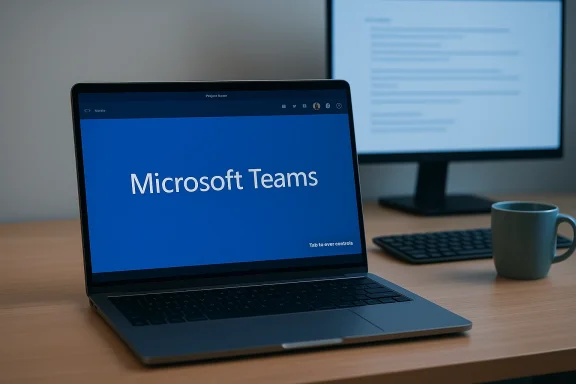
Microsoft Teams is rolling out a simple but powerful convenience: an option to hide the meeting control toolbar so you can reclaim screen real estate during calls — an opt‑in setting that Microsoft plans to make generally available in March 2026 and that can be temporarily summoned by hovering or pressing the Tab key.
Microsoft has been steadily tightening the UX around Teams meetings for the last year, addressing long‑standing complaints about clutter during screen sharing and the struggle to keep a clear view of content while retaining quick access to meeting controls. The new “hide meetings toolbar” capability joins a string of incremental updates — from multi‑window pop‑outs and “piicher, tenant‑branded reactions — aimed at smoothing multitasking without sacrificing functionality.
The feature appears as an explicit entry on the Microsoft 365 roadmap and is already being reported by multiple outlets that track Microsoft’s public roadmap items; those reports show Microsoft intends an opt‑in rollout, with availability targeted for March 2026. Because Microsoft stages rollouts by tenant and release ring, expect variability in exact availability and keep an eye on your tenant’s Message Center notices for the definitive schedule.
Microsoft’s approach here is telling: rather than dramatic, risky rewrites, the Teams team is shipping refinements that reduce friction for millions of daily users. Hiding a toolbar may sound trivial, but when done well it becomes the kind of background usability improvement that — cumulatively with multi‑window support and smarter profile data — makes Teams feel less like a hammer and more like a flexible workspace. That said, the real work for admins will be operational: testing accessibility, updating training, and governing the new tenant‑customizable surfaces that come alongside this change.
If you’re responsible for Teams in your organization, start the pilot planning now: confirm your Message Center settings, book a small test group for March, and be ready to publish two one‑page help cards for hosts and attendees. Do that and you’ll turn a modest UI tweak into a tangible productivity win.
Source: Windows Central Finally! Microsoft Teams lets you hide that pesky toolbar during meetings
 Background / Overview
Microsoft has been steadily tightening the UX around Teams meetings for the last year, addressing long‑standing complaints about clutter during screen sharing and the struggle to keep a clear view of content while retaining quick access to meeting controls. The new “hide meetings toolbar” capability joins a string of incremental updates — from multi‑window pop‑outs and “piicher, tenant‑branded reactions — aimed at smoothing multitasking without sacrificing functionality. The feature appears as an explicit entry on the Microsoft 365 roadmap and is already being reported by multiple outlets that track Microsoft’s public roadmap items; those reports show Microsoft intends an opt‑in rollout, with availability targeted for March 2026. Because Microsoft stages rollouts by tenant and release ring, expect variability in exact availability and keep an eye on your tenant’s Message Center notices for the definitive schedule.
What exactly is changing? The new hideable meeting toolbar, explained
How the UI behaves
- The meeting control toolbar — the bar that normally shows mute, camera, share, participants, chat and other icons — will be able to be hidden entirely by the user as a preference. When hidden, the toolbar does not permanently disappear: it can be temporarily revealed by hovering your mouse over its area or by pressing the Tab key on the keyboard. This preserves quick access while maximizing content space.
- The setting is planned as an opt‑in preference. That means users who never want the toolbar hidden won’t be surprised; users who prefer a tidy view wils and the preference will persist across meetings. The Microsoft 365 roadmap listing and coverage by major Microsoft‑focused outlets describe the rollout as user‑controlled rather than an enforced change.
What doesn’t change
- Keyboard shortcuts tied to meeting features remain active even when the toolbar is hidden. You can still hit the usual keys for mute/unmute, toggling camera, and other controls without revealing the toolbar. That’s important for accessibility and for power users who prefer keyboard-first workflows.
- The toolbar remains summonable. Hiding is a cosmetic, user‑facing change — it’s not the same as disabling a control or removing capability; it simply reduces visual chrome while retaining functionality on demand.
Why this matters: the practical gains for everyday users
Screen real estate for knowledge workers
On small laptops or when viewing shared content full screen, even a slim persistent control bar steals precious pixels. Hiding the toolbar restores a cleaner, less distracting canvas for:- Presenters who need the shared content to be the visual focus.
- Attendees running a single monitor who must balance chat, notes and the meets, document reviewers, and any role where pixel‑sensitive content is shared.
Fewer “oops” moments during screen capture or screenshots
A frequentl is the toolbar reappearing when a presenter moves the cursor back onto the meeting window while trying to capture a clean screenshot of a slide or document. While hiding doesn’t entirely eliminate every edge case (some screenshot workflows still require moving focus), the persistent opt‑in hide reduces the frequency of these interruptions, improving the quality of presenter screenshots and recordings.Better parity with competitor clients
Many competing conferencing tools already offer ways to minimize on‑screen controls during sharing or provide dedicated full‑screen presentation modes. This update closes a small but visible gap and helps Teams feel more polished for users who frequently present.How administrators and power users should think about it
Admin risk profile and governance
From an admin perspective, this is primarily a low‑risk U not remove capabilities or alter how meeting data is handled. However, there are operational considerations:- Documentation and user training materials will need updating to r behaviors users may adopt.
- Support teams should prepare for a small uptick in tickets from users who enabled the option and cannot find their controls, especially less technical staff or attendees who rely on always‑visible icons.
- Accessibility testing is essential. Any hidden UI pattern must be fully discoverable via keyboard navigation and compatible with screen readers; admins should validate this behavior in pilot groups and report any gaps through Microsoft’s feedback channels.
Suggested steps for IT teams (prioritized)
- Watch your tenant Message Center and the Microsoft 365 Roadmap for the precise GA window and any tenant‑specific scheduling.
- Pilot the feature with a small group of power users and helpdesk staff to validate keyboard behavior, screen‑reader compatibility, and any documentation updat visual help snippets showing how to temporarily summon the toolbar (hover/Tab) and how to revert the preference. Keep these in your onboarding and internal knowledge base.
- Update standard operating procedures for screen capture guidance so presenters know when to use the hide shortcut and when to rely on full‑screen capture tools.
- If your organization enforces constrained UI states (kiosks, training images), verify whether the setting is available and whether it persists across user profiles; Microsoft has not anagement controls for this specific toggle as of the roadmap entry and may keep it per‑user only.
Accessibility, discoverability and the “hidden controls” tradeoff
Any time controls are hidden by default or tucked behind a preference, discoverability and accessibility must ts to validate:- Keyboard navigation: confirming that the Tab key reliably reveals the toolbar and that all controls are reachable by keyboard without requiring precise mouse positioning. If Tab‑reveal fails in certain contexts (for example, when focus is inside a shared app or a whiteboard), that’s a support risk.
- Screen readers: ensure the hidden state still surfaces accessible names and ARIA landmarks so screen‑reader users can toggle and locate meeting controls predictably. If gaps are present, organizations should report them through the Feedback Hub and consider delaying broad adoption.
- New user education: first‑run tooltips and help prompts reduce confusion for casual users. Microsoft’s own product playbook often pairs opt‑in features with initial guided hints; if this feature ships without that support, expect higher helpdesk volume.
How this fits into the broader Teams roadmap (what else is coming)
The hideable toolbar is part of a cluster of meeting‑centric and people‑centric improvements scheduled for early 2026:- Tenant‑branded meeting reactions: organizations will be able to upload custom reaction icons for meetings, giving marketing and events teams a way to reinforce brand identity during calls. This feature is on Microsoft’s roadmap and expected to roll out around the same March 2026 window, which raises governance questions about asset approval and moderation workflows.
- People Skills on the Microsoft 365 profile card inside Teams: the People Skills capability — which lets employees list, manage and (where permitted) infer skills via Microsoft Graph signals — is being added to the Teams profile card so colleagues and managers can identify people with the right expertise without leaving Teams. That rollout is targeted to begin in March 2026 and be completed into April, according to Microsoft’s roadmap notices. Administrators should review how People Skills data is provisioned, inferred and surfaced because it touches hiring, talent location, and privacy policies.
- Multi‑window pop‑outs and pinned windows: Teams’ multi‑window capabilities (pop‑out chat, notes, and Copilot panes) and the ability to pin the app above other windows are all part of the same effort to let users arrange meeting surfaces to match multi‑monitor workflows. These changes improve multitasking but increase the complexity of cross‑window focus and support workflows.
Security, privacy and governance considerations
Several roadmap items that accompany the hideable toolbar have governance implications:- Branded reactions: organizations that permit branded emojis should implement an approval workflow for uploaded images to avoid accidental copyright infringement or inappropriate cxternal meetings. Consider adding this to your marketing and legal review checklist.
- People Skills data: displaying skills on profile cards can be valuable for matching work to reates a semi‑public “skills resume” inside the org. If your tenant uses AI inferencing to populate skills, make sure employees understand how the data is inferred, how to correct it, and what privacy controls are in place. Legal teams may want explicit consent language for sensitive roles or regulated environments.
- : hiding the toolbar reduces one source of accidental UI in screenshots, but it does not replace proper DLP controls. If you rely on prevention of content exfiltration during meetings, continue using Teams DLP policies, meeting recording governance, and endpoint controls rather than depending on a cosmetic hide setting.
How to verify and validate the feature when it arrives (quick test plan)
- Confirm arrival: check your tenant Message Center for the official MC notification and the Microsoft 365 Roadmap item ID listed for “Hide meetings toolbar.” Roadmap entries are planning targets; Message Center contains the tenant‑relevant schedule.
- Pilot ring: enasmall controlled group (helpdesk + power users) and run scripted workflows: screen sharing, switching presenters, keyboard‑only navigation, Zoom/Teams interoperability checks if you have mixed meetings.
- Accessibility test: run the feature with a screen reader (NVDA/JAWS/VoiceOver as appropriate) and document any navigation oblems, file a Feedback Hub report and delay wider rollouts.
- Capture test: take screenshots and recordings while the toolbar is hidden to ensure the reveal behavior does not unexpectedly pop up during common capture workflows.
5.g: publish two quick snippets — “How to hide the toolbar” and “How to show it back (hover or Tab)” — and add them to the internal meeting host checklist.
Critical analysis — strengths, shortcomings and the net user impact
ction, high return.** This is a small UI change with outsized day‑to‑day benefit for presenters and single‑monitor users. It’s the kind of polish that improves perceived reliability and reduces friction in common workflows.
- Opt‑in model respects user choice. Making it opt‑in avoids surpris and gives IT time to pilot.
- Keyboard reveal preserves accessibility pathways. Maintaining Tab as a reveal mechanism reduces the risk of rendering the control inaccessible to users who cannot use a mouse.
Shortcomings and risks
- Discoverability for casual users. Unless Microsoft adds first‑run hints or an easily reachable toggle, some users will hide the bar and then struggle to find controls; that raises help Platform parity and timing. Features are often desktop‑first; macOS, web, iOS and Android parity may lag, producing inconsistent experience across devices. Expect some users to report different behavior on Mac or web clients.
- Policy management unknown. At the time of the roadmap listing, there is no public documentation indicating tenant‑level policy controls for locking this behavior for all users; organizations that require uniform UIs (kiosks, training centers) should validate persistence and manageability.
Practical recommendations (what to do now)
- Subscribe to your tenant Message Center and add one owner for roadmap items that affect Teams; treat March 2026 entries as “targeted” until Message Center confirms your tenant window.
- Prepare a short pilot (2–4 weeks) that exercises keyboard navigation, screen reader flows, screenshot/recording workflows and shared‑content layouts. Gather helpdesk FAQs from the pilot and publish them before broad rollout.
- Update internal host checklists and quick help cards to include the new hide/show guidance (hover or press Tab).
- For branded reactions and People Skills, create cross‑functional playbooks (IT + HR + Legal + Marketing) so content governance and privacy expectations are clear before rolling those features out broadly.
Microsoft’s approach here is telling: rather than dramatic, risky rewrites, the Teams team is shipping refinements that reduce friction for millions of daily users. Hiding a toolbar may sound trivial, but when done well it becomes the kind of background usability improvement that — cumulatively with multi‑window support and smarter profile data — makes Teams feel less like a hammer and more like a flexible workspace. That said, the real work for admins will be operational: testing accessibility, updating training, and governing the new tenant‑customizable surfaces that come alongside this change.
If you’re responsible for Teams in your organization, start the pilot planning now: confirm your Message Center settings, book a small test group for March, and be ready to publish two one‑page help cards for hosts and attendees. Do that and you’ll turn a modest UI tweak into a tangible productivity win.
Source: Windows Central Finally! Microsoft Teams lets you hide that pesky toolbar during meetings
