

Microsoft Teams and Outlook are on track for a wide-ranging set of user experience, performance, and Copilot-driven changes, and the mix says a lot about where Microsoft is pushing its productivity stack in 2026. The most visible shift is a redesigned Teams meeting toolbar that promises more customization, fewer accidental clicks, and a cleaner control layout. But the bigger story may be the quieter changes: efficiency-focused behavior on weaker devices, expanded meeting scale, and deeper AI surfacing in Outlook search and calendar workflows.
Microsoft has spent the last several years steadily reworking Teams and Outlook into more opinionated, more AI-aware products. What started as a collaboration suite has increasingly become a layer for meetings, chat, file handling, search, summaries, and action management. The latest roadmap items continue that pattern, but they also show Microsoft responding to two very different pressures at once: users want faster, simpler interfaces, while IT departments want more control, better compliance options, and fewer support tickets.
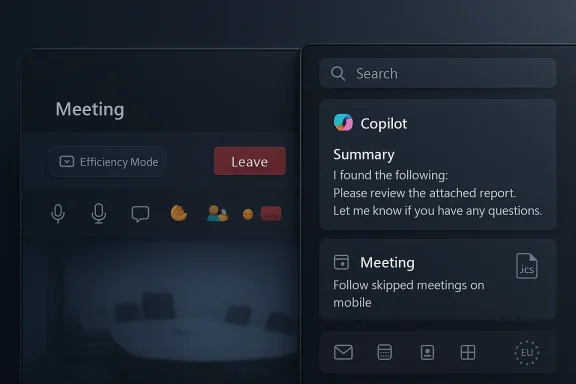
That tension is especially visible in Teams. Microsoft is not just adding features; it is changing the geometry of the meeting experience. The toolbar redesign, the relocation of the Leave button, and the regrouping of hand-raise controls all point to a product that is trying to reduce friction in the hottest part of the app: live meetings. At the same time, the introduction of Efficiency Mode suggests that Microsoft is also acknowledging a problem that enterprise admins have been raising for years—Teams can be resource-heavy, especially on older or constrained hardware.
Outlook’s changes are different in tone but similar in ambition. Microsoft is pushing Copilot deeper into search, calendar, and file preview scenarios, which is exactly where users already spend time. Instead of treating AI as a separate destination, Microsoft is increasingly embedding it into the moments where people are already looking for information. That makes the new Outlook feel less like a mail client and more like a working surface for Microsoft 365 data.
The public Microsoft 365 Roadmap remains the key qualifier here. These dates are estimates, not promises, and Microsoft has repeatedly shown a willingness to delay, reshuffle, or cancel features when telemetry or feedback suggests the experience is not ready. Even so, the roadmap items are valuable because they reveal the direction of travel. And in this case, that direction is unmistakable: more AI, more customization, more admin control, and more effort to make Teams and Outlook feel like one connected productivity layer rather than two separate apps.
The toolbar changes also include a small but important usability tweak: the Leave button is being moved to the far right, away from the more frequently used in-meeting controls. That is a classic accidental-click reduction strategy. In a product where people are multitasking, sharing screens, reacting, muting, and managing chat at speed, a misplaced click can drop someone from a meeting at exactly the wrong time.
Microsoft also says the hand-raise control is being regrouped under reactions, which should make the interaction model more consistent. That is a subtle move, but consistency matters in Teams because the app already asks users to navigate a dense set of meeting controls. The more the interface matches user intent, the less cognitive overhead there is during real-time collaboration.
The redesign may also reflect Microsoft’s broader UI strategy across Microsoft 365: make important actions easier to reach, while moving less critical actions out of the danger zone. The fact that Microsoft is openly warning that Teams may “feel different at first” is a clue that the company knows behavior change will be part of the rollout.
The biggest unanswered question is whether Efficiency Mode will be an automatic backend decision or an opt-in user setting. Microsoft has not yet clarified that point, and it matters because default behavior is much more powerful than a toggle buried in settings. If the mode turns on automatically based on device capability, it could quietly improve responsiveness for a huge number of users. If it is manual, adoption may be far slower.
This also fits a broader pattern in Microsoft’s collaboration products. As features like video recaps, meeting intelligence, and richer transcription stack up, the app becomes more capable but also more demanding. Microsoft cannot keep adding intelligence on top of heavy infrastructure without making the client more selective about what it loads, renders, or prioritizes.
It could also be a meaningful win for battery life and background responsiveness. Teams has long been criticized for feeling resource-hungry, and that reputation alone can shape user sentiment even before benchmarking does. A visible attempt to reduce overhead may therefore have both technical and psychological benefits.
Another change is the profanity filter being disabled by default for live captions to comply with EU requirements. That is a reminder that meeting transcription and live captioning are no longer just convenience features. They sit at the intersection of accessibility, speech handling, and regulatory expectations, and Microsoft has to align those defaults with regional obligations.
Teams is also gaining the ability to report external users for security concerns. That is a small feature on paper, but it has real relevance in cross-tenant collaboration scenarios where users may not know how to escalate suspicious behavior. In practical terms, the more external collaboration Microsoft enables, the more it needs lightweight safety mechanisms to accompany it.
This is a significant move because search is one of the most valuable surfaces in Outlook. Users search for senders, subjects, attachment names, meeting references, and project keywords every day. If Microsoft can help them understand the result set faster, it reduces the time spent opening, scanning, and closing items just to reconstruct context.
The feature also fits a wider Microsoft trend. Rather than asking users to separately invoke Copilot for every task, Microsoft is now weaving it into Outlook’s natural information pathways. That makes the assistant feel less like an add-on and more like an always-available lens across mail and calendar content.
But this also raises quality expectations. Summaries embedded in search are only useful if they are accurate, concise, and clearly grounded in the source material. Any hallucination or omission would be more damaging here than in a separate Copilot conversation, because the summary is being presented as a search aid.
This feature is especially useful for distributed teams. In a world where meetings move across time zones, calendars overflow, and people are invited to optional sessions, users often need asynchronous access to outcomes without sitting through the full event. Microsoft is clearly trying to make skipped attendance less of a dead end.
Microsoft is also adding support for switching between Copilot-enabled accounts through the Copilot sidepane in Outlook Calendar rather than relying on the broader Outlook interface. That sounds minor, but account-switching friction is one of those tiny annoyances that adds up for consultants, admins, and employees who juggle multiple identities or tenants.
That matters because Microsoft wants users to trust Outlook as a coordination hub, not just a mailbox. If the app can help people stay aligned without forcing attendance, it becomes more central to the workday.
The .ics changes are particularly welcome because calendar interoperability remains important in mixed-platform organizations. Even in a Microsoft-centered environment, users still exchange calendar data across external systems, vendor tools, and personal devices. Better .ics handling means fewer conversion issues and a smoother event lifecycle.
The iOS file previewer update is also strategically consistent with Microsoft’s mobile story. By letting users access Copilot at the point where they are already looking at a file, Microsoft avoids making the AI experience feel like a separate app hop. That increases the odds that users will actually try it in the moment they need help.
For consumers and small teams, the changes are more about convenience and clarity. Better meeting controls, smarter search summaries, and simpler skipped-meeting follow-up should all reduce the feeling that you have to manually stitch together work across apps. In that sense, the consumer upside is less about policy and more about time savings.
The key difference is that enterprises will care about rollout management, documentation, and policy fit, while smaller groups will judge these features by how quickly they help in daily life. Microsoft has to satisfy both audiences, which is why the roadmap continues to mix deep admin controls with visible UX improvements.
The toolbar redesign and performance work are especially relevant here because many competitors have spent years trying to win users through simplicity. Microsoft’s answer is not to reduce capability, but to reduce friction inside capability. That is a more ambitious and more difficult path.
Outlook’s Copilot summaries likewise strengthen Microsoft’s position in the AI productivity race. If search itself becomes an AI entry point, then Microsoft is no longer just competing on email clients or calendar features. It is competing on how quickly a user can move from finding information to understanding it.
The same is true in Outlook. Copilot summaries in search could be a major quality-of-life improvement, but only if they are accurate and helpful enough to trust. Microsoft is moving quickly toward a world where search, recap, and chat are tightly woven together, and the success of that vision will depend on reliability as much as ambition.
Source: Neowin Microsoft Teams and Outlook are getting significant changes soon
 Overview
Microsoft has spent the last several years steadily reworking Teams and Outlook into more opinionated, more AI-aware products. What started as a collaboration suite has increasingly become a layer for meetings, chat, file handling, search, summaries, and action management. The latest roadmap items continue that pattern, but they also show Microsoft responding to two very different pressures at once: users want faster, simpler interfaces, while IT departments want more control, better compliance options, and fewer support tickets.That tension is especially visible in Teams. Microsoft is not just adding features; it is changing the geometry of the meeting experience. The toolbar redesign, the relocation of the Leave button, and the regrouping of hand-raise controls all point to a product that is trying to reduce friction in the hottest part of the app: live meetings. At the same time, the introduction of Efficiency Mode suggests that Microsoft is also acknowledging a problem that enterprise admins have been raising for years—Teams can be resource-heavy, especially on older or constrained hardware.
Outlook’s changes are different in tone but similar in ambition. Microsoft is pushing Copilot deeper into search, calendar, and file preview scenarios, which is exactly where users already spend time. Instead of treating AI as a separate destination, Microsoft is increasingly embedding it into the moments where people are already looking for information. That makes the new Outlook feel less like a mail client and more like a working surface for Microsoft 365 data.
The public Microsoft 365 Roadmap remains the key qualifier here. These dates are estimates, not promises, and Microsoft has repeatedly shown a willingness to delay, reshuffle, or cancel features when telemetry or feedback suggests the experience is not ready. Even so, the roadmap items are valuable because they reveal the direction of travel. And in this case, that direction is unmistakable: more AI, more customization, more admin control, and more effort to make Teams and Outlook feel like one connected productivity layer rather than two separate apps.
What Microsoft Is Changing in Teams
The headline Teams change is a redesigned meeting toolbar that lets users pin, unpin, and reorder controls. That sounds modest, but it is actually a notable shift in product philosophy. Microsoft is moving away from a one-size-fits-all control strip toward something closer to a personalized command surface, which is a recognition that different users interact with meetings in different ways.The toolbar changes also include a small but important usability tweak: the Leave button is being moved to the far right, away from the more frequently used in-meeting controls. That is a classic accidental-click reduction strategy. In a product where people are multitasking, sharing screens, reacting, muting, and managing chat at speed, a misplaced click can drop someone from a meeting at exactly the wrong time.
Microsoft also says the hand-raise control is being regrouped under reactions, which should make the interaction model more consistent. That is a subtle move, but consistency matters in Teams because the app already asks users to navigate a dense set of meeting controls. The more the interface matches user intent, the less cognitive overhead there is during real-time collaboration.
Why the toolbar redesign matters
This is not just a cosmetic refresh. It is an attempt to reduce the number of times users hesitate, hunt for a control, or click the wrong one. That matters because Teams meetings are rarely isolated; they are often embedded in a broader work session involving chat, documents, and follow-up tasks.The redesign may also reflect Microsoft’s broader UI strategy across Microsoft 365: make important actions easier to reach, while moving less critical actions out of the danger zone. The fact that Microsoft is openly warning that Teams may “feel different at first” is a clue that the company knows behavior change will be part of the rollout.
- More flexible control placement should suit power users.
- The new layout should reduce accidental exits.
- Grouping similar actions may lower training friction.
- A cleaner toolbar could improve accessibility for some users.
- The change should help standardize meeting behavior across devices.
Efficiency Mode and Performance Pressure
The other major Teams change is Efficiency Mode, which Microsoft says will reduce resource consumption by default on devices constrained by hardware. That is an important signal, because it suggests Microsoft is trying to make Teams behave more intelligently on lower-end PCs rather than forcing every device to handle the same experience in the same way.The biggest unanswered question is whether Efficiency Mode will be an automatic backend decision or an opt-in user setting. Microsoft has not yet clarified that point, and it matters because default behavior is much more powerful than a toggle buried in settings. If the mode turns on automatically based on device capability, it could quietly improve responsiveness for a huge number of users. If it is manual, adoption may be far slower.
This also fits a broader pattern in Microsoft’s collaboration products. As features like video recaps, meeting intelligence, and richer transcription stack up, the app becomes more capable but also more demanding. Microsoft cannot keep adding intelligence on top of heavy infrastructure without making the client more selective about what it loads, renders, or prioritizes.
What Efficiency Mode could change
If implemented well, Efficiency Mode could help lower-end laptops, virtual desktop environments, and older corporate hardware stay usable during long meeting sessions. That matters in enterprise fleets where refresh cycles lag behind software ambition.It could also be a meaningful win for battery life and background responsiveness. Teams has long been criticized for feeling resource-hungry, and that reputation alone can shape user sentiment even before benchmarking does. A visible attempt to reduce overhead may therefore have both technical and psychological benefits.
- Lower CPU use could improve multitasking.
- Reduced memory pressure may help older laptops.
- Responsiveness could improve during long calls.
- Battery life may benefit on mobile and thin-and-light devices.
- IT admins may see fewer complaints about lag.
Bigger Meetings, Broader Moderation, and Compliance Tuning
Microsoft is also lining up several smaller Teams changes that together point to a more enterprise-aware meeting platform. One of the most visible is the expansion of breakout rooms for up to 1,000 attendees in meetings. That is a meaningful scale increase, especially for organizations that run training sessions, all-hands meetings, workshops, and hybrid events inside Teams.Another change is the profanity filter being disabled by default for live captions to comply with EU requirements. That is a reminder that meeting transcription and live captioning are no longer just convenience features. They sit at the intersection of accessibility, speech handling, and regulatory expectations, and Microsoft has to align those defaults with regional obligations.
Teams is also gaining the ability to report external users for security concerns. That is a small feature on paper, but it has real relevance in cross-tenant collaboration scenarios where users may not know how to escalate suspicious behavior. In practical terms, the more external collaboration Microsoft enables, the more it needs lightweight safety mechanisms to accompany it.
Why these changes matter for admins
These updates are not primarily about consumer convenience. They are about making Teams more governable at scale, especially where meetings involve outside participants, legal concerns, or compliance-sensitive transcription workflows. Microsoft seems to be trying to balance openness and control, which is a recurring theme in modern enterprise software.- Larger breakout room capacity supports training and events.
- Caption defaults may change based on regional compliance needs.
- Reporting external users adds a simple security response path.
- Meeting governance becomes more important as AI features expand.
- Admins will need to recheck policies and documentation.
Outlook’s Copilot Push Deepens
Outlook is getting a more explicitly AI-driven search experience, with Copilot-powered summaries appearing in search results starting in July 2026. Microsoft is also planning to let customers enter Copilot chat for further conversation after clicking the summary card, which makes the search experience feel more like an entry point into analysis than a static results page.This is a significant move because search is one of the most valuable surfaces in Outlook. Users search for senders, subjects, attachment names, meeting references, and project keywords every day. If Microsoft can help them understand the result set faster, it reduces the time spent opening, scanning, and closing items just to reconstruct context.
The feature also fits a wider Microsoft trend. Rather than asking users to separately invoke Copilot for every task, Microsoft is now weaving it into Outlook’s natural information pathways. That makes the assistant feel less like an add-on and more like an always-available lens across mail and calendar content.
Search becomes a starting point
If the summary cards are useful, they could materially change how people navigate email history. Instead of jumping directly into a result and reading line by line, users may first ask Copilot to compress the relevant context. That would be especially helpful in high-volume inboxes or project threads with long back-and-forth chains.But this also raises quality expectations. Summaries embedded in search are only useful if they are accurate, concise, and clearly grounded in the source material. Any hallucination or omission would be more damaging here than in a separate Copilot conversation, because the summary is being presented as a search aid.
- Faster triage of long result sets.
- Easier recovery of meeting and project context.
- Better integration between search and Copilot chat.
- Stronger AI discoverability inside Outlook.
- Greater dependence on summary accuracy.
Calendar and Meeting Follow-Up Improvements
Another notable Outlook addition is the ability to follow skipped meetings on mobile. If a user skips a meeting, they can still choose to follow it, which will remind the organizer to record the meeting and provide notifications about follow-up items. That is a smart acknowledgement that “not attending” does not always mean “not needing the outcome.”This feature is especially useful for distributed teams. In a world where meetings move across time zones, calendars overflow, and people are invited to optional sessions, users often need asynchronous access to outcomes without sitting through the full event. Microsoft is clearly trying to make skipped attendance less of a dead end.
Microsoft is also adding support for switching between Copilot-enabled accounts through the Copilot sidepane in Outlook Calendar rather than relying on the broader Outlook interface. That sounds minor, but account-switching friction is one of those tiny annoyances that adds up for consultants, admins, and employees who juggle multiple identities or tenants.
The productivity case for asynchronous participation
Meeting follow-through is where a lot of productivity apps quietly succeed or fail. The meeting itself may be only one hour, but the after-effects can last days. A reminder to record the session and a notification trail for action items makes the skipped meeting feel less like an absence and more like a delayed participation mode.That matters because Microsoft wants users to trust Outlook as a coordination hub, not just a mailbox. If the app can help people stay aligned without forcing attendance, it becomes more central to the workday.
- Helps people keep up without joining live.
- Encourages better recording hygiene.
- Supports asynchronous work patterns.
- Reduces calendar guilt around optional meetings.
- Makes action items easier to track.
File Handling, .ics Support, and Platform Hygiene
Microsoft is also bringing a handful of practical Outlook improvements in May 2026, including the ability to access Copilot directly from the file previewer in iOS, save calendar events as .ics files in New Outlook for Windows, and preview .ics files while importing them. These are not splashy headline items, but they are the sort of glue features that make a product feel finished.The .ics changes are particularly welcome because calendar interoperability remains important in mixed-platform organizations. Even in a Microsoft-centered environment, users still exchange calendar data across external systems, vendor tools, and personal devices. Better .ics handling means fewer conversion issues and a smoother event lifecycle.
The iOS file previewer update is also strategically consistent with Microsoft’s mobile story. By letting users access Copilot at the point where they are already looking at a file, Microsoft avoids making the AI experience feel like a separate app hop. That increases the odds that users will actually try it in the moment they need help.
Small updates, big workflow impact
These kinds of refinements rarely get the same attention as a redesigned toolbar or new AI summary feature. Yet they often determine whether users perceive an app as modern, coherent, and dependable. The more work Microsoft can let users do without bouncing between screens, the more polished the experience feels.- Better .ics import/export interoperability.
- More natural Copilot access on iOS.
- Fewer steps for calendar file workflows.
- Less need to switch contexts during quick edits.
- Improved consistency between desktop and mobile.
Enterprise vs Consumer Impact
For enterprise users, the roadmap items collectively suggest a more governable and more scalable collaboration environment. The toolbar changes can reduce user error, the efficiency mode can help with constrained hardware, and the reporting and caption updates improve the compliance and security posture of the platform. In a managed fleet, those changes can lower friction in ways that are more valuable than a shiny new feature.For consumers and small teams, the changes are more about convenience and clarity. Better meeting controls, smarter search summaries, and simpler skipped-meeting follow-up should all reduce the feeling that you have to manually stitch together work across apps. In that sense, the consumer upside is less about policy and more about time savings.
The key difference is that enterprises will care about rollout management, documentation, and policy fit, while smaller groups will judge these features by how quickly they help in daily life. Microsoft has to satisfy both audiences, which is why the roadmap continues to mix deep admin controls with visible UX improvements.
Why the split matters
If Microsoft gets the enterprise controls wrong, admins will block, delay, or heavily customize adoption. If it gets the consumer side wrong, users will simply ignore the feature and revert to habit. The best features in this category do both jobs: they satisfy governance needs without making the app feel bureaucratic.- Enterprises need policy alignment and compliance support.
- Consumers want simpler workflows and fewer clicks.
- Admins value predictable defaults more than novelty.
- End users value speed and clarity more than configuration depth.
- The best design reduces support overhead for both groups.
Competitive Context and Market Implications
These changes also have competitive implications beyond Microsoft’s own ecosystem. In the collaboration market, Microsoft continues to frame Teams not merely as a meeting tool but as a unified productivity layer with AI, search, and file intelligence embedded throughout. That puts pressure on rivals that still treat chat, meetings, and search as more separate experiences.The toolbar redesign and performance work are especially relevant here because many competitors have spent years trying to win users through simplicity. Microsoft’s answer is not to reduce capability, but to reduce friction inside capability. That is a more ambitious and more difficult path.
Outlook’s Copilot summaries likewise strengthen Microsoft’s position in the AI productivity race. If search itself becomes an AI entry point, then Microsoft is no longer just competing on email clients or calendar features. It is competing on how quickly a user can move from finding information to understanding it.
The strategic takeaway
Microsoft appears to be betting that the most valuable productivity experience is one where AI is invisible until needed. That is a compelling strategy because it avoids forcing users into a separate AI workflow. It also makes the company’s productivity stack harder to replace piece by piece, since the value increasingly comes from the integration, not just the app.- Teams becomes harder to dismiss as “just another meeting app.”
- Outlook becomes more than a mailbox.
- Copilot gets closer to core workflows.
- Microsoft 365 feels more interconnected.
- Rivals must compete on both UX and AI depth.
Strengths and Opportunities
Microsoft’s roadmap has several obvious strengths, and they are mostly about reducing work rather than adding more of it. The company is aligning interface design, AI assistance, and admin flexibility in a way that could make Teams and Outlook feel more coherent for everyday users.- Customization in the Teams toolbar should help different work styles.
- Efficiency Mode could improve performance on weaker hardware.
- Copilot summaries may speed up search and triage in Outlook.
- Skipped meeting follow-up supports asynchronous work habits.
- .ics improvements strengthen interoperability.
- External-user reporting adds a useful security response path.
- Caption and transcript tuning can help with regional compliance.
Risks and Concerns
The biggest risk is that Microsoft is adding change faster than some organizations can absorb it. New defaults, new placements, and new AI surfaces can create confusion if the rollout is not well communicated or if the feature behavior is inconsistent across platforms.- The toolbar redesign could frustrate habitual users at first.
- Efficiency Mode may be misunderstood if it is too aggressive.
- AI search summaries may raise accuracy and trust concerns.
- Default caption changes may create compliance questions in some regions.
- Increased meeting intelligence may deepen privacy scrutiny.
- Feature availability could vary by licensing or rollout ring.
- Public roadmap dates may slip, as they often do.
Looking Ahead
The most important thing to watch is not whether Microsoft ships these features on the exact dates listed, but how they are packaged together. If the Teams redesign, the performance work, and the security updates land close to one another, Microsoft could create the impression of a more refined and more modern collaboration platform. If they arrive piecemeal or with inconsistent behavior, the effect will be more operational noise than progress.The same is true in Outlook. Copilot summaries in search could be a major quality-of-life improvement, but only if they are accurate and helpful enough to trust. Microsoft is moving quickly toward a world where search, recap, and chat are tightly woven together, and the success of that vision will depend on reliability as much as ambition.
- Watch whether Teams Efficiency Mode is automatic or manual.
- Watch how much customization the new toolbar really allows.
- Watch whether Outlook’s Copilot summaries are broadly useful or niche.
- Watch for licensing or policy caveats around meeting features.
- Watch whether Microsoft modifies roadmap dates after internal testing.
Source: Neowin Microsoft Teams and Outlook are getting significant changes soon
