

Microsoft Teams has quietly closed a usability gap that’s frustrated corporate chat users for years: you can now forward multiple messages at once. It’s a small change on the surface — select up to five messages and send them together — but it represents a meaningful shift in how Microsoft is tuning Teams for real-world workflows, and it amplifies broader improvements rolling out across chat, meetings, search, and security that make Teams feel more fluid, modern, and enterprise-ready.
Over the last 18 months Microsoft has been aggressively rebuilding Teams’ foundations: rethinking chat and channels, folding in threaded conversations, investing heavily in meeting experiences, and positioning Copilot as a core productivity layer. Rather than a single blockbuster release, the evolution has come as many focused quality-of-life features and security controls that reduce friction in everyday work: faster ways to share context, clearer signals about who you’re talking to, smarter meeting recaps, and a host of meeting UI tweaks that help hybrid teams stay in sync.
February’s round of updates — the latest in Microsoft’s monthly cadence of Teams improvements — bundles a number of these refinements together. Some are plainly user-facing (multi-message forwarding, grid view for file search, resizable meeting galleries). Others are platform and admin-facing (Trust Indicators, customizable recording banners, network strength telemetry, and integration of Copilot across chats and meetings). Taken together, they read less like incremental polish and more like a purposeful push to reduce the most common interruptions that break flow in collaborative work.
Operational note: the five-message limit is conservative but deliberate. Bundling too many messages can create privacy and compliance risks, so the limit balances convenience with governance. In practice that cap will cover most daily sharing needs — and when you need to capture longer threads, Teams still offers message links and export workflows.
Operational caution: Teams’ AI features rely on access to chat history, transcripts, and calendar context. Organizations with strict data residency or regulatory constraints should confirm licensing and governance configurations for Copilot features before enabling them broadly.
Why that’s relevant: enterprise software buyers don’t choose products based on single features, but cumulative friction matters. Small conveniences compound: when many colleagues are dealing with repetitive forwarding tasks (finance teams sharing receipts, field ops sending clusters of updates, or legal gathering short evidence chains), Teams’ multi-forward removes a repetitive manual step. That doesn’t make Teams automatically superior to Slack — each platform has deep integrations, a distinct UX philosophy, and sticky third-party ecosystems — but it does show Microsoft is paying attention to the granular parts of work that cost teams time.
The caveat is the familiar one: enterprise features depend on governance and sensible administrative choices. Teams gives admins the building blocks — now the work is in configuration, pilot testing, and training so organizations can get productivity without surprise governance gaps. For users, the improvements shave seconds and minutes off common tasks; for IT, they create the opportunity to tune the collaboration platform into something both safer and easier to use.
The update is neither revolutionary nor risk-free, but it’s the kind of practical, usability-first improvement that, aggregated over months, quietly changes how teams get work done.
Source: Windows Central Microsoft Teams finally gets multi-message forwarding, leaving Slack behind
 Background
Over the last 18 months Microsoft has been aggressively rebuilding Teams’ foundations: rethinking chat and channels, folding in threaded conversations, investing heavily in meeting experiences, and positioning Copilot as a core productivity layer. Rather than a single blockbuster release, the evolution has come as many focused quality-of-life features and security controls that reduce friction in everyday work: faster ways to share context, clearer signals about who you’re talking to, smarter meeting recaps, and a host of meeting UI tweaks that help hybrid teams stay in sync.February’s round of updates — the latest in Microsoft’s monthly cadence of Teams improvements — bundles a number of these refinements together. Some are plainly user-facing (multi-message forwarding, grid view for file search, resizable meeting galleries). Others are platform and admin-facing (Trust Indicators, customizable recording banners, network strength telemetry, and integration of Copilot across chats and meetings). Taken together, they read less like incremental polish and more like a purposeful push to reduce the most common interruptions that break flow in collaborative work.
What changed: feature highlights and what they mean
Multi-message forwarding: share context, not just a single line
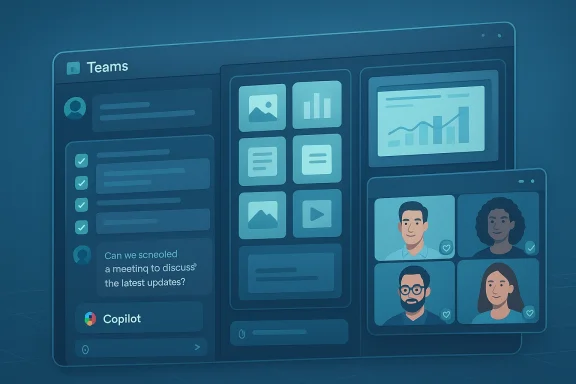
- Microsoft Teams now lets you select up to five messages in a chat or channel and forward them together as a bundled message.
- Forwarded messages preserve the original order and include a timestamp link that can take recipients back to the source if they have permission to view it.
- Administrators can still control sharing with sensitivity labels; if forwarding is blocked by a team or tenant policy you won’t see the option.
Operational note: the five-message limit is conservative but deliberate. Bundling too many messages can create privacy and compliance risks, so the limit balances convenience with governance. In practice that cap will cover most daily sharing needs — and when you need to capture longer threads, Teams still offers message links and export workflows.
Grid view for files in search results: visual-first discovery
- Teams search now offers a preview-based grid view for files in the Files tab, making it easier to visually distinguish documents that share similar names.
- List view remains the default; grid is a toggle in the Files tab.
Resizable meeting galleries: put people where you need them
- The meeting gallery can now be resized on the right or top of the window, letting you increase emphasis on either the shared content or the participant video grid.
- You can enlarge the gallery to focus on faces and nonverbal cues, or shrink it to prioritize a shared presentation.
Customizable meeting recaps and Copilot unification: AI that respects your format
- Meeting recaps can be generated from transcripts and recordings with visual references included alongside relevant summary sections, so key slides or shared screens appear next to the notes they informed.
- Teams now offers customizable meeting recap templates: pick a preset (Speaker Summary, Executive Summary) or craft an ad-hoc template via a free-text prompt to shape Copilot’s output.
- Copilot’s experience in Teams has been unified across chats, channels, and meetings — a consistent UI and behavior for Copilot users across the Microsoft 365 ecosystem.
Operational caution: Teams’ AI features rely on access to chat history, transcripts, and calendar context. Organizations with strict data residency or regulatory constraints should confirm licensing and governance configurations for Copilot features before enabling them broadly.
Trust Indicators: clearer signals for external participants
- Teams surfaces Trust Indicators — visual badges that mark external users as external-familiar, external-unfamiliar, guest, email verified, or unverified — wherever names appear in Teams (chat, participant lists, notifications, and profile cards).
- Labels are assigned automatically based on organizational relationships, trust configurations, and available verification metadata.
Network Strength Indicator: diagnose meeting pain quickly
- A simple 3-bar Network Strength Indicator shows your current connectivity state (Good / Poor / Bad) and notifies you in self-view when your network may be causing meeting problems.
- When connectivity is poor Teams can suggest bandwidth-saving actions (for example, turning off video) and will show indicators next to other participants’ names if they’re experiencing issues.
Admin features: custom banners for recordings, VDI optimizations
- IT administrators can configure custom in-meeting notification banners when recording or transcription is enabled, adjusting language and consent behavior to align with local policy.
- Microsoft is also shipping a VDI optimization for Teams on Amazon WorkSpaces that offloads media processing to the client device for smoother audio/video in virtual desktops.
Cross-product implications: Teams vs. Slack vs. WhatsApp
The most headline-grabbing takeaway — that Teams now supports forwarding multiple messages at once — is as much a competitive message as a feature update. Consumer messengers like WhatsApp have allowed multi-message forwarding for years. Slack, the entrenched enterprise chat rival, supports forwarding a single message at a time (or sharing message links), but it does not offer a built-in multi-message forward workflow analogous to Teams’ new capability.Why that’s relevant: enterprise software buyers don’t choose products based on single features, but cumulative friction matters. Small conveniences compound: when many colleagues are dealing with repetitive forwarding tasks (finance teams sharing receipts, field ops sending clusters of updates, or legal gathering short evidence chains), Teams’ multi-forward removes a repetitive manual step. That doesn’t make Teams automatically superior to Slack — each platform has deep integrations, a distinct UX philosophy, and sticky third-party ecosystems — but it does show Microsoft is paying attention to the granular parts of work that cost teams time.
Security, privacy, and governance: benefits and cautions
These features deliver clear productivity gains, but they also change the attack surface and governance considerations.- Forwarding limits and sensitivity labels: The five-message cap is a safety valve, and sensitivity labels can block forwarding entirely for sensitive teams. Admins should review sensitivity label policies and DLP rules to ensure forwarded bundles don’t violate compliance.
- Copilot and data access: The unified Copilot experience requires access to chat history, transcripts, and calendar metadata. Administrators must verify Copilot licensing, consent models, tenant-level data handling policies, and any regulatory implications before enabling Copilot for an entire org.
- Trust Indicators: These are visual cues, not hard enforcement. They reduce the risk of accidental sharing but should not replace policy. Combine them with DLP policies and training.
- Meeting visual references: Capturing and displaying screenshots and slide images alongside notes is tremendously useful — and potentially sensitive. Organizations should check retention settings for meeting recordings and ensure visual captures aren’t inappropriately stored or shared.
- Network telemetry visibility: Indicators that show others’ poor connections are helpful, but in some settings they could reveal private network health patterns. For enterprises concerned about operational exposure, review whether the indicator data is surfaced in admin reporting and whether that telemetry is stored or aggregated.
How to use the new features in practice
- Multi-message forwarding workflow:
- Hover over a message and choose More options > Forward > Multiple messages.
- Check the boxes next to up to five messages you want to forward.
- Select Next, choose the recipient or channel, optionally add context text, and Forward.
- Switching to grid view in Files search:
- Open the Files tab in Teams search and toggle the List/Grid view icon to show previews for quicker selection.
- Resizing meeting galleries:
- During a meeting, drag the gallery edge on the right or the top to expand or contract participant video versus shared content.
- Creating a custom meeting recap template:
- In the meeting recap UI, choose a preset or paste a free-text prompt to define your desired structure; save the template for reuse.
Risks and limitations to watch for
- Feature rollout and availability: Not every tenant will see every feature at the same time. Microsoft’s phased rollouts and targeted release rings mean admins should expect staged availability.
- Licensing gates for Copilot: Advanced AI features like Copilot in meetings are gated behind Microsoft 365 Copilot licenses and settings; enabling Copilot at scale requires planning for seats, data governance, and training.
- Third-party parity: Some integrations and workflows still work better in other platforms. Teams’ UX is evolving, but organizations deeply invested in Slack’s ecosystem should weigh migration or coexistence costs.
- Usability edge cases: Multi-message forwarding works well for short clusters but is not a replacement for full conversation exports or audit trails when that level of traceability is required.
Why this update matters for WindowsForum readers
For Windows power users, IT pros, and Teams admins, February’s updates are meaningful because they’re not just new bells and whistles — they focus on reducing interruptions and supporting governance. Teams is maturing from a large, capable collaboration platform into something more ergonomically aligned with how distributed teams actually work.- Desktop users get fewer friction points: the grid view, resizable galleries, and bundled forwarding address three of the most common small annoyances.
- IT and compliance teams gain better signals and controls: Trust Indicators, recording banners, and sensitivity-aware forwarding reduce accidental exposure and make enforcement cleaner.
- Managers and knowledge workers get better persistence of context: visual meeting recaps and template-driven Copilot notes make it easier to turn meeting artifacts into actions.
Practical next steps for admins and teams
- Audit policies now: review sensitivity labels and DLP rules that affect forwarding and ensure your settings match your organization’s sharing posture.
- Pilot Copilot templates: choose a small team to test meeting recap templates and visual references so you can gather feedback and define a reusable structure.
- Update training materials: add short, focused help articles or tip sheets for people who will benefit from multi-message forwarding and the new gallery controls.
- See and test network indicators: run a few test calls from different networks (home, 4G hotspot, office Wi‑Fi) to validate the Network Strength Indicator behavior and update troubleshooting guidance accordingly.
- Evaluate VDI needs: if you run Teams in virtual desktop environments, test the Amazon WorkSpaces multimedia offload and measure audio/video improvements.
Final assessment: incremental but important
This February’s Teams updates are emblematic of a platform moving from “feature breadth” to “workflow depth.” The multi-message forwarding feature might seem small, but it signals a product team paying attention to repeated micro-frictions that add up across large organizations. Paired with Copilot’s broadening role, stronger external identity signals, and practical meeting UI improvements, Microsoft is tightening the seams between communication, context, and compliance.The caveat is the familiar one: enterprise features depend on governance and sensible administrative choices. Teams gives admins the building blocks — now the work is in configuration, pilot testing, and training so organizations can get productivity without surprise governance gaps. For users, the improvements shave seconds and minutes off common tasks; for IT, they create the opportunity to tune the collaboration platform into something both safer and easier to use.
The update is neither revolutionary nor risk-free, but it’s the kind of practical, usability-first improvement that, aggregated over months, quietly changes how teams get work done.
Source: Windows Central Microsoft Teams finally gets multi-message forwarding, leaving Slack behind
