

Microsoft Teams’ new Network Strength Indicator starts answering the most awkward question of modern meetings: “Is it me — or is it the call?”
For more than half a decade the hybrid workplace has been built on the polite fiction that meeting disruptions are everyone’s problem. The frozen frames, robotic audio, and sudden dropouts became shared pain points with no obvious owner. That ambiguity wastes time, breaks conversational flow, and turns what should be quick clarifications into round-robin troubleshooting sessions.
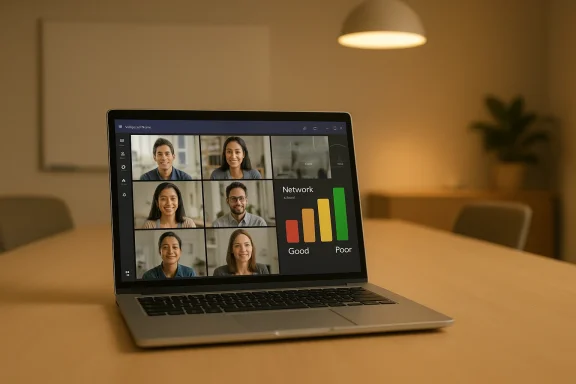
Microsoft’s Network Strength Indicator is a deliberate design response to that problem: a lightweight, in-meeting signal that tells users when their network may be the cause of an interruption, and — importantly — it can show when other participants are struggling too. The change is small in UI surface area but big in cultural impact: it moves meetings from guessing and finger-pointing to a shared, visible context for technical interruptions.
Microsoft began rolling the feature in February 2026, with a staged rollout that targeted early February for targeted release and mid‑to‑late February 2026 for wider availability on desktop platforms. The initial client support focuses on the Teams desktop apps for Windows and macOS; virtual desktop infrastructure (VDI) support is limited or excluded in the earliest builds. The feature is delivered as part of Teams client updates and does not require tenant admin configuration to enable.
The Network Strength Indicator presented in the client surface is a UI mapping of these telemetry signals into three simple states:
Benefits for users
Immediate to‑dos for admins
Quick implementation checklist
However, the indicator is not a silver bullet. It’s a visibility tool built atop heuristics and telemetry; it doesn’t replace the need for good network engineering, proactive monitoring, and clear human policies. Organizations that plan ahead — by updating documentation, briefing users, training helpdesk staff, and auditing telemetry/privacy settings — will get the most value while minimizing social friction.
For users, the advice is straightforward: treat the indicator as a friendly helper. Try the quick fixes first, and don’t take the flag personally. For IT teams, the feature accelerates triage but should be integrated into a broader support playbook that includes QoS, CQD analysis, and, when necessary, endpoint standardization.
In short: Teams’ little bars can save a lot of meeting minutes — provided teams treat the change as both a technical tool and an organizational habit.
Source: MakeUseOf Microsoft Teams brings transparency to meeting connections
 Background: why a little honesty matters in video meetings
For more than half a decade the hybrid workplace has been built on the polite fiction that meeting disruptions are everyone’s problem. The frozen frames, robotic audio, and sudden dropouts became shared pain points with no obvious owner. That ambiguity wastes time, breaks conversational flow, and turns what should be quick clarifications into round-robin troubleshooting sessions.Microsoft’s Network Strength Indicator is a deliberate design response to that problem: a lightweight, in-meeting signal that tells users when their network may be the cause of an interruption, and — importantly — it can show when other participants are struggling too. The change is small in UI surface area but big in cultural impact: it moves meetings from guessing and finger-pointing to a shared, visible context for technical interruptions.
Microsoft began rolling the feature in February 2026, with a staged rollout that targeted early February for targeted release and mid‑to‑late February 2026 for wider availability on desktop platforms. The initial client support focuses on the Teams desktop apps for Windows and macOS; virtual desktop infrastructure (VDI) support is limited or excluded in the earliest builds. The feature is delivered as part of Teams client updates and does not require tenant admin configuration to enable.
Overview: what the Network Strength Indicator does
- The indicator uses a simple 3‑bar visual (Good / Poor / Bad) to represent perceived network quality for each meeting participant.
- When a user's connection weakens, Teams displays a notification in the user's self‑view advising that their network may be the cause — along with actionable suggestions like turning off video to conserve bandwidth.
- Other attendees can see a weak‑connection icon next to the name or tile of participants who are experiencing poor connectivity, giving the meeting immediate context about interruptions.
- The feature is delivered to clients automatically as part of Teams updates and is intended to be a low‑friction addition — Microsoft’s rollout notes highlight that no tenant action is required to receive it.
How Teams decides “weak” — the technical basis (a practical primer)
Under the hood, Teams already measures call and media stream quality continuously. Enterprise tooling such as the Call Quality Dashboard (CQD) exposes the network metrics Teams uses for diagnostics: round‑trip time (latency), packet loss, jitter, and derived values such as a composite Network Score and MOS (Mean Opinion Score) for audio quality.The Network Strength Indicator presented in the client surface is a UI mapping of these telemetry signals into three simple states:
- 3 bars (Good) — network metrics within acceptable ranges for real‑time audio/video.
- 2 bars (Poor) — one or more metrics (jitter, packet loss, latency) are degrading the experience; Teams may recommend reducing video or bandwidth usage.
- 1 bar (Bad) — the connection quality is likely to cause frequent dropouts or unintelligible audio/video.
- Microsoft does not publish the exact numeric thresholds that map to 1/2/3 bars in the client; the mapping is a proprietary heuristic that balances sensitivity (flagging real problems) against false positives.
- The measurement is influenced by the entire media path — client ↔ Teams service — so a flagged “weak” indicator may originate from the user’s local network, their ISP, a VPN, or even a transient route problem between Microsoft’s cloud edge and the Teams service.
- Client‑side CPU or GPU starvation can appear like network problems because frames drop or packets are delayed at the media stack; the indicator is primarily network‑focused but can be triggered by resource constraints.
What this means for users: faster fixes, but new etiquette questions
The Network Strength Indicator will change the immediate dynamics of meetings:Benefits for users
- Faster diagnosis: Instead of everyone guessing who’s “cutting out,” the flagged indicator gives instant, shared context.
- Actionable prompts: The client suggests fixes in real time (for example, turning off video), which can restore meeting flow without escalation.
- Reduced interruptions: When everyone can see that a participant has network problems, the group can adapt — postpone a demo, switch to audio, or ask the affected person to send materials afterwards.
- Visibility = pressure. Some users will feel exposed when an indicator highlights their connection in front of colleagues. That can cause embarrassment or defensive reactions.
- Blame shifting. Although the indicator aims to be helpful, visible flags could be misused (or misread) as a performance or reliability judgement.
- False positives. Because the indicator reflects network heuristics, it can occasionally point at a user whose local setup is fine but who’s affected by wider routing or service issues.
- Meeting organizers should normalize the indicator: a short statement at the start of regular calls helps. For example: “You may see a network flag next to names; that just tells us someone's internet quality is low — we’ll adapt as needed.”
- Hosts should avoid publicly calling out a flagged participant. Use private chat or a quick sidebar question instead.
- Teams and organizations should update meeting best practices (below) so users know what to do when flagged.
Troubleshooting: practical steps for end users (quick fixes)
If Teams notifies you that your network is weak, try these common, high‑impact steps in order:- Switch to wired Ethernet — the fastest way to stabilize latency and reduce packet loss.
- Pause large uploads/downloads (cloud syncers, streaming, OS updates) and close background apps that use bandwidth.
- Move closer to the Wi‑Fi access point or switch to the 5 GHz band if your router supports it and range permits.
- Restart your router and modem — power‑cycling often clears transient congestion or radio state.
- Disable VPN temporarily (if permitted by policy) to test if the VPN path is adding latency.
- Lower camera resolution or turn video off — audio consumes less bandwidth and is often all you need until the network stabilizes.
- Switch to mobile tethering as a temporary workaround (only if data allowances permit).
- Run the built‑in Teams ‘Call health’ view (or check system resources) to confirm whether CPU or memory strain might be affecting media.
Guidance for IT admins: policy, monitoring, and support playbook
IT teams should treat the Network Strength Indicator as a visibility tool that complements — but does not replace — existing monitoring and troubleshooting workflows.Immediate to‑dos for admins
- Update user documentation and helpdesk scripts to include the Network Strength Indicator and the steps end users should try first.
- Train service desk staff to ask whether a user saw a network flag and to collect the meeting timestamp for CQD or call record lookups.
- Enable and review Call Quality Dashboard (CQD) and tenant‑level analytics to correlate client flags with objective metrics (packet loss, jitter, round‑trip time) across users and locations.
- Communicate expectations about when to use Wi‑Fi vs wired; publish recommended laptop settings for camera quality and background processes.
- Prioritize Teams traffic: implement QoS markings where supported, and ensure firewall/proxy bypasses for Teams media paths to avoid deep packet inspection adding latency.
- Audit VPN split tunneling: routed or full‑tunnel VPNs can add 20–50 ms or more; consider split tunneling for media traffic to reduce unnecessary hops.
- Monitor remote office links for consistent packet loss spikes — home Wi‑Fi problems are common, but office WAN congestion is also a frequent culprit.
- Provide standardized endpoints for hot‑desk spaces or shared rooms (certified webcams, wired endpoints) to reduce client variability.
- Confirm Teams client version and OS platform.
- Ask whether the user saw the Network Strength Indicator and note the timestamp.
- Verify whether the user is on Wi‑Fi, wired Ethernet, or VPN.
- Walk the user through quick fixes (wired, close apps, restart router).
- If unresolved, collect Teams diagnostic logs and escalate to network engineering with CQD query parameters (timestamps, user ID, meeting ID).
Privacy, consent, and transparency concerns
Visibility into someone’s network quality raises legitimate privacy and policy questions. Microsoft’s ecosystem has already introduced more granular location‑consent controls for Teams (the dialog that governs whether the client can use SSID/BSSID for emergency and troubleshooting purposes). A few points to keep in mind:- The Network Strength Indicator itself is a real‑time UI hint derived from telemetry; it does not automatically share precise location coordinates.
- Some Teams features that rely on SSID or BSSID data (for example, Call Quality Dashboard BSSID matching, or emergency‑call location routing) require explicit user consent under new Teams location consent flows. Admins should understand and communicate how tenant settings and device management affect what is collected and visible.
- Organizations should be transparent in their policies about what network and location telemetry they collect for diagnostics and how it is used. This avoids surprises for users and reduces the risk of negative reactions when flags appear during meetings.
Limitations and realistic expectations
The Network Strength Indicator is a pragmatic feature, not a forensic tool. Keep these limitations in mind:- Not all clients are included at launch. The initial rollout emphasizes desktop clients for Windows and macOS; browser and mobile behavior may lag.
- It’s a heuristic, not a guarantee. The indicator reflects measured transport quality mapped to UI states; it can be affected by ISP routing, VPNs, browser behavior, and local CPU constraints, producing false positives or negatives.
- It doesn’t show WHY the problem exists. The flag tells you who appears to be affected, not whether the root cause is the user’s router, their ISP, a regional Microsoft service issue, or a temporary internet route problem.
- Enterprise monitoring still matters. For persistent, repeatable issues, CQD and network monitoring tools (synthetic agents, samples, and path traces) are necessary to attribute cause and track remediation.
- Microsoft’s public updates describe the three‑bar indicator and in‑client suggestions, but the precise thresholds and the full set of platforms supported at every stage are subject to change based on client builds and rollout schedules. Treat any published timelines as guidance rather than guarantees; Microsoft has historically adjusted rollout windows during large feature deployments.
Meet the change halfway: recommended organizational policies and training
To make the indicator a net positive, organizations should enact a few pragmatic policies and training moments.Quick implementation checklist
- Announce the feature to users with one or two clear bullets: what it does, where they’ll see it, and the first‑line fixes to try.
- Add a short section in onboarding and IT support documentation titled “When Teams says your network is weak” with the troubleshooting steps from this article.
- Encourage meeting hosts to script an opening line for recurring meetings that normalizes the indicator.
- Update acceptable use and privacy notices to reflect any telemetry or location‑consent dependencies that affect diagnostics.
- Equip helpdesk staff with an escalation path that includes CQD lookup steps and key timestamps.
- “Quick note: Teams now shows a small network icon if someone’s connection is weak. If you see it, we’ll adapt — don’t worry, it’s just a flag, not a judgment. If you’re flagged, try turning off video briefly or switching to a wired connection.”
Bottom line: small UI, outsized practical value — but governance matters
Microsoft Teams’ Network Strength Indicator is a practical UX feature that brings immediate clarity to everyday meeting interruptions. By making connection status visible to both the affected user and other attendees, Teams reduces guesswork and speeds recovery tactics (lowering video resolution, switching to audio, or deferring bandwidth‑heavy parts of a meeting).However, the indicator is not a silver bullet. It’s a visibility tool built atop heuristics and telemetry; it doesn’t replace the need for good network engineering, proactive monitoring, and clear human policies. Organizations that plan ahead — by updating documentation, briefing users, training helpdesk staff, and auditing telemetry/privacy settings — will get the most value while minimizing social friction.
For users, the advice is straightforward: treat the indicator as a friendly helper. Try the quick fixes first, and don’t take the flag personally. For IT teams, the feature accelerates triage but should be integrated into a broader support playbook that includes QoS, CQD analysis, and, when necessary, endpoint standardization.
In short: Teams’ little bars can save a lot of meeting minutes — provided teams treat the change as both a technical tool and an organizational habit.
Source: MakeUseOf Microsoft Teams brings transparency to meeting connections
