

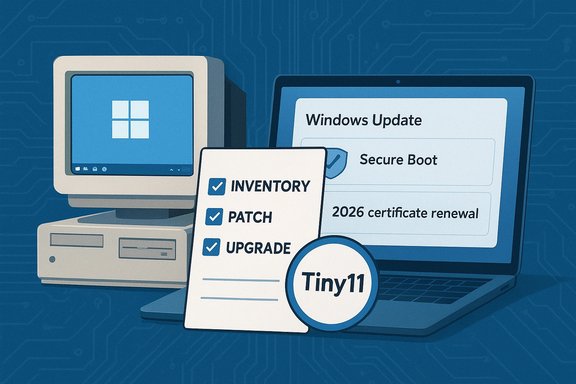
Windows 10's official end-of-support has forced a scramble — but a surprising ecosystem response is already here: community builds such as Tiny11 promise a lean, Windows 11-like experience on older machines, Microsoft has begun pushing the first major Windows 11 servicing of the year with important fixes and security workarounds, and curated app roundups continue to surface practical tools that make the platform usable during and after migration. This feature examines what each development means for everyday users, power users, and IT pros, verifies the core technical claims, and lays out pragmatic migration and security guidance for keeping systems safe and productive in 2026.
Background / Overview
Microsoft officially ended mainstream support for Windows 10 on October 14, 2025. That decision means Home and Pro consumers no longer receive routine security patches, feature updates, or free technical help unless they enroll in an extended support program or migrate to a supported operating system.For many households and small organizations the end-of-support deadline introduced a hard fork: upgrade to Windows 11, buy new hardware that meets Microsoft’s modern requirements, enroll in limited Extended Security Updates (ESU), or consider alternatives (Linux, ChromeOS Flex, or community-driven Windows builds). The market response has been twofold: Microsoft’s steady roll of Windows 11 fixes and enablement packages, and a surge in community tooling designed to trim or repackage Windows 11 so it runs on older hardware.
This article unpacks three current threads:
- The arrival and mechanics of Tiny11, a community-built, lightweight Windows 11 image aimed at older PCs.
- The first major Windows 11 update cycle in 2026, what it fixes, and why some fixes are critical (notably Secure Boot certificate upgrades).
- The ongoing value of curated app roundups that help users find high-quality, lightweight, or ARM-native apps during the transition.
Tiny11: What it is and why it matters
Origins and how Tiny11 is built
Tiny11 is a community project maintained by an independent developer and contributors. It is built from official Windows 11 images but uses a scripted, reproducible process to remove or disable many components Microsoft ships by default. The project is delivered in two complementary forms:- A serviceable trimmed image that aims to retain updateability and essential components.
- A core / minimal image that strips even more for testing or virtual-machine environments but sacrifices the ability to service the image later.
What Tiny11 removes and the typical resource gains
Tiny11’s typical removals include nonessential Microsoft consumer apps and background services that are commonly considered “bloat”:- Preinstalled apps like game services, some multimedia viewers, and retail UWP apps.
- Telemetry and certain scheduled tasks (configurable and subject to builder options).
- In some builds, the alternative browsers and bundled clients (for example, the distribution may not carry Microsoft Edge or Teams by default).
- Installation footprint drops significantly (typical full Windows 11 installs use tens of gigabytes; trimmed images can be dramatically smaller).
- Minimum usable RAM reported in community testing can be as low as 2 GB for extremely constrained setups, though 4 GB is recommended for a tolerable user experience.
- Removal of TPM / Secure Boot checks is supported when the builder is used to produce an image that avoids hardware-enforcement paths, enabling installation on many older machines.
Legal, activation, and update realities — the important caveats
Tiny11 addresses hardware and bloat constraints, but it brings trade-offs that every reader must weigh carefully:- Licensing: The builder expects that you start with an official Windows 11 ISO. Activation behavior varies by build: if the trimmed image is created from an official SKU and your device has a valid Windows 11 license or product key, activation is often possible. However, activation nuances depend on which SKU was used and whether digital entitlement is present on the device. Relying on third-party prebuilt ISOs carries increased risk: always prefer building your own image from a clean official source.
- Support: Tiny11 is community-made and not supported by Microsoft. That means no official security or feature support, and Microsoft support channels will not troubleshoot Tiny11-specific issues.
- Updates and servicing: The “serviceable” builder variant retains updateability, but the minimal/core variant intentionally removes many servicing components. Systems built with non-serviceable images may not be able to receive cumulative updates via Windows Update and may require periodic rebuilds or manual patching.
- Security posture: Stripping telemetry and certain components can lower resource use, but it can also disable protections (e.g., Defender or update mechanisms) unless the builder or end-user re-enables them. That increases risk if the device remains connected to the internet.
- Stability and drivers: On very old hardware, some drivers may no longer receive updates or may behave unpredictably. Tiny11 lowers the bar for installation but does not magically restore driver compatibility for unsupported chipsets.
Where Tiny11 is most useful
Tiny11 is best suited for:- Hobbyists and tinkerers who want a very small Windows environment on legacy hardware or VMs.
- Kiosk-like deployments where only a narrow set of applications runs and long-term vendor support is not required.
- Short-term extension of older devices while organizations budget for replacements.
Windows 11 update of 2026: the first major cycle and why it matters
What Microsoft is shipping and the servicing cadence
Microsoft’s Windows servicing model continues to rely on monthly cumulative updates (Patch Tuesday) plus periodic feature or enablement packages. The first major update cycle in 2026 followed the usual pattern of security fixes, quality improvements, and targeted reliability fixes that address issues found in the field since the last cumulative patch.Key themes of the early-2026 updates:
- Multiple security fixes addressing actively exploited or publicly disclosed vulnerabilities.
- Reliability improvements for storage, networking, and power management on a wide range of devices.
- Fixes for platform components that affect gaming, display drivers, and hybrid devices.
- Preparatory work and warnings related to cryptographic key / certificate transitions used by Secure Boot.
Secure Boot certificate expiration — the critical, time-sensitive work
One of the highest-impact technical items surfacing in 2026 is the Secure Boot certificate lifecycle. Secure Boot relies on cryptographic certificates embedded in firmware and OS-managed databases; many of the original certificates used across devices were scheduled to begin expiring in mid-2026.Why this matters:
- When Secure Boot certificates expire, affected systems may stop receiving critical boot-related security updates or may fail to trust newly signed firmware or option ROMs.
- The certificate renewal is not purely a software-only event: it involves coordination between OEM firmware updates and Windows-side provisioning so that new certificate authorities (CAs) replace older ones without breaking boot chains.
- Let Windows Update manage certificates where possible. Microsoft’s rollout mechanisms are designed to push the new 2023-rooted certificates to supported devices in coordination with OEM firmware.
- Check for and apply OEM firmware (UEFI/BIOS) updates before mid-2026 to ensure OEMs have addressed necessary platform-level prerequisites.
- For sensitive or air-gapped systems, plan a manual certificate deployment path and test thoroughly in a lab environment.
- If you maintain virtual machines, validate hypervisor behavior: some VM platforms require specific settings or updates to expose or accept new KEK/DB/DBX changes.
What the “first big update” fixes in practice
End users saw real-world improvements after the initial 2026 update:- Resolved issues that caused sudden battery drain on some handheld and convertible devices.
- Fixes for Storage Spaces reliability cases that could render volumes inaccessible under specific conditions.
- Patches addressing print spooler and USB printer edge cases that produced garbled or random output.
- Clarifications and warnings surfaced for administrators about the Secure Boot certificate work and the steps needed to remain protected.
Best Windows apps right now — curated, practical picks
Community roundups and curated “best apps” lists remain valuable during migration periods: they surface lightweight alternatives, ARM-native builds, and apps that restore missing functionality after a trimmed install or when Microsoft Store options are limited.Recent practical picks assembled by independent curators include:
- AI chat and assistant apps built on newer models — lightweight chat clients that let users experiment with generative features without installing larger suites.
- Dynamic wallpaper and personalization engines that offer fluid desktop backgrounds with low CPU/GPU impact.
- Native cloud sync utilities for Arm-based devices — important as Arm-based Windows machines (Surface and other Snapdragon-like devices) gain traction and need first-class client apps.
- Small utilities (RAM managers, clock overlays, and PDF editors) that are useful for older hardware or trimmed installs.
- Confirm publisher metadata in the Microsoft Store or the official vendor page; many apps have lookalike names.
- Test in a sandboxed VM or a noncritical machine before rolling out to production.
- Prefer apps that offer explicit ARM builds if you run Arm-based Windows devices.
- For apps that require elevated permissions, review the minimum permission set and telemetry terms.
Security and migration recommendations — pragmatic, prioritized steps
Whether you’re on Windows 10, moving to Windows 11, or experimenting with community builds like Tiny11, follow these prioritized actions to reduce risk:- Inventory and classify devices.
- Group hardware by Windows 11 compatibility, upgrade feasibility, and business criticality.
- Patch managers first: deploy critical firmware and OS updates to pilot devices.
- Prioritize OEM firmware that addresses Secure Boot certificate preparation.
- Validate storage and driver-related fixes in a small test pool.
- Use official images where possible.
- If you build a Tiny11 image, start from a current official Windows ISO and retain updateability when you need long-term security.
- Consider ESU temporarily for devices that cannot be upgraded immediately.
- Extended Security Updates can give a short runway for complex migrations. Treat ESU as a stopgap, not a plan.
- Harden trimmed installations.
- Re-enable essential protections: antivirus/endpoint agent, firewall, and automatic update mechanisms as appropriate.
- Carefully control user privileges and network exposure.
- Test Microsoft Store apps and third-party tools in preproduction.
- Vet updates, check permissions, and monitor for unexpected background services on trimmed images.
- Plan hardware refresh cycles with cost and security in mind.
- Modern security features (VBS, TPM enhancements, secure boot improvements) have tangible security benefits for many threat scenarios.
Risks, strengths, and final analysis
Strengths of the current ecosystem
- Choice and flexibility: Community tooling like Tiny11 provides users with choices beyond “buy a new PC or stay on an unsupported OS.” For many older devices, Tiny11 can restore responsiveness and keep otherwise functional machines in service.
- Active patching and planning by Microsoft: The 2026 updates show Microsoft’s continued commitment to patching and to complex transitions (Secure Boot certificates) that require coordination across the ecosystem.
- Better discovery of apps: Curated picks surface efficient, ARM-native, and privacy-conscious apps that help users extract value from trimmed installs or new devices.
Principal risks and trade-offs
- Security vs. usability: Stripping components can improve performance but may also disable protections or remove servicing paths. For internet-facing devices, an unpatched or unsupported configuration exposes real risk.
- Operational complexity: Keeping Tiny11-based fleets updated and compatible demands manual work, rebuilds, and monitoring that many small shops cannot reliably sustain.
- Legal and support ambiguity: While building a Tiny11 image from an official ISO is technically possible and common practice among hobbyists, Microsoft will not support such builds; prebuilt community ISOs are riskier and may introduce supply-chain issues or malware if sourced from untrusted repositories.
What to watch next
- OEM guidance and firmware updates related to Secure Boot certificate rollouts through mid-2026. These are the single most material operational changes IT must track this year.
- How Microsoft shifts the Windows upgrade path: enablement packages, 25H2 rollout decisions, and whether Microsoft loosens or tightens hardware policy for legacy devices.
- Community tools’ evolution: expect continued refinement of builders, scripts, and better tooling to keep trimmed images serviceable without sacrificing core security.
Conclusion
The end of Windows 10 support was a tectonic shift; it accelerated a migration and created a demand for alternatives. Tiny11 and similar community projects answer one clear need — keep older hardware usable while offering a modern Windows UI and feature set. At the same time, Microsoft’s early 2026 update cycle shows that the platform’s core maintenance and security work is ongoing, with high-stakes items like Secure Boot certificates demanding coordinated firmware and OS attention.For everyday users and administrators the right approach is pragmatic: use vendor-supported upgrade paths where possible; if using community builds, build from official ISOs and treat those systems as niche deployments requiring additional vigilance; and always prioritize firmware and security updates that preserve the ability to boot and receive trusted patches. Curated app roundups remain a useful, low-risk way to improve day-to-day productivity while you plan hardware refreshes and migrations.
In short: Windows 10’s retirement is an inflection point, not an apocalypse. With careful choices — a mix of controlled upgrades, selective use of community tools, and disciplined patch and firmware management — users can protect data, extend device life where appropriate, and keep productivity high in the transition to the next generation of Windows.
Source: MSN http://www.msn.com/en-gb/money/tech....com/series/best-windows-apps-this-week-216/]
