

If you use Windows and want to reclaim control of your data, speed up repetitive tasks, and avoid vendor lock-in without spending a dime, these ten open-source apps are the fastest, most practical way to do it. They replace or meaningfully extend common proprietary tools—office suites, launchers, backups, password management, automation, and even local AI—while keeping your workflow local-first and auditable. The list below explains what each app does, why it matters, real-world strengths, adoption checklists, and the risks you should watch for before installing them. Many of the technical claims and feature notes below are drawn from contemporary editor roundups and project documentation that reviewed these exact apps.
Open-source software for Windows is no longer niche; it’s mainstream and, in many cases, the objectively best choice for focused tasks. These projects benefit from broad community testing, transparent code, and fast iteration. For Windows users who care about privacy, auditability, and the ability to run tools locally (rather than handing data to a cloud provider), open-source alternatives are essential. The ten apps recommended here target common friction points: productivity (office), quick access (launchers), backup, cloud alternatives, unified messaging, UI tweaks, file conversion, password security, automation, and local AI. Each entry includes practical adoption steps and a short risk analysis so you can install with confidence.
Open-source software gives Windows users a clear path to reclaiming control, improving productivity, and reducing subscription costs without sacrificing capability. Each of these ten apps has a strong real-world case: try one or two, validate them with a test project, and expand your toolkit incrementally. The rewards—fewer clicks, stronger privacy, and faster workflows—add up quickly. Reviewed roundups and project documentation informed this list and the practical adoption advice above.
Source: ZDNET 10 open-source apps I recommend every Windows user download - for free
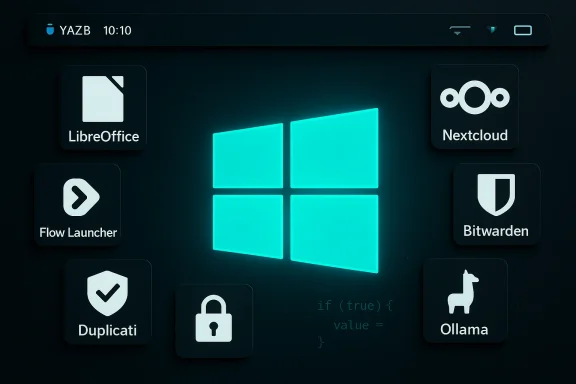 Background / Overview
Open-source software for Windows is no longer niche; it’s mainstream and, in many cases, the objectively best choice for focused tasks. These projects benefit from broad community testing, transparent code, and fast iteration. For Windows users who care about privacy, auditability, and the ability to run tools locally (rather than handing data to a cloud provider), open-source alternatives are essential. The ten apps recommended here target common friction points: productivity (office), quick access (launchers), backup, cloud alternatives, unified messaging, UI tweaks, file conversion, password security, automation, and local AI. Each entry includes practical adoption steps and a short risk analysis so you can install with confidence.1. LibreOffice — full-featured office suite that runs locally
LibreOffice has long been the default open-source office suite for people who want a full productivity stack (Writer, Calc, Impress, and Base) without vendor lock-in. It supports native OpenDocument formats, reads and writes Microsoft Office formats (DOCX, XLSX, PPTX), and includes a desktop database component—Base—that can handle local relational tasks. LibreOffice can be configured to save in Office XML formats by default to ease collaboration with Microsoft Office users.Why it matters
- Local-first storage: Documents stay on your machine unless you choose otherwise, reducing cloud exposure.
- Feature parity: For most users, Writer/Calc/Impress replace Word/Excel/PowerPoint.
- Broad compatibility: Decades of development means better handling of legacy formats and edge cases than many alternatives.
Strengths
- Excellent import/export for Office formats for everyday documents.
- Rich template, macro, and extension ecosystem.
- No subscription, no telemetry—auditable code base.
Risks & caveats
- Complex, heavily formatted Microsoft Office files (especially macros and advanced Excel formulas) can sometimes render imperfectly; test mission-critical documents before fully switching.
- Real-time collaborative editing is less mature than cloud-first solutions, though optional server-backed solutions exist.
Adoption checklist
- Install the stable Windows build and set default save formats to the MS Office format you need.
- Keep a small compatibility test set of your most complex documents and test round-trip conversions.
- If you require collaboration, pair LibreOffice with a sync or collaboration stack (see Nextcloud below).
2. Flow Launcher — keyboard-first launcher and quick search
Flow Launcher is a lightweight, highly extensible launcher for Windows. Triggered by a hotkey, it lets you open apps, find files, run web searches, and call community plugins that add functionality (calculator, clipboard history, package search, and more). Its plugin and theming system makes it a practical replacement for Start menu workflows and accelerates keyboard-based productivity.Why it matters
- Saves time: a few keystrokes can replace clicks and hunting through menus.
- Highly customizable: community plugins let you tailor the launcher to your daily tasks.
Strengths
- Fast, minimal memory footprint.
- Plugin ecosystem that covers launch, search, and small automations.
- Works well alongside other search tools (Everything, Spotlight-style utilities).
Risks & caveats
- Many plugins are community-maintained; verify plugin sources and permissions before installing.
- Launcher shortcuts can conflict with system hotkeys—test and remap if necessary.
Adoption checklist
- Choose your activation hotkey and disable conflicting system shortcuts.
- Install a curated set of plugins you actually need.
- Back up your Flow Launcher settings if you plan to move between machines.
3. Duplicati — encrypted, flexible backups to many destinations
Duplicati is a cross-platform backup solution focused on encrypted, incremental backups to remote and local destinations. It supports cloud storage providers (S3-compatible, Azure, Google Drive, etc.), remote machines, and local drives; backups are encrypted client-side and can be scheduled. The available UI and dashboard make monitoring straightforward for home and small office use.Why it matters
- Zero-trust backup: client-side encryption ensures the backup target cannot read your data without the key.
- Flexible destinations: pick cloud or local storage based on privacy and cost needs.
Strengths
- Incremental backups reduce bandwidth and storage use.
- Scheduling and retention policies are configurable.
- Web-based admin UI for remote monitoring and restore tests.
Risks & caveats
- Restores must be tested periodically; backups are only useful if you can recover them.
- Client-side encryption means losing the passphrase/key can make backups irrecoverable—store keys securely.
Adoption checklist
- Configure encryption and test restores immediately after the first backup.
- Use multiple destinations (local + remote) where practical.
- Automate integrity checks and monitor logs for failures.
4. Nextcloud — self-hosted cloud alternative with desktop client
If you want cloud-like file sharing, calendars, contacts, and collaborative apps without a third-party provider, Nextcloud is the mature, open-source stack that offers a server, desktop client, and app ecosystem. Nextcloud runs on a machine you control (home server, VPS, or rented server) and includes an app store for plugins that extend collaboration, chat, and editing. The Nextcloud Desktop client integrates with Windows Explorer for seamless sync.Why it matters
- Keeps your files under your control while offering the convenience of cloud sync and sharing.
- Extensible: install only the features you trust and need.
Strengths
- Self-hosted control over storage and metadata.
- Rich plugin marketplace for collaboration, security, and productivity.
- Desktop client for Windows simplifies file sync and selective sync.
Risks & caveats
- Self-hosting introduces system administration responsibilities and security maintenance (updates, TLS certs, firewall rules).
- Performance and availability depend on your hosting choices; not an automatic, SaaS-level guarantee.
Adoption checklist
- Decide between DIY self-hosting (more control) or managed hosting (less maintenance).
- Secure the server: TLS, fail2ban, regular updates, and tested backups.
- Use the Nextcloud Desktop client on Windows for selective sync and file access.
5. Franz — unify multiple messaging services in one interface (with a caveat)
Franz is a multi-service messaging client that puts WhatsApp, Telegram, Slack, Facebook Messenger, Discord, Google Calendar, and many others under one roof. For users juggling multiple chat apps, it reduces context switching and keeps all notifications in one place. However, licensing and project maturity have changed over time—some forks and similar apps exist—so verify the project’s current license and telemetry posture before relying on it for sensitive communications.Why it matters
- Single interface for multiple messaging services reduces desktop clutter and task switching.
- Useful for consultants, social media managers, and users who maintain many accounts.
Strengths
- Supports many services and multiple accounts per service.
- Keeps messages and notifications centralized.
Risks & caveats
- Not all multi-service wrappers are equally privacy-friendly; check whether your instance sends message metadata to third-party servers.
- Some projects shift from open-source to commercial or change licensing—confirm the current status for the build you download.
Adoption checklist
- Verify the project’s current license and build provenance before installing.
- Prefer builds that run entirely locally and minimize external telemetry.
- Avoid sending truly sensitive data over multi-service wrappers unless you’ve verified end-to-end encryption for each service.
6. YAZB (YAZB Reborn) — top-bar widgets and quick system glances
YAZB (also referenced as YAZB Reborn) creates macOS-style top bars on Windows that display system information—battery, network speeds, weather, and launcher shortcuts—in a compact, aesthetically pleasing way. It’s a customization tool for users who want glanceable stats and shortcuts without a full desktop skin.Why it matters
- Small UI improvements can reduce friction: a glance at the status bar is faster than opening Task Manager or Settings for basic info.
- Customizable widgets let you tailor the bar to what you actually monitor.
Strengths
- Lightweight and visually clean.
- Adds convenient actions (shutdown, restart) and widgets without heavy theming.
Risks & caveats
- UI-modifying apps can conflict with Windows updates or system theming; keep them current.
- Verify the trustworthiness of custom themes and widget plugins.
Adoption checklist
- Test on a non-critical machine first to ensure compatibility with your Windows version.
- Keep a restore point before installation in case of visual/glitches.
- Limit widgets to those you need to avoid unnecessary background processes.
7. File Converter — Explorer-integrated, context-menu conversions
File Converter plugs into the Windows Explorer context menu and uses backends like FFmpeg, ImageMagick, and Ghostscript to convert audio, video, images, and documents with a right-click. It’s ideal for quick conversions and compressions without launching a full app. Note: converting native MS Office formats may require Microsoft Office installed on the machine for some conversions to work perfectly.Why it matters
- Right-click conversions save time compared to opening a heavy app for single-file tasks.
- Offline conversions reduce privacy exposure for sensitive files.
Strengths
- Uses robust open-source engines (FFmpeg, ImageMagick) for quality conversions.
- Supports document to PDF conversions and basic presets for common tasks.
Risks & caveats
- Some conversions (especially MS Office formats) have external dependencies; check prerequisites.
- Context-menu clutter is real—customize presets to avoid sprawl.
Adoption checklist
- Install necessary backend tools if you plan heavy use (FFmpeg/ImageMagick).
- Customize and prune context-menu entries to only the presets you use.
- Test document conversions for fidelity before using them in production.
8. Bitwarden — open-source password manager with strong free tier
Bitwarden is a mature, open-source password manager that gives individuals a full-featured free tier: browser extensions, desktop clients, password generation, and encrypted vaults. Paid plans add collaboration features and enterprise controls, but the free tier is sufficient for most personal users. Bitwarden also supports self-hosting for organizations wary of third-party custody.Why it matters
- Replaces weak password reuse with unique, high-entropy credentials.
- Open-source codebase allows audits and self-hosting for privacy-conscious users.
Strengths
- Easy to use across browsers and desktops.
- Strong cryptography and optional self-hosting.
- Built-in secure sharing features (with paid plans offering more collaborative features).
Risks & caveats
- Vault master password security is paramount—loss means loss of access.
- If self-hosting, you must properly secure the instance (TLS, updates, backups).
Adoption checklist
- Pick a strong master passphrase and enable two-factor authentication where supported.
- Audit and migrate passwords in small batches; use Bitwarden’s import tools where available.
- Consider a paid family plan if you need shared vaults for household members.
9. AutoHotkey — automation and hotkey scripting powerhouse
AutoHotkey (AHK) is a scripting language for Windows that lets you bind hotkeys, create macros, remap keys, and automate nearly any desktop task. It’s indispensable for power users who want to eliminate repetitive UI interactions. A modest learning curve delivers large productivity dividends in the form of keyboard-driven workflows and one-click automations.Why it matters
- Small automations save minutes every day; macros compound into hours saved monthly.
- Low barrier to entry for simple hotkeys; deep power for complex scripts and GUIs.
Strengths
- Extremely flexible: key remapping, window automation, text expansion, and GUI creation.
- Lightweight and widely used in the Windows power-user community.
Risks & caveats
- Malicious scripts can be written; only run scripts from trusted sources.
- Complex automation can break with UI changes—keep scripts simple and well-documented.
Adoption checklist
- Start with small scripts (remap caps lock, create text expansions) to build confidence.
- Store scripts in a synced, versioned folder and document what each does.
- Review community scripts carefully before running and prefer signed/verified packages.
10. Ollama — local LLM hosting with a desktop GUI (hardware-dependent)
Ollama presents a local-first toolchain and GUI for running LLMs on a Windows machine, letting users interact with models without routing data through third-party APIs. It supports many models (small to large) and is appealing for privacy-conscious users wanting local inference. Be realistic: larger models need substantial GPU resources, and smaller models may be appropriate for casual, offline use.Why it matters
- Local inference keeps prompts and data on your hardware—appealing in regulated or private environments.
- Useful for experimentation, local assistants, and privacy-sensitive workflows.
Strengths
- GUI simplifies model selection, prompts, and local hosting.
- Supports a range of model sizes to match your hardware.
Risks & caveats
- Resource-hungry: large models may require a high-end GPU or server-class machines.
- Local inference still requires model licensing compliance—ensure you understand model licenses and any usage restrictions.
- Performance and costs vary widely based on the models and hardware you choose.
Adoption checklist
- Assess your hardware (GPU VRAM/capabilities) before attempting larger models.
- Start with compact open-weight models to validate use cases.
- Understand and respect model licenses; don’t assume all weights are free for redistribution.
How to adopt these apps safely — a step-by-step plan
- Prioritize: pick two apps that solve your biggest daily friction (e.g., Flow Launcher + Bitwarden).
- Install on a test system or create a system restore point before major UI or system tools (YAZB, AutoHotkey).
- Verify checksums and download builds from official project pages or trusted package managers.
- Test interoperability (LibreOffice ↔ colleagues on MS Office; Duplicati restores; Bitwarden imports).
- Harden: enable 2FA, secure master keys, and, for any self-hosted server (Nextcloud, Ollama), apply TLS and automated updates.
- Monitor: add a simple habit—weekly quick-check logs for Duplicati and Nextcloud, and run routine restore tests quarterly.
Notable trade-offs and when to stick with proprietary tools
Open-source tools excel at transparency and local control, but they sometimes require more maintenance or configuration than closed-source SaaS. Real-time collaborative editing, enterprise-grade SLAs, or polished customer support may still favor commercial clouds for certain workflows. Likewise, if your workplace mandates managed apps or specific enterprise policies, you may not be able to adopt self-hosted or locally-run alternatives across the board. Balance privacy and control against convenience and compliance needs; hybrid approaches (e.g., use LibreOffice locally but keep a copy in a corporate-approved cloud) work well for many teams.Final verdict: where each app shines and who should install it
- LibreOffice — Great for individuals and small teams who need feature parity with Microsoft Office without vendor lock-in.
- Flow Launcher — Ideal for keyboard-first power users who want to shave seconds off common tasks.
- Duplicati — Strong choice for privacy-minded users who want encrypted backups to flexible destinations.
- Nextcloud — Best for users who want cloud conveniences but retain server control.
- Franz — Useful for multi-account communicators; verify project provenance first.
- YAZB — Good for users who want a cleaner, glanceable UI without heavy theming.
- File Converter — Essential for anyone who converts media and documents frequently and values speed.
- Bitwarden — Must-have for everyone who uses passwords; upgrade to paid plans for family/organization sharing.
- AutoHotkey — Massive productivity multiplier for repetitive desktop tasks.
- Ollama — Cutting-edge option for privacy-focused local AI use; start small and scale with hardware.
Open-source software gives Windows users a clear path to reclaiming control, improving productivity, and reducing subscription costs without sacrificing capability. Each of these ten apps has a strong real-world case: try one or two, validate them with a test project, and expand your toolkit incrementally. The rewards—fewer clicks, stronger privacy, and faster workflows—add up quickly. Reviewed roundups and project documentation informed this list and the practical adoption advice above.
Source: ZDNET 10 open-source apps I recommend every Windows user download - for free
