

I’ve been using open-source tools to get work done on Windows for years, and a recent roundup that circulated on tech sites made one point crystal clear: a handful of free, community-built apps can replace expensive commercial software and genuinely improve day-to-day productivity.
Open-source alternatives aren’t just free—many are more flexible, privacy-aware, and faster to iterate than proprietary options. The list that inspired this feature highlights ten such utilities that cover office work, launching, backup, cloud sync, messaging consolidation, system UI customization, quick file conversions, password management, automation, and local AI.
This article verifies the most important technical claims about those apps, cross-checks key specifications with official project pages and independent reviews, and offers practical guidance and risk flags for anyone who wants to adopt them on Windows today. The goal is a publish-ready guide for power users who want to replace bloat, regain control of their data, and shave minutes (and sometimes hours) off repetitive workflows.
Pros
Key strengths
Strengths
Benefits
Strengths
Strengths
Strengths
Strengths
Strengths
Strengths
Small, deliberate changes—one reliable launcher, one secure password vault, and one proven backup—deliver outsized productivity gains. For Windows users who want speed, privacy, and control, these open-source tools are not just “free”; they’re frequently the smarter purchase.
Source: ZDNET 10 free Windows apps that improved my productivity (and I'd easily pay money for)
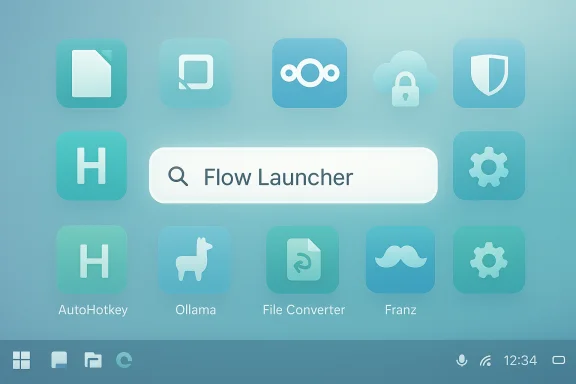 Background / Overview
Open-source alternatives aren’t just free—many are more flexible, privacy-aware, and faster to iterate than proprietary options. The list that inspired this feature highlights ten such utilities that cover office work, launching, backup, cloud sync, messaging consolidation, system UI customization, quick file conversions, password management, automation, and local AI.This article verifies the most important technical claims about those apps, cross-checks key specifications with official project pages and independent reviews, and offers practical guidance and risk flags for anyone who wants to adopt them on Windows today. The goal is a publish-ready guide for power users who want to replace bloat, regain control of their data, and shave minutes (and sometimes hours) off repetitive workflows.
Why these apps matter
- They run locally on Windows (reducing cloud exposure).
- They’re open-source or community-driven (transparent code, community audit).
- They target repeat friction points—launchers, backups, password management, conversions, and automation—where small time savings compound quickly.
- Most of them are lightweight to install and integrate without changing how you work.
LibreOffice — a full-featured office suite (Writer, Calc, Impress, Base)
LibreOffice has long been the premier free office suite and remains a complete replacement for many users’ needs. It ships with Writer (word processing), Calc (spreadsheets), Impress (presentations), and Base (a desktop database) suitable for forms, queries, and small-scale relational tasks. The project’s official Windows pages and documentation confirm Base’s built-in HSQL engine and support for external backends via JDBC/ODBC. Why it helped my workflow: local file handling, robust compatibility with Microsoft formats, and a familiar interface that can be customized to a ribbon or classic layout. It eliminates the need to keep documents on commercial cloud services if you prefer local-first workflows.Pros
- Excellent format compatibility and export options.
- Local-first storage reduces exposure to cloud data practices.
- Mature feature set (macros, templates, Base database).
- Compatibility edge cases exist with very complex Word/Excel features; test before wholesale migration.
- Collaboration workflows that rely on real-time simultaneous editing will still favor cloud document platforms.
- Install the stable Windows build and enable the MS Office save defaults if you need cross-collaboration.
- Export templates or set default save formats to Office XML where appropriate.
- Keep a small compatibility test suite of real documents before going all-in.
Flow Launcher — fast keyboard-driven launcher and extensible quick-search
Flow Launcher is a keystroke launcher that sits behind a hotkey (default Alt+Space), letting you search apps, files, bookmarks, and web queries instantly. Its plugin architecture supports extensions written in C#, Python, JavaScript, and more, and the project publishes frequent releases and a plugin store. The project’s official site and the GitHub repo confirm plugin extensibility, theme support, and native Windows package availability. Why it helped: I use Flow Launcher to open files and applications without leaving the keyboard, jump to web searches, run shell commands, and integrate search across cloud bookmarks and local files. Because it supports third-party plugins, it replaced several single-purpose utilities I previously loaded on startup.Key strengths
- Fast indexing and low-latency search.
- Extensible plugin ecosystem (Everything integration, clipboard history, Spotify control).
- Portable and available via winget/chocolatey for scripted installs.
- Some plugins may be third-party contributions; audit plugin permissions and reviews before installing.
- Major framework upgrades (e.g., .NET versions) can limit compatibility on older Windows releases—check the compatibility notes before upgrading.
- Install only the plugins you need and pin Flow Launcher to your workflow—small keystroke savings mount quickly.
Duplicati — client-side encrypted, zero-trust backups to any storage
Duplicati is a cross-platform backup client designed for encrypted, deduplicated, incremental backups to nearly any backend (S3, Azure, WebDAV, SFTP, cloud drives, or LAN machines). The Duplicati docs and product blog describe its client-side encryption (zero-trust/BYOK), block-level deduplication, and flexible destination support—exactly the behavior claimed in consumer roundups. Why it helped: Duplicati let me back up sensitive files to inexpensive cloud storage while retaining sole control of encryption keys—no provider can decrypt my archives. The combination of scheduling, chunk-level dedupe, and encrypted volumes keeps costs down and restores reliable.Strengths
- True client-side encryption and multiple backends.
- Deduplication and incremental storage efficiency.
- Remote management options for multi-machine deployments (console/agents).
- If you lose your encryption key, backups are unrecoverable by design—keep secure key backups.
- Web-based management and some enterprise features are evolving; test restore workflows end-to-end before relying on Duplicati for critical archives.
- Configure encryption with a strong passphrase and export key materials to a secure vault.
- Run a full restore test to a spare folder after initial backup.
- Use monitoring or Duplicati Console for multi-device oversight if you manage many machines.
Nextcloud — self-hosted cloud for files, collaboration, and privacy
If you want to escape Big Cloud lock-in, Nextcloud offers a mature self-hosted platform for file sync, sharing, calendaring, and collaboration. Nextcloud’s official pages show Windows desktop clients, end-to-end encryption options, and an extensible app store for Talk, Passwords, and more. Why it helped: Moving certain project folders into a Nextcloud instance gave me cloud-style syncing while keeping control over metadata and third-party access. It’s ideal for teams or families who can host or rent a private server.Benefits
- Self-hosted control and extensible apps.
- Desktop client integrates with Windows and supports selective sync.
- End-to-end encryption and group-folder options for shared projects.
- Self-hosting carries operational responsibilities: updates, backups, and security hardening are on you.
- Managed Nextcloud hosting can remove that burden but at a cost—evaluate the trade-off.
- Start with the desktop client and a managed Nextcloud trial if you’re not ready to self-host.
Franz — unify messaging and web tools in one app
Franz aggregates multiple messaging services (WhatsApp, Messenger, Slack, Telegram, Discord, and calendar integrations) into one desktop interface. The official Franz site and product pages confirm multi-account support, workspace separation, and cloud sync features. Why it helped: I combined several chat and notification channels into a single window, which reduced context switching and the mental cost of app-hopping. The workspace concept keeps work and personal chats separated.Strengths
- Multi-service support with per-service notification controls.
- Workspaces to segment tasks or clients.
- Cross-platform desktop clients (Windows, macOS, Linux).
- Integrating multiple third-party services means varied privacy postures; consider firewall or process isolation for sensitive accounts.
- Franz’s free tier supports many use cases; enterprise features fall behind dedicated vendor clients in some specialized scenarios.
YASB / YAZB (Yet Another Status Bar) — top bars and widgets for Windows
The ZDNet roundup referenced a tool called YAZB (or YAZBYAZB), billed as a way to add a Mac-like top bar with widgets for battery, network, weather, and quick actions. Community projects with names like YASB (Yet Another Status Bar) provide exactly that style of lightweight status bar and widget ecosystem for Windows. The YASB project site documents widget composition, winget installation, and a live styling pipeline. Note: there appears to be a naming variance in some roundups (YAZB vs YASB); users should confirm the exact project before installing. Why it helped: I pinned a small status bar to a secondary monitor to monitor battery, network throughput, and a Pomodoro timer without using a full-screen overlay.Strengths
- Compact widget-based UI with customizable YAML/CSS configs.
- Lightweight and extensible; suitable for multi-monitor setups.
- Community-contributed widgets for hardware stats and productivity tools.
- Several similar projects exist; confirm the repository’s health and update cadence.
- System integrations can break across Windows feature updates—test after major OS patches.
- Because different write-ups use slightly different project names, double-check the developer’s page to avoid installing the wrong package.
File Converter — right-click file conversion with FFmpeg/ImageMagick/Ghostscript
File Converter attaches conversion and compression presets to the Windows File Explorer right-click menu. The project’s GitHub repo explains that it uses FFmpeg, ImageMagick, and Ghostscript under the hood and is GPL-licensed. Releases and changelogs confirm active maintenance. Why it helped: One right-click to convert screenshots to JPEG, compress a PDF, or transcode video trimmed several repetitive steps out of my documentation workflow.Strengths
- Offline conversions using established OSS backends (FFmpeg, ImageMagick).
- Batch processing via Explorer context menu and user-defined presets.
- GPL-licensed and actively maintained.
- Explorer’s simplified context menu in Windows 11 adds an extra click for shell extensions—expect a small UX quirk.
- To convert MS Office documents, the tool needs Office installed (or a compatible conversion backend), which is an explicit limitation to note.
- Install the correct project from its GitHub repo (avoid scam impostor domains).
- Keep FFmpeg and ImageMagick updated if you use edge-format conversions.
- Use the classic context menu (Shift+Right-click) if the modern right-click flow hides the extension.
Bitwarden — open-source password manager (free + affordable paid tiers)
If you’re not using a password manager, start now; Bitwarden is a leading open-source option with native Windows apps, browser extensions, vault exports, and self-hosting options. Bitwarden’s transparency and third-party audits are documented on its open-source pages, and independent reviews praise its security model and feature parity for most users. Why it helped: Bitwarden simplified secure password creation, sharing (via organizations or family plans), and autofill across devices. Self-hosting is available if you prefer full operational control.Strengths
- End-to-end AES-256 encryption and zero-knowledge vaults.
- Cross-platform native apps and browser extensions.
- Hosted SaaS option plus full self-hosting documentation.
- Like any centralized vault, the master password and account recovery are critical—use multi-factor and emergency access plans.
- Consider hybrid deployment (SaaS for convenience, self-host for high-security needs) depending on threat model.
- Use Bitwarden’s free tier to get started, then evaluate family or enterprise plans for secure sharing.
AutoHotkey — automation, hotkeys, text expansion, and macro scripting
AutoHotkey (AHK) is a lightweight scripting language for Windows that enables remapping keys, defining hotkeys, automating UI actions, and building macros. Official AutoHotkey documentation outlines remapping syntax and hotkey constructs; mainstream tech outlets have recommended it as an essential productivity tool for power users. Why it helped: AutoHotkey replaced repetitive GUI interactions with single-key shortcuts and tiny scripts that run in the background—saving minutes every day. I use it for text expansion, app launching, and workflow automation that no commercial tool matched for flexibility.Strengths
- Extremely lightweight and powerful for string replacement, window control, and automation.
- Huge community script library to borrow from.
- Runs invisibly and is easily toggled or paused.
- Scripts can accidentally interfere with other apps or system hotkeys—test scripts incrementally.
- Keep security in mind: don’t run AHK scripts from untrusted sources.
- Version-control your scripts and test in a disposable user profile if you plan to use system-critical automations.
- Document key mappings so you don’t forget custom shortcuts months later.
Ollama — local LLM runner and GUI for private AI on Windows
For those who want AI but don’t want to send queries to cloud LLMs, Ollama provides a local model runtime and a GUI front-end to manage and chat with downloaded models. Coverage from Windows-focused publications and community documentation show that Ollama can run many open models locally, supports a model library, and offers GUI installers for Windows while recommending sufficient CPU/RAM or a GPU for larger models. Why it helped: Local LLMs let me prototype prompt engineering and private data summarization without exposing queries to third-party APIs—great for sensitive notes, code review, and internal knowledge retrieval.Strengths
- Local model execution with an integrated model store.
- GUI (and CLI) options lower the barrier compared with terminal-only stacks.
- Supports many community models with straightforward pull/run commands.
- Resource demands grow quickly with model size; plan hardware (RAM, NVMe, GPU) accordingly.
- Some community discussion has raised questions about GUI packaging and source transparency—investigate the current licensing and release notes before adopting.
- Start with a small model (3–7B) to validate workflows.
- Use disk quotas and model housekeeping to avoid filling the system drive.
- For production-like workflows, consider containerized setups or a dedicated local server.
Critical analysis — strengths, cross-checks, and risks
- Strength: These apps excel at solving narrow pain points with surgical precision—right-click conversion, instant launch, and local AI are not accidental side features; they are primary product focuses. Each tool’s official docs corroborate the primary feature claims noted in the roundup.
- Cross-checked claims: For the most load-bearing claims—LibreOffice’s Base inclusion, Duplicati’s client-side encryption, Bitwarden’s open-source audits, Flow Launcher’s plugin architecture, and File Converter’s FFmpeg/ImageMagick backends—both project documentation and independent reviews confirm the facts.
- Risk patterns:
- Operational risk: self-hosted solutions (Nextcloud, Duplicati if self-managed, Bitwarden self-host) require maintenance and backups.
- Compatibility risk: Windows feature updates or new .NET runtime versions can break third-party tools—check compatibility notes and keep installers for rollback.
- Privacy posture: aggregator apps (Franz) centralize many services—consider process isolation or separate app profiles for high-risk accounts.
- Supply-chain risk: confirm official repos (GitHub, official domains) to avoid impostor installers—File Converter counterfeit sites are a known nuisance; use the official GitHub and releases.
- Project name confusion: some roundups used "YAZB" where the active community project is listed as YASB (Yet Another Status Bar); verify the publisher before installing.
- Ollama GUI controversy: community threads have noted concerns around GUI transparency and package behavior in some versions—treat continuity and offline guarantees as conditional and verify against the project’s release notes.
Practical deployment checklist (one-week plan to adopt these tools safely)
- Inventory current pain points (launching, backups, passwords, conversions, automation).
- Pick three low-risk wins: Flow Launcher (launcher), File Converter (right-click conversions), and Bitwarden (password manager).
- Install from official repos (winget, GitHub releases, or project sites) and enable auto-updates where safe.
- Test functionality on non-critical files and confirm restores (especially for Duplicati).
- Harden authentication (master passwords, MFA) and secure backups of encryption keys.
- Add monitoring and periodically review plugin and extension permissions.
Conclusion
The modern Windows toolkit includes a thriving ecosystem of open-source utilities that are often better suited to specific productivity pain points than the generic in-box apps. The ten apps discussed here—spanning LibreOffice, Flow Launcher, Duplicati, Nextcloud, Franz, YASB/YAZB-style bars, File Converter, Bitwarden, AutoHotkey, and Ollama—illustrate how free software can be both practical and polished. Official project documentation and independent coverage back the major technical claims about these tools, but adopting them responsibly requires standard caution: install from official sources, verify backup and restore paths, and plan for maintenance.Small, deliberate changes—one reliable launcher, one secure password vault, and one proven backup—deliver outsized productivity gains. For Windows users who want speed, privacy, and control, these open-source tools are not just “free”; they’re frequently the smarter purchase.
Source: ZDNET 10 free Windows apps that improved my productivity (and I'd easily pay money for)
