

I cut a handful of apps from my Windows startup list and my PC went from sluggish to immediately usable — a change that’s small to perform, reversible, and one of the highest-return tweaks most Windows users can make today. The simple act of pruning programs that auto‑launch at sign‑in reduces early disk I/O, lowers memory pressure, and shortens the time between power‑on and productive work, while leaving essential services (security, backups, device managers) untouched. This piece explains exactly what to look for, why some startup items are safe to remove and others must remain, how to measure the impact, and the practical safeguards to avoid mistakes — using the original MakeUseOf guidance as a starting point and cross‑checking vendor documentation and independent testing to verify the recommendations. up items are programs configured to launch automatically when you sign in to Windows. They range from system services and device managers to cloud sync daemons, chat clients, gaming launchers, and OEM-supplied utilities. Each autostart entry demands CPU cycles, disk activity, and memory during the critical first moments after boot; multiply that by a half dozen or more nonessential apps and the desktop will feel choked for the first minute or two of every session.
Windows exposes two simple interfaces to inspect and control these entries: Task Manager’s Startup tab and Settings → Apps → Startup. Use these built‑in tools as your primary, low‑risk controls; for deeper auditing, Sysinternals Autoruns reveals every autostart location (registry Run keys, scheduled tasks, services, shell extensions) and is the gold standard for advanced troubleshooting. The Sysinternals Autoruns utility is maintained by Microsoft and offers the most complete view of autostart points on a PC.
Source: MakeUseOf I removed these Windows startup apps and my PC finally felt fast
Windows exposes two simple interfaces to inspect and control these entries: Task Manager’s Startup tab and Settings → Apps → Startup. Use these built‑in tools as your primary, low‑risk controls; for deeper auditing, Sysinternals Autoruns reveals every autostart location (registry Run keys, scheduled tasks, services, shell extensions) and is the gold standard for advanced troubleshooting. The Sysinternals Autoruns utility is maintained by Microsoft and offers the most complete view of autostart points on a PC.
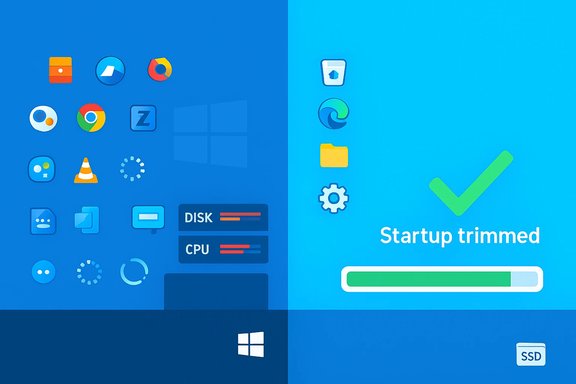 What’s running and why it matters
How startup items slow your boot and first‑minute experience
When Windows signs you in, every app configured to start will either launch a visible window or run as a background service. That means:- Multiple programs try to read and write to disk simultaneously, producing I/O contention and adding seconds to the time the system spends servicing those requests.
- Memory gets consumed immediately, reducing headroom for the foreground app you open first.
- Background network activity (cloud sync, update checks, chat presence) saturates bandwidth and adds latency for interactive operations.
Which categories of startup apps to consider disabling
Not all auto‑start programs are equal. From the MakeUseOf checklist and community best practice, the highest‑value candidates to disable are:- Manufacturer bloatware: OEM utilities and trialware that duplicate OS features or are rarely used. These tools often contribute no real utility for most users and can be uninstalled safely in many cases. Automated removers and manual uninstall via Settings → Apps are both common approaches.
- Chat and media clients: Slack, Discord, Zoom, Spotify and similar clients are convenient when used constantly but unnecessary if your usage is occasional. Disable them when they’re not core to your daily workflow.
- Gaming clients and automatic launchers: Steam, Epic Games, Battle.net, and similar apps add background update and launcher work. If you don’t game every session, stop them from starting automatically and open them only when needed — you’ll avoid big update downloads during active work. Steam and other clients expose settings to control autostart and scheduled updates.
- Multiple browsers and rarely used utilities: Only keep your primary browser set to run at startup (if at all). Close or disable niche PDF readers, old sync tools, or test utilen occasionally.
- Anything you rarely open: If you can go a week without manually launching an app, it probably doesn’t deserve to run at sign‑in.
What you should leave enabled
Not every autostart entry should be disabled. Some items provide essential protection or core functionality:- Antivirus and endpoint protection — real‑time protection should remain enabled. Microsoft recommends keeping Microsoft Defender (or an alternate, actively‑maintained endpoint product) enabled; disabling real‑time protection exposes the system to immediate threats. Always replace Defender with a supported product if you turn it off.
- Backup and sync agents you rely on — if you depend on OneDrive, Google Drive, or a corporate backup client for continuous, set‑and‑forget backups, keep those running. Pausing or disabling them risks unsynced changes and data loss if you forget to start them later; many organizations rely on these agents to preserve documents automatically. Microsoft and Google both document how the desktop sync clients run in the background and how to toggle their startup behavior if you need to.
- Device control utilities for input devices — software that configures keyboard macros, DPI switching, or RGB lighting (Razer Synapse, Logitech G Hub, Corsair iCUE) often needs to run early to ensure your hardware behaves as expected. If you depend on remapped keys or custom mouse profiles, leave those startup entries enabled. Vendor forums occasionally report quirks where these apps don’t start correctly; when in doubt, verify behavior after disabling.
- Encryption and disk‑management agents — BitLocker managers, disk encryption clients, and corporate endpoint services should remain active unless you have a replacement process.
Step‑by‑step: safely trim your startup list
- Create a recovery point
- Open System Properties → System Protection and create a Restore Point. This step ensures you can recover quickly if a disabled entry later proves necessary.
- Baseline measurement
- Record a cold‑boot time using a stopwatch or Event Viewer boot event (Event ID 100). Note perceived pain points: long disk activity after login, heavy paging, or immediate network saturation.
- Open Task Manager (Ctrl+Shift+Esc) → Startup tab
- Sort by Status or Startup impact and identify items marked “High” or items you don’t recognize. Task Manager provides a lightweight, reversible Disable action. Use Settings → Apps → Startup for toggles on UWP-style apps.
- Disable a small batch, reboot, and re‑measure
- Make 3–5 changes, reboot, and compare boot time and first‑minute responsiveness. If something breaks (e.g., your keyboard remapping no longer works), re‑enable the related entry.
- For stubborn items use Autoruns (advanced)
- Autoruns shows every autostaHide Microsoft entries” filter and uncheck third‑party entries to disable them without deleting configuration. Autoruns is powerful; only use it if Task Manager and Settings don’t reveal the item.
- If you need fine control: delay instead of disable
- Third‑party tools and some apps provide “start delayed” options; alternatively, scheduled tasks can be set to run a bit later to prevent I/O storms at sign‑in.
- Revisit periodically
- Many installers re‑add autostart entries during updates. Make startup auditing a regular part of maintenance.
Measuring success: how to verify gains
- Simple stopwatch checks of cold boot only tell part of the story. Combine:
- Event Viewer boot diagnostics (Event ID 100) for reproducible boot duration numbers.
- Task Manager → Performance snapshots immediately after sign‑in to view idle CPU, disk, and memory.
- A “first‑minute” usability test: open a browser, load a heavy page, or load your typical daily app and observe perceived latency.
- For advanced users, Windows Performance Recorder (WPR) and Windows Performance Analyzer (WPA) provide deep traces that identify the exact DLLs, drivers, or services consuming time during boot. Use these only if the simpler steps don’t show improvement; WPR/WPA is diagnostic and not necessary for everyday cleanup.
Strong arguments and critical checks
Why removing bloatware is effective — and when it isn’t
Manufacturer-supplied utilities and trialware commonly add little value yet create autostart entries and background services; removing or disabling them recovers disk space and reduces early boot work. Industry coverage and practical guides consistently recommend removing OEM bloatware as part of a clean‑up routine. That said, some vendor tools do perform useful functions (battery calibration, vendor‑specific firmware updates), so check the vendor documentation before wholesale deletion. PCWorld and Computerworld have long explained how to remove OEM junk and why it matters for everyday performance.Cloud sync: convenience vs. startup cost
Cloud sync clients (OneDrive, Google Drive, Dropbox) are often flagged as startup offenders. Their background syncing does consume resources, but for many users the convenience and data protection they provide outweigh the cost. If you disable cloud sync at startup, you must remember to launch the client when you need current files — an error that can lead to lost productivity or out‑of‑date documents. For users who rely on continuous sync or automatic backup, leave the desktop client enabled and consider adjusting sync scope (stream vs mirror, selective sync) rather than disabling it entirely. Microsoft’s OneDrive documentation explains the startup setting and recommended behavior; Google’s Drive for desktop likewise runs in the background by design.Gaming clients and updates
Game clients can download multi‑gigabyte updates at any time they’re allowed to run and are online. If you disable autostart for Steam or Epic, updates won’t begin until you open those clients — putting you in control of when bandwidth is used. Steam offers options to schedule updates and an in‑client setting to stop running at login; use those to separate update work from productive hours.Risks and safeguards
- Don’t disable security software unless you have an equally robust replacement. Turning off real‑time protection significantly increases risk. Microsoft explicitly multiple real‑time antivirus agents and recommends keeping Defender enabled if no other product is present.
- Fast Startup and other firmware‑adjacent features can mask driver issues or interfere with multi‑boot setups. Exercise caution if you rely on dual‑boot or firmware‑level utilities.
- One‑click debloaters and aggressive “optimizers” sometimes remove essential components or change registry keys beyond recovery; prefer manual, measured changes or well‑known tools and always create a restore point first. Editorial guides and community posts record the history of removers with both successes and anecdotal regressions.
- Back up critical files before aggressive removals or SSD/partition operations.
Advanced tips and tools for enthusiasts
- Use Sysinternals Autoruns to reveal hidden autostart entries (shell extensions, scheduled tasks, driver hooks). Hide Microsoft entries and focus on unknown third‑party items. Autoruns lets you uncheck entries (disable) without deleting them.
- Consider delaying large, nonessential services with third‑party startup delay tools if you want background sync to start but not compete with foreground work at sign‑in.
- If you manage many machines (or are an admin), apply startup controls via Group Poli scripts to enforce consistent behavior across your fleet.
Real‑world checklist you can apply in 10–20 minutes
- Create a System Restore point.
- Open Task Manager → Startup and disable 3–5 nonessential high‑impact apps (chat clients, extra browsers, game launchers).
- Reboot and test cold boot time and first‑minute responsiveness.
- If still sluggish, run Storage Sense / Disk Cleanup to reclaim space, and confirm your boot drive is an SSD; an SSD upgrade yields the largest single hardware improvement if disk remains the bottleneck.
- Use Autoruns for any remaining mysterious entries (advanced).
Conclusion
Trimming startup apps is one of the most productive maintenance actions a Windows user can perform: it’s quick, reversible, and typically delivers immediate perceptible improvements in responsiveness and boot readiness. But it is not a magic bullet — essential protections and sync agents belong at startup for many users, and hardware constraints (slow HDDs, limited RAM) may still demand upgrades. Use Task Manager and Settings as your frontline tools, reserve Autoruns for deeper audits, measure before and after, and keep backups and a restore point before making sweeping changes. The payoff is a cleaner boot sequence, fewer background distractions, and a system that’s ready for work the moment you are.Source: MakeUseOf I removed these Windows startup apps and my PC finally felt fast
